
What's New November 2024
Common Features
- Related Records - Enhancement
- Calendar Shortcut - New
Workflows
- Assign / Reassign Workflow Tasks to Departments - Major Enhancement
- Reassign a Staff Member's Active Workflow Case Tasks to another Staff Member - Enhancement
Leads
- Lead Follow-Up Emails Added to Preferences - Enhancement
- Refined Lead Access Permissions - Enhancement
- Payment Forecast Date Placeholder in Lead Closed Email Notifications - Enhancement
Contacts
- Birth Date Moved to Custom Fields - Update
Quotes
- Quote Item Drag and Drop - Enhancement
- Quote Template PDF Compression Option - New
Job Scheduler
- Calendar Added to Date Selection in Scheduler - Enhancement
- Navigation, Display and Drag and Drop Improvements - Enhancement
Reports
- Productivity Report - Change to Column Name and a New Column Added - Enhancement
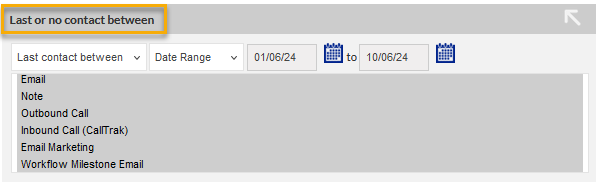
- Customer Report - 'Last or no contact between' now includes Telesales calls - Enhancement
- Workflow Report - CSV Export Includes Complete 'Comments' Field - Enhancement
- Leads Report - Sales Rep (Lead Owner) Column Added - Enhancement
Telesales
- Follow-Up Column added to Column Customisation - Enhancement
- CSV Import - Duplicate Opportunity Detection - Enhancement
- CSV Import - Example Import Template - Enhancement
Projects
- Performance Improvements - Enhancement
- Ticking Task Checkboxes Applies Changes Immediately - Enhancement
- Project Task Overdue Alert Icon Repositioned - Update
CommTrak API
- Additional API Endpoints - Enhancement
Settings
- Reassignment of Responsibilities & Departments Management - Major Enhancement
- Admin Alert When Workflow is Unassigned - Enhancement
- Overdue Alarm When Active Workflow Task is Unassigned - Enhancement
Common Features
Related Records
The recently updated Related Records feature has received a further enhancement.
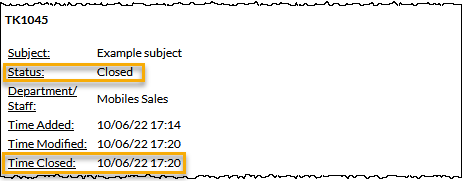
Users can now select records that have been closed / completed in the past 90 days.
When a closed / completed record is displayed in the Related Records dropdown selection list, the date closed / completed is displayed.
An example of a closed Ticket in the Related Records selection list is shown in the following image:
This update does not impact Projects. It is not possible to create a Project plan that includes items that have already been closed / completed.
For more information about this feature, please refer to the Related Records article.
Calendar Shortcut
A convenience shortcut has been provided for accessing the CommTrak calendar. Pressing the date / time in the Information Bar navigates directly to the calendar.

If you prefer using the new shortcut to access the calendar, you can hide the Calendar item in the CommTrak main menu by customising the menu.
Workflows
Assigning / Reassigning Workflow Tasks to Departments
This major enhancement includes several new features for assigning or reassigning Workflow tasks to staff and departments:
- Create Workflow Departments
- Assign a Workflow Task to a Department within the Task Settings
- Assign an active Workflow Task to a Department
- Bulk reassign tasks within an active Workflow Case
Workflow Departments
Before a Workflow Task can be assigned to a Workflow Department, the department must be created in the Workflow Settings.
Settings > Workflow Settings > Workflow Departments
The following image shows that four departments have been created in the Workflow Settings:
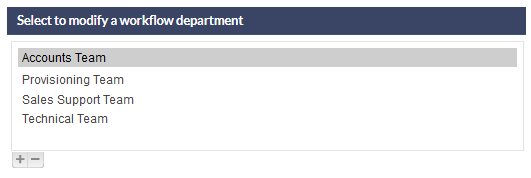
For more information about creating a Workflow Department, refer to Support Centre article, Workflow Departments (Settings).
Assigning a Department to a Workflow Task
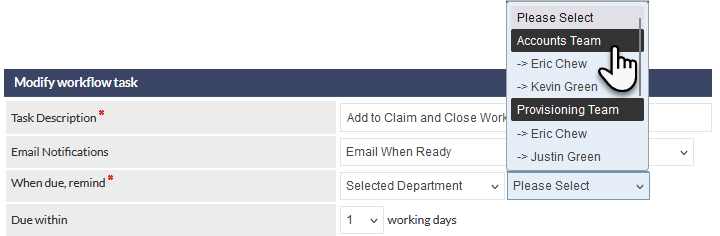
When at least one Workflow Department has been created in the settings, a Workflow Task can be assigned to a department:
Settings > Workflow Settings > Workflow Tasks
In the following image, a Workflow Task has been selected in the Workflow Settings, and the Selected Department option in the When due, remind dropdown list has been chosen... a dropdown list provides for assigning the department (or a staff member within a department) to the task:
Reassigning a Workflow Task in an Active Workflow Case
Continuing with this example, we have a Workflow Case that uses the Add to Claim and Close Workflow task which is assigned to the department that we specified in the task settings in the previous image.
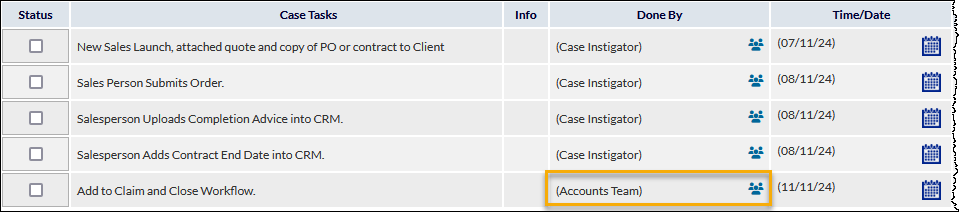
Pressing the Reassign Task icon (highlighted in the previous image), allows for the selection of a different staff member or Workflow Department.
If the assignee has previously been changed from the default, we can also reset the assignee to the default staff member or department as designated in the Workflow Task settings by selecting the Default option at the top of the dropdown list:
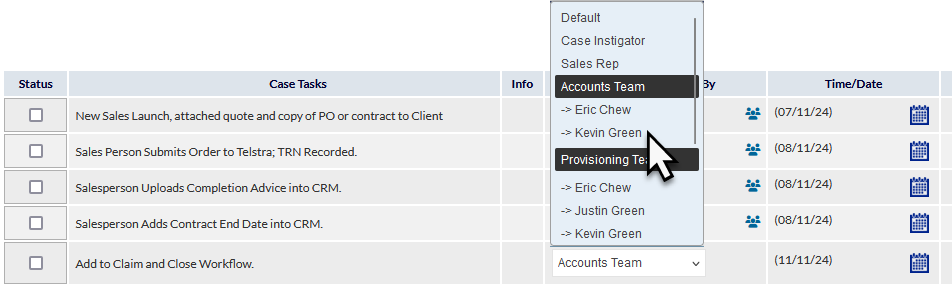
Selecting an entry in the dropdown list immediately applies the reassignment (Pressing the Save button is not required).
When a Workflow Task is reassigned, an information icon (adjacent to the reassignment icon) is displayed indicating that at least one reassignment has been applied to the task. The following image shows that the task has been reassigned to Kevin Green in the Accounts Team:
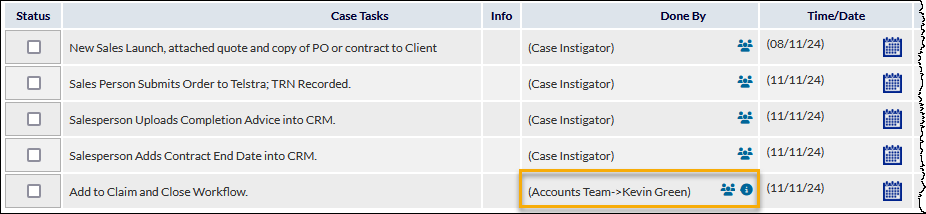
Pressing on the information icon (visible in the previous image) presents the Workflow case task assignment history pop-up window, which shows all reassignments that have been applied to this task:

Bulk Reassignment of all responsibilities assigned to a staff member, including Workflow Tasks, has also been enhanced and relocated within the user's settings. For more details, see the Reassign Responsibilities section of this What's New article
Reassign a Staff Member's Active Workflow Case Tasks to another Staff Member
Within an Active Workflow Case, it is now possible to reassign all uncompleted tasks that are currently assigned to a staff member to another staff member.
This feature is useful in cases where the reassignment is required in only a single Active Workflow Case.
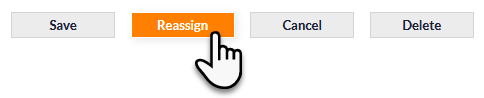
To reassign a staff member's tasks within an Active Workflow Case, press the Reassign button:
The Reassign workflow case tasks pop-up window is displayed:
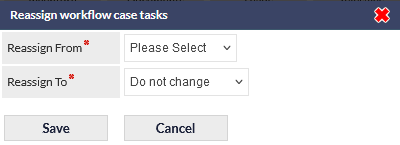
Select the name of the staff members to Reassign From and Reassign To, and press Save to confirm. All tasks in the Active Workflow Case are reassigned immediately.
Leads
Lead Follow-Up Emails Added to Preferences
In line with other staff notification emails, Lead Follow-Up emails can now be disabled globally or by each CommTrak user.
The default global setting is for a salesperson to receive Lead Follow-Up email notifications for follow-ups where the Lead is assigned to them. This setting can be updated for all users:
Leads Miscellaneous Settings (Default Yes)
Settings > Leads > Miscellaneous > Email salesreps when lead follow-up is reached (Company-wide default):

The default is Yes (all salespersons will receive Lead Follow-Up notifications unless they disable them in their user preferences).
User Preferences (Default Company-Wide)
If a user does not change their preference for receiving Lead follow-up emails, they will receive them (or not) according to the Company-wide default.
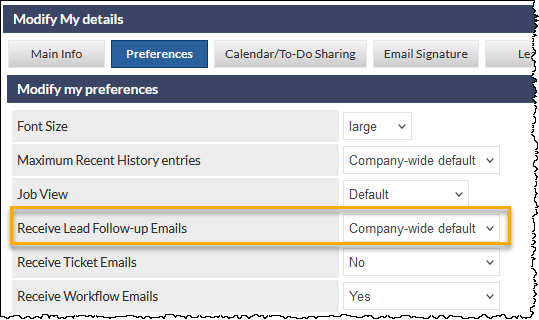
Users can change this setting to Yes or No according to their requirements within their user preferences by clicking the My Details icon in the Information Bar and selecting the Preferences tab:

Refined Lead Access Permissions
Lead access permissions have been refined to allow for allowing / denying access to Leads that have been closed.
The relevant permissions are shown in the following image:
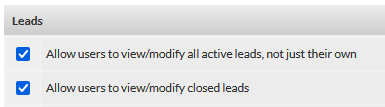
To learn more about applying custom permissions to staff roles, please refer to the Support Centre article, FAQ - Change User Permissions (Custom Staff Roles), which provides step-by-step guidance for creating custom staff roles and assigning them to staff.
Payment Forecast Date Placeholder in Lead Closed Email notifications
The Lead Closed email notification template now provides a Payment Forecast Date placeholder in addition to existing placeholders.
This enhancement can be used to provide the payment forecast date (specified in the Lead) to staff who receive Lead Closed Email Notifications.
Lead Closed email notification recipients can be modified in Miscellaneous Leads Settings:
- Settings > Leads Settings > Miscellaneous > Email address to notify of a closed lead
Updating the Email Template to Include the Payment Forecast Date Placeholder
The Payment Forecast Date Placeholder is not included in the default template design.
If you would like to include the new placeholder in your closed Lead notification emails, the template can be modified in Email Notification Settings:
Settings > General Settings > Email Notifications > Lead Closed Email
Press the Modify button and add the ##PAYMENT FORECAST DATE## placeholder as shown in the following example:
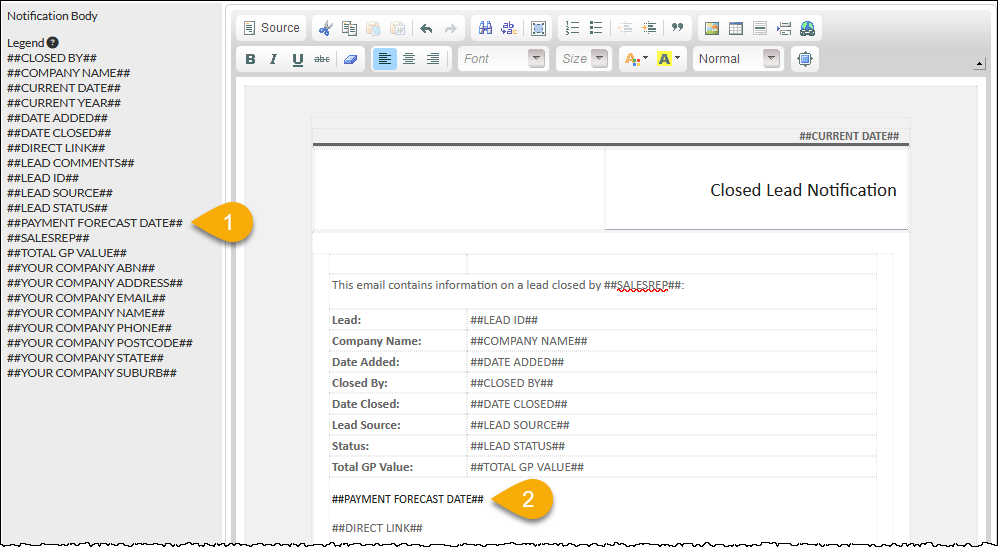
- Press the placeholder in the Legend to copy it the device's clipboard
- Paste the placeholder into the template in the required location
- Use the Send Preview option which will email you an example of the template
- Save the template (or Cancel if you do not wish to save the changes you have made)
Contacts
Birth Date Moved to Custom Fields
As announced in the What's New August 2024 article, based on advice from our Cyber Security Team, the Birth Date field has now been removed from the Customer Contact information. Any dates that were stored in a contact's Birth Date field have now been migrated to a Birth Date Custom Field in the Contact information pop-up screen, as highlighted in the following image:
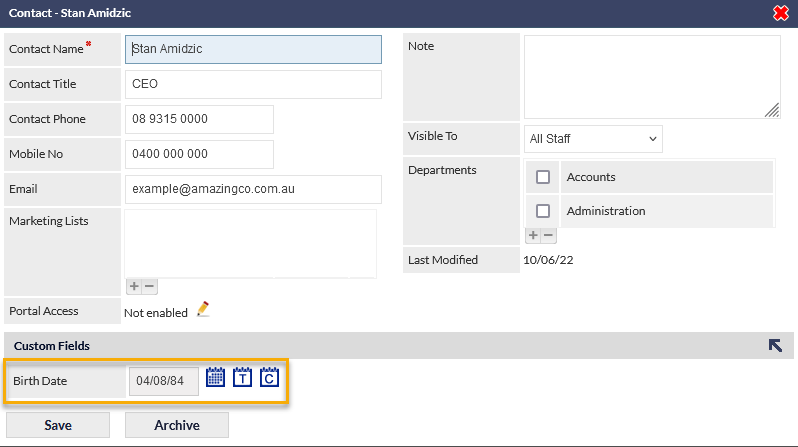
Custom Fields can be deleted or archived:
Archive a Custom Field
When a Custom Field is archived, any existing data in that field remains editable, but the field will no longer appear in records where it is currently empty, and new data cannot be added.
Delete a Custom Field
When a Custom Field is deleted, any existing data in the field will be irretrievably deleted. It is not possible to undo a custom field deletion.
Please refer to the article Custom Field Settings for further information, or contact CommTrak Support if you have any questions or require assistance with these features.
The removal of the contact Birth Date field has necessitated some additional changes:
- Removal of the Customer Miscellaneous setting: Enable contact's birthday reminders on allocated salesreps' dashboard
- Removal of the Birthdays Summary panel on the CommTrak home screen
- Customer CSV imports no-longer allow for date of birth import. If you have existing customer import templates, you must remove these fields or download an up-to-date template from your CommTrak
Changes to CommTrak API
- All references to date of birth have been removed from the CommTrak API and related documentation.
Quotes
Quote Template PDF Compression Option
CommTrak now offers options for compressing PDF quote documents as they are generated. Quotes can contain many images and may also run to several pages, so compressing generated PDFs will reduce the amount disk space required to store the files.
The level of compression is specified per Quote Template, in the settings:
Settings > Leads Settings > Quote Templates
In the settings, when a Quote Template is selected, or when a new template is being created), the PDF Compression option is displayed:
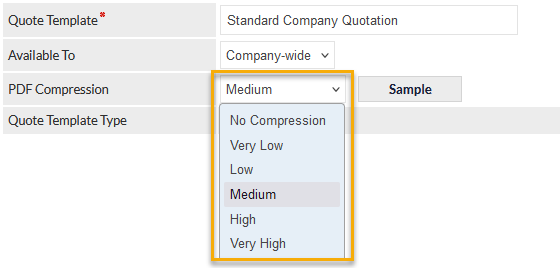
The default is Medium and this may be changed as appropriate based on the content of the template. To see what a template will look like at the various compression settings, press the Sample button - this generates the PDF and displays it in the browser.
To use the least storage space in CommTrak, we recommend selecting the highest level of compression that maintains the required quality of PDF.
Once the compression level has been specified in the settings, save the template, and that compression level will be applied to all future Quote Templates of that type.
For more information about this feature and other Quote related settings, please refer to the Leads Quote Templates (Settings) article.
Quote Item Drag and Drop
The ability to drag and drop to change the order of items within a Quote has been enhanced.
Previously, during dragging and dropping, all the details of all line items were visible, which made it difficult to relocate items in some circumstances, such as when there were many line items.
The new, enhanced method of dragging and dropping quote items that has been implemented now 'collapses' all items when the drag process starts. Only the item details line (including pricing, etc) is displayed during the dragging, which makes it much easier to relocate the dragged item.
Although it's somewhat difficult to convey the dragging process in a screenshot, the following image shows quote Item 1 being dragged below quote Item 2 from its original position. The header section of the dragged items changes to a purple colour, and all of the items have been collapsed which allows for more quote items to fit on the screen during the dragging process:
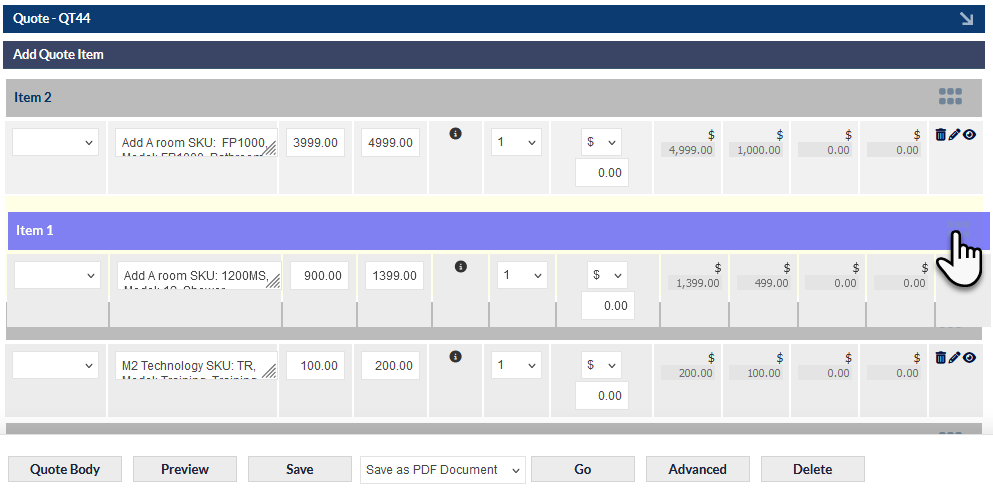
When a quote item is dropped into its new position, all the line items return to their original expanded state.
This process is much easier to do than it is to explain or show in a screenshot, so please give it a go!
For detailed information about the Quote tool, please refer to the Creating / Modifying a Quote article.
Job Scheduler
Several Enhancements have been implemented in the Job Scheduler Day View:
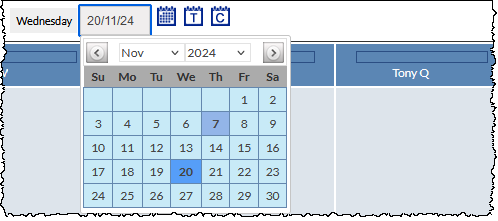
Calendar Added to Date Selection in Scheduler
Job scheduler date selection has been replaced with a calendar:
Navigation, Display and Drag and Drop Improvements
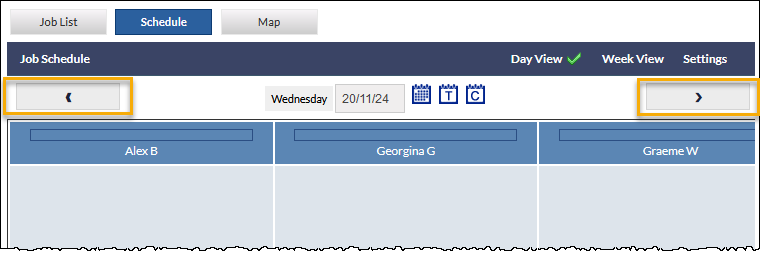
The navigation buttons are now always visible, regardless of the width of the browser window:
Display of Columns and Drag and Drop Enhanced
In some extreme cases, when there were numerous Technicians, schedule columns were displayed at differing widths, and drag and drop of Jobs within the Scheduler may have been inconsistent.
These issue have now been resolved to maintain consistency regardless of the number of Technicians.
Reports
Productivity Report - Change to Column Name and a New Column Added
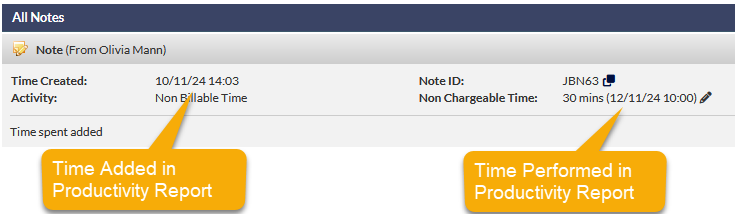
'Date Added' Column Renamed to 'Time Added'
To more accurately reflect the contents of the column, the Date Added column has been renamed to Time Added:

'Time Performed' Column Added
Typically, the date/time in the Time Performed column will be the same as that of the Time Added column, but it may differ if the date/time of the work has been edited, for example, in a Ticket or Job note:
Customer Report - 'Last or no contact between' now includes Telesales calls
When the Last or no contact between criterion is selected in the Customers Report, the results now include Telesales calls:
The following image shows and extract of a Customers Report which includes the Call Made By and Outgoing Call Source for Telesales calls:

Workflow Report - CSV Export Includes Complete 'Comments' Field
When using the Produce CSV option in the Workflow Reports, the Comments field is not exported in full. Previously, this was truncated to a fixed length.
For more information about CommTrak Reports, please refer to the Reports category in the Support Centre.
Leads Report - Sales Rep (Lead Owner) Column Added
The Leads report now has Sales Rep column in results where it is relevant. For example, if the Allocated to selected salesrep criterion is selected, the Sales Rep's name will be included in the report results.
The name displayed in the Sales Rep column is the person assigned to the Lead as the Sales Rep, and does not include staff who may been been allocated commissions in related quotes.
The Sales Rep label may be different in your CommTrak - for example, some organisations use Account Manager or Business Development Manager.
Telesales
Follow-Up Column added to Column Customisation
In the Telesales module, the Telesales Opportunities list column customisation feature now includes Follow-Up call date and time.
For more information about this feature, please refer to the article Column Sorting & Customisation.
CSV Import - Duplicate Opportunity Detection
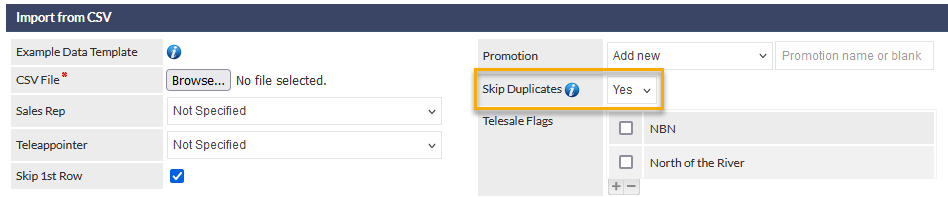
The Telesales Import from CSV feature has been enhanced to improve detection of duplicate opportunities.
Duplicate detection is based on Promotion Name; if the Skip Duplicates option is set to Yes and an opportunity with same promotion name is found for the same customer or master telesales record, it will not be imported.
If the Promotion name is left empty, this is also checked for duplicates i.e., if an existing opportunity does not have a promotion name and a new opportunity being imported is also empty, it is considered duplicate and will not be imported.
CSV Import - Example Import Template
A CSV import template can now be downloaded so you can accurately prepare your external Telesales data for import.
Pressing the information icon adjacent to the Example Data Template field (visible in the previous image), downloads the template.
Please refer to the Telesales Opportunities Import article for detailed information about importing Telesales Opportunities.
Projects
Performance Improvements
In addition to some major background development work to enhance the performance of many elements of Projects, some 'front end' enhancements have been implemented:
Ticking Task Checkboxes Applies Changes Immediately
When ticking checkboxes to complete Projects Tasks (highlighted in the following image) the update is now immediate:
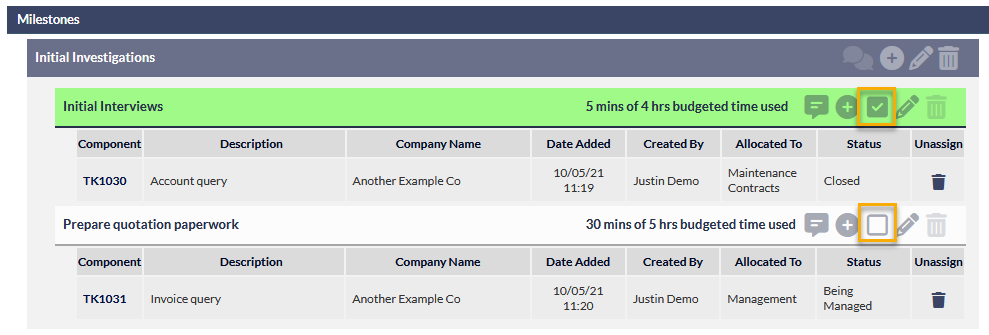
Project Task Overdue Alert Icon Repositioned
A minor visual change, but one which maintains consistency with other elements in the Projects module, the Project Task overdue alert icon (visible in the following image) has been moved to the left of the 'budget time' information:

For more information about Projects features, please refer to the Projects category in the CommTrak Support Centre.
CommTrak API
Additional API Endpoints
Customer Search Endpoint - Additional Search Parameters
In addition to searching by company name, the customer search endpoint can now also search based on the last update timestamp of the main customer record.
The search is based on "AND" rather than "OR" logic so more search criteria will yield more precise results.
There is an option for pagination which is achieved by providing offset and limit parameters, as the timestamp search criteria could return many results.
To retain compatibility with any middleware that may already be in use the offset and limit are optional, but they have defaults on the server-side if they are not provided.
Customer Endpoint - Return All Customers
This new endpoint allows for fetching of all customers. To avoid overwhelming the servers, pagination is mandatory, with a limit of 1000 records.
For more information about these new CommTrak API updates and existing endpoints, please refer to the following Support Centre article:
The complete v1 API reference is available here:
Settings
Reassignment of Responsibilities & Departments Management
Department Management within User Settings
This is a new feature which enables the management of departments per user for Workflows and Tickets.
Settings > User Settings > Users
Select the user whose departments you wish to manage.
Select the Responsibilities tab, then the Departments tab:
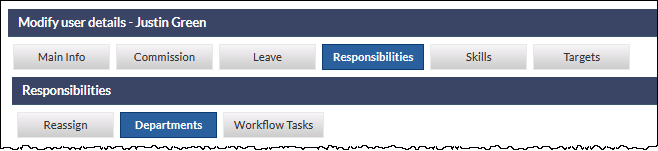
The user's current department allocations are displayed:
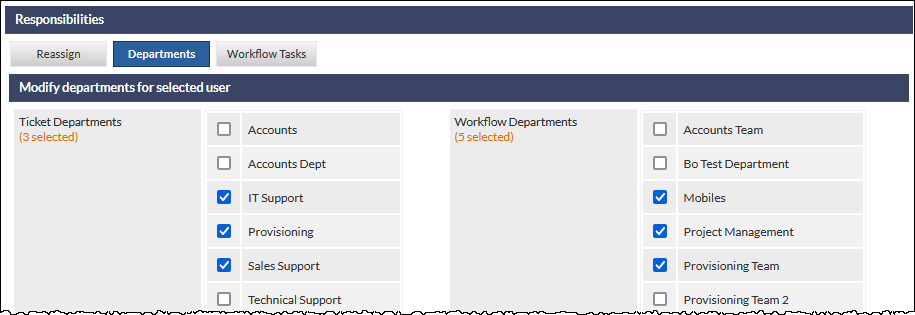
The user can be added to, or removed from, existing Ticket and Workflow departments by ticking or unticking the departments in the appropriate module.
You must press Save to confirm the changes to the departments.
Reassignment of Responsibilities
This substantially enhanced feature provides for the permanent and immediate reassignment of a user's responsibilities, to another staff member. All of a user's responsibilities can now be reassigned, and additional information pertaining to the number of records that will be modified is also now provided.
This feature affects active items only. For example reassigning Workflow Case Instigator to another staff member will change the assignment for Active Workflow Cases only.
Closed records, such as completed Workflow cases, closed Leads, Jobs and Tickets will not be updated.
Examples of reassigning responsibilities:
- If a salesperson is moving to a different division within your organisation, all records pertaining to their role as a salesperson can be reassigned to another sales person.
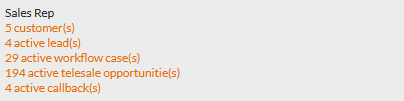
- If a project manager is changing roles, all Projects to which the user is assigned can be reassigned to another staff member.

To reassign responsibilities for a user:
Settings > User Settings > Users
Select the user whose responsibilities you wish to manage
Select the Responsibilities tab, then the Reassign tab (which is selected by default):
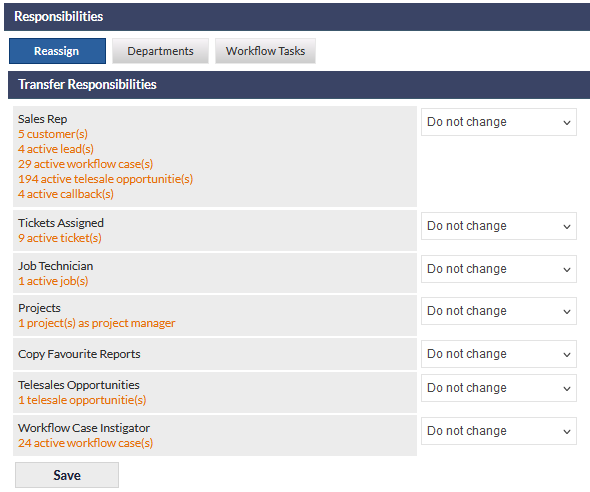
If your CommTrak has any Relationship Managers configured, they will also be displayed and can be reassigned.
Select a staff member's name in the dropdown list next to each responsibility, to indicate the person to whom it should be reassigned.
To complete the reassignment of responsibilities press the Save button. The reassignment is immediate - no further prompt or warning is provided.
Once saved, reassignment of responsibilities occurs immediately and cannot be reversed other than by manually reassigning the updated items.
Reassignment of Workflow Tasks
When a staff member has been assigned to Workflow Tasks in the Workflow Task Settings, those task assignments can be reassigned to other staff members.
This feature affects only workflow cases that are instigated after the reassignment has occurred.
To reassign Workflow Task assignments for a user:
Settings > User Settings > Users
Select the user whose Workflow Tasks you wish to manage
Select the Responsibilities tab, then the Workflow Tasks tab:
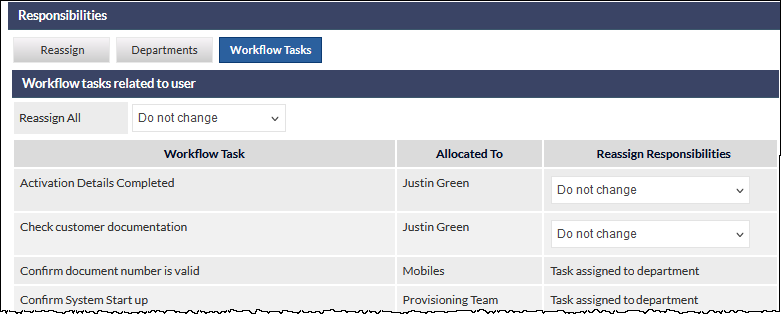
Where a task is assigned to the user, another staff member can be selected from the dropdown list in the Reassign Responsibilities column. The default is Do not change.
Where a task is assigned to a department of which the currently assigned user is a member, the Reassign Responsibilities column specifies Task assigned to department. This aids in identifying that the Workflow Department may need updating.
For more information about these features, please refer to the Reassign Responsibilities (User Settings) article.
Reassign Responsibilities - Other Available Options
Bulk Reassignment
In addition to the new and enhanced features already mentioned in this article, bulk (permanent) reassignment of records can also be achieved within the following modules:
- Customers
- Leads
- Tickets
- Telesales
- Inventory
Please refer to the article Bulk Selection / Reassignment of Records for detailed information about the bulk reassignment features.
Workflow Load Management
Reassignment of Active Workflow Tasks can be achieved using the Workflow Load Management tools available in the Active Workflow screen (Workflow on the CommTrak main menu).
The Workflow Load/Bulk Reassignment section is always displayed collapsed when the Active Workflows screen is viewed:

Press anywhere on the Workflow Load/Bulk Reassignment bar to expand the section and gain access to the features. For more information, please refer to the Workflow Load Management & Bulk Reassigning Due Workflow Tasks article.
Admin Alert When Workflow Task is Unassigned in Settings
A new Admin Alert has been implemented, which is triggered when a Workflow Task Setting does not have an assignee.
This can occur if a staff member is the only assignee in a Workflow Task's settings, and that staff member's CommTrak account is deactivated.
The red Admin Alert is displayed to Supervisors and other roles that have the following permission:
Users > Allow users to manage other users and logins
When the alert is activated, a red Admin Alert icon is displayed in the Information Bar. Hovering over the alert icon display details about the alert:
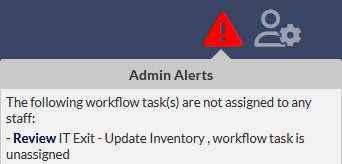
The example image is showing that a workflow task does not have an assignee.
To resolve the alert, locate the task in the Workflow Tasks Settings and specify an assignee in the
When due, remind field.
Overdue Alarm When Active Workflow Task is Unassigned
This Overdue Alarm is displayed when an Active Workflow Task us unassigned.
This can occur if a staff member is the only assignee for an Active Workflow Task, and that staff member's CommTrak account is deactivated.
This overdue alarm is displayed to all users:

To display the details of overdue alarms, press the orange alarm triangle to redirect to the CommTrak home page, where the Overdue Alarms pop-up window will be displayed:

The previous image shows the Overdue Alarms pop-up window, with details of a Workflow Task Inactive Staff alarm.
To resolve the alarm, Press the Source link to open the Active Workflow Case, and assign the Workflow Task.
For more information about Overdue Alarms, please refer to the following articles: