
Column Sorting & Customisation
Many CommTrak screens and customer tabs display lists of information, with columns that can be customised and sorted.
Column sorting and customisation are per-user settings, and only affect the currently-signed-in user.
Examples of such screens are:
- Active Tickets / Customer Tickets
- Active Leads / Customer Leads
- Active Workflow Cases / Customer Workflow Cases
- Jobs Screen / Customer Jobs
- Telesales Opportunities
- Projects (Active Projects Screen)
The example image below, shows a list of Tickets in a typical Active Tickets screen, which includes columns that can be customised and sorted:

Sorting Columns

To sort a column, click one of the white arrows next to the column header label.
For example, to sort tickets by Date Added, with the most recently added tickets at the top of the list, click the white down arrow, next to the Date Added column header. To sort with oldest tickets at the top of the list, click the up arrow.
Sorting another column will override the previous sort.
Customising Columns

CommTrak has default settings for which columns are displayed in a list, but when the red Select columns to display icon is available (at the top of the information column), you can select which columns are visible.
Not all columns can be customised. For example, on the Active Tickets screen, the Ticket ID is a mandatory column which cannot be hidden.
On Customer tabs, where there may be multiple lists, customisations are applied in the Active list, but note that the customisations also apply to all lists visible on the screen (e.g. Previous Tickets on the Tickets tab, Cancelled and Closed Workflow cases on the Workflow tab, etc.)
Clicking on the Select columns to display icon presents the Column setup pop-up window:
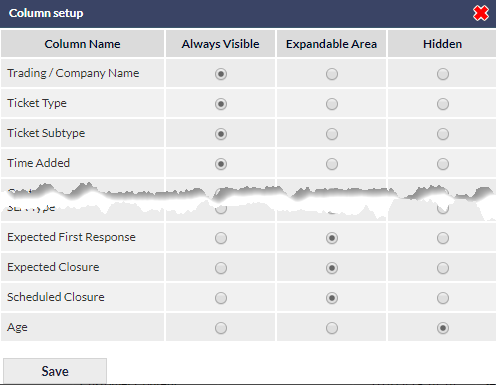
The above image shows a section of the Column setup pop-up window for the Active Tickets list.
The display options are:
Always Visible
The column will always be displayed in the list.
Expandable Area
The column will be displayed in the expandable area, which is accessed by clicking the information icon.
Hidden
The column is never displayed.
Click to confirm your selection.
Each user's sorting and column selections are stored by CommTrak; i.e. customisations are retained when leaving the screen and later returning.
Information Icon
Clicking a row's information icon displays the expandable area, which contains additional information about the selected item. The information that is displayed depends on which columns have been selected for display in the Expandable Area in the Column setup pop-up window, as detailed in this article's Customising Columns section.
The following image shows the expandable area for ticket TK1022.
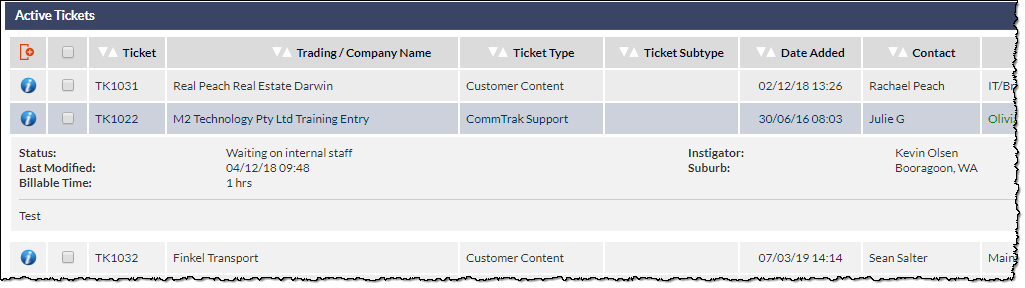
In the above image, the information icon for TK1022 has been clicked, and the expandable area is showing the fields as specified in the Active Tickets Column Setup pop-up window.