
Related Records
The following types of CommTrak records can be related to each other:
- Jobs
- Tickets
- Leads
- Workflows
- Projects
A record can be related to different types of records or to records of the same type. For example, a Ticket can be related to a Lead, another Ticket, or multiple other records.
Furthermore, a single record can be linked to multiple records across different modules. For instance, a Workflow might be related to a Lead, several Jobs, and multiple Tickets.
Any one record can only be related to a single Project.
Direct & Indirect Relationships
Records can have either direct or indirect relationships with each other.
For example:
- A workflow (WF1) is instigated from a successful lead (LD5). In this case, WF1 is directly related to LD5.
- Another workflow (WF2) is instigated from a branch in WF1. Here, WF2 is directly related to WF1 and indirectly related to LD5.
Relationships between records are displayed in the Related To field. The following image is an example screenshot from a Lead:
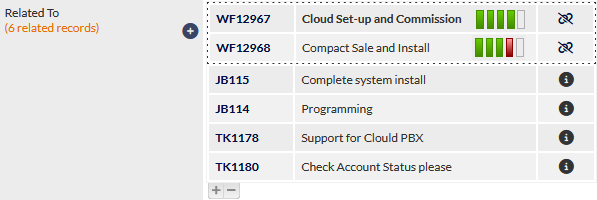
As shown in the previous image, when a Worflow case is displayed in the Related To field, coloured workflow progress indicators are displayed. Hovering the mouse over a task indicator displays the name of the task in a tooltip (not visible in the previous image).
The Workflow task colour reference can be found in the following article:
The features of the Related To field are:
Number of Related Records
The number of CommTrak records that are related to the current record, either directly or indirectly, is displayed in orange text (visible in the previous image) .
Add Record Relationship (plus icon)
Pressing the plus icon reveals (and focuses on) the Select element to add a new relationship field, which is a dropdown section containing various options:
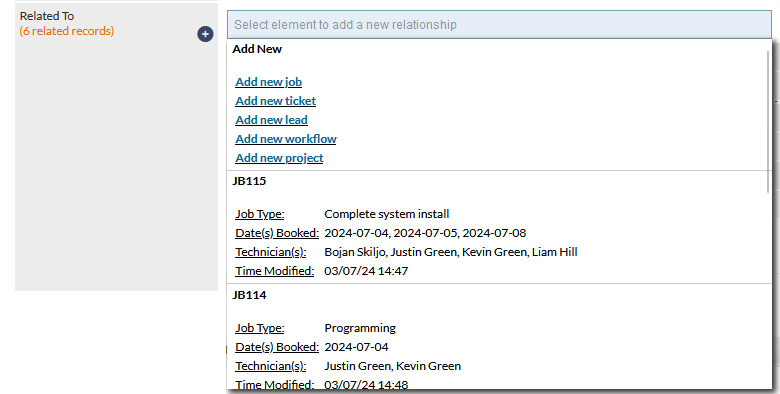
Add New
This section lists the types of records to which the current record can be related:
- Add new job
- Add new ticket
- Add new lead
- Add new workflow
- Add new project
Pressing any of the first four options (e.g., Add new job, ticket, lead, or workflow) opens a new browser tab with the corresponding "New..." screen ready for data entry. For instance, selecting Add new job opens a new tab displaying the customer's New Job screen.
In each case, complete the required fields for the new record and press Add to confirm. The direct relationship between the source record and the new record is created automatically and is reciprocal. For example, if a Job is created from a Lead, the Related To field in the Job will include the Lead record, and the Related To field in the Lead will include the Job record.
Selecting Add new project works slightly differently. It opens a new browser tab displaying the customer's Projects screen, where you can either press the New Project button to create a project or select an existing project to relate the required record.
The Add new project option will not be available if the current record is already related to a Project.
Select a Record
Below the Add New section, existing records (if any) are listed (visible in the previous image).
- Typing the record initials (e.g. JB for jobs) filters the list to display only that type of record.
- If the ID (or partial ID) of the record is known, start typing to filter the list. The record initials are not required. For example, typing 11 will filter the list to display all records containing those digits.
Click on a record to select it. The relationship is immediately created and the selected component is added to the list of related components.
Closed / Completed Records
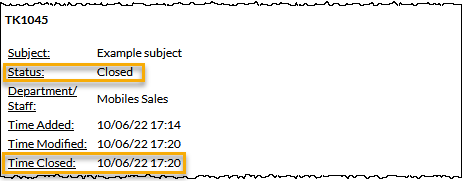
Closed and completed records (e.g. closed Ticket, completed Workflow, etc) will be displayed in the record selection list for 90 days after the closure / completion.
For such records, the status and the date / time closed are displayed as highlighted in the following image:
Record List
The record list displays a summary of all related records. Directly related records are always listed first, with the earliest linked record appearing at the top of the list in bold font.

Records that are directly related to the current record are surrounded by a dotted border (visible in the previous image).
The columns displayed in the record list are:
Record ID
The record ID is a clickable link. If clicked, the record will open in a new browser tab.
Record Description
The description is determined by the type of record:
- Workflow - the Workflow Group name (i.e. the type of Workflow)
- Job - the Job Type field
- Ticket - the Ticket Subject field
- Lead - the Lead Comments field
- Project - the Project Name field
Icon
-
Directly related records - the unrelate (broken chain) icon is displayed. Pressing the Unrelate icon displays a confirmation prompt. Press OK to unrelate the record or Cancel the action as required.
-
Indirectly related records - the information icon is displayed. Hovering over the information icon displays a pop-up tip explaining the relationship. For example, in the following image of the Related To field for a Lead, hovering over the information icon for JB115, displays Linked to WF12968. We can see in the image that WF12968 is directly linked to the current Lead (because it's within the dotted border and has an unrelate icon). If we need to unrelate JB115 from the current Lead, we can click the link for WF12968 and unrelate the job in that record.

In the following image, we can see that JB114 is related to two records that are related to the current Lead. To unrelate JB114 from the Lead, we may need to unrelated it from both of the records, depending on how those records are related to the Lead.

Automatic Relationships
Certain actions in CommTrak automatically create a relationship between the relevant records.
Leads
- Lead-to-Workflow: When a Workflow is instigated from a successful Lead, a direct relationship between the Workflow and Lead is created automatically.
If multiple Workflows are instigated from a Lead, the first instigated Workflow case is directly related to the Lead, and subsequent Workflows are indirectly related to the Lead and to each other via the first instigated Workflow.
Workflows
- Workflow Branches: When a Workflow branch instigates Workflows, the new Workflows are automatically related directly to the Workflow that instigated the branch, and also indirectly to each other.
Tickets
When changing the status of a Ticket, the Convert to... statuses automatically created a relationship between the Ticket and the newly-created record:
- Ticket-to-Job: When the status of a Ticket is changed to Convert to Job, the Job is created, and a direct relationship between the Ticket and Job is created automatically, when the new Job is added.
- Ticket-to-Lead: When the status of a Ticket is changed to Convert to Lead, the Lead is created, and a direct relationship between the Ticket and Lead is created automatically, when the new Lead is added.
- Ticket-to-Workflow: When the status of a Ticket is changed to Convert to Workflow, the Workflow is created, and a direct relationship between the Ticket and Workflow is created automatically, when the new Workflow is saved.
Refer to the article Convert Ticket To, for additional information about this feature.
Can't Delete an Item?
If you attempt to delete an item that is related to other items, you may see a message advising "Warning: Record Relationship exists for the item, the item could not be deleted", as shown in the following example image which is shown when attempting to delete a Lead that is related to other items:

If you see a warning similar to this, you must remove any relationships prior to attempting to delete the item.
To unrelate an item, locate it in the Related To field and click the broken-link icon(visible in the following image) and confirm:
