
What's New August 2024
Important Notice: Based on recommendations from our Cyber Security Team, we will be phasing out the standard Customer Contact Birth Date (DOB) field. Later in 2024, this field will be transitioned to a Custom Field, enabling each CommTrak customer to archive or delete this information as required.
Common Features
- Related Records - Major Enhancement
- Expandable Section Header Enhancements - Enhancement
- Additional Click-To-Call Protocol (callto) - Enhancement
Recent History
- Pinned Items in Recent History - New Feature
- Maximum Recent History Entries in User Preferences - New Feature
Leads
- Lead Comments Placeholder in Lead Closed Email Notifications - Enhancement
- Record ID in Notification Email Subject - Enhancement
Contracts
- Cancelling of Expired Contracts - Enhancement
Tickets
- Ticket Templates - New Feature
Reports
- Deleted Workflow Groups in Reports - Update
Quotes
- Quote Header Style Change - Enhancement
Job Scheduler
- Technician Scheduling - Enhancement
Data Sheets
- Data Sheet ID placeholder - Enhancement
Common Features
Related Records
The Related Records feature has been substantially enhanced to allow for the creation and selection of multiple related records with CommTrak modules including:
- Jobs
- Tickets
- Leads
- Workflows
- Projects (any one record can only be related to a single Project)
The Related To field now clearly lists all related records, indicating which records are directly or indirectly related to the current record:

Records within the dotted border (visible in the previous image) are directly related to the current record. Records listed below the dotted border are indirectly related. For example, in the previous image, the two Workflow cases are directly related to the current record, and the two Jobs are indirectly related and must therefore be directly related to a record in the dotted area.
Adding a Record Relationship
Pressing the plus icon in the field label reveals the Select element to add a new relationship field, which is a dropdown section containing options to either select existing records or add new records:
Click the following image to see a larger version.
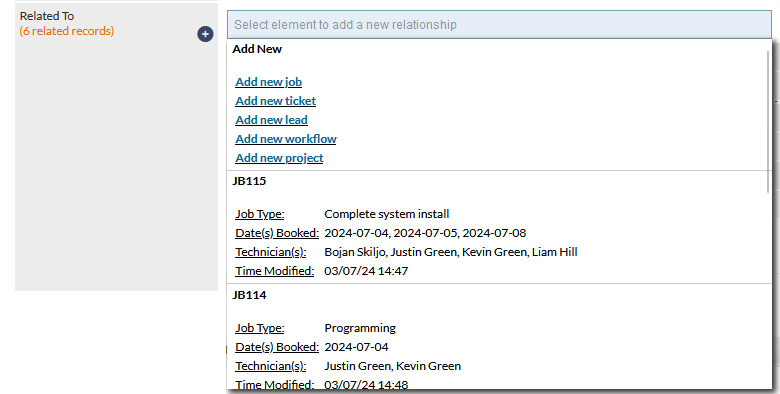
Existing (non-related) records are listed, and can be related by pressing on the record in the scrollable dropdown area, and new records can be created by pressing any one of the Add new... options, which will open a browser tab for the new record.
For comprehensive information about this feature, including the ability to filter the list when adding records, please refer to the Related Records article.
Expandable Section Headers Enhancements
CommTrak features many expandable sections, providing the following features to enhance your experience:
- Easy access: Expandable sections provide easy access to less frequently accessed information.
- Personalisation: The state of each section is remembered based on a staff member's last usage, allowing them to continue where they left off.
The following enhancements have been made to expandable section headers:
- Click Anywhere to Expand/Collapse: You can now click anywhere on an expandable section header to expand or collapse the section. Previously, you had to click directly on the expand/collapse arrow.
- Colour-Coded: Expandable section headers are now colour-coded, with a subtly lighter shade than the standard colour. For example, in the following image, the Tickets Search section header is a lighter shade of blue compared to the New Ticket section header:
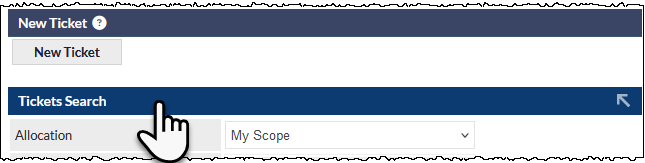
- Hover Effect: When you hover over an expandable section header, the mouse cursor changes from the standard arrow to a pointing hand cursor, indicating that the header is clickable (visible in the previous image).
For more information, see the article, Expandable Sections.
Additional Click-To-Call Protocol (callto)
To provide for legacy NEC software, the callto protocol has been added as an option to the Click To Call settings.
To enable the callto protocol, select it in:
Settings > General Settings > Miscellaneous > Click to Call phone system compatibility

For more information about the Click to Call feature, please see the following Support Centre article:
Recent History
Pinned Items in Recent History
Companies can now be pinned to the top of the Recent History, so they never drop off the list. This feature is very useful for staff who may frequently communicate with some companies over a long period, as it provides access to those company records with a single click.
Hovering over a company name in the Recent History list displays an angled pin (visible in the following image). Clicking on the angled-pin, pins the company to the top of the list with a white pin.

Clicking a white pin, unpins an item.
For more information about this, and other features on the Information Bar, please see the following Support Centre article:
Maximum Recent History Entries in User Preferences
We have added a user preference to enable users to specify the maximum number of Recent History entries. Previously, this was only configurable as a company-wide setting.
Users can now override the company-wide setting in their user Preferences (accessed by clicking the gear icon in the information bar).

The company-wide default can be configured in Customer Miscellaneous (Settings).
For more information about Recent History, please refer to the Information Bar article in the Support Centre.
Leads
Lead Comments Placeholder in Lead Closed Email Notifications
The Lead Closed email notification template now provides a Lead Comments placeholder in addition to existing placeholders.
This enhancement can be used to provide relevant information to staff who receive Lead Closed Email Notifications.
Lead Closed email notification recipients can be modified in Miscellaneous Leads Settings:
- Settings > Leads Settings > Miscellaneous > Email address to notify of a closed lead
Updating the Email Template to Include the Leads Comment Placeholder
The Lead Comments Placeholder is not included in the default template design.
If you would like to include the new placeholder in your closed Lead notification emails, the template can be modified in Email Notification Settings:
Settings > General Settings > Email Notifications > Lead Closed Email
Click the Modify button and add the ##LEAD COMMENTS## placeholder as shown in the following example:
Click the following image to see a larger version.
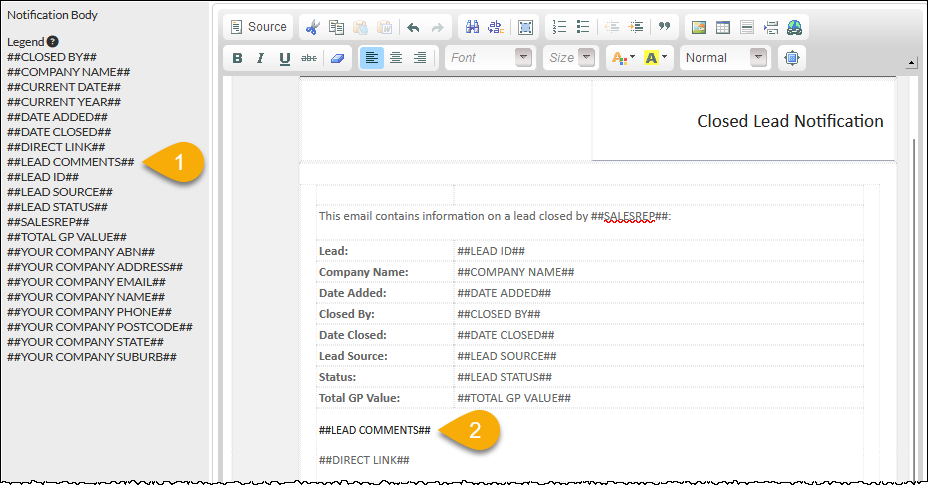
- Click the placeholder in the Legend to copy it the device's clipboard
- Paste the placeholder into the template in the required location
Record ID included in Notification Email Subject
CommTrak Notification Emails now include the record ID (e.g. JB108) in the email subject.
This enhancement provides easier identification of relevant emails and improves the ability to more easily search your email inbox for notifications pertaining to specific CommTrak records.
For example, rather than receiving a CommTrak notification email with a subject of:
CommTrak: Job closed
... the email subject will now appear as:
CommTrak: Job closed - JB108
The following image shows email subjects as they may appear in a filtered email inbox:

Contracts
Cancelling of Expired Contracts
You can now explicitly cancel contracts that have naturally expired after reaching their end-date. This enhancement helps you better track the outcomes of follow-ups on expired contracts, especially those with renewal potential.
Once an expired contract is cancelled, it will be moved from the Expired Contracts section to the Cancelled Contracts section within the customer’s Contracts tab.
To cancel an expired contract:
- Select the customer's Contracts tab
- Click on the Contract in the Expired Contracts list
- Click the Cancel Contract button (visible bottom-right in the following image)

Tickets
Ticket Templates
The Ticket Templates feature enables the creation of templates that can be selected when adding a new Ticket. This feature is useful when similar Tickets are created frequently, and allows for the pre-population of many Ticket fields (e.g. Subject, Description, etc.).
The Template field is displayed only if at least one Ticket Template has been configured in Ticket Template Settings.
When adding a new Ticket (e.g. customer Tickets tab or Active Tickets screen), click in the Template field to display available templates:
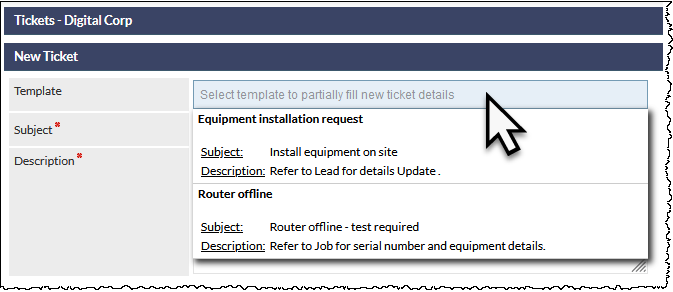
The list can be filtered by entering any consecutive characters from the Template Name into the Template field.
Clicking on the required template in the list will automatically populate the Ticket fields as specified in the Ticket Template Settings. For example, selecting the Equipment installation request template (visible in the previous image) has populated the required fields, as shown in the following image:
Click the following image to see a larger version.
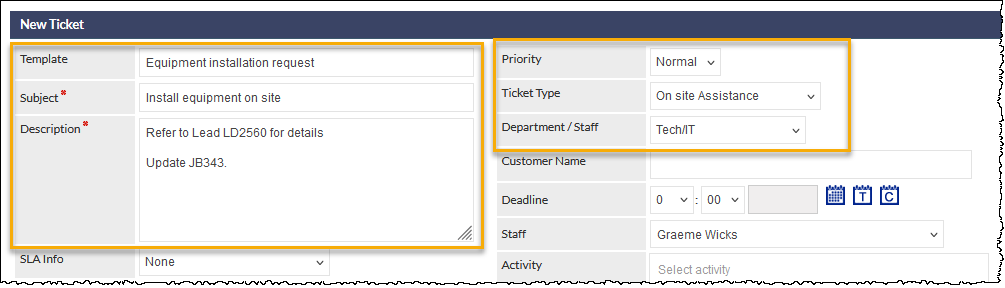
In the previous example image, the Lead and Job IDs have been populated automatically via placeholders in the template.
Template fields include:
- Subject (placeholders can be inserted)
- Description (placeholders can be inserted)
- Priority
- Ticket Type / Subtype
- Department / Staff
- Email Account
- Close Immediately
- Visible in Portal
For more information, refer to the following articles:
Reports
Deleted Workflow Groups in Reports
Deleted Workflow Groups are now accessible in the Workflow Reports for up to 24 months after deletion.
Previously, if a Workflow Group was deleted in the Workflow Settings, it was no-longer possible to select the Workflow Group in a report.
It may be desirable to report on deleted Workflow Groups when there are still active Workflow Cases of that type, or for historical analysis. When viewing the Workflow Group criterion in the Workflow Report, there is an Active and Inactive section (visible in the following image):

In the previous image, the Inactive section includes two Workflow Groups which indicates that they have been deleted in the Workflow Settings. Although it is no-longer possible to create new Workflow Cases based on the inactive groups, any active, closed, or cancelled Workflow Cases of this type can be included in the report results.
The duration for which deleted Workflow Groups are available in reports is determined in the Workflow Settings:
Settings > Workflow Settings > Miscellaneous > How many months after a workflow group is deleted should it be shown in workflow reports
The default is 12 months.
For more information about this feature, please refer to Support Centre article Workflow Miscellaneous (Settings).
For detailed information about CommTrak Standard Reports, please refer to Standard Reports.
Quotes
Quote Header Style Change
There has been a minor, but useful enhancement to the styling of the Line Item section headers in Quotes. The colouring of the Line Item sections has been darkened to emphasise the start of of a new Line Item:

As can be seen in the previous image, the sections for Item 1 and Item 2 can easily been seen, especially when scrolling through a quote with many items.
For more information about Quotes, refer to the Quotes category in the Support Centre.
Jobs
Technician Scheduling
Multiple Entries for a Technician on the same Job
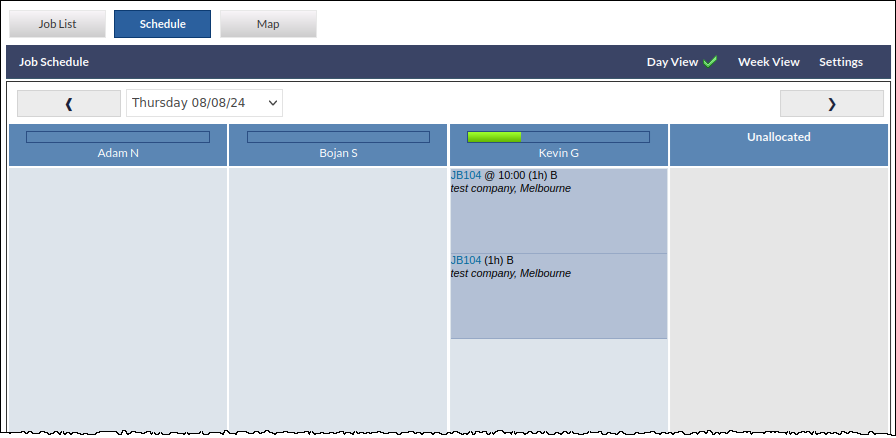
When a Technician is scheduled to complete multiple tasks starting at different times on the same Job on the same day, the Job Scheduler now shows an entry for each scheduled Task:
Click the following image to see a larger version.
Data Sheets
Data Sheet ID Placeholder
The Data Sheet ID can now be included in a data sheet template, by inserting the [%data_sheet_number%] placeholder.
For example, the HTML template might be configured as shown in the following image:

When editing a data sheet, all available placeholders are listed in the Placeholders Available legend under the Template Body label (visible in the following image). Clicking on a placeholder in the legend copies the placeholder into the clipboard so that it can easily be pasted into the template.

For additional information about Data Sheet configuration, please refer to the Data Sheets & CT-Signs Settings article.