
Custom Fields
Depending on your CommTrak configuration, the following screens may display a Custom Fields section:
- Contacts
- Customer
- Job
- Lead
- Project
- Ticket
- Workflow
Custom fields are configured in Settings > Custom Field Settings.
On all screens for which Custom Fields have been configured, those fields are displayed in a separate section immediately below the main editable fields on the screen. For example, on a Workflow Case screen, Custom Fields are shown immediately below the main Workflow Case details, as highlighted below:
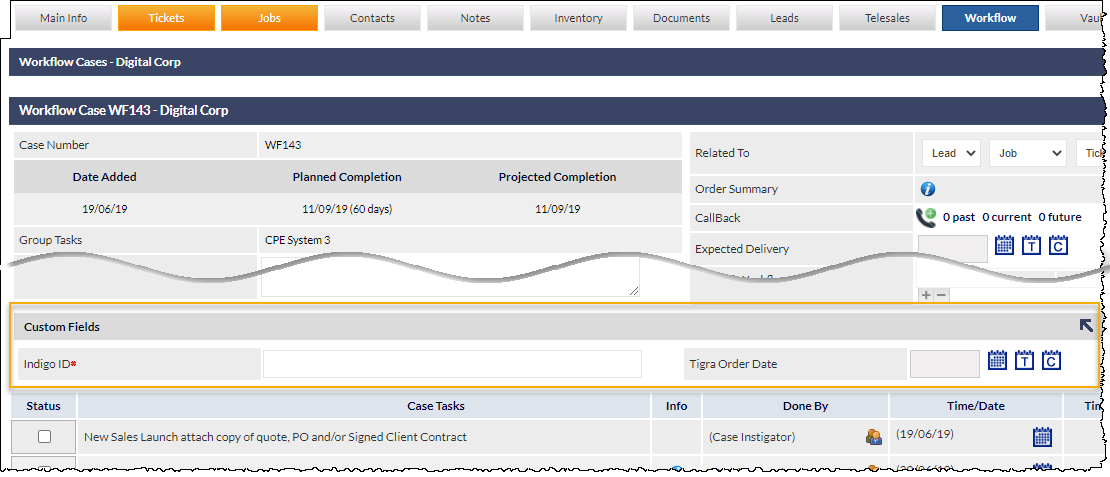
The Custom Fields section header is always displayed with a grey background, and the section can be expanded and collapsed by clicking the arrow in the section header (visible right-most in the highlighted area of the above image). For each user, the expanded/collapsed status is remembered for each screen.
Field names designated with a red asterisk are mandatory and must be populated prior to saving any changes.
Custom Field Groups
Custom Fields may be grouped, so related custom fields can more clearly be identified. Custom field groups have a title and are grouped in a bordered section:
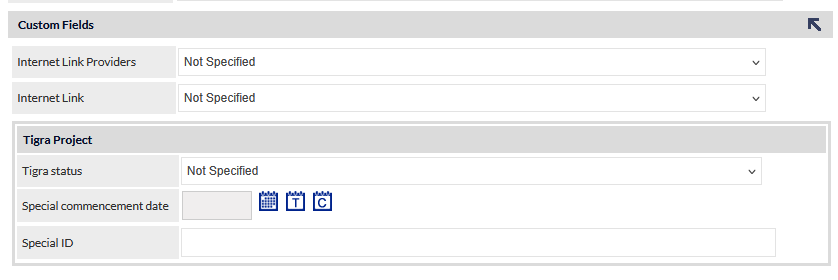
In the previous image, Tigra Project is a custom field group containing three related fields. The main custom fields section in the image also contains two custom fields that are not assigned to a group.
Searching Custom Fields
The following types of Custom Field can be searched from the CommTrak Search Dashboard:
- Text Field
- Text Area
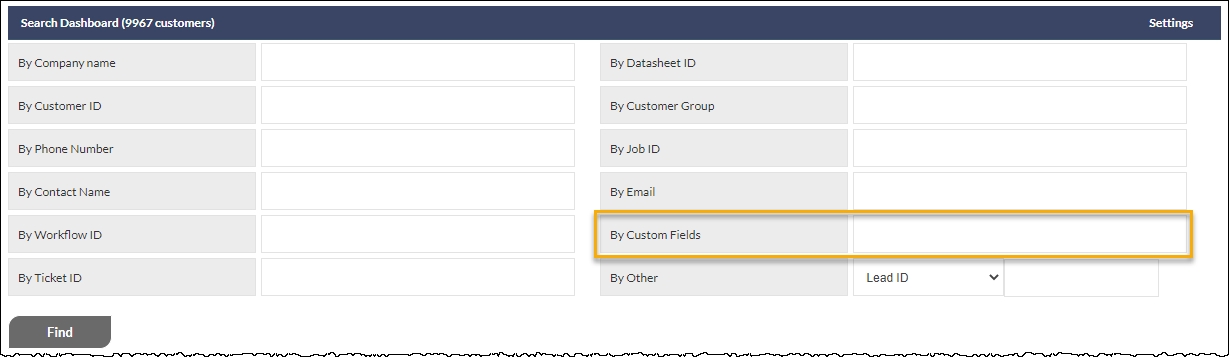
If the By Custom Fields search field is not visible in the Search Dashboard, it can be added to the dashboard as explained in the Search Dashboard article.
To search Custom Fields, enter the search text into the By Custom Fields search textbox, and click .
If the search returns only a single CommTrak result, the matching record will be displayed immediately (e.g. the relevant Customer screen, or Lead screen, etc).
If there are multiple matching results, they will be listed in the Custom field search results screen:
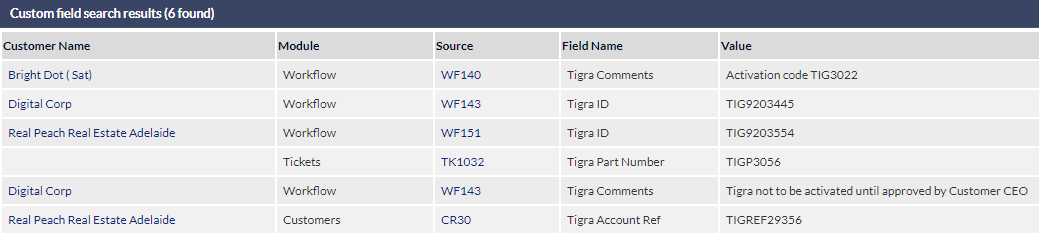
The columns listed in the search results are as follows:
- Customer name (if any)
- Module - the name of the CommTrak module in which the search result is located
- Source - the item reference of the search result record
- Field Name - the name of the Custom Field in which the search result is located
- Value - the text of the matching search result
Clicking a result row in the list will display the relevant screen, as listed in the Source column.
URL Custom Field
When entering a URL, it must be prefixed with one of the following:
- https://
- http://
- ftp://
- file://
Failure to provide a valid URL prefix will result in a warning banner being displayed. The error must be corrected prior to saving the record.
Report on Custom Fields
Custom Fields appear in the Include additional fields criteria, in their respective Reports screens.