
Search Dashboard
In this article:
There are many ways to find information within CommTrak, but the Search Dashboard (located on the CommTrak home screen) is a good place to start:
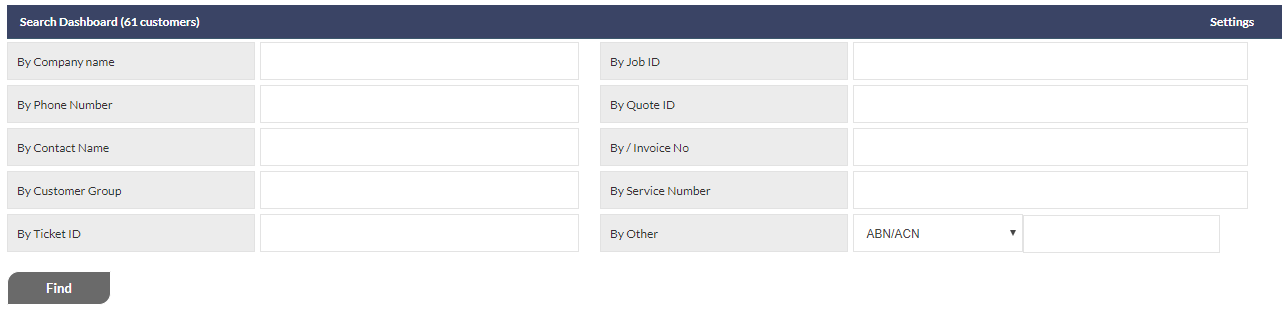
The Search Dashboard, as shown in the image above, can be be customised by each user; click the Settings link in the top-right of the Search Dashboard blue section header to display the Edit Search Settings pop-up window.
Quick Search Overview
For Customer or Contact name and telephone number searches, start typing the name or number into one of the following fields:
- By Company Name
- By Phone Number
- By Contact Name
After you have entered a minimum of three characters, the search results will start to display in a drop-down box below the search field, with the matching characters highlighted:
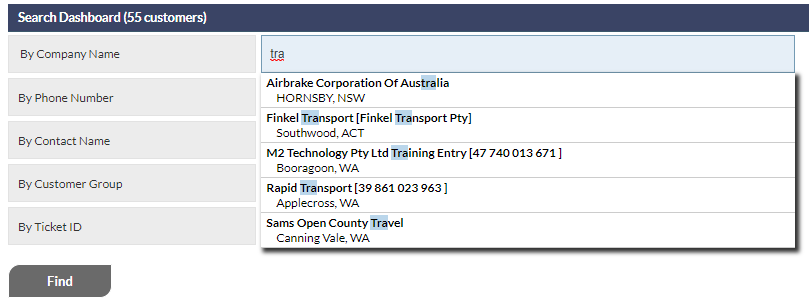
The CommTrak search will list all matching records; click on the item that you wish to display, and CommTrak will display the record for the selected Customer or Lead.
Archived Contacts are displayed in the results list, but are shown in struck-through text. See Support Centre article Customer Contacts for more information on this feature.
Searchable Fields
The available searchable fields, and the order in which they appear, can be customised by the end-user by clicking the Settings link displayed right-most on the Search Dashboard section header.
The fields listed below are the most commonly available search fields, but please note that the field names can vary depending upon the configuration of your CommTrak implementation.
- By Company (quick search)
- By Phone Number (quick search)
- By Contact Name (quick search)
- By Customer Group
- By Ticket ID
- By Job ID
- By Quote ID
- By Service
- By Other
Each of these sections is detailed below:
By Company
Typing three or more consecutive characters from a company name into the By Company search field will display a list of all matching companies (if any) in a drop-down list below the search field.
The names of companies displayed in the drop-down list are colour-coded:
- Black - Customers
- Brown - Leads
Clicking the name of a company in the drop-down list will display the main information screen for a Customer, or the Lead details screen as applicable.
A search match can be achieved by typing any three consecutive characters (including non-alphabetic characters, such as symbols and spaces) from the company name, including characters that appear in the middle or end of the company name.
By Phone Number
Typing three or more consecutive characters from a Customer or Contact telephone number into the By Phone Number search field will display a list of all matching phone numbers (if any), along with the company name, in a drop-down list below the search field.
Note: Where a Contact telephone number is matched, the company name will be displayed in the drop-down list.
Clicking the name of a company in the drop-down list will display the main information screen for a Customer, or the Lead details screen as applicable.
By Contact Name
Typing three or more consecutive characters from a Contact name into the By Contact search field will display a list of all matching Contacts (if any), along with the company name, in a drop-down list below the search field.
Clicking the name of a company in the drop-down list will display the main information screen for a Customer, or the Lead details screen as applicable.
By Customer Group
Typing three or more consecutive characters will display a list of matching Customer Group names (if any), with a count of the Customer records in that group, in a drop-down list below the search field.
To display a list of Customers within the selected group, click the the name of the group in the drop-down list. Clicking on a Customer name in the list will display the Customer record.
A Customer record can be added to an existing Customer Group in the More Info section of the Customer Screen.
See Customer Groups (Settings) article for information relating to configuration of Customer Groups.
By Ticket ID
Entering a Ticket number and hitting Enter, or clicking the Find button, will display the Ticket summary for the specified Ticket. Clicking the Ticket summary will open the Ticket.
Including the Ticket prefix (default TK) is optional. For example, entering TK12021 or 12021 into the Ticket search field will display the summary information for the specified Ticket (if the Ticket exists).
By Job ID
Entering a Job number and hitting Enter, or clicking the Find button, will display the Job screen for the specified Job.
Including the Job prefix (default JB) is optional. For example, entering JB1031 or 1301 into the Job search field will display the summary information for the specified Job (if the Job exists).
By Quote ID
Entering a Quote number and hitting Enter, or clicking the Find button, will display the Leads screen relating to the specified Quote.
To view a list of the Quotes relating to the Lead (including the searched Quote), click the Quotes tab in the Lead.
By Service Number
This feature is only available when the Telco module is enabled, and is not a generally available feature.
Entering a service number and hitting Enter, or clicking the Find button, will display the Leads screen relating to the specified service number.
To view a list of the service numbers relating to this Lead (including the searched service number), click the Activations tab in the Lead.
By Other
The By Other drop-down list contains a list of available search items.
The fields listed below are the most commonly available By Other fields, but please note that the field names and their availability can vary depending upon the configuration of your CommTrak implementation:
- ABN/ACN
- Account Number
- Address
- CT-Sign ID
- Lead ID
- Order No
- Other Fax
- Other Phone
- Postal Address
- Serial No
- Spare Field 1–11
- Workflow ID
The spare fields (1-11) may have been renamed for use within your organisation. Please see your organisation's CommTrak Administrator for information relating to the use of these fields within your organisation.
Select the required item from the drop-down list, and enter the search criterion into the text box located to the right of the drop-down list. Pressing Enter, or clicking , will display the relevant screen relating to the selected search (if a match is found).
Search Results
When a search results in a single match, the relevant record will be displayed (e.g. Customer record, Job, etc). If multiple matches are found, for example, when an email address has been searched, and the email address exists in multiple records, a search results screen will be displayed, enabling you to select the required record.
Customising the Search Dashboard
The fields in the Search Dashboard can be customised; each CommTrak user can choose to display which fields are displayed, and in which order they are displayed.
Customising the Search Dashboard is a per-user setting, so each CommTrak user can customise the Search Dashboard to meet the requirements of their daily activities.
The Search Dashboard Settings link is displayed on the right-most side of the Search Dashboard section header:
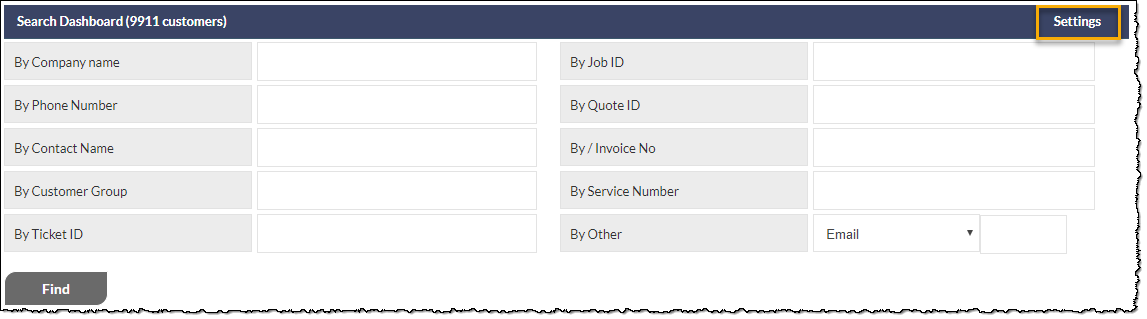
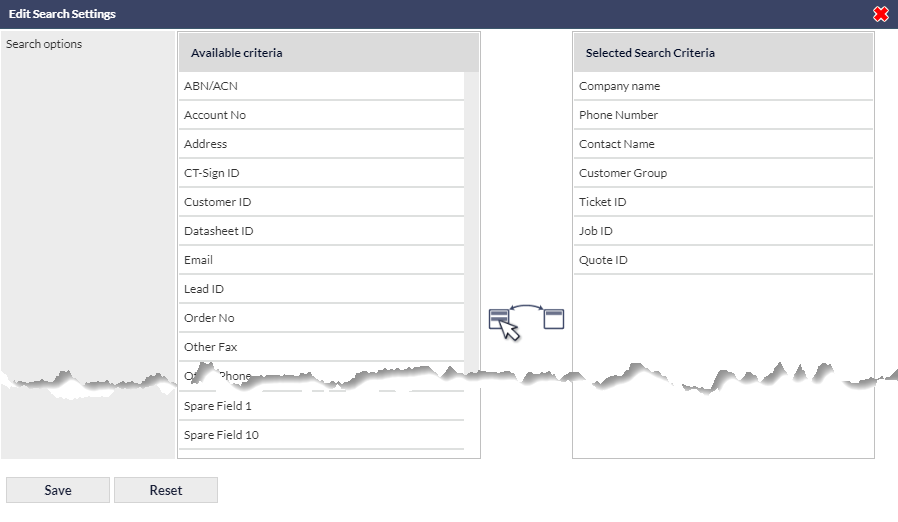
Click the Settings link to display the Edit Search Settings pop-up window, which enables you to drag-and-drop from the available search criteria fields (on the left, in the image below), into the Selected Search Criteria section (on the right, in the image below). In addition to being able to select which search criteria are displayed on the Search Dashboard, you can also specify the order in which the search fields are displayed, by dragging and dropping the search item names as required:
- Click to confirm changes that you have made.
- Click to revert the Search Dashboard to the default configuration.