
Getting Help
When in the Support Centre, click on the CommTrak logo at the top-left of the screen, to quickly access the main CommTrak support sections.
Searching the Support Centre
Towards the top-left of every screen in the Support Centre, is a search box:
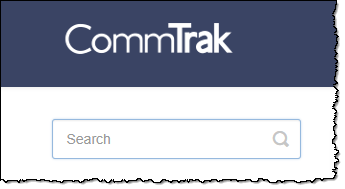
There are two ways to use the search box:
Results As-You-Type
As you type your search query, a list of matching articles will appear in a drop-down menu, below the search box.
If you see the title of a suitable article, click it to view the full article.
Full Search Results
Type your search query into the search box and either click the magnifying-glass icon, or press enter, to display a search results page.
All matching articles will be listed, with a summary of the article content shown below each article's title.
Support Centre Notes
Colour-highlighted notes are used within Support Centre articles, to highlight important features and issues.
Blue notes are tips that you may find particularly useful.
Yellow notes are warnings, indicating an important feature or outcome of which you should be aware.
Red notes are alerts, warning you about the consequences of using specific features. For example, a red note may draw your attention to an action that irrevocably modifies or deletes data, or a feature that requires close attention.
CommTrak Champions
Your organisation will have one or more designated CommTrak Champions; if you can't find the answers that you need in the Support Centre, your CommTrak Champions are your next stop for assistance.
CommTrak Support Ticket
If your CommTrak Champions cannot resolve your query, they will raise a support ticket with the CommTrak Support Team.