
Information Bar
The Information Bar is displayed at the top of all CommTrak screens, and contains useful shortcuts and information:

CommTrak Logo (Home Screen shortcut)
The CommTrak logo, located left-most on the Information Bar, serves as a shortcut to CommTrak Home Screen, where the Search Dashboard and Summary Panels are located.
Recent History
Hovering the mouse over the Recent History icon displays a drop-down list of the most recent Customer Records or Leads that you have accessed.

Clicking any of the company names will display the Customer Record, or Lead.
Hovering over a company name in the Recent History list displays an angled pin (visible in the previous image). Clicking on the angled-pin, pins the company to the top of the list with a white pin.
Clicking a white pin, unpins an item.
Lead records are display in a blue font in the Recent History list.
Overdue Alarms
The Overdue Alarm warning triangle icon is displayed, when there are overdue items relating to your CommTrak username.
For example, you may have overdue:
- Workflow Tasks
- Lead Follow-Ups
- CallBacks
You can view your overdue items by clicking the overdue alarm icon, or by visiting the CommTrak Home Screen.
Storage Warning
If your company's file-storage limit for CommTrak has almost been reached, the fuel-bowser icon (not shown in the above images) will be displayed. You should advise your organisation's CommTrak Administrator, so appropriate action can be taken.
My Details
The My Details icon is a shortcut to your User Settings, which can also be reached via Setttings > User Settings > My Details.
Sign-Out
Clicking the Sign-Out icon will terminate your current CommTrak session.
Signing-in to CommTrak, from another device, will also sign-out another active device.
Before signing-out of CommTrak, or before signing-in on another device, ensure that you have saved any changes that you have made with your current sign-in.
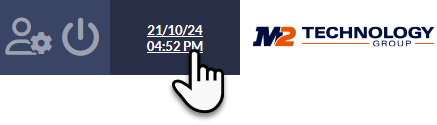
Time and Date
The time and date in your time-zone is displayed in this area.
Clicking the date/time in the Information Bar navigates directly to the CommTrak Calendar.
Your Organisation's Logo
Clicking your organisation's logo (shown as M2 Technology logo in the previous image), will navigate to the designated CommTrak customer record. Typically, the designated record will be your own organisation's CommTrak customer record.
The company record shortcut is designated in Settings > General Settings > Company Details > Link Logo to Customer.