
Customer Screen
The Main Customer Screen displays information pertaining to a specific Customer, and is typically accessed from the Search Dashboard, or the Recent History shortcuts.
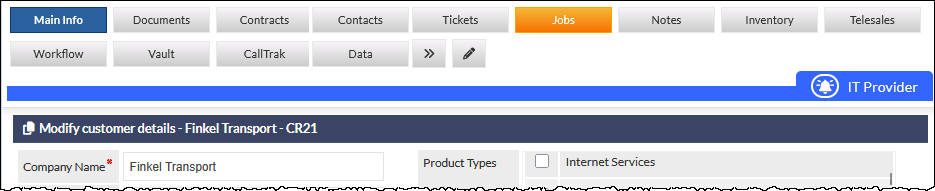
At the top of the Main Customer Screen are several module tabs, which can be clicked to display further information pertaining to the Customer.

Tabs highlighted orange indicate that there is current activity relating to the highlighted module (e.g. if the Jobs tab is highlighted orange, this indicates that there is at least one active job for the current Customer).
Each user can customise the order and visibility of the tabs according to their own preferences; see Support Centre article, Customer Tabs (Customer Screen), for details.
Modify Customer Details (Main Info tab)
The Modify customer details section header, immediately below the module tabs (shown in the above image), contains the following:
- Email icon - clicking this icon opens a new email window in your default email client (e.g. Outlook). The email subject will be populated with the Customer name, and the email body will contain a link to the customer's screen in CommTrak. This feature is useful for quickly sending an email to a colleague.
- Company Name.
- CR Number – The Customer Record number is a unique number assigned by CommTrak when the Customer record is first created. This number cannot be modified and is guaranteed to be a unique reference for the Customer.
The section headers are usually displayed in blue, but if an Account Status has been set for the Customer, the headers will display in yellow.
Customer Record Fields
The following customer information can be accessed and modified in the Customer Screen:
The field labels listed in the Support Centre are default for a generic CommTrak installation; your CommTrak implementation may have different field labels. For information about renaming field labels, please see Settings > General Settings > Labels & Strings.
Company Name
This field is mandatory. The customer's trading name must be provided here.
Address (2 fields)
The customer's building / street address, which can be split over two lines if required.
Address searches will search both address fields.
If the first address field contains information, a Google Maps icon will be displayed in the field label.
Suburb
Suburb of the customer's main address.
If the optional Postcode Finder feature is enabled on your system, the State and Postcode fields will be populated automatically, upon selection of the required Suburb.
State / Postcode
Postcode and state of the customer's main address.
Time Zone Icon
Hovering over (or touching) the Time Zone icon, displays a pop-up tip containing the local time in the customer's state.

Customer's main phone number. It is recommended that dialling prefixes are also entered here.
Fax
Customer's fax number. It is recommended that dialling prefixes are also entered here.
Sales Contact
Customer's main contact person for sales enquiries. Customer contacts are maintained in the customer's Contacts tab.
When the Sales Contact field is changed, the user is presented with a pop-up window offering the option to automatically update the main email address (see field immediately below), with the new Sales Contact’s email address.
If the selected contact does not have an email address, the Contact pop-up window will be displayed, to enable the user to enter an email address.
Customer's main email address.
Also see Sales Contact field information, immediately above, for information pertaining to auto-population of this field, based on the Sales Contact field.
CommTrak checks emails for valid form, and for the validity of the domain name. If either are invalid, the user will be prompted to enter a valid email address.
Date Created (read only)
This is the date on which the Customer record was first created; it is an information field only, and cannot be modified.
Last Modified By (read only)
Shows the name, date, and time of the last CommTrak user who saved changes to any fields on the Customer Screen.
Sales Rep
Your company's contact person for this Customer. Please note that only Supervisors and Sales Reps can change this value.
Relationship Managers (field names vary)
Relationship Managers are optional fields that can be used to assign which member of your staff is the main contact for a specific aspect of your organisation’s relationship with a Customer. Examples of Relationship Managers are:
- Portfolio Manager
- IT Manager
- Supply Manager
When a CommTrak user is first specified as a Relationship Manager for a Customer, a tick-box is presented to optionally send the user a notification email (default is ticked).
Relationship managers can be assigned to the Customer and, separately, to a customer’s Leads.
Relationship Manager fields are maintained in Customer Settings
Flags
Flags are arbitrary labels used for profiling the Customer record.
To select a flag, click the tick-box adjacent to the required flag. Selected flags are grouped at the top of the flags list-box; this avoids the need to scroll through the entire list of available flags to identify those which have been ticked.
The flags list is maintained in Customer Settings.
Product Types
This field may be referred to as Equipment Types, and may be labelled as such on your CommTrak implementation.
Types of products the Customer has installed at the premises; multiple choices are allowed. The choices for these values are maintained in Customer Settings.
Equipment Info
A text area to store details about Customer's products / equipment. This is a free-form field where you can enter details other than the equipment itself, such as configuration, quantity etc.
This information is in addition to Equipment (Customer Equipment) tracking, available as part of the Inventory module.
Contracts
Contracts associated with the Customer. Clicking on a contract will display the details in the pop-out Contract details window.
Contracts are added and modified by clicking the pop-out icon adjacent to the Contracts field label, which displays the Contracts tab, in which expired contracts are also displayed.
Available contracts and commissions are maintained in Customer Settings.
If enabled in Customer Miscellaneous settings, expired contracts will also be displayed in this field. Expired contracts are displayed in strike-through text. If this setting is not enabled, the number of expired contracts (if any) is displayed in orange text below the Contracts field label.
Point of Sale
Contracts imported from the Point of Sale integration. Clicking on a contract will display the details in the pop-out Contract details window.
Details of POS contracts can be viewed by clicking the pop-out icon next to the Point of Sale field label.
The CommTrak POS Integration module must be activated for this feature to be available. Please contact CommTrak Support Helpdesk for further information.
Date Sold
Date when the equipment was sold, or the main contract entered into. This may be considered to be a legacy field, as typically, this information will be recorded per product or service in the Contracts or Inventory sections of CommTrak.
Relationship
The quality of the relationship between your company and the Customer can be selected. This information can be used as a criterion in Customer Reports ( Reports > Customer Reports), and also as a filter for customers listed in the Customers Screen.
The relationship list is maintained in Customer Relationship Settings.
Affiliation
The type of affiliation that your organisation has with this Customer (if any). The affiliations list is maintained in Customer Affiliation Settings. When an affiliation is assigned to a customer, a banner is added below the customer's tabs, and is visible on all of the customer's screens:
The colour of the affiliation banner and the colour of the text are defined in the Customer Affiliation Settings.
CallBack
CallBacks are one-off or repeating reminders to contact a Customer, and can be reported on via Customer Reports ( Reports > Customer Reports).
Current and overdue CallBacks (if any) are shown in the CallBacks panel on the CommTrak Home Screen.
To create a CallBack, click the telephone handset icon.
Past, current, and future CallBacks can be viewed, modified and deleted by clicking on the respective links next to the CallBack field.
For additional information about this feature, see Support Centre article, CallBacks.
SLA
Available Service Level Agreements (SLAs), relating to ticket responses for the Customer, are listed in this field.
To select an SLA for the Customer, click the pop-out icon and select a predefined SLA, or create a custom SLA.
Predefined SLAs are configured in Ticket Service Level Agreement Settings.
Special Comments
Special comments relating to the Customer.
All text entered in this field will appear in a coloured banner across the top of the screen:

If the text of the Special Comments field contains two or more lines of text, the second line is displayed as faded text (as visible in the above screenshot). Clicking the banner expands it to display all the Special Comments text.
If preferred, the Special Comments banner can be displayed in its expanded state when viewing the Customer screen. See article Customer Miscellaneous (Settings) for more information about this setting.
To remove the banner entirely, delete the contents of this field, and save the Customer record.
More Info
The More info section, displayed below the main Customer information section, can be expanded or collapsed by clicking the expand / collapse arrow on the right-side of the More info section header. The default selection is for the section to be collapsed, but each user may expand and collapse the section as required, and the current state (i.e. expanded or collapsed) is remembered for each user.
The following Customer information is located in the More info section:
Business Type
The Customer's industry type.
The Business Type list is maintained in Customer Business Types Settings.
Service Provider
The company that provides the Customer with telephone lines. This field can be used as a criterion in Customer Reports.
Customer Group
If you wish to group several customers with some common characteristics (e.g. part of a group of companies, franchises, etc.), select the group to which you wish to allocate this Customer.
When a Customer Group is specified for a Customer, and where one of the Customer records has been designated as the Head Office, a home icon is displayed in the Modify customer details section header (at the top of the Customer Screen). Clicking the home icon will display the Customer record that has been designated as the Head Office for the current Customer Group. In addition, a More button is displayed at the bottom of the screen.
Clicking presents the Group Members screen, which is a list of all Customers in the same group, and enables the user to specify which of the listed Customer records is the Head Office.
If the Group Members screen is being displayed, a button is presented at the bottom of the screen, which enables the user to return to the Main Customer Screen.
For detailed information about using Customer Groups, and the related advantages of grouping Customer records, see Support Centre article, Customer Groups.
Customer Groups are maintained in Customer Groups (Settings).
Phone Numbers
This free-form text box can be used to enter additional phone numbers for this Customer.
Previous Name(s)
Previous names of a customer, or names by which they are also known.
When entering text into any customer search field in CommTrak, the names in the Previous Name(s) field will also be searched. The following example shows the Dashboard search result for "Uplift":

The previous image shows that the results include the current Company Name (Spotty Lifts), and the Previous Name(s) are also shown in the search results.
Legal Name
Customer's legal entity name.
Clicking the ABN icon in the field label opens a new browser tab, displaying the search results for the ABN, using the Government's Australian Business Register website.
ABN
Customer's legal Australian Business Number.
Clicking the ABN icon in the field label opens a new browser tab, displaying the search results for the ABN, using the Government's Australian Business Register website.
ACN
Customer's legal Australian Company Number.
Clicking the ABN icon in the field label opens a new browser tab, displaying the search results for the ACN, using the Government's Australian Business Register website.
Postal Address
The Customer's postal address, if different from the main address.
Postal Suburb
The Customer's postal suburb, if different from the main address.
Postal State
The Customer's postal postcode and state, if different from the main address.
Website
The Customer's website URL.
When a URL has been entered and saved, an icon linking to the URL is displayed in the Website field label.
Other Address
If the Customer has any addresses other than the main and postal addresses, they can be entered here.
Other Phone
Other phone numbers associated with the Customer. It is recommended that dialling prefixes are also entered here.
Other Fax
Other fax numbers associated with the Customer. It is recommended that dialling prefixes are also entered here.
Marketing Method
How / if the Customer prefers to be contacted in marketing campaigns.
Using Email Marketing, it is possible to target customers with specific a Marketing Method.
The Email Marketing Method list is maintained in Customer Marketing Method Settings.
Account Status
The Account Status list can be used to specify a status for this Customer's account. If any option other than Not Specified, is selected from this list, all CommTrak pages for this Customer will display the section headers in yellow, as shown in the image below.

Each time the Account Status is changed for a Customer, the change is logged. Account Status history can be viewed by clicking the information (i) icon adjacent to the Account Status field.

The Updated By and Status Set To columns were implemented in the September 2021 CommTrak feature update; Account Status changes logged prior to this will not be shown.
Account statuses are maintained in Customer Account Statuses Settings.
Account Number
The customer account number from your accounting package can be entered here. This enables a relationship to be identified between your accounting software and CommTrak for the same customer.
Accounts Contact
The Customer's accounting contact person. The name should be selected from the drop-down list, which can be updated in the Contacts tab, at the top of the Customer Screen.
General Manager
The Customer's general manager's name. The name should be selected from the drop-down list, which can be updated in the Contacts tab, at the top of the Customer Screen.
KSU Serial
The serial number of the customer's KSU.
KSU Indial
The code for the customer's KSU indial.
Custom Fields
If configured, the Custom Fields section is displayed immediately below the Modify customer details section (immediately above the More info section header):

For more information about Custom Fields, see the following Support Centre articles:
Contacts Summary
This section lists the Customer's contacts and shows the following fields:
- Contact Name
- Title
- Mobile Number
Clicking a contact line in the summary area opens a pop-out window displaying the full contact details for viewing or modifying.
This section can be expanded / collapsed by clicking the arrow displayed right-most in the Contacts Summary section header.
If the Customer is a a member of a Customer Group, Head Office contacts (if any) will be displayed below the Customer contacts. See Support Centre article Customer Groups for further information.
Inventory Summary
This section lists Equipment and Orders that have been processed via the CommTrak Inventory module.
Clicking an equipment item or order will display the relevant details page.
This section can be expanded / collapsed by clicking the arrow displayed right-most in the Inventory Summary section header.
Previously Saved/Sent Notes
This section lists the the most recent Customer Contact, Lead and Job notes for the Customer, and shows the following fields:
- Type/Date
- Subject
- Details
- Actions
Clicking on a note in this section will display it in a pop-out window or, if the note relates to a lead or job, the relevant lead/job screen will be displayed.
Action Buttons
The action buttons are permanently pinned to the bottom of the Customer Screen:
Save - updates the record to reflect any changes that have been made on this screen.
New Note - is a shortcut to enter a Contact Note
New Email - is a shortcut to send an email to a contact or, if Conversations are enabled in your CommTrak, prompts you to cancel or open the Conversations window.
More - is only visible when when a Customer Group has been specified for the Customer (see Customer Group field section above). Clicking this button displays a list of Customer records in the same Customer Group.
If there are incomplete mandatory fields (as denoted by a red * next to the field label), the record will not save, and a warning banner will be displayed at the top of the screen. Update the mandatory fields as specified in the warning banner, and save the record again.