
Customer Groups
Customer Groups are a collection of related companies; for example, a single organisation with multiple premises, or a franchise with multiple locations.
For administrative purposes, one customer record within each Customer Group can be allocated as the Head Office.
Key features of Customer Groups are:
- List all customers in a group (using the Search Dashboard).
- When viewing a customer record, quickly access other Customer records in the same group (using the More button on the customer profile screen)
- Designate one of the Customer records in the group as the Head Office
- Access Head Office contacts from other Customer records in the same group (e.g. allocate a Head Office contact to a Ticket for a customer in the same group)
- Report on Customers within the same group (using the Customers in selected customer group criterion in the Customers report)
- Within a Project, allocate components (e.g. Jobs, Tickets, Workflows) from other Customer records within the same group
- Bulk-import new customers to a customer group (using the Customer import utility)
- Bulk-assign existing customers to a customer group (using the Customer Reassignment feature of the Customers list)
- In the Customer Portal, Head Office contacts can access other Customer records within the same Group
Creating a Customer Group
Before Customers can be added to a group, the group must be created:
Settings > Customer Settings > Customer Groups
See Support Centre article Customer Groups (Settings) for further information about creating, modifying and deleting Customer Groups.
Adding a Customer to a Group
In the More info section of a Customer record, select the required group name from the drop-down list in the Customer Group field:
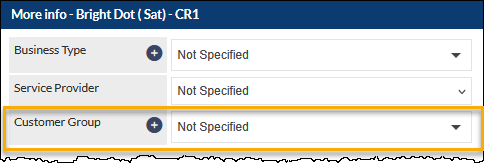
The Customer Group field is a Search and Add in Place field.
If the customers within a group have not yet been created in CommTrak, they can be bulk imported and assigned to a customer group automatically, using the Customer import utility.
Finding a Customer Group
Search for the name of a Customer Group using the By Customer Group field in the Search Dashboard (a minimum of three consecutive, matching characters is required to return any results):

In the search results list (shown in the previous image), click the name of the required Customer Group, to display a list of companies in that group:

Click the Customer Name (shown in the previous image), to display the Customer record for the selected Customer.
List Customer Records in a Group
When viewing a Customer record that is a member of a group, either:
- Press the More button at the bottom of the screen, or
- Press the double-chevron-bar icon, rightmost in the Modify customer details section header of the Customer record (visible in the following image):

The Group Members screen is displayed:
Clicking the Company Name or Suburb displays the Customer record for the selected company. Alternatively, press the More Info button at the bottom of the screen, returns to the original Customer record.
Designating a Customer Record as Head Office
By default, the first Customer record added to a Customer Group is designated as the Head Office.

To designate a different Head Office, press the button adjacent to the required customer name, in the Head Office column, then click the Save button. The Customer Group's Head Office will be updated, and the original Customer screen will be displayed.
Navigate Customer Records in a Group
When viewing the record of a Customer that is a member of a group, additional icons are displayed in the Modify customer details section header:

The Customer Group navigation icons (identified in the previous image) do the following:
- Display Head Office Customer record (home icon)
- Display previous Customer in group (left-double-chevron icon, only displayed if there is a previous record)
- Display next Customer in group (right-double-chevron icon, only displayed if there is a next record)
- Display list of Customer records in group (double-chevron-bar icon)
Selecting Head Office Contacts
There are many areas within CommTrak in which a contact can be selected:
- Sales Contact (Customer screen)
- Contact Person (Lead screen)
- Other Contacts (Lead screen)
- Site Contact (Job screen)
- Ticket Contact (Tickets)
- Email recipients (Customer Notes, Job Notes, Ticket Notes, Workflow Milestone emails, etc.)
In addition to being able to select a Customer contact in these fields, a Head Office contact can be selected.
For example:
When selecting the Sales Contact on a Customer record:

When specifying email recipients, in addition to being able to specify Customer Contacts and (your) Staff members as recipients, contacts from the Customer's designated Head Office can also be specified as recipients:

Head Office Contacts in the Customer Contacts Tab
When viewing a Customer's Contacts tab, the Head Office contacts are also listed in separate section:

Head Office Contacts in the Customer Screen Contacts Summary
The Customer record Contacts Summary section displays Head Office contacts.

A Head Office contact can only be edited within the Customer record in which it was created, and not from within other Customer records in the same group.
Head Office Contacts Access in the Customer Portal
When provided with access to the Customer Portal, a Head Office contact can access the Customer Portal for their own Customer record, and for other Customer records within their Customer Group:

Head Office contacts can also create Tickets, for Customers in their Group, with a Head Office contact as the designated Ticket contact.
See the Support Centre category, Customer Portal, for further information about Customer Portal features.
Merging Duplicate Head Office Contacts
Merging duplicate contacts cannot be reversed; please ensure that you have read and understood the contact merging options before using this feature.
A duplicate contact is defined as a contact who shares the same email address with another contact within the same Customer Group.
Prior to the Head Office contact features being released in May 2021, it was not unusual for users to create multiple entries for the same contact (i.e. the same Head Office contact being added to multiple Customers within the same group), as this was the only way to enable selection of a Head Office contact within another Customer in the same group.
Having duplicate contacts within CommTrak causes various issues, including:
- Being difficult to manage; each duplicate entry needs to be manually updated if the contact's information changes, or requires archiving
- Access to the Customer Portal requires the user to have an email address that is unique across your CommTrak
- Incoming Tickets-From-Email cannot be automatically allocated to Customers, when there are multiple entries for the contact (where the email addresses are identical)
To assist in resolving these issues, the duplicate-contact merging utility automatically recognises when contacts in both a Head Office record and another record in the same group, share the same email address.
The duplicate-contact merging utility functions differently, depending on whether the user is viewing the Contacts tab for the Head Office, or viewing the Contacts tab for another Customer in the same group:
Merging Contacts in the Head Office Contacts Tab
When viewing contacts in the Head Office Contacts tab, if there are duplicate contacts within a group, CommTrak presents the opportunity to merge all duplicate contacts from all Customer records in that group, into a single record in the Head Office Contacts tab.
The Merge duplicate contacts section is displayed at the bottom of the Contacts screen:

The above screenshot is taken from the Contacts screen for the Real Peach Real Estate Head Office.
The Merge duplicate contacts section is indicating that there is a Head Office Contact with same email address as contacts for two other Customer records within the same Customer Group. If there were other contacts sharing another email address, they would be presented as another row in the table, with each row having it's own tick-box in the left-most column.
Clicking will create a single contact for the Head Office, for each ticked row, and the duplicate contacts in the other Customer records, in the same group, will be archived. See Support Centre article, Customer Contacts, for further information relating to archived contacts. Where the archived contact was previously selected in various records within CommTrak modules (e.g. Sales Contact in the Customer record, Ticket contact in Tickets, etc), the contact is automatically replaced with the Head Office contact.
To prevent contacts being merged, untick the row adjacent to the relevant Head Office contact.
Merging Contacts in the Contacts Tab of Other Customers in the Same Group
When viewing contacts in the Contacts tab of any other Customer in the same group (other than the Head Office contact), CommTrak presents the opportunity to merge all duplicate contacts from only the current Customer record, into a single record in the Head Office Contacts tab.
The Merge duplicate contacts section is displayed at the bottom of the Contacts screen

The above screenshot is taken from the Contacts screen for Real Peach Real Estate Perth (a member of the Real Peach Real Estate Customer Group, but not the Head Office).
Note that only contacts with the same company name appear in the rightmost column. Contacts from other Customers within the same group are not be presented for merging.