
Customers (List)
The Customers screen displays a list of customers that can be sorted and filtered for selection or reassignment, and is accessed via the Customers entry in the CommTrak Main Menu.
In this article:
New Customer
Clicking presents the Add new customer screen, into which the details of a new customer can be entered. For information about available fields, refer to the Customer Screen article
When adding the new Customer's details, a Sales Contact can be added. Additional contacts can be added via the Contacts tab after the Customer record has been created.
For further information, refer to the following articles:
Customers Search
This section presents a number of criteria that can be specified for searching the Customers database.
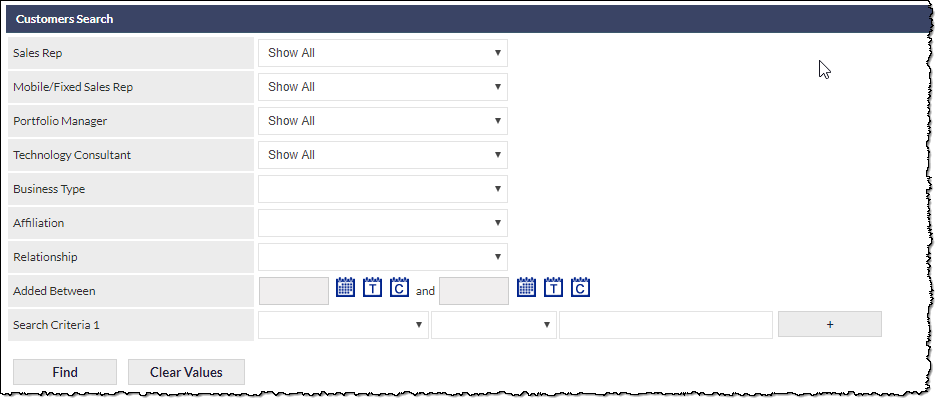
In the above image, the three fields, Mobile/Fixed Sales Rep, Portfolio Manager and Technology Consultant are examples of Relationship Managers. These fields may not appear in your CommTrak, or they may be labelled differently. Relationship Managers are maintained in Customer Settings.
The available search criteria are:
Sales Rep
A drop-down list of Sales Reps.
Relationship Managers
In the above image, the relationship managers are shown as Mobile/Fixed Sales Rep, Portfolio Manager and Technology Consultant. These are shown as examples only.
Business Type
Business types are assigned on a customer's Main Customer Screen, in the More Info section.
Affiliation
A customer's affiliation is specified on a customer's Main Customer Screen, in the Modify customer details section.
Relationship
A customer's relationship is specified on a customer's Main Customer Screen, in the Modify customer details section.
Added Between
Restrict the search to customer records created between the specified date range.
Search Criteria 1 - 5
Up to five additional criteria can be specified for the customer search. Initially, only one additional criterion is visible, but additional criteria may be added by clicking the button, or removed by clicking the button.
Each criterion is specified by selecting the search field, the type of match required, and the text against which the search criterion is to be matched.
Available field types are:
- Address
- Trading / Company Name
- Product Type
- Flag
- Customer Group
- Postcode
- Segment
- Suburb
- Custom fields (if any)
- Contains
- Equals
- Starts with
- Is not empty
- Doesn't contain
- Doesn't equal
- Doesn't start with
- Is empty

The search criterion text field is not case-sensitive.
Action buttons
The action buttons are shown in the above image.
executes the search, and updates the Customers list in the Customers section of the screen.
resets all the search criteria fields. Prior to the fields being reset, you will be prompted to confirm your action. If confirmed, all of the search criteria will be reset, and the Customer list will refresh.
Customers Map
Customers Map is a Google Maps integration, and is an optional feature available upon request. Please contact CommTrak Support Team for information about activating this feature.
The Customers Map displays a map with pins indicating the location of each customer according to the displayed the results in the Customers list at the bottom of the screen.

The map pins display the initials of the allocated Sales Rep. Hovering the mouse over a pin displays the name of the customer in a pop-up tooltip.
If a customer record does not specify a geographical location (i.e. partial or no address information), a warning message containing a clickable link to the customer record will be displayed above the map (as shown in the above image). Clicking the CR number link, in the warning message, will open the customer record in a new tab, enabling the user to update the address information with ease.
Clicking on a map pin, displays a pop-up window containing the following information:
- Company Name
- Customer ID
- Date Added
- Sales Rep
The map includes features such as:
- Pan
- Zoom
- Full Screen
- Satellite view
- Street View by Google Maps
Customer Reassignment
This section provides features for bulk-reassigning customer records.
The Customer Reassignment section is only visible to CommTrak users with specific permissions. If you require access to the Customer Reassignment section, and are unable to see it, please contact your organisation's CommTrak Administrator.
Bulk reassignment is irreversible! Please refer to the article Bulk Selection of Records prior to using the bulk-reassignment features, to ensure that you have a full understanding of the bulk-selection options prior to clicking a reassignment button.
The process for bulk-reassigning customer records is:
- Select the customer records to reassign
- Select one criterion for reassignment
- Click the button adjacent to the selected criterion
Field Reassignment
The fields available for reassignment are:
- Sales Rep
- Relationship Management fields (if any)
- Customer Group
- Affiliation
- Flags
Flags Assignment
Flags can be assigned or removed in bulk, in as similar manner to the standard field assignments:
- Select the customer records to reassign
- Select one or more flags to add or remove from the selected customers' records
- Click the or the button, adjacent to the Flags field, as required
Example Reassignment
In this example, we will reassign selected customer records to the specified Sales Rep.
- In the Customers section (the final section in the Customer screen), select one or more customers by ticking the box in the second column. You can select / deselect all customer records on the page by ticking / unticking the box in the second column-header.
- In the Customer Reassignment section, select the name of the Sales Rep to whom the selected customers are to be reassigned.
- Click the button adjacent to the Sales Rep drop-down list.
Bulk reassignment cannot be undone! Please refer to the article Bulk Selection of Records prior to using the bulk-reassignment features, to ensure that you have a full understanding of the bulk-selection options!
Customers
The Customers section displays a list of customers based on the search criteria specified in the Customers Search section.
The Customers section-bar displays the number of customers shown in the list, compared to the total number of customers in your CommTrak.

The image above shows a limited selection of columns; the columns labels in your CommTrak may differ.
Clicking on a customer row displays the Customer screen.
The number of customer records per page (up to 100) can be selected in the per page drop-down list, located at the bottom of the Customers page.
If the number of customers in the search results exceeds the number of customer records displayed per page, the next and previous buttons will be displayed at the bottom of the Customers page, as appropriate.