Main Menu
The CommTrak Main Menu, is displayed to the left of every CommTrak screen.

Pinning & Unpinning
When pinned, icons and a text description for each menu item are displayed, as shown in the above image.
When unpinned, only the icons are displayed; the text descriptions for the menu items are hidden, and are only displayed when the mouse is hovered over a menu item icon.
To unpin the menu, click the X icon located at the top-right of the menu (shown in the above image).
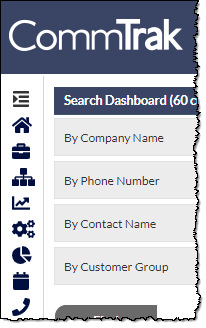
To re-pin the menu, click the Pin Menu icon (top icon in the above image).
Utilities Menu
When accessing the Utilities menu item, the available features will vary depending upon your CommTrak implementation.
Examples of CommTrak utilities that appear in the module are:
- Email Marketing - available in all CommTrak implementations
- Customer Import - available upon request
- Onquevision Report - available to all users of Onquevision
Menu Customisation
There are three options for customisation of the CommTrak Main Menu:
- Alphabetically
- Custom order and visibility of each menu item
- Most Used (dynamic)
In all cases, the following menu items are pinned in fixed positions:
- Home - pinned to the top of the menu
- Support Centre - pinned to the bottom of the menu
Alphabetically
Menu items are displayed in alphabetical order.
Custom Order and Visibility
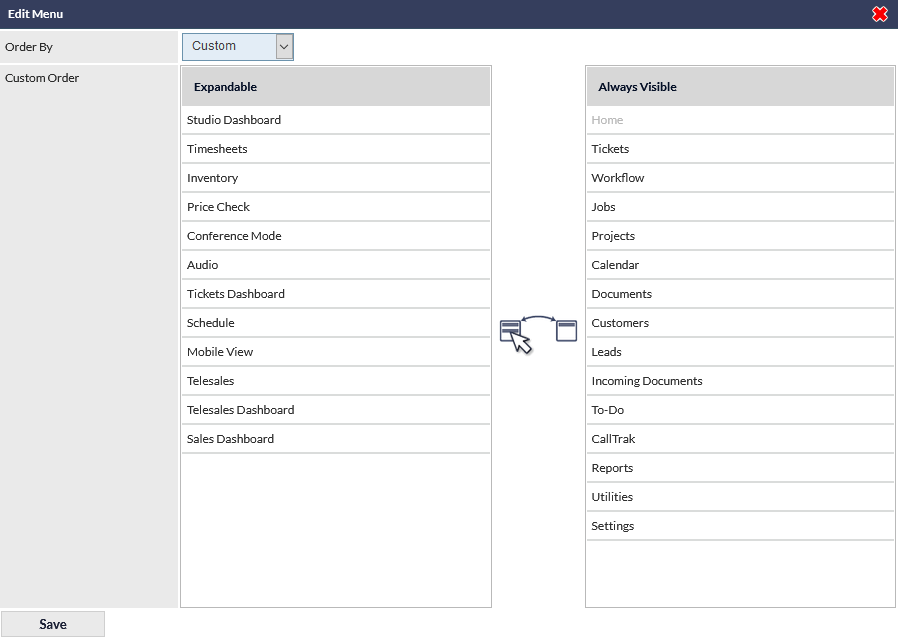
Users can specify the order of items in the menu, and whether each item is always visible, or displayed in the expandable area.
Menu items placed in the expandable area can be accessed by clicking the expand (chevron) icon, towards the lower-right of the Main Menu (visible in the previous screenshot). When the icon is clicked, the hidden menu items are displayed and can be selected. Upon clicking an item on the menu, the selected page is displayed, and the areas in the expandable area are hidden.
Most Used (default)
CommTrak will adjust the position of each item according to frequency of usage; the most-frequently used items are moved towards the top of the menu.
Most Used is the default option for all users.
Accessing and Using the Menu Display Options
The Main Menu settings can be accessed by clicking the edit (pencil) icon towards the top-right of the Main Menu (visible in the previous screenshot).
The Edit Menu pop-out window is displayed:
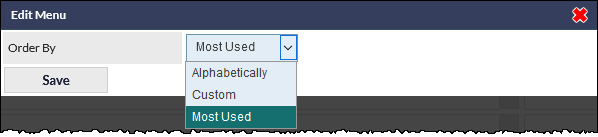
Selecting the Custom option presents a further Edit Menu window: