
Summary Panels
The Summary Panels are located below the Search Dashboard, and contain information about your due and overdue tasks, events, actions and messages.
The display, positioning and, in some cases, content of Summary Panels can be customised by each CommTrak user, to better suit the needs of their role. For example, non-sales staff may wish to hide the Expiring Contracts panel. See the section, Summary Panel Features in this article, for further details.
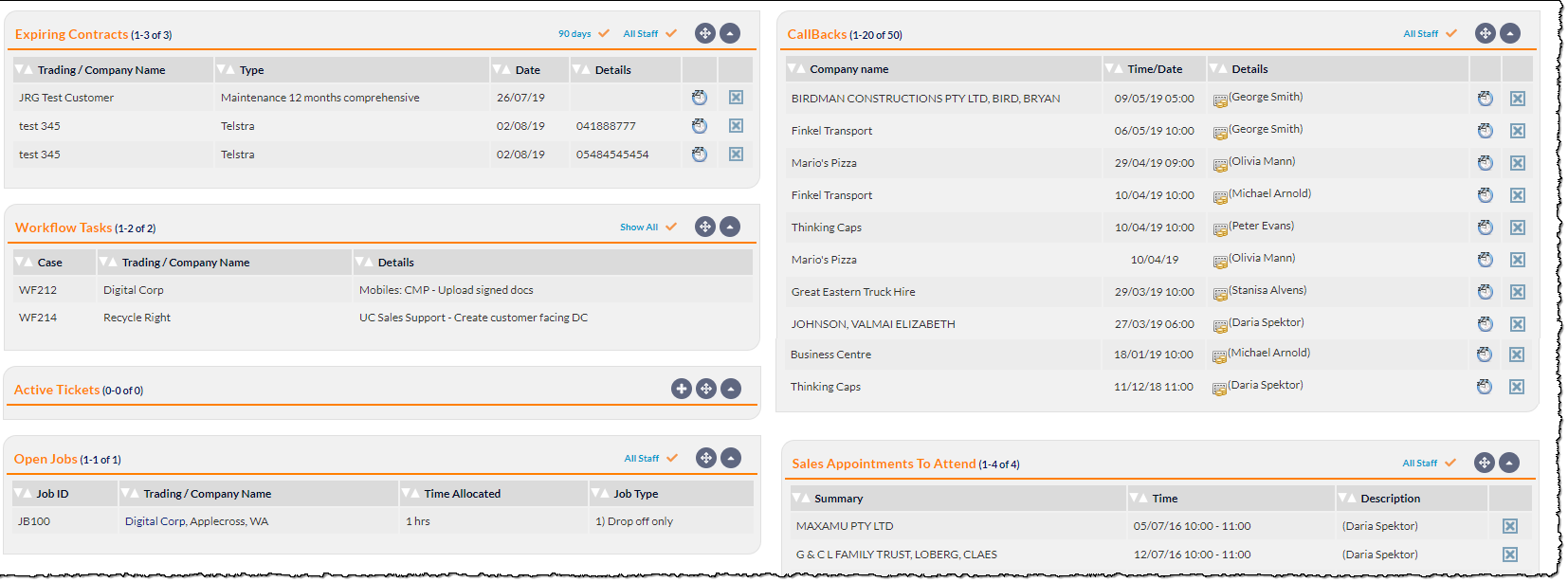
The above image shows an example of some of the Summary Panels; the layout can be customised as detailed in the Summary Panel Features and Summary Panel Settings sections.
Expiring Contracts
- Company Name - the name of the company to which the Contract pertains
- Name - the Contract name
- Date - the date of the Contract expiry
- Details - the first characters (approximately 35–40) of the Contract details
Casual contracts are not displayed in the Expiring Contracts summary panel. Casual contracts can be viewed in the Customers Report.
Unconfirmed Contracts
The current staff member's unconfirmed contracts.
For more information about the Unconfirmed Contracts panel, please refer to the Unconfirmed Contracts section in the Contracts Screen article.
Messages
- Company Name - the name of the company to which the message pertains
- Time/Date - the time and date that the message was created
- Details - the first characters (approximately 35–40) of the CallTrak message
Dismissing a CallTrak message does not delete it from CommTrak; the note will still be accessible in the company’s Notes section, and the Call Tracking Report.
CallBacks
- Company Name - the name of the company to which the CallBack pertains
- Time/Date - the time and date upon which the CallBack is due
- Details - the first 30 characters of the CallBack message
Only CallBacks that are due or overdue are displayed in the CallBack summary panel.
Workflow Tasks
- Case - the Workflow case ID
- Company Name - the name of the company to which the Workflow task pertains
- Details - the Workflow task description
Active Tickets
- Ticket - the Ticket ID
- Company Name - the name of the company to which the Ticket pertains
- Priority - the priority of the Ticket
- SLA - an icon indicating that there is an SLA for the customer to which this Ticket pertains
- Deadline - the specified deadline for this Ticket (if any)
Open Jobs
- Job ID
- Company Name - the name of the company to which the Job pertains
- Booked - Date and time for which the Job is booked
- Time - the duration allocated to the Job
- Job Type
Active Leads
- Lead - the Lead ID
- Company Name - the name of the company to which the Lead pertains
- Follow-Up - the date of the next follow-up for this Lead
- Forecast - the date the Lead is forecast to be closed
- Customer - identifies if the Lead is a customer
If either the Follow-Up or Forecast date is exceeded, the row for that Lead will be highlighted by displaying the text in red.
Sales Appointments to Attend
- Summary - summary information about this appointment - typically the company with which the appointment has been made
- Time - the date and time of the appointment
- Description - the description of the appointment
Acknowledging an item removes it from the summary list, but does not delete the calendar event for the appointment; it is purely an acknowledgement of the appointment.
To-Do Items
- To-Do - the To-Do ID
- Description - a description of the item
- Company Name - the company with which the To-Do item is associated (if any)
- Due Date - the date upon which the item is due to be completed
- Priority - the item’s priority
Open Projects
A summary of open Projects for which the currently logged-in user is assigned as the Project Manager.
- ID - the Project ID
- Company Name - the company to which the Project is assigned
- Project Name - the name of the Project
- Due - the date upon which the Project is due to be completed
- Progress - a bar chart indicating current progress of the Project (percentage, and number of tasks completed/incomplete)
Incoming Documents
A summary of documents forwarded to CommTrak that have not yet been allocated.
- Document Title - the name of the document
- Date Added - the date upon which the document was sent to CommTrak
- Staff - the name of the staff member who sent the document
Events
- Summary - a brief summary/title of the event
- Time - the start and end time of the event
- Description - a description of the event
In / Out Of Office
Each CommTrak user’s name is displayed in the list, followed by either In or Out. Selecting a user’s name, and pressing the Toggle button will change the status of the selected user.
The status of the users, as specified in the In / Out Of Office panel, is reflected in the list of users presented in the Call Tracking feature, and aids in identifying which users are available to accept incoming calls.
Incomplete Timesheets
A summary of incomplete Timesheets for the currently logged-in user.
- Staff - name of user to whom the Timesheet is allocated
- Date - date of the Timesheet
- Completed - percentage of the Timesheet that has been completed
The Incomplete Timesheets panel is only displayed for the user if the Timesheets Enabled option is selected in User Settings.
News
The News Summary Panel displays active news items:
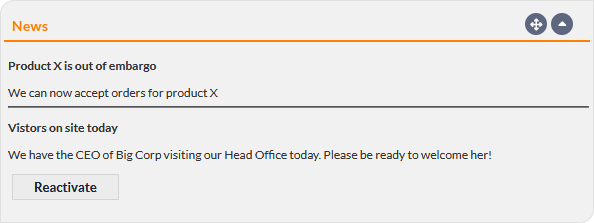
If the news banner has previously been dismissed, it can be reactivated by pressing the Reactivate button (visible in the previous image).
Summary Panel Features
Show / Hide
Move
All Staff / Show All
Number of Items to Display
- CallBacks
- Workflow Tasks
- Open Jobs
- Active Leads
- Sales Appointments To Attend
Sort Columns
Where appropriate, columns in Summary Panels can be sorted alphanumerically by clicking the white up or down arrows in the column header:

Clicking the up arrow sorts alphabetically a-z (or numerically lowest to highest), and clicking the down arrow sorts in reverse. Only one column sort is active in each panel at any time (e.g. you cannot sort by both Case number and Company Name).
Summary Panel Settings
To access the Summary Panel options, click the Settings link, rightmost in the Summaries section header on the CommTrak Home Screen:

The Edit Summary Settings pop-out window is displayed:
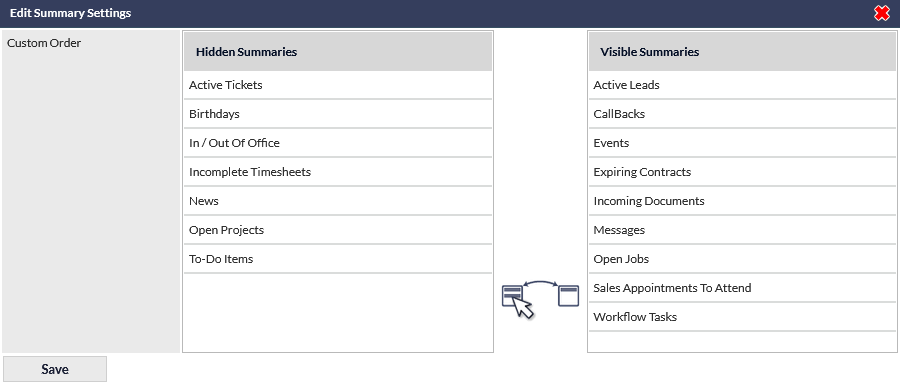
Drag items from the Visible Summaries list, into the Hidden Summaries list, to hide them on the home screen.
The position of panels in the Summaries area cannot be modified in the Edit Summary Settings window; to change the position of panels, reposition them by dragging-and-dropping using the Move (compass points) icon when viewing the panels on the home screen.
Hidden Summaries are accessible in the Other Summaries panel, which is displayed greyed and collapsed, bottom-right in the Summaries section:
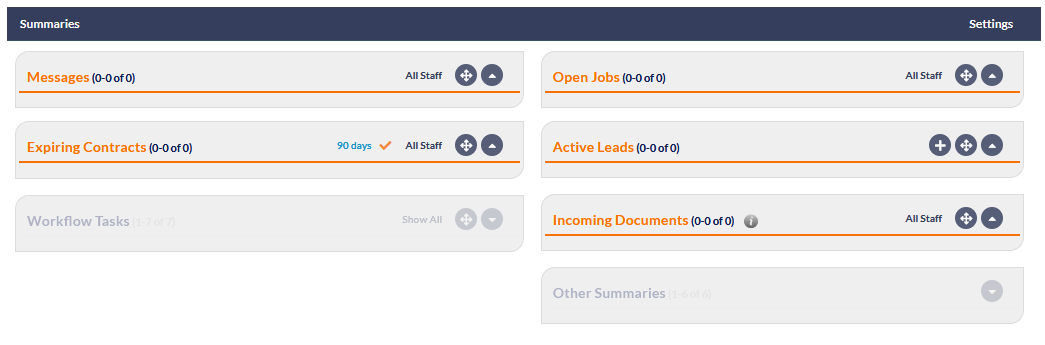
Clicking the Show / Hide (arrow) icon, in the greyed Other Summaries panel-heading, displays all the hidden summaries below the Other Summaries heading:
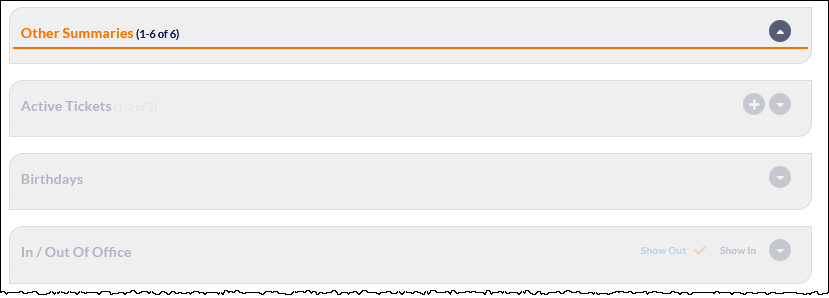
Panels in the expanded Other Summaries area are initially displayed greyed and collapsed; clicking the Show / Hide icon for a panel displays the details.
Click the Show / Hide icon in the Other Summaries panel-heading to hide the panels again. Refreshing the home screen also hides the panels in the Other Summaries area.