
Users (Settings)
Most CommTrak users have limited access to User Settings, and will see only the My Details option, which is documented in the Support Centre article, Start Here - My Details.
The Users settings enable users, with the required permissions, to create, modify and deactivate CommTrak users.
Please note that, for security reasons, some features and specific settings have been excluded from this Support Centre article. For information about security features, and other undocumented fields, please contact CommTrak Support.
Accessing Users Settings
Settings > User Settings > Users
Add a New User
Several of the user fields can be used in email templates and emails signatures, which may be sent to customer contacts; it is therefore vital that the fields are completed correctly.
- Press the New User button.
- Complete the following fields:
Username
The name that the user will enter when signing-in.
The name must not contain any spaces.
Password
A temporary password for the user.
The user will be forced to provide a new password when they first sign-in.
Staff Name
The name of the user. This field is used in email signatures, and other areas of CommTrak where the user's name is displayed.
The user's email address.
It is vital that the email address is correct, as it is used for sending the user password reset notifications, and also in email signatures.
Extension No
The user's telephone extension number.
Mobile No
The user's business mobile number.
Job Title
The user's job title.
Start Date
The date the user was employed by your organisation.
Staff Role
The user's CommTrak role.
Telesales Working Minutes Per Day
If the user's Telesales activity is to be monitored, enter the number of minutes per day allocated to Telesales calling.
Restrictions
Determines which company records a user can access.
The available options are:
- No restrictions (default): The user can view all company records. (This option is mutually exclusive to the following two options)
- To customers where user is Sales Rep or Relationship Manager
- To customers where Sales Rep or Relationship Manager is not allocated
For further information about Relationship Managers, see the Support Centre articles: Customer Screen, and Customer Relationship Managers (Settings).
Inventory Purchase Order Limit
Determines the maximum value of a Purchase Order that this user can create or authorise. Default is $0.00.
Sales Manager
If the user is a Sales Person, select their Sales Manager from this dropdown list. The user will be designated as a member of the Sales Manager's team for reporting purposes.
A CommTrak user's name will only be displayed in the Sales Manager dropdown list if they have been designated the Allow users to be sales managers to other users permission, in the Leads section of the Staff Roles. If a user has been assigned the default Staff Role of Sales Manager, they will have this permission allocated by default. For custom roles which do not have the appropriate permission allocated, the permission must be assigned manually. See the Support Centre article, Change User Permissions (FAQ).
Action Buttons
- Add - confirms the entry.
- Cancel - aborts the entry.
Modify a User
After a CommTrak user account has been created, the following sections become available for editing, for the selected user:
Main Info
All the fields in the list above (under the heading Add a New User) can be edited. Additionally, the following fields become available:
Timesheets Enabled (default: unticked)
Tick the box adjacent to this field to enable Timesheet tracking for a user.
Restrict Login (default: Unrestricted)
Determines locations from which the user can sign-in to CommTrak.
The available options are:
- Unrestricted: The user can sign-in from any IP address
- Office only: The user can only sign-in from your organisation's designated office IP address
Active (default: ticked)
When a user account is created, it is active by default.
To deactivate a user account, untick this option and save the record; the user will no longer be able to sign-in to CommTrak.
We strongly recommend reading the article FAQ - Deactivate User Account for additional information and best-practices relating to this feature.
Action Buttons
- Save - confirms the edited fields.
Upon clicking the Save button, all changes are applied immediately without prompting, including the transferring of responsibilities.
- Reset Preferences - resets the user's preferences to default.
The Reset Preferences feature should not be used unless advised by CommTrak Support. This feature resets many of the user's preferences (such as columns to display, filtering, etc) to their defaults, and is typically used for diagnosing technical issues.
- Force New Password - immediately signs out a user and forces them to provide a new password the next time they sign in to CommTrak. Upon their next sign-in, the user will be prompted for their current password and will be required to provide a new one.
Commission
This tab provides for overriding the default commissions for Inventory Items.
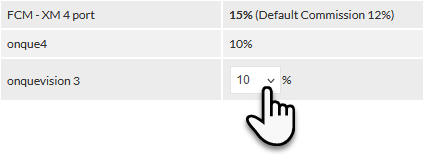
Default commissions are assigned to each user, but they can be overridden with custom commissions for the following categories:
- Inventory Items
- Services & Software
- Contracts
Items in each of the above categories are listed in the Commissions section and, for each item, a custom commission can be specified for the currently-selected user, by clicking on the displayed commission, and selecting a custom commission from the presented dropdown list, as required.
When a custom commission is selected, the commission becomes active immediately (i.e. there is no Save button).
If a custom commission has been applied, it is displayed in bold text, with the default commission noted in parentheses.
To reset the commission for an item, to the default commission, click the custom commission value, and select the default commission value from the presented dropdown list. The default commission will be applied for future transactions.
Leave
This tab enables staff to review existing leave and book new leave:
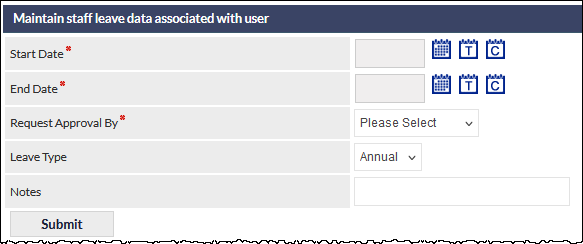
Pending and approved leave are also displayed in the CallTrak Leave Calendar, including any Notes that may have been added. Do not enter any personal information into the Notes field.
Users can also request their own leave in My Details.
The Leave Type list is maintained in General Settings.
Responsibilities
The Responsibilities section provides features for bulk-reassigning various responsibilities from the currently-selected user to another staff member.
Examples of reassignments include:
- Sales person's customers and leads
- Sales person's active workflow cases
- Projects where the staff member is Project Manager
- Workflow Tasks (in Workflow Task Settings)
Once executed, the Reassign Responsibilities features cannot be reversed other than by manually reassigning the updated items.
For comprehensive information about this feature, refer to Support Centre article Reassign Responsibilities (User Settings).
The Responsibilities tab includes a Departments section, where you can select the Workflow and Ticket departments the user belongs to.
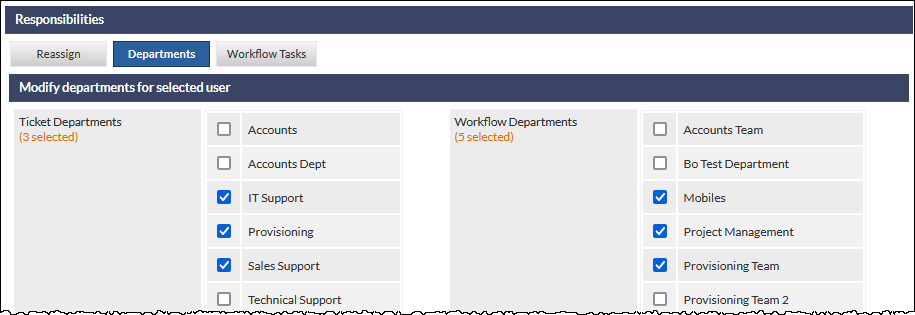
For more refined bulk-transferring, use the filter and reassignment features relating to the relevant module. For example, for Customer reassignment, see the Customer Reassignment section of the Support Centre Article, Customers (List).
Workflow and Ticket Department members can also be managed in the respective CommTrak settings:
Please refer to the following articles for more information about user responsibilities:
Skills
The user's skills can be updated in this section.
for more information about the Skills feature, please refer to the following articles:
Targets
The user's sales targets can be updated in this section.
Enter a currency value for each Business Division, as required, and press Save to confirm.