
Workflow Departments (Settings)
Users can be assigned to one or more Workflow Departments, and a workflow task can be assigned to a single Workflow Department.
When a user is allocated to a workflow department, they will receive email notifications pertaining to workflow tasks that have been allocated to that department.
Accessing Workflow Department Settings
Settings > Workflow Settings > Workflow Departments.
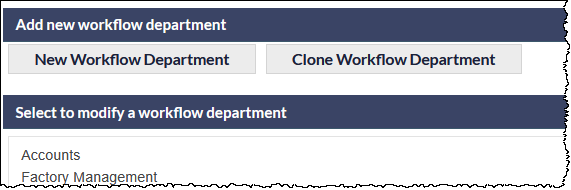
The Add new workflow department screen is displayed:
Cloning an Existing Workflow Department
If a new workflow department is being created, and it is identical or similar to an existing workflow department, the existing department can be cloned:
- Press the Clone Workflow Department button (visible in the previous image).
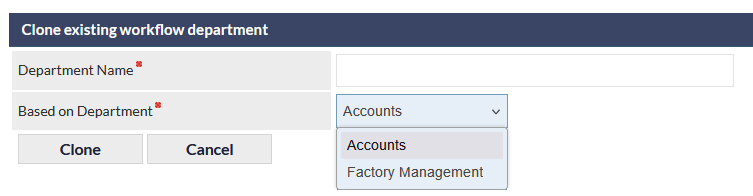
- Enter the new department name into the Department Name field.
- Select the department to clone from the Based on Department dropdown list.
- Press the Clone button to create the cloned department.
- If required, Add / Remove move staff from the cloned department
- Press Save to confirm saving of the cloned department
Adding a New Workflow Department
Press the New Workflow Department button.
Enter the new department name into the Department Name field.
To change a workflow department name, and to add and remove staff from a workflow department, see the following settings:
Modifying or Deleting a Workflow Department
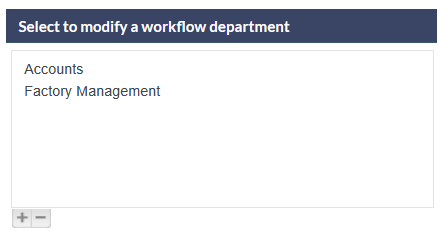
To modify or delete a workflow department, click the name of the department to modify:
Modifying the Department Name
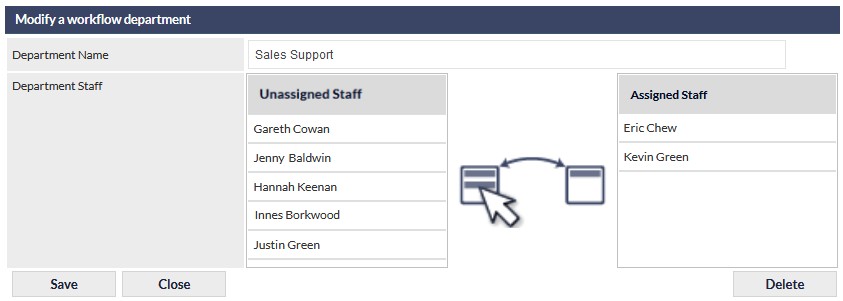
Update the name of the department in the Description field (shown in the image below):
Add / Remove Staff
To add staff to the department, drag a name in the staff list on the left (unassigned staff), and drop it into the staff list on the right (assigned staff).
To remove staff from the department, drag a name in the staff list on the right (assigned staff), and drop it into the staff list on the left (unassigned staff).
Search for staff
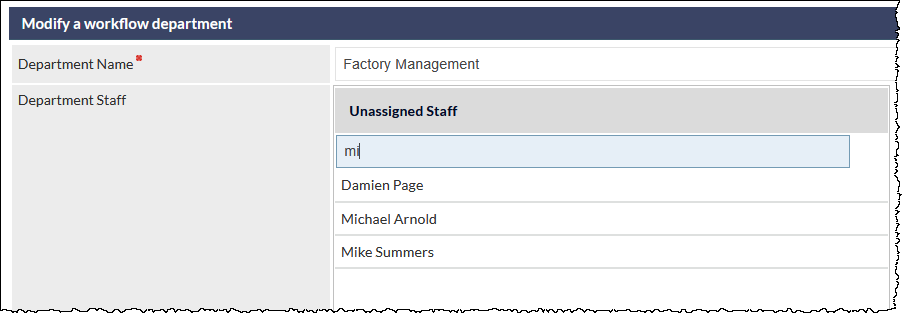
To search for a name in the unassigned staff list, start typing the name into the Search... text field. The list will automatically filter to show only names that match the search characters:
Deleting a Department
To delete the currently-selected department, click Delete.
When prompted, either confirm or cancel the deletion.
Once deleted, a department cannot be restored.
Saving the Settings
If any of the workflow department settings have been modified, click Save to retain the updates.