
Contracts Screen
The Contracts Screen contains details of a customer's active, expired and cancelled contracts.
A summary of a customer's contracts is also visible in the Contracts field of the Customer Main Info tab.
The following sections are available in the Contracts screen:
New Contract
Press the New Contract button to create a new contract. The Add new contract pop-up window is displayed:
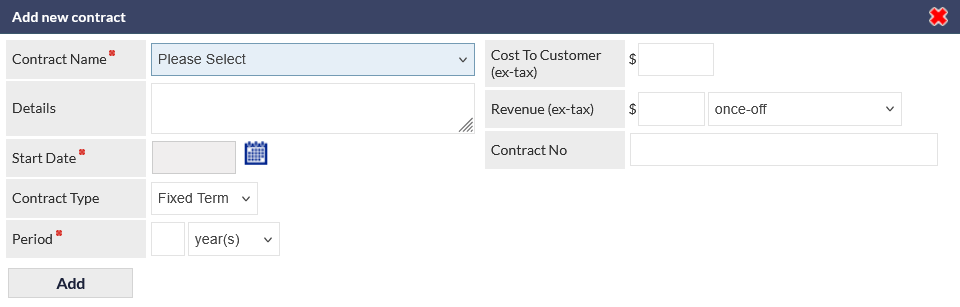
The available fields are:
Contract Name (mandatory)
Contract names are specified in Settings > Customer Settings > Contract Names.
Details
Enter details such as variations.
Start Date (mandatory)
The start date of the contract.
Contract Type
The available contract types are:
- Fixed Term
- Roll-Over
- Casual
Period (mandatory)
Specify the duration of the contract in either days, months or years.
Cost To Customer (ex-tax)
Enter the total ex-tax price that the customer will pay for this contract.
Revenue (ex-tax)
This field varies depending on the Contract Type.
- Roll Over and Casual - enter the ex-tax revenue per month
- Fixed Term - enter the ex-tax revenue per month and also specify the term in the dropdown list:
- once-off
- per month (full term)
- per month for 6 months
- per month for 12 months
- ...
- per month for 108 months
- per month for 120 months
Trailing Revenue Rules can also be applied to a contract - please refer to the article Trailing Revenue (Contracts) for information about selecting and modifying Trailing Revenue rules for a contract.
Contract No
The unique contract number.
Add the Contract
Press the Add button to confirm the contract details.
The contract is added to the Current Contracts section.
Current Contracts
This section displays a list of current contracts. The following image shows the Current contacts section with a single contract in the list (click the image to display the full-sized image):

Each row displays a summary of the contract. In addition to the contract fields, there are two icons in the rightmost column (visible in the previous image).
- Bell icon - enable or disable contract expiry notifications (default enabled). When enabled for active contracts, a contract notification displays in the Expiring Contracts Summary Panel when the contract is due to expire.
- Switch icon - press this icon to cancel the contract. You will be prompted to confirm cancellation of the contract.
Once cancelled, a contract cannot be reactivated.
Cancelled contracts are listed in the Cancelled contracts section.
Once a contract has been cancelled, a Cancel Comment can be added. See the Cancelled Contracts section for more information.
Expired Contracts
This section displays a list of expired contracts; that is, contracts that have naturally passed the period during which the contract is active. The following image shows the section with a single contract in the list (click the image to display the full-sized image):

Clicking the row for an expired contract displays the contract details pop-up window:
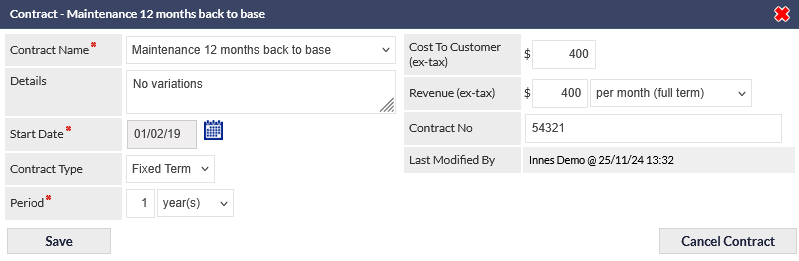
In addition to the contract details provided when the contract was created, the following features are available:
- Last Modified By (read only field) - the name of the staff and the date on which the contract record was last modified
- Save button - saves any changes that have been made to the contract
- Cancel Contract button -manually cancel the expired contract
Cancelling an expired contract
Once cancelled, a contract cannot be reactivated.
Whilst cancelling an expired contract may seem counterintuitive, in some cases, a fixed-term contract may have been allowed to roll-over (i.e. the customer continues to pay for the contract on a monthly basis). In these cases, the contract may need to be formally cancelled.
To cancel the contract, press the Cancel Contract button in the expired contract details pop-up window (visible in the previous image).
The Cancel contract pop-up window is displayed.
Enter a comment (typically the reason for the contract cancellation) and press the Confirm button. A confirmation dialogue is displayed; press OK to confirm the cancellation of the contract, or press Cancel to exit without cancellation.
When an expired contract is cancelled, it is moved to the Cancelled Contracts section.
Cancelled Contracts
This section displays a list of expired contracts.
Hovering over the information icon (visible in the following image) displays a pop-up information window that contains additional information about the cancellation:
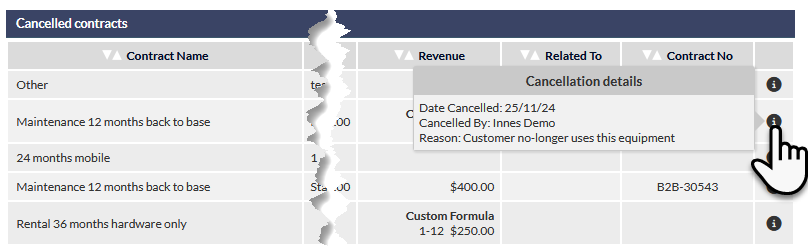
Clicking the row for a cancelled contract displays the contract details pop-up window, so they can be modified if required.
In addition to the standard contract fields, there are two additional fields displayed when a contract has been cancelled:
- Date Cancelled (mandatory) - this is the date from which the cancellation takes effect.
- Cancel Comment - this is a text field into which the reason for the cancellation can be entered.
Press Save to confirm any changes to the cancelled contract.
Unconfirmed Contracts
When a contract is created via a Quote, the contract is not automatically confirmed when the Lead is made successful. To activate the contract, it must be confirmed in one of the following ways:
Contracts Tab in Customer Record
Unconfirmed contracts are displayed in the Current contracts section of the Contracts tab, with bold, italic text as shown in the following image:

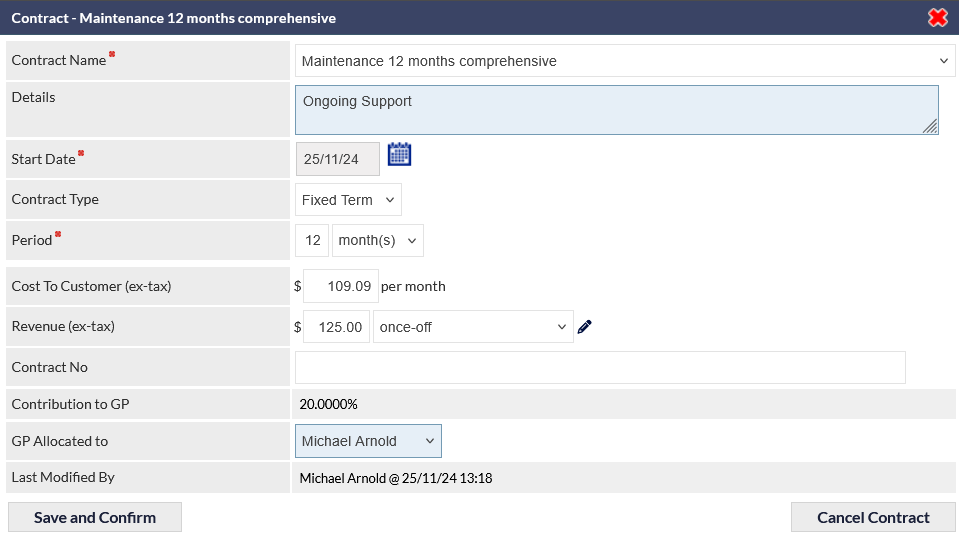
In the previous image, the first current contract (Maintenance 12 months comprehensive) is unconfirmed. Click the contract to view / review the contract details, and press the Save and Confirm button when the details have been confirmed as being accurate:
Unconfirmed Contracts Summary Panel
The Unconfirmed Contracts summary panel, on the CommTrak home screen displays the current staff member's unconfirmed contracts:
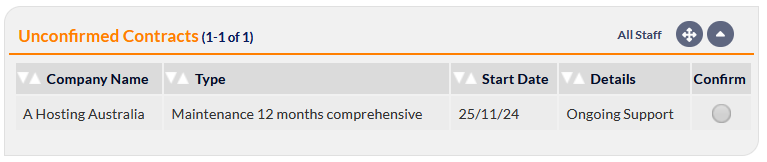
Clicking the Confirm button for a contract (rightmost in the previous image) displays a pop-up confirmation dialog:
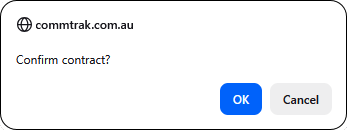
Click OK to confirm, or Cancel as required.
Confirming from the Unconfirmed Contracts summary panel does not provide an opportunity to review and update the contract details. If the contract needs to be reviewed / updated prior to confirmation, view the contract in the customer's Contracts tab.
For more information about customisation of summary panels please refer to the Summary Panels article: