
Contracts Field (Customer Main Info)
This article provides information about the Contracts field in the Customer screen. For more information about contracts and related features, please see Support Centre article, Contracts Screen.
The Contracts field in the Customer's Main Info tab displays a summary of current contracts and, optionally, expired and cancelled contracts:
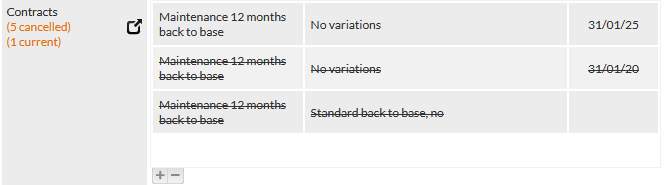
If enabled, expired and cancelled contracts are shown in strikethrough text (visible in the previous image).
The visibility of expired and cancelled contracts is a global CommTrak setting that is specified by your organisation's CommTrak Administrator.
The default setting is to not show expired and cancelled contracts.
The relevant setting is : Settings > Customer Settings > Miscellaneous > Show expired or cancelled contracts in customer's Main Info tab
The Contracts field label displays the number of current, cancelled and expired contracts in orange text (visible in the previous image).
Clicking on any contract entry displays the contract details pop-up window:
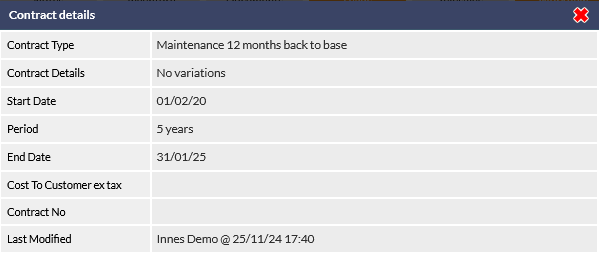
The information displayed in the Contract details window will vary depending on whether the contract is active, expired or cancelled. For example, the contract cancellation date will be displayed if the contract has been cancelled.
Contract Screen
To see more detail about the customer's contracts and to update an existing contract, or cancel a contract, there are two options:
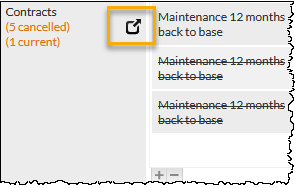
- Click the pop-out icon displayed in the Contracts field label (highlighted in the following image):
- Select the Contracts tab at the top of the screen (highlighted in the following image):

The position and number of tabs in your CommTrak may be different to the layout shown in the previous image depending on your CommTrak configuration and your preferences. To learn more about customising the tabs, please see article, Customer Tabs.
Contracts
For more information about the Contracts features and how to modify and cancel contracts, please see article Contracts Screen.