
Bulk Selection / Reassignment of Records
Elevated permissions are required for this feature - if you can't see the reassignment features, please contact your CommTrak administrator.
This article explains how to bulk select records for reassignment of various attributes and, depending upon the module, deletion of records within the following modules:
- Customers
- Leads
- Tickets
- Telesales
- Inventory
The ability to reassign attributes or delete records depends upon the features of the module. For example:
- It is not possible to delete a Customer record, so bulk deletion of Customers is not available
- Tickets cannot be bulk closed because closure of a Ticket implies resolution, which would require an individual note, therefore bulk cancellation is advised; please refer to the Bulk Reassign Ticket Status article for more information.
For details relating to available reassignment / deletion features within a CommTrak module, please refer to that module's Support Centre documentation.
Bulk Selection Options
When bulk selecting records, two options are available:
- only records visible on the current page
- all records that match the current filter
It is important to be aware that, permissions allowing, bulk selection of every record within the module is possible, therefore careful selection of search criteria should be specified prior to bulk selection and reassignment / deletion.
Bulk Selection of Records
Specify the Required Search Filter
Prior to bulk selecting records, it's important to ensure that you have specified appropriate search filters for your requirements. For example, on the Customers screen, you may wish to filter records that were added during a certain date range and are allocated to a specific Sales Rep:
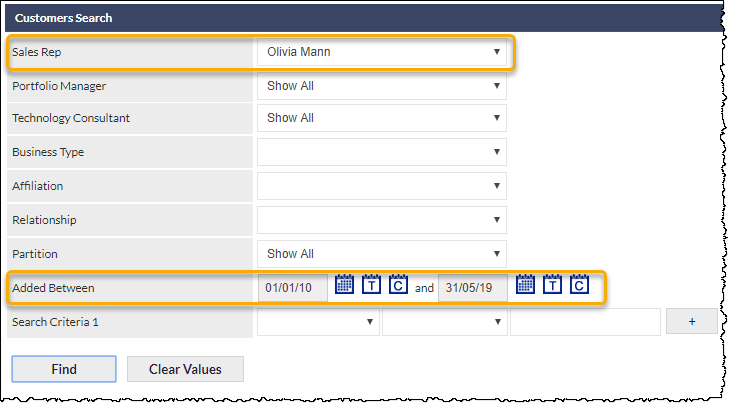
An example of results using the above filter is shown in the following image:
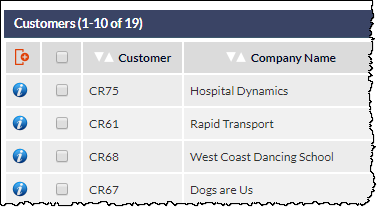
They key points to note in the above screenshot are:
- There are 19 Customer records that match the specified filter
- The first 10 of the 19 records are being displayed
This information can be ascertained from the text in the search results section header: Customers (1-10 of 19)
Perform the Bulk Selection
To bulk select records, click the Select all box in the column header:
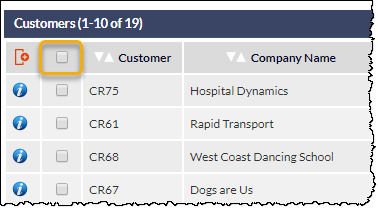
The bulk selection options will be displayed in a pop-up window:
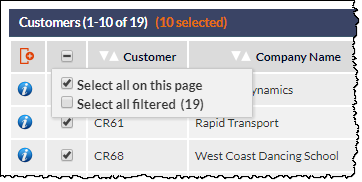
The following options are available:
- Select all on this page
- Select all filtered (record count)
Select all on this page
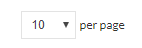
Selecting this option will automatically tick the selection box adjacent to every record visible on the current page. In the screenshot above, 10 records would be selected (as identified in the blue section header). The number of records displayed per page is determined by the per page option at the bottom of the screen (maximum of 100 per page):
When the Select all on this page option is ticked, the following will occur:
- All records visible on the current page will be ticked
- The Select all tick box in the column header will change to indicate partial selection (a dash in the tick box)
- The number of records selected will be shown in orange text in the section header
The above three points can be been seen in the following image:
Any subsequent actions, such as reassignment or deletion, will only apply to the ticked records visible on the current page. These actions cannot be reversed.
When the Select all on this page option has been selected, individual records on the current page can be unticked if required. The orange text indicating the number of selected records will be updated accordingly.
To deselect all selected records on the current page, click the Find button in the Search section; this will refresh the screen and cancel all current selections.
Select all filtered
Selecting this option will automatically select all records resulting from the currently applied filter. In the screenshot above, 19 records would be selected.
The following confirmation message will be displayed when Select all filtered is selected:
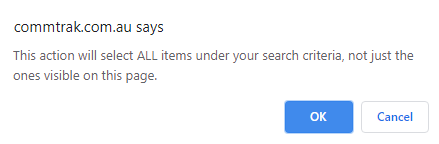
Clicking Cancel will hide the confirmation message, enabling you to choose the required selection option.
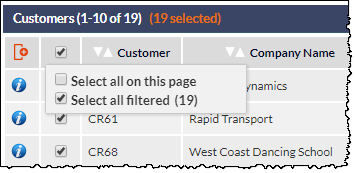
Clicking OK will confirm your selection, and the following will occur:
- All records matching the current filter will be ticked
- The Select all tick box in the column header will change to a tick, to indicate selection of all filtered records
- The number of records selected will be shown in orange text in the section header
The above three points can be been seen in the following image:
When the Select all on this page option has been selected, individual records on the current page can be unticked, but this will change the selection to only apply to ticked records visible on the current page; in other words, the bulk selection of all records matching the current filter will be cancelled. The orange text indicating the number of selected records will be updated accordingly.
To deselect all records matching the current search filter, click the Find button in the Search section; this will refresh the screen and cancel all current selections.
Any subsequent actions, such as reassignment or deletion, will apply to all records matching the current filter. These actions cannot be reversed.
Performing a Bulk Action (such as Reassignment / Deletion)
After bulk selecting records, a reassignment / deletion can be performed in the Reassignment section of the screen. Select the required action (e.g. reassignment to a different salesperson), and click the adjacent Reassign button.
If only visible records on the current page have been selected, no further confirmation is requested, and the reassignment / deletion will occur immediately. These actions cannot be reversed.
If bulk selection of all filtered records has been selected, a pop-up window will prompt for confirmation and, if confirmed, the reassignment / deletion will occur immediately.
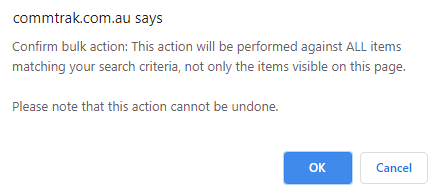
If the Cancel button is clicked the action will not occur and the current record selection will be retained, as identified by the orange records selected text in the results section header.
Bulk reassignment / deletion cannot be reversed. It is vital that you double check your selection prior to confirming reassignment of all filtered records.