
Labels & Strings (Settings)
The Labels & Strings setting enables your organisation's CommTrak Administrator to change the name of labels and other text strings that appear within CommTrak.
Once edited and saved, changes to Labels & Strings cannot be undone; please use caution when accessing this setting.
Accessing Labels & Strings Settings
Settings > General Settings > Labels & Strings
Modifying a Single-Line label
Single-line labels typically refer to field names and other simple labels that appear throughout CommTrak.
Locate and Select the Label to Rename
- Either click on the label to be renamed, in the Select a single line label to modify section of the settings screen
or
- Start typing the current name of the label into the Search for single line label to modify section, at the top of the settings screen
- As you type, matching labels will be displayed in a drop-down list, from which you can select the required label (shown in the image immediately below)
- A minimum of three consecutive characters must be entered into the search field
- Click the required label to select it
The image below, shows the search feature being used to search for all fields containing the word spare:
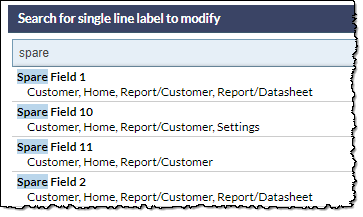
Note, in the above image, the screens on which the label appears are listed below each search result. For example, the label Spare Field 1, can be found on the following screens: Customer, Home, Report/Customer and Report/Datasheet.
Rename the label
- Edit the current name of the label
- Click
or
- Click to revert to the previous label name
Modifying a Multi-Line label
Multi-line messages, such as plain-text email notifications, can be modified:
- Locate and select the multi-line label to be modified in the Select a multi line label to modify list
- Edit the text as required
- Click
or
- Click to revert to the previous label name