
Start Here - My Details
When you sign in to CommTrak for the first time, you must check that your User Details are correct and, if you were allocated a temporary password, you should change your password before you start to do any work:
You can access My Details in two ways:
- Settings > User Settings > My Details
or
- Click the My Details (gear) icon, located CommTrak Information Bar:

The My Details screen contains several sections, presented as tabs:

Main Info
It is important that all your user details are correct, but it is vital that the following fields contain the correct information:
- Staff Name
- Job Title
The above fields will be used in outgoing contact emails, and if you ever forget your CommTrak password, the reset information will be sent to your registered email address.
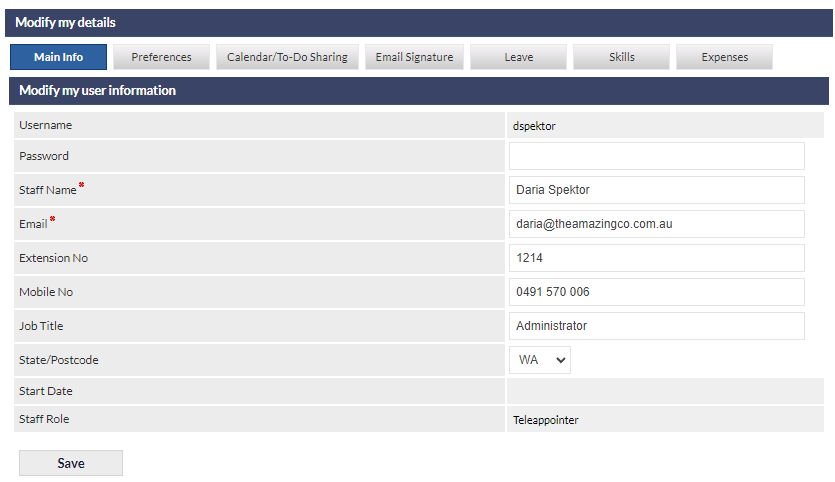
The State field is used as the default state when you create new records. For example, in the previous image, the user (Daria) has the State field set to WA. Whenever Daria manually creates a new Customer record, the state will be set to WA automatically.
The following fields are displayed in the CallTrak Staff List screen:
- Staff Name
- Extension No
- Mobile No
- State
You should only enter business information into My Details; for example, don't enter your personal mobile telephone number, unless you wish to share it with all other CommTrak users within your organisation, as this information is displayed in the CallTrak Staff List.
Although the Staff Name, Email and Job Title fields are particularly important, you should also ensure that your other details in the My Details section are correct.
Change your Password
To change your password, enter your new password into the Password field (immediately below Username in the above image), and click .
Depending on the security requirements specified by your organisation's CommTrak Administrator, your password may need to meet certain complexity requirements. If your new password does not meet those requirements, you will see a prompt advising you accordingly.
If you have forgotten your password, or are otherwise unable to sign-in to CommTrak, please refer the Support Centre category, Security / Sign-In.
Preferences
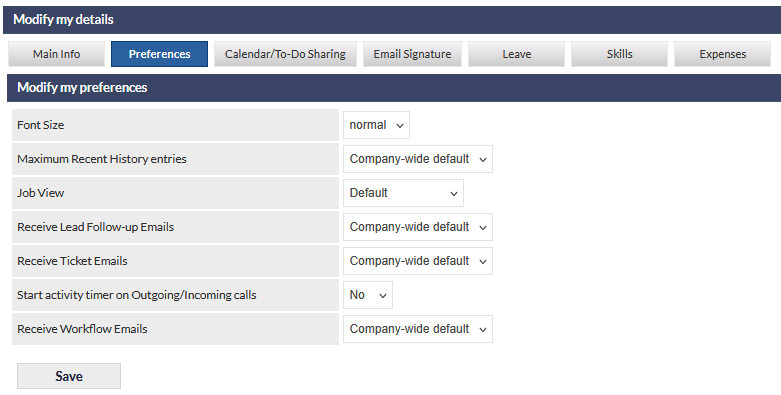
The Preferences tab enables you to personalise various features in CommTrak:
- Font Size - options are: normal, large, largest
- Maximum Recent History entries - options are: Company-wide default, 10, 20, 30, 40, 50
- Job View - the default Job View displayed on the Job Details screen. The options in this dropdown list will vary depending on the configuration of the Job Views Settings in your CommTrak's Jobs module.
- Receive Lead Follow-up Emails - options are: Company-wide default, Yes, No
- Receive Ticket Emails - options are: Company-wide default, Yes, No
- Start activity timer on Outgoing/Incoming calls: Yes, No (default is No)
- Receive Workflow Emails - options are: Company-wide default, Yes, No
When Company-wide default is selected, your preference will be according to the global options within CommTrak (as specified by your organisation's CommTrak Administrator).
If a notification email preference is set to No (or Company-wide default is No), you will not receive any automated email notifications for the associated module. For example, if Receive Workflow Emails is set to No, you will not be notified of Workflow Tasks that are due, overdue, rejected, etc.
Reset Preferences
Only press if requested by CommTrak Support personnel, or your organisation's CommTrak Administrator.
Although the Reset Preferences feature will not delete any data, all your personal preferences will be reset across all CommTrak modules, including customised column displays, sorting and filtering options, email notification preferences, etc.
Calendar/To-Do Sharing
In this section, you specify which CommTrak users can view or modify your CommTrak calendars. The default setting is No Access for other CommTrak users.
If you require other users to either view your calendar, or make changes to it (such as creating Sales Appointments), you must give those users the appropriate permission in this section. Select the Calendar to modify, then update the access per CommTrak user (remembering to press Save if you wish to retain your changes):
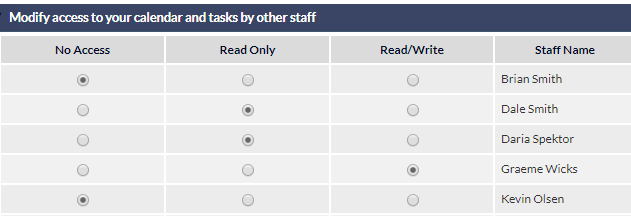
- No Access: the user is unable to view or change your calendar
- Read only: the user can view your calendar, but cannot change or add entries
- Read/Write: the user can add, update or delete entries in your calendar.
Other calendar settings, such as configuration of third-party calendar integration (e.g. Outlook), are beyond the scope of this article. Please consult your organisation's CommTrak Administrator if you wish to add calendar integrations.
At least one local calendar must remain in the list, as it is required for calendar sharing. Attempting to delete the last local calendar will result in a warning message.
Email Signature
This section determines which email signature is used when you send an email from CommTrak.
The default email signature is Personal, and this signature should be setup in the signature editing window on this screen.
If your organisation's CommTrak Administrator has configured one or more Company-Wide Signatures, you can select one of these as your default email signature.
Your designated email signature will automatically be displayed at the end of all emails that you send from CommTrak; please ensure that you have selected the correct one!
Do not modify your personal email signature, unless advised to do so by your organisation's CommTrak Administrator. It is important to be aware that it is not possible to copy and paste signatures from external applications such as Microsoft Word and Outlook, as the formatting used in those applications is non-standard and therefore incompatible with the standard email HTML utilised within CommTrak's signatures. Although signatures pasted from external applications may appear correctly in the email signature editor, when sent in an email, the formatting will typically be displayed in an unexpected manner.
Leave
If your organisation uses CommTrak for booking and confirming staff leave, you can request your leave in this section.
When your leave is approved or declined, you will be notified by email, and your updated leave details will be visible in this screen.
All leave entries (both pending and approved) including any notes that you add to your leave requests, are visible on the CallTrak screen (accessible from the CommTrak main menu). Only enter information that you wish to share with all CommTrak users within your organisation.
The Leave Type list is maintained in General Settings.
Skills
If your organisation uses CommTrak to track employees' certifications and accreditations, the relevant information can be viewed and updated on this screen.
All staff skills are visible on the CallTrak screen (accessible from the CommTrak main menu).
Skill Groups and Skills are maintained in Settings > User Settings > Skills Matrix.
Expenses
This section enables staff to add expense claims for approval.
Please refer to the following article for more information about this feature:
Saving your Changes
Click to confirm any changes that you have made.