
Expenses and Reimbursements
This is article is a work-in-progress. If you are unable to find the information you are looking for, please contact the CommTrak Support team, who will be pleased to assist you.
This article is a summary of CommTrak's Expenses and Reimbursements features.
The Expenses and Reimbursements module enables staff to enter their expenses (or the expenses of other staff) within CommTrak, and submit them for approval.
Receipts can be uploaded as images, which are attached to the expenses claim.
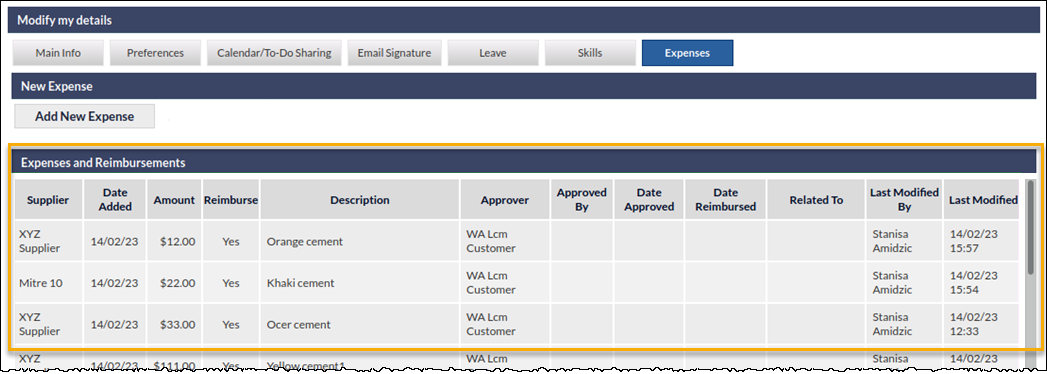
Staff can add and review their own expense claims by pressing the My Details (gear) icon on the CommTrak information bar, and selecting the Expenses tab:
Following authorisation, expenses can be tracked and identified as reimbursed within CommTrak.
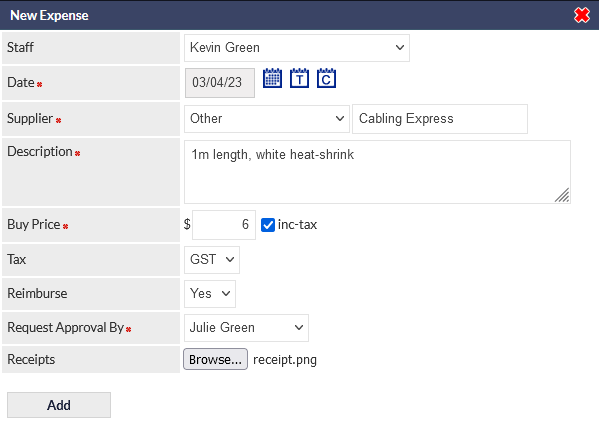
Submitting an Expense
Expenses can be submitted in one of two ways:
- My Details > Expenses for general expenses
- A Job's Related Expenses field, for materials used and expenses incurred for a specific Job
Using either of the above methods, receipts can optionally be uploaded as images, which are attached to the expenses claim.
Reviewing Your Expense Claim
To review your outstanding expense claims:
My Details > Expenses

The Expenses and Reimbursements section list your current claims and their status:
Expense Approvals and Reimbursements
When a claim for reimbursement is made, the person from whom approval is being sought will receive an email notification.
Approvals and reimbursements are accessed via the Utilities menu (permissions are required):
The following image is an extract from the Expenses utility screen:
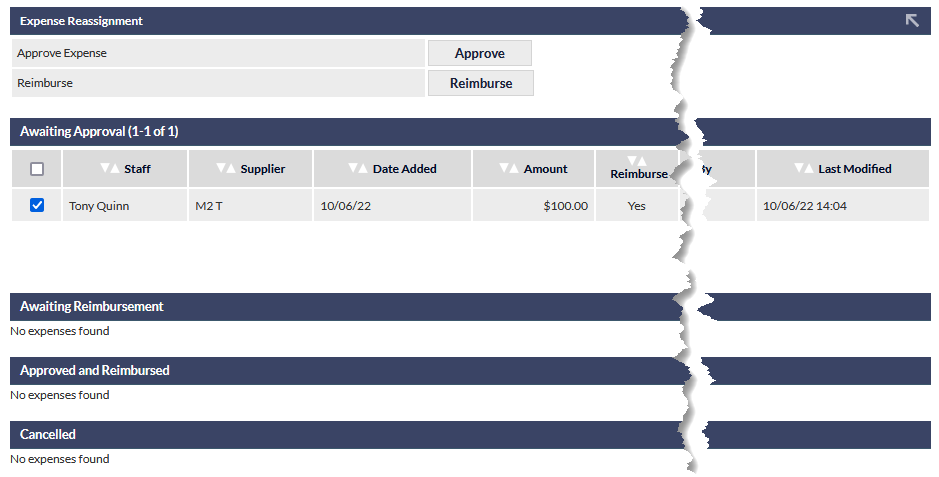
In the example image, there is a single expense awaiting approval, but if there are multiple expenses, several (or all) items can be selected and approved / reimbursed simultaneously, by ticking the box adjacent to the claims.
Once approved, those claims that require reimbursement move into the Awaiting Reimbursement section, and once reimbursed, those claims move into the Approved and Reimbursed section.