
Email Notifications (Settings)
The Email Notifications settings provides for the editing of the design and content of email notifications that are sent by CommTrak.
Accessing Email Notifications Settings
Settings > General Settings > Email Notifications
Filter / Sort Email Notifications List
If required, the list of email notifications can be filtered and sorted to assist in locating a specific notification:

Filter By Type
Select the required type of email notification from the dropdown list. The following filters are available:
- Show All
- Account
- Calendar
- Callbacks
- Customers
- Data Sheets
- Inventory
- Jobs
- Leads
- Leave
- Reports
- Staff
- Tickets
- To-Do
- Workflow
Order By
- A-Z
- Z-A
Viewing an Email Notification
Click the name of the email notification to view:
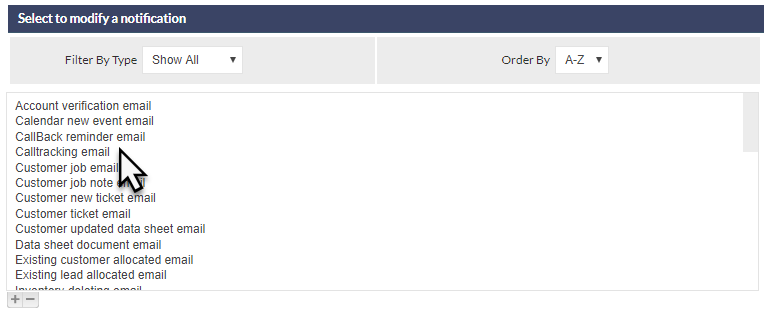
The following fields are displayed:

Notification (read-only)
The name of the selected email notification.
Notification Template
The default notification template is always the Standard HTML Notification.
The available options in this dropdown field are:
Standard HTML Notification
If selected, the default (HTML) message will be emailed when this notification is sent.
The default notification can be edited if required; see the Modify a Template section, below.
This notification is an HTML formatted message containing the key information required to appropriately notify the recipient.
Default Notification (Plain Text)
If selected, the plain text message will be emailed when this notification is sent.
This notification is a plain text message containing the key information required to appropriately notify the recipient.
The default notification can be edited in the Multi Line Label section of Labels & Strings settings.
Add New Notification Template
Selecting this option enables the creation of a custom notification template for this email notification.
When selected, a New notification template name field will be displayed next to the drop-down list, together with an Add button.
Enter a name for the new template, and click to confirm.
After clicking Add, the Maintain notification template section will be displayed. See the Modify a Template section, below, for information pertaining to the editing of email notification templates.
<Name of Custom Notification template>
In addition to the options listed above, any custom notification templates that have been created for this notification will be itemised in this dropdown list.
Custom notification templates can be edited if required; see the Modify a Template section, below.
Modify a Template
When an email notification template has been selected, and the Modify button has been clicked (or if a new template has been created), the notification template editor window is displayed in the Maintain notification template section.
The following fields are displayed:
Notification (read-only)
The system name of the email notification that is being edited or created.
Notification Template
The name of the custom template.
Notification Subject
The text that will be used in the Subject line of the notification email.
Placeholders can be used in the Notification Subject field; see the Placeholders section, below.
Notification Body
The body of the email notification message.
Assign as default
If the current template is to be used as the default template for the email notification, this field must be ticked.
Action Buttons
Click to confirm changes to the template.
Click to receive an example of the email notification in your email inbox. Using this feature is recommended prior to saving a template that has been assigned as default.
Click to remove the template.
Placeholders
Placeholders are available for use in the email notification message and subject. Available placeholders for the selected email notification are listed in the Legend area, to the left of the message editor (highlighted in the following image).
For example, you can include the Job ID, and other placeholders, in email notifications relating to Jobs:

Note that, in the example of placeholder usage above, the Your Company Name placeholder has been used in both the email notification subject and the body of the message.
Important: Email notifications use the double-hash delimiter, e.g. ##JOB ID##.