
Telesales Opportunities Import
The main Telesales screen has an option to Import opportunities from a CSV file:
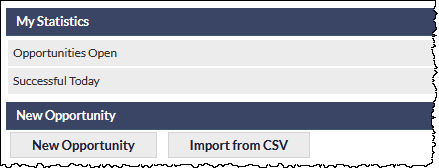
The Import from CSV button is only visible to users with appropriate permissions (e.g. Supervisor, Telesales Manager).
Recommendations
Although Telesales Opportunities can be imported in batches of up to approximately 5,000-8,000 records (depending on the number of columns in the CSV file), we recommend importing opportunities in smaller batches (e.g. up to 1,000 rows per CSV file).
For example, separate a large CSV file into smaller batches based on Teleappointer or Promotion Name, etc., depending on your requirements.
Smaller batches will import faster and will also make it easier to identify and resolve issues such as missing mandatory fields or incorrect data formats.
Please refer to the available Telesales Opportunities Fields section in this article for detailed information mandatory fields and required data formats.
Starting the Opportunities Import Process
Clicking the Import from CSV button displays the following options:
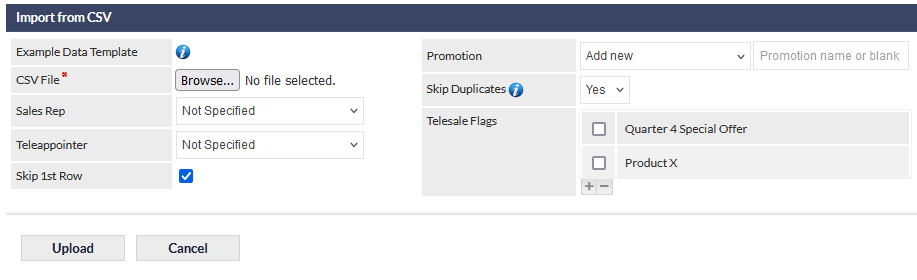
Telesales Opportunity Import Options
Example Data Template
Clicking the information (i) icon will immediately download an empty CSV template using your browser's standard download feature.
The first row of the template contains the field names that CommTrak can import into a Telesales Opportunity record.
Although you can use your own template and manually match the fields in your template to the appropriate CommTrak Telesales Opportunity Fields, we strongly advise using the provided template as this makes the import process much faster and less likely to fail due to issues with missing or incorrectly named fields.
When the template has downloaded, you can enter or copy your opportunity records into the CSV template.
CSV File (mandatory)
Click the Browse... button to select the CSV file that you wish to import, or drag and drop a CSV file onto the button.
You can only select a single CSV file per import.
Sales Rep
Depending on your CommTrak configuration, this field may be named differently. For example, some organisations use the term Account Manager or Business Development Manager.
All imported opportunities will be assigned to the Sales Rep selected in the dropdown list.
If the Sales Rep is Not Specified, the imported opportunities will not be assigned, and can assigned at a later time if required.
Mandatory Fields
Please ensure that you include the mandatory fields for every record to be imported.
Whether using the provided template or not, the following fields are mandatory:
- Company Name
- State
- Main Phone
Any opportunity in the CSV file that does not have these three fields will fail to import
Teleappointer
All imported opportunities will be assigned to the Teleappointer selected in the dropdown list.
If the Teleappointer is Not Specified, the imported opportunities will not be assigned, and can assigned at a later time if required.
Skip 1st Row (default - ticked)
Upon confirming the import, if this field is ticked, the first row will not be imported as a Telesales Opportunity. This is the typical configuration, as it is expected that the first row of the CSV will contain the Telesales Opportunity field names.
If your CSV does not include the field names in the first row, you must untick this option, otherwise the first row of data will not be imported as an opportunity.
The provided Example Data Template includes the Telesales Opportunities field names in the first row. We strongly advise using this template and retaining the field labels in the first row.
If field names are not included in the first row, you will need to manually match every field in the CSV with the appropriate Telesales Opportunity field. This process must be completed accurately for every CSV import where the fields are not included in the first row.
Similarly, if the field names in your CSV do not match the names of the CommTrak Telesales Opportunity fields, you will need to manually match your field labels with the CommTrak field labels.
Promotion
The Promotion field allows for selecting an existing promotion name, or adding a new promotion name that will be assigned to every opportunity in the current CSV import.
Select an existing promotion name (if any) from the dropdown list or, select Add New in the dropdown list, and enter a new promotion name into the text field.
Promotion names are very useful in identifying batches of Telesales Opportunities for filtering, reassigning or deleting, and we recommend assigning a promotion name to each CSV import.
Skip Duplicates (default Yes)
If Yes, duplicate opportunities (that is, records for which an opportunity already exists) will not be imported.
The definition of a duplicate opportunity is one where an opportunity has the same promotion name as an opportunity that has previously been created / imported for the same company (assuming the company details can be matched to an existing record).
A blank promotion name is considered to be a match for an opportunity that has previously been created / imported for the same company, where the existing record also has a blank promotion name.
Telesales Flags
Telesales flags are arbitrary flags that can be associated with a Telesales Opportunity.
Uses for these flags can vary as required. For example, you may wish to create a Flag for specific product types or offers. These are very useful in identifying batches of Telesales Opportunities for filtering, reassigning or deleting.
Multiple Telesales Flags can be selected at the time of import and can also be assigned or reassigned at a later time if required.
Uploading the CSV File
Click the Upload button to start the import.
Confirming the Import
CommTrak will attempt to match the fields in the CSV file to the available Telesales Opportunity fields. To assist in matching the fields, the first 10 rows of data in the CSV are displayed:
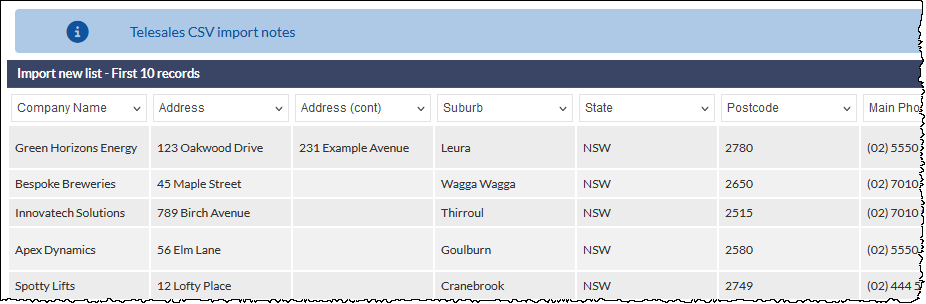
In the previous image, the dropdown lists above the first data row contain the names of the CommTrak Telesales Opportunities fields. The selected field name must match the data in each column.
If you have used the unmodified Example Data Template, the columns will always match, and no further action is required.
If you have modified the example template, or used your own template with a different column layout, you must match the field name in the dropdown list to the data in each column.
To ignore a column (i.e. do not import), select the N/A option in the dropdown list:
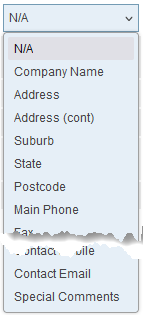
Verify / Import the Telesales Opportunities Data
Once all columns have been matched, click the Verify / Import button.
CommTrak will attempt to import all the rows from the CSV. If any of the imported opportunities are missing mandatory fields, a banner will be displayed advising which rows will not be imported:

The example banner in the previous images is advising that:
- State is missing from row 4 in the CSV
- Main Phone is missing from row 5 in CSV
You can either click Cancel, which will cancel the entire import process, or you can continue to import valid records and ignore the invalid records:
Match Imported Opportunity to Existing Telesales Record
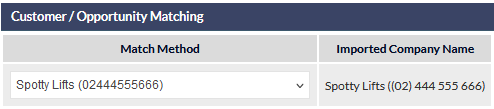
When importing, CommTrak will attempt to match the imported opportunities to existing company or Telesales records. If any matches are found, a list is presented, allowing you to confirm the match, or create a new Telesales record for the opportunity.
In the following example, CommTrak has matched an imported opportunity to an existing record, based on the Company Name and Main Phone fields:
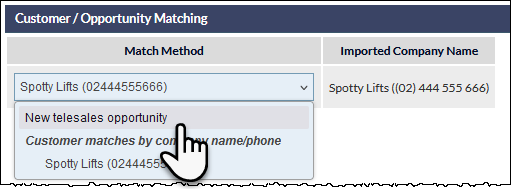
If a match is incorrect, you can choose to create a New telesales opportunity for the imported record:
If you wish to cancel the import at this stage (for example, to further review the data in the CSV file prior to import), you can click the Cancel button.
To confirm the matches, click the Finish button - the imported records will be processed, and you will be returned to the Telesales screen.
Telesales Opportunities Fields
The fields for which data can be imported into an Opportunity are:
- Company Name (mandatory)
- Address
- Address (cont)
- Suburb
- State (mandatory)
- Postcode
- Main Phone (mandatory)
- Fax
- ABN
- Contact Person
- Contact Title
- Contact Phone
- Contact Mobile
- Contact Email
- Special Comments
Field Notes
The following fields are mandatory. Failure to include these fields in the import will cause the row to be ignored during the import process (warnings will be displayed accordingly):
- Company Name
- State
- Main Phone
State
Must be one of:
ACT, NSW, NT, QLD, SA, TAS, VIC, WA
Phone Numbers
Should be text, but numeric phone numbers will be imported
Non-numeric separators and incorrectly-positioned spaces will be removed upon import. For example, the phone numbers:
- (02) 5550 1234
- 08-5550-4321
... will be imported as:
- 02 5550 1234
- 02 55504321
The leading zero of numeric phone numbers will be lost if the field is numeric. Please ensure that phone number columns are formatted as text (for example, in Excel).
Special Comments
The special comments field is a large text field.