
Overdue Alarms
If enabled on your CommTrak, the Overdue Alarms feature displays a notification of overdue activities for the currently-signed-in user.
Overdue Alarms is a global CommTrak setting; it is either disabled or enabled for all users; see Settings > General Settings > Overdue Alarms.
Overdue Alarms Notifications
The Overdue Alarms notification is displayed as an orange warning triangle on the CommTrak Information Bar:

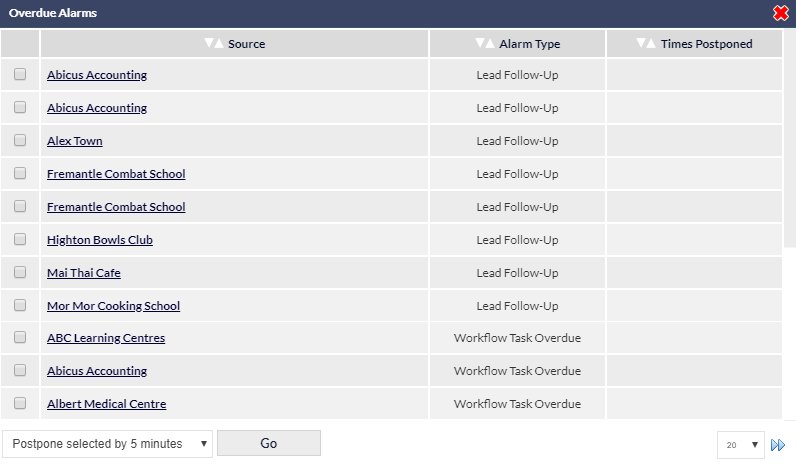
Clicking the Overdue Alarms icon on the Information Bar, immediately returns the user to the CommTrak Dashboard, and displays a list of overdue items in a pop-up window:
Dismissing the Overdue Alarms Pop-Up Window
To dismiss the Overdue Alarms pop-up window, either click the red X (top-right of the window), or press Esc on the keyboard.
If you have overdue activities, the Overdue Alarms pop-up window will be displayed every time you view the CommTrak Dashboard. The ability to dismiss the pop-up window is intended as a temporary convenience, in the event that you need immediate access to other CommTrak features.
Updating Overdue Alarm Activities
The intention of the Overdue Alarms feature is to identify overdue activities, so the user can immediately complete one of the following actions:
- Complete the activity
- Update the due date / notes for the activity
Complete the Activity
In the Overdue Alarms pop-up window, click the company name for an activity; the relevant screen will be displayed (e.g. Lead, Workflow, etc).
Carry out the required action; for example:
- Make the CallBack
- Complete the Workflow Task
- Assign the Ticket
Update the Due Date / Notes
If the overdue activity cannot be completed immediately, the user should update the activity and add a note, detailing the reasons for the delay, and providing a new due date, if appropriate. For example:
- Set a new Due Date for a Workflow Task
- Postpone the CallBack, with an appropriate note
- Set a new date for a Lead Follow-Up, with an appropriate note
Postponing Alarms
An activity's alarm can be postponed within the Overdue Alarms pop-up window.
Postponing an Overdue Alarm notification does not update the activity (e.g. Lead Follow-Up, Workflow Task); it removes the activity from the Overdue Alarms list for the specified duration. This feature should not be used as a proxy for updating the relevant activity.
To postpone an activity's Overdue Alarm notification:
- In the Overdue Alarms pop-up window, click the tick-box next to the activity
- Select the postponement duration in the drop-down list at the bottom of the Overdue Alarms pop-up window
- Click
When the postponement period has expired, the activity will be displayed in the Overdue Alarms pop-up window, and the number of times that the activity has been postponed will be displayed in the Times Postponed column.
Overdue Alarm postponements are recorded within CommTrak, and are reportable (Reports > Staff Activity Report > Specified Activity > Overdue Alarm Postponed).
Overdue Task Reference
Your organisation's CommTrak Administrator can enable overdue alarms for the following items:
Customers
- CallBack Overdue
Jobs
- CallBack Overdue
Leads
- CallBack Overdue
- Follow-Up Overdue
Tickets
- CallBack Overdue
- Deadline Passed
- SLA Expired
- Unallocated
- Unseen
Unallocated tickets are displayed to all CommTrak users, as CommTrak is unable to determine to whom the ticket should be allocated and, thus, which user(s) should be notified.
Timesheets
- Timesheet Overdue
Todo
- To-do Overdue
Workflows
- CallBack Overdue
- Task Overdue
Projects
- Project Overdue
- Project Task Overdue