
Overdue Alarms (Settings)
If enabled on your CommTrak, the Overdue Alarms feature displays a notification of overdue activities for the currently-signed-in user.
See the Support Centre article, Overdue Alarms, for information relating to the use of this feature.
Accessing Overdue Alarms Settings
Settings > General Settings > Overdue Alarms
Configuring Overdue Alarms
The Overdue Alarms settings screen is displayed as shown in the following image:
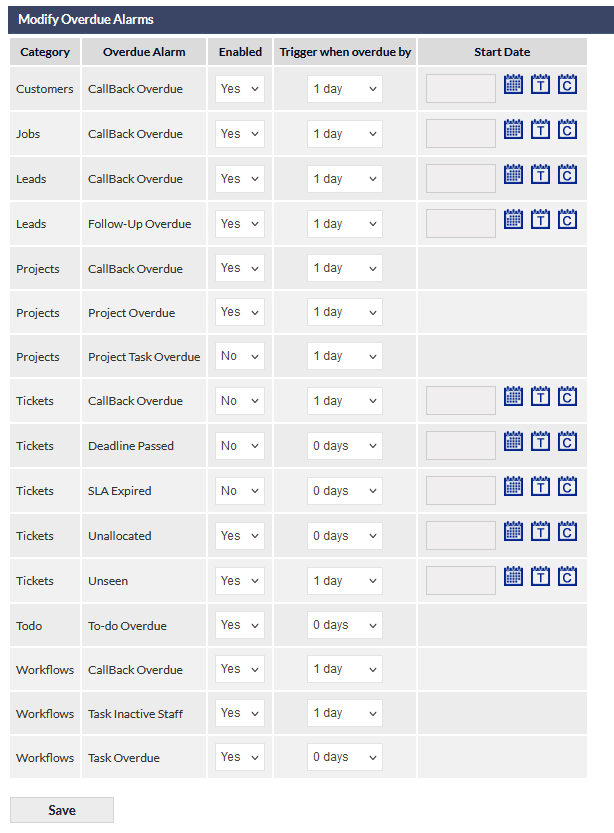
Overdue Alarms Settings Columns
The following columns are displayed in the Overdue Alarms settings:
Category
Identifies the module for which Overdue Alarms can be applied. The following modules have activities for which an Overdue Alarm can be configured:
- Customers
- Jobs
- Leads
- Projects
- Tickets
- Timesheets
- Todo
- Workflows
Overdue Alarm
The event that will trigger the Overdue Alarm. For example:
- CallBack Overdue
- Follow-Up Overdue
- Deadline Passed
Please review the previous screenshot, to see the full list of events for each Overdue Alarm Category.
Enabled (default No)
Identifies whether or not the Overdue Alarm is enabled for this item; either Yes or No.
Trigger When Overdue By
The duration after which the Overdue Alarm for this item will be triggered. The options are:
Number of days (0-6)
Number of weeks (1-3)
If the number of days is set to zero, the Overdue Alarm will be triggered immediately the activity is due.
Start Date
Overdue Alarms for the following categories can have a Start Date specified:
- Customers
- Jobs
- Leads
- Tickets
An Overdue Alarm will not occur for any activities that are due prior to the specified Start Date.
Example: If a Customer CallBack is due on 29/05/2018, and the Start Date for this type of activity is set to 01/10/2019, an Overdue Alarm will not be triggered for the Customer CallBack.
The Start Date feature is intended to prevent the display of numerous, perhaps out-of-date items, at the time the overdue alarm is enabled.
Action Buttons
Click to confirm changes to the Overdue Alarms settings.