
Workflow Load Management & Bulk Reassigning Due Workflow Tasks
In this article:
Workflow Load Management
CommTrak users with the required permissions have access to a Workflow Load section at the top of the Active Workflows screen (shown collapsed in the following image):
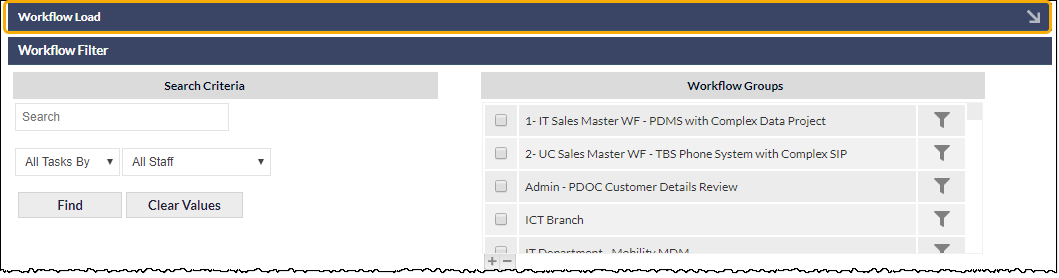
The Workflow Load section is collapsed by default, and will always display as collapsed when entering the Active Workflows screen. This behaviour is intentional, because the Workflow Load feature utilises significant system resources, and is intended for periodic use.
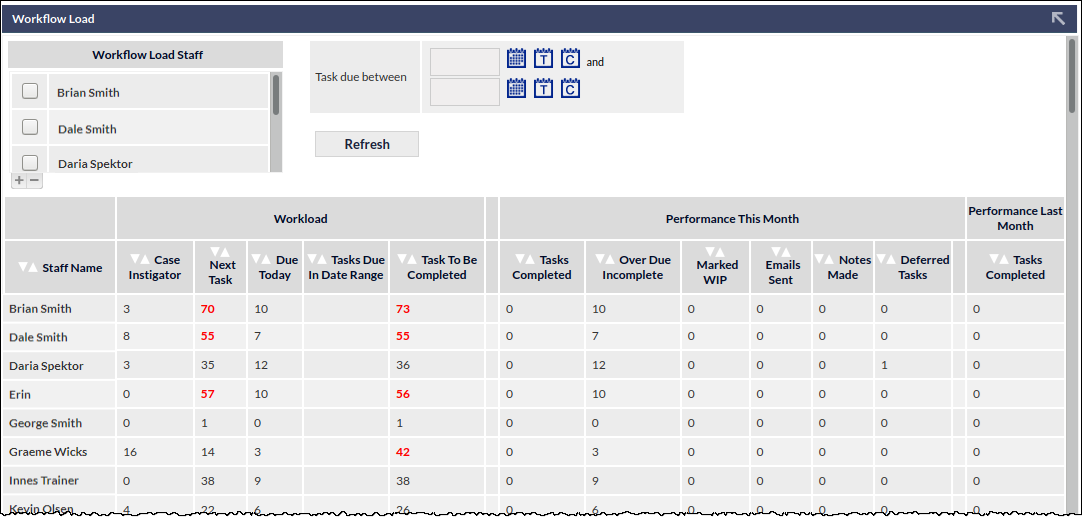
Expanding the Workflow Load section (by clicking the arrow at the right-side of the section header) displays the Workflow Load features:
 Workflow Load Filters
 Workflow Load Filters
The following filters are available for the Workflow Load list:
- Workflow Load Staff - filter the Workflow Load list to display only select staff members
- Task due between - filter the Workflow Load list to display only Workflow Tasks due within the specified range
After making changes to either of the above filters, must be clicked to update the display.
The Workflow Load Staff filter is retained between sessions; i.e. the user can leave the Active Workflow screen, and upon returning to the screen, the previous filters will be in place.
The Task due date filter is always cleared upon leaving the Active Workflow screen.
Workflow Load Limits
Workflow Loads that exceed a predefined limit are displayed in red text. For example, in the previous image, the Next Task count for Brian, Dale and Erin are displayed in red text, indicating that each of them has too many tasks allocated to them as the Next Task.
Workflow Limits can be defined for the following Task counts:
- Next Task
- Due Today
- Total Tasks
Workflow Load Limits are defined in Settings > Workflow Settings > Miscellaneous.
Bulk-Reassigning Active Workflow Tasks
This feature pertains to reassignment of active Workflow Tasks. To permanently reassign Workflow Tasks to a different staff member, see Support Centre article, FAQ - Permanently Reassigning Workflow Tasks.
When viewing the Workflow Load list, clicking on the name of a staff member will present a pop-out window containing a list of all their due Workflow Tasks:
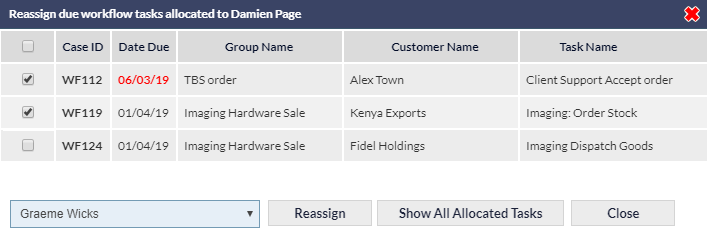
All allocated tasks for the currently-selected user can be displayed by clicking the Show All Allocated Tasks button (shown in the above image).
Overdue items are displayed in red text.
Tasks for reassignment can be selected by ticking the box in the left-most column of the relevant case row or, all Tasks assigned to the selected staff member can be selected by ticking the box in the left-most column header. The staff member to whom the task(s) will be reallocated should then be selected from the drop-down list at the bottom of the pop-out window; clicking the Reassign button will complete the process immediately.
Bulk reassigning Workflow Tasks cannot be reversed, and no further confirmation is requested after clicking the Reassign button.
Bulk reassignment is only available to users with appropriate permissions.