
FAQ - Permanently Reassigning Workflow Tasks
Permanently reassigning workflow tasks is useful when, for example, a user changes roles within your organisation, or if some of the user's workflow responsibilities are being permanently transferred to another staff member.
To temporarily reassign tasks in active Workflows, see Support Centre article, Workflow Load Management & Bulk Reassigning Due Workflow Tasks.
Reassigning a user's workflow tasks will immediately reassign the specified active workflow tasks to the specified user(s), and will also reconfigure workflow task settings to assign future workflow tasks to the specified user(s).
Reassigning workflow tasks is an irreversible action; after the Save button has been clicked, the reassigned workflow tasks cannot be bulk re-assigned back to the original staff member.
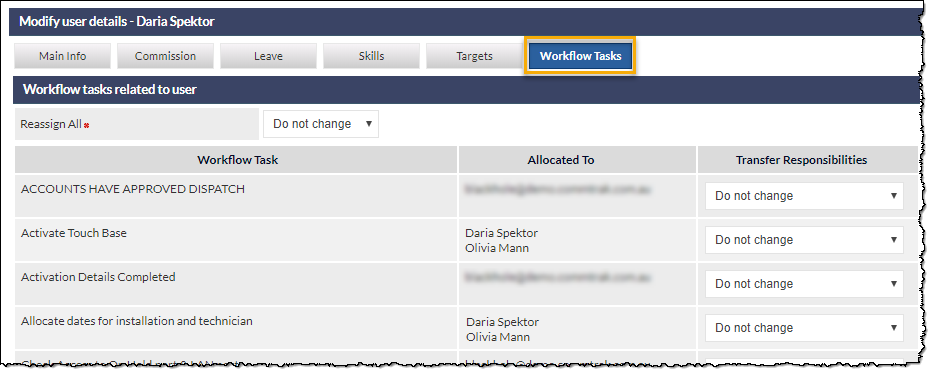
To reassign workflow tasks from one staff member to another:
- Settings > User Settings > Users > [username] (select the name of the user from whom you are transferring workflow tasks)
- Click the Workflow Tasks tab in the Modify user details section of the user settings (shown in the previous image)
- Then, either reallocate all workflow tasks, or specified workflow tasks, as detailed below:
Reassign All Workflow Tasks
- In the Reassign All drop-down list, select the name of the staff member to whom all the current staff member's workflow tasks will be reassigned
- Click
Reassign Specified Workflow Tasks
- Next to each workflow task to be reassigned, select the name of the staff member to whom all the current staff member's workflow tasks for this specific task will be reassigned
- Click