
What's New February 2026
Customer Screen
Tickets
Leads / Quotes
Documents
Inventory
- Product Sort Order
- Extend / Release / Dispatch Individual Reserved Items
- Editable Dispatch Date
- Supplier Catalogue – Last Price Update Date Display
Contracts
Customer Screen
Customer Group and Business Type - Search and Add in Place
The Customer Group and Business Type fields on the Customer screen have been updated to support enhanced Search and Add in Place functionality. These fields now allow users to scroll through options, type to filter results instantly, or click the plus icon to create a new item directly from the field without leaving the current screen.
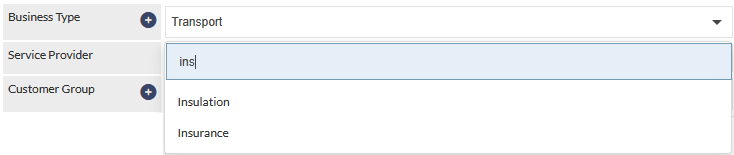
These fields now allow users to:
- Scroll to locate an item
- Type to search for an item
- Click the plus icon to add a new item
Newly created items are inserted immediately and can be saved as part of the current record.
The lists can still be managed within CommTrak Settings.
Please refer to the following articles for further details:
- Search and Add in Place
- Customer Screen
- Customer Groups
- Customer Groups (Settings)
- Customer Business Types (Settings)
Customer Badge Enhancements
Customer badges have been updated to improve visibility and consistency within the customer record:
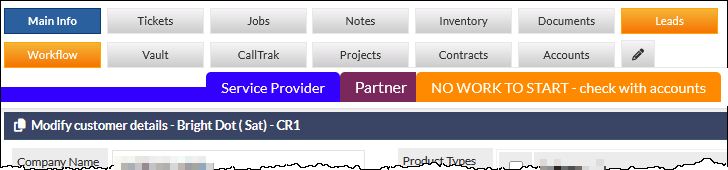
Badges are displayed in a fixed order in the customer header:
- Affiliation (e.g. Service Provider in the previous image)
- Partner (visible in the previous image)
- Account Status (e.g. No work to start in the previous image)
- MYOB Credit Hold (not shown in the example image)
This ensures badges always appear in a consistent sequence when multiple badges apply to a customer.
Additional visual changes have also been implemented:
- The header bar is no longer coloured orange when an Account Status is set
- The header bar is no longer coloured based on MYOB Credit Hold status (synced nightly from MYOB)
- Partner field labels are no longer shown in the previous purple styling - the purple badge will be displayed for partner records (visible in the previous image).
These updates provide a clearer and more uniform presentation of customer indicators across CommTrak.
For more information about this and related features, please refer to the Customer Badges articles.
Tickets
Ticket Description Formatting
The Ticket Description field now supports text formatting, making it easier to structure and present information clearly within a ticket:
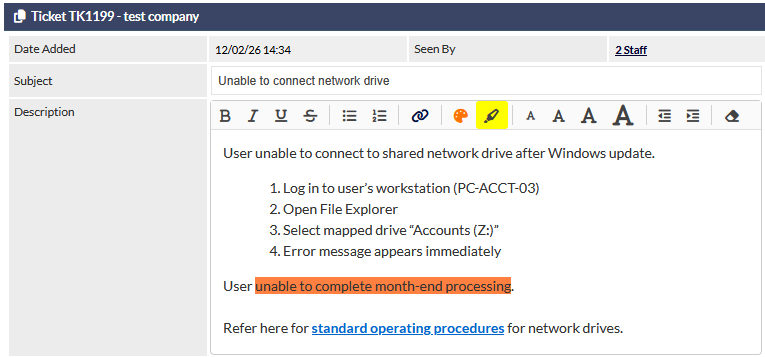
This enhancement is particularly useful when:
- Adding structured notes or step-by-step instructions
- Highlighting important information for technicians or staff
- Including formatted content copied from emails or other documents
- Adding links to external resources
When editing the Description field, the formatting toolbar appears above the field and provides standard editing controls (visible in the previous image)
Existing ticket descriptions remain unchanged. Formatting can be applied to new tickets and when editing existing ones.
Full Customer Email Preview in Tickets
When a customer has emailed a ticket to CommTrak, the Description field now displays an email Preview (magnifier) icon, in addition to the Ignore Sender and Forward Original Email icons:
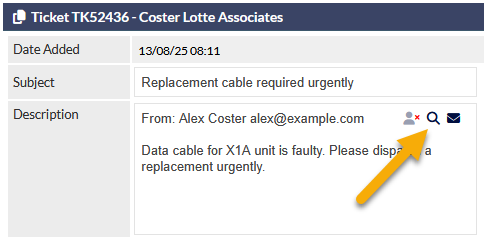
Pressing the Preview (magnifier) icon displays the sender's original email in a pop-up window.
For more information about the Ticket Description field features, please see the following articles:
Leads /Quotes
Quote Locking
Quotes can now be locked to prevent further changes once they have been finalised or approved.
When a quote is locked, key details such as pricing and line items cannot be modified, while still allowing permitted updates where appropriate. This helps preserve quote integrity and reduces the risk of unintended changes.

New Settings
- User Permission – Allow users to lock/unlock quotes
- Setting - Lock quote upon lead being set to Successful
Removed Setting
- Disable quote editing after it has been electronically signed
This behaviour is now controlled through the new Lock quote upon lead being set to Successful setting and the manual Lock / Unlock functionality described above.
For more information about the quote locking feature and details about the related settings and permissions, please refer to the following article:
Documents
Document Upload Enhancements
The Document Upload feature has been enhanced and these improvements are available in all areas where files can be uploaded.
Document Name Conflict Resolution
When uploading a file, if a file with the same name already exists in the destination folder, a Document name conflict window is displayed:
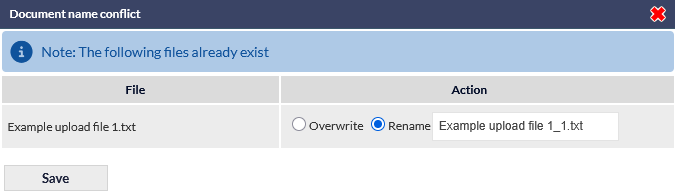
This window lists the conflicting file and provides the following options:
- Overwrite – Replace the existing file with the new upload.
- Rename – Enter a new name for the file before saving.
The default selection is Overwrite. However, the user must confirm this action by clicking Save before any changes are applied.
If Rename is selected, the file name field becomes editable, allowing the user to enter a new name prior to saving.
Drag and Drop Uploads
Files can now be uploaded by dragging and dropping them directly into the upload area.
Users may:
- Drag one or more files onto the dropzone, or
- Click the dropzone to open the device’s file browser.
Multiple files can be uploaded in a single drag-and-drop action.
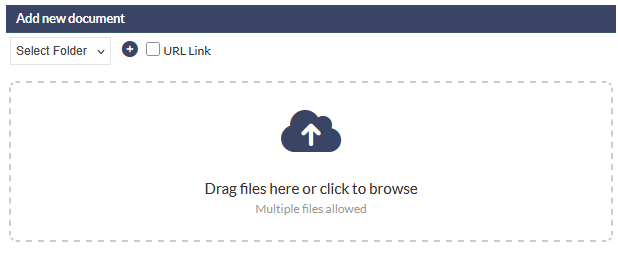
After files have been dropped into the upload area, additional files cannot be added to the same upload batch. If more files are required, complete or cancel the current upload and start a new one.
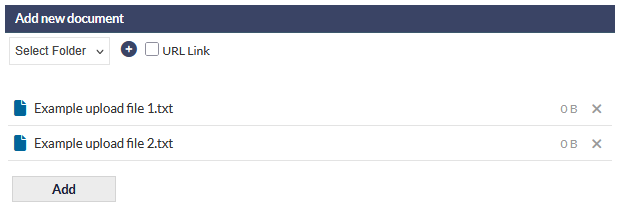
Selected Files are Listed
Once files have been selected for upload, they are listed, and a file can be removed from the upload list by pressing the X icon:
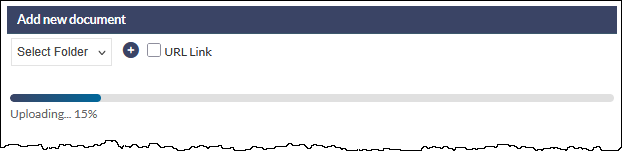
Upload Progress Bar
Whilst files are uploading, a progress bar is displayed:
For more information about Documents in CommTrak, please refer to the Documents section in the Support Centre.
Inventory
Several 'quality of life' enhancements have been implemented in various inventory-related screens:
Product Sort Order
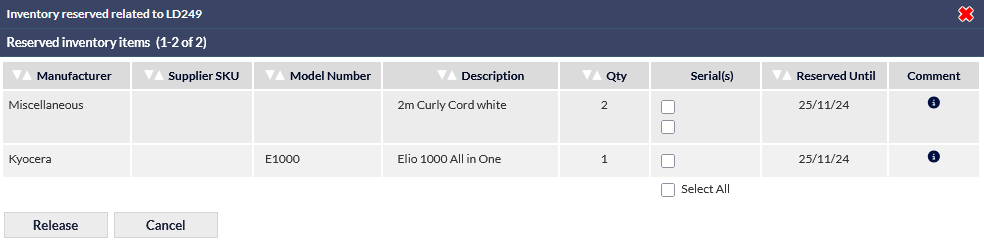
Reserved / Dispatched Inventory Items can now be be displayed in a specified sort order rather than defaulting to system-generated positioning. This provides clearer visibility for users managing multiple items and ensures product lines appear in a logical, predictable sequence.
To sort items, click the white up / down arrows in the column headers (visible in the following image):
Extend / Release / Dispatch Individual Reserved Items
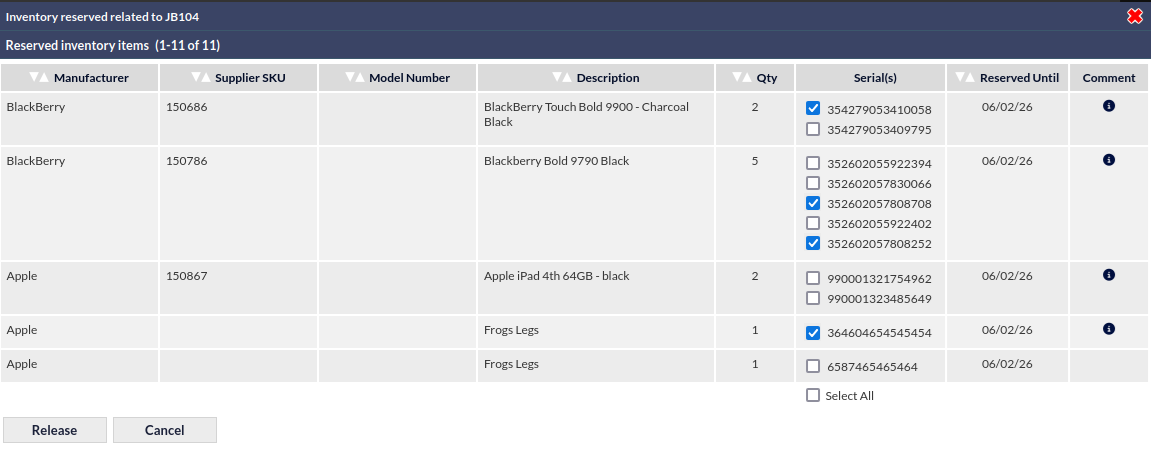
Reserved items can now be extended, released or dispatched individually rather than only as a group.
The following example image shows specific items being selected for release from reservation:
For more information about this feature, please refer to the Dispatch / Reserve Inventory Items article.
Editable Dispatch Date
The dispatch date for reserved or allocated items can now be edited upon dispatch:
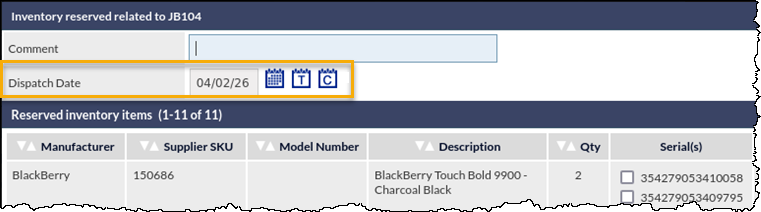
This provides greater flexibility when managing delivery expectations and ensures dispatch timing can be aligned with operational needs.
Please refer to article Dispatch / Reserve Inventory Items for more information about dispatching reserved item.
Purchase Order Tab Additional Columns
Additional columns have been added to Inventory -> Purchase Orders tab:
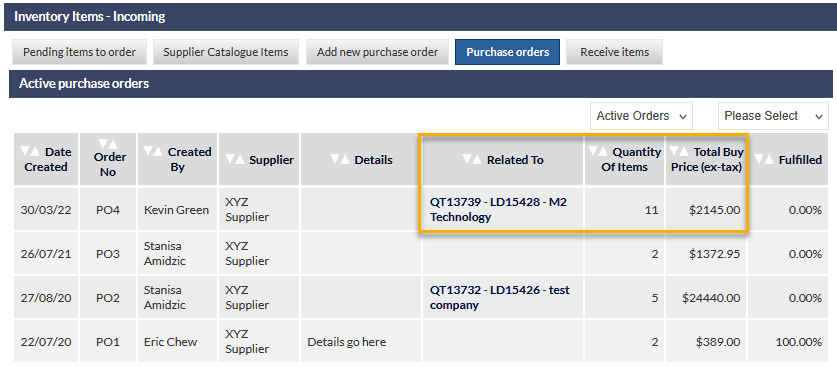
- Related To (clickable links have been added to quote, lead and company )
- Quantity Of Items - Total quantity of all items in the purchase order
- Total Buy Price (ex-tax) - Total buy price (ex-tax) for purchase order
For more information about the Purchase Orders tab, please refer to the Purchase Orders section in the Inventory (Incoming) article.
Supplier Catalogue – Last Price Update Date Display
Supplier Catalogue items now display the date the price was last updated, where that information is available:
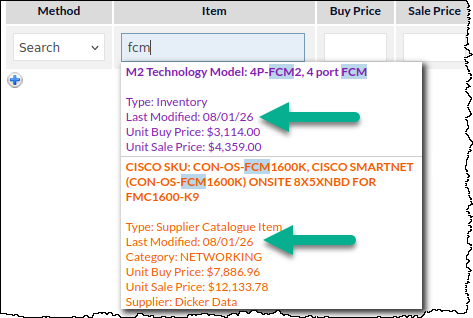
This provides additional context when reviewing pricing in areas such as Quotes and Price Check, and assists with identifying recent changes.
For more information about this feature, please refer to the article: Leads Supplier Catalogues (Settings).
Contracts
Fixed Term Contracts Can Convert to Casual on Expiry
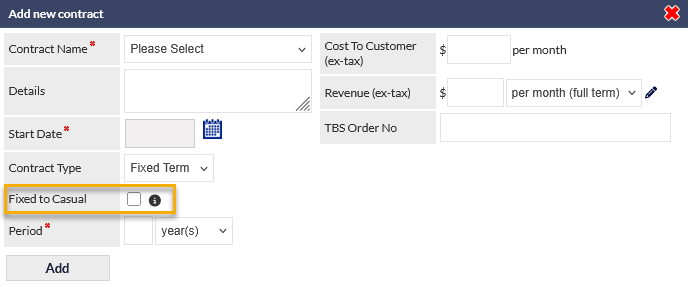
Fixed Term contracts can now be configured to automatically convert to Casual upon expiry, removing the need to manually create a new contract.
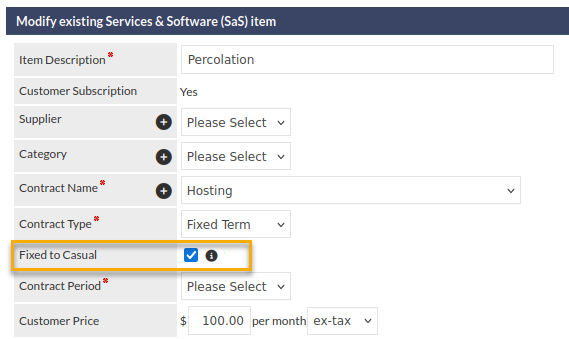
This functionality is supported for both SaS items (shown in the previous image) and manually created contracts (shown in the following image):
Once converted, the contract will show the date the conversion event occurred:
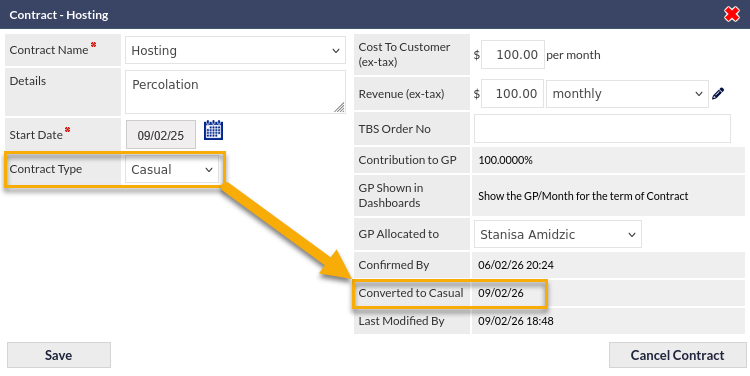
This feature ensures consistent behaviour across contract types while maintaining a clear record of the original term and conversion date.
For more information about configuration of Fixed Term contracts and the Convert to Casual feature, please refer to the Support Centre article, Leads Services & Software (SaS) (Settings).