
Dispatch / Reserve Inventory Items
This article explains the features of the Dispatch / reserve inventory items pop-up window that is accessible in the following CommTrak modules:
- Inventory - Outgoing Orders
- Leads - Inventory field
- Jobs - Inventory field
- Tickets - Inventory field (expandable area)
The Inventory pop-up window is accessed by clicking the pop-out icon adjacent to the Inventory field label (visible in the following image):

The Dispatch / reserve inventory items pop-up window contains three sections:
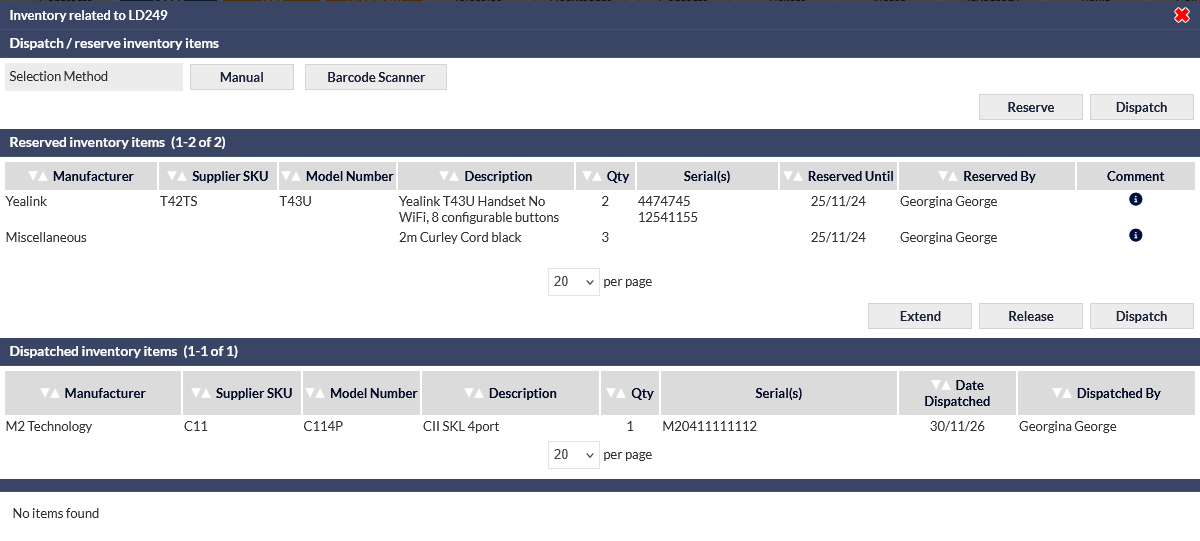
Dispatch / reserve inventory items
This section enables the user to reserve or dispatch items from Inventory, either by manually entering the stock item details, or by scanning the barcode on a stock item:
Manual button
The following fields are presented:
- Going From - choose the inventory location from which the item is being selected
- Item Type - choose the item type required by using either the Select or Search method
When an item type is selected, a list of the stock items is presented; tick each required item (or tick the Select All option if all items are being selected).
If the Inventory item has been designated a serial number, it will be displayed adjacent to the item tick-box, so a specific item can be selected.
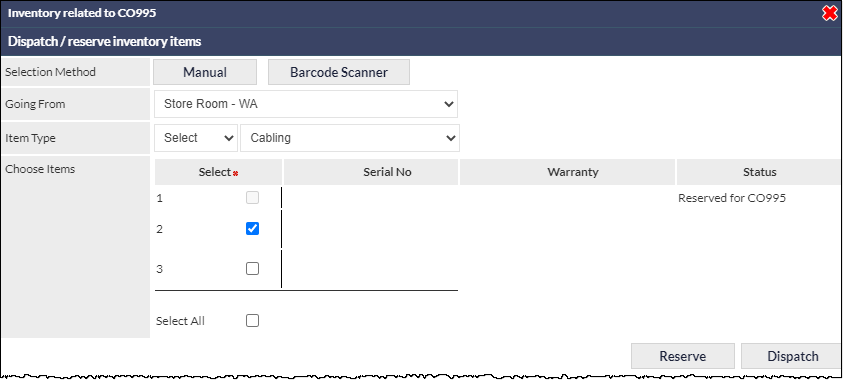
The above image shows that item 2 is being selected (the item type does not have a serial number in this example). Note that item 1 has previously been reserved; the tick-box cannot be selected, and the status column shows the details of the reservation.
Once selected, the item(s) can be reserved or dispatched as described below.
Barcode Scanner button
The following fields are presented:
- Going From - choose the inventory location from which the item is being selected
- Item 1 Serial No - the serial number of the first item to be selected
Typically, the item serial number field will be populated by using a barcode scanner to scan the code from a specific stock item.
Once a stock item serial number has been entered, clicking the Verify button will check the Inventory records to determine if the item is available for selection. If the item is available, the serial number will be highlighted with a green background, and the item details will be displayed:

If the item is not available, either the serial number is not recognised as a stock item, or the item has already been reserved, and the serial number will be highlighted with a red background:

Additional stock item barcodes can be scanned as required; additional item fields are displayed automatically.
Once selected, the item(s) can be reserved or dispatched as described below.
Reserve
Once items have been selected, either manually or using a barcode scanner, as described above, clicking Reserve presents the following fields:
- Comment - a note relating to this reservation
- Reserve until - the date until which the item(s) will be reserved (defaults to next business day)
Clicking Reserve again, confirms the reservation.
Press Cancel to cancel the reservation.
Dispatch
Once items have been selected, either manually or using a barcode scanner, as described above, clicking Dispatch presents the following fields:
- Comment - a note relating to this reservation
If the reservation is being made from within the Inventory module (i.e. not from a Lead, Ticket or Job), the following field will also be presented:
- Finalise Order - finalises the Customer Order
- Dispatch Date - Can be updated to reflect that actual dispatch date (defaults to current date).
Select the items dispatch
Either tick the item(s) to dispatch, or tick the Select All option (visible in the following image) to select all items:

Clicking Dispatch, completes the dispatch process.
Reserved inventory items
This section lists reserved inventory items, and presents the following options:
Extend - enables the user to extend the reservation. Enter a new reservation date, and click the Extend button again to confirm.
Release - cancels the reservation; the reserved items become available for reservation or dispatch. A confirmation dialog box is displayed prior to cancelling the reservation.
Dispatch - enables the user to dispatch the reserved items; the presented fields are as described under the Dispatch heading.
Dispatched inventory items
This section lists previously dispatched inventory items, and presents the following information for reference:
- Manufacturer
- Supplier SKU
- Model Number
- Description
- Qty - quantity dispatched
- Serial(s) - serial number(s) of the dispatched items (if any)
- Date Dispatched
- Dispatched By - the name of the staff member who dispatched the items