
Leads Supplier Catalogues (Settings)
The Leads Supplier Catalogues feature provides for the importing of supplier product catalogues into CommTrak. This enables seamless quoting for any product in a catalogue within the CommTrak Quotes module.
Importing a catalogue for a supplier immediately overwrites an existing catalogue for the supplier.
This does not affect previous or current quotes.
Accessing Leads Supplier Catalogue Settings
Settings > Leads Settings > Supplier Catalogues

Download the Catalogue Template
We strongly advise using the supplied template and retaining the provided headings, as this can speed up the import process and reduce the possibility of import errors.
Any CSV file can be imported, but column names will have to be matched manually to the CommTrak fields upon each catalogue import.
Press the information (i) icon adjacent to the Instructions field label (visible in the previous image), to download the supplier catalogue template (CSV file).
The template will download to your device.
The following fields can be populated in the CSV, one product per row:
- Manufacturer
- Supplier SKU
- Model Number
- Description - mandatory
- Buy Price ex tax - optional: Buy Price can be specified when quoting
- Sale Price ex tax - optional: Sale Price can be specified when quoting. If a Sale Price is specified, and there is no Buy Price, the Sale Price will be ignored.
- Category Name - arbitrary category name for the this product (e.g. Networking)
- Subcategory Name - arbitrary subcategory name for the this product (e.g. Routers)
- Image URL - this field is reserved for future use. It can be populated with a valid URL, but the data will not be used.
Once the catalogue CSV has been populated and saved, complete the following fields:
Supplier (mandatory)
Select the supplier for the catalogue. The supplier must have previously been created in the Inventory settings: Settings > Inventory Settings > Suppliers.
Skip 1st Row (default ticked)
If the first row of the catalogue CSV contains the column headings, leave this option ticked.
If the CSV does not contain column headings, the columns must be matched manually during the import process.
Records without a Description field will not be imported.
No warning is provided for records that are not imported.
CSV File (mandatory)
Select the catalogue CSV file.
Upload the Catalogue File
Press the Upload button to start the catalogue import process.
The Import new list screen is presented:
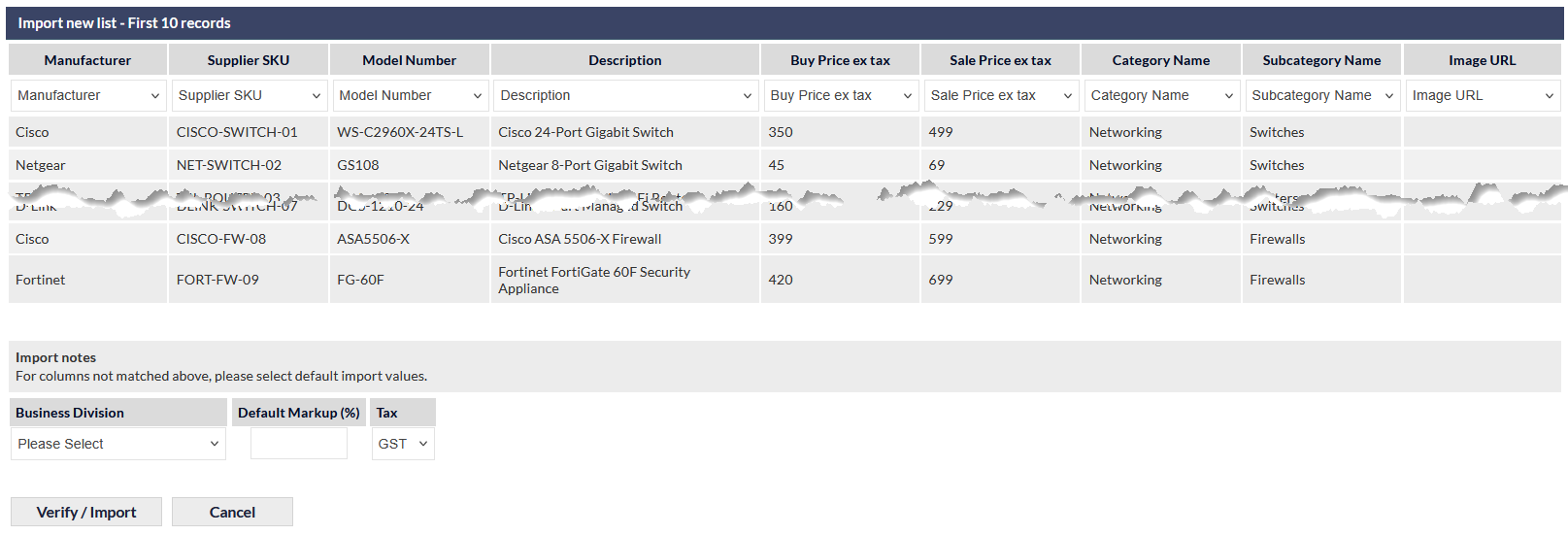
The first (up to) 10 items in the CSV are listed, to assist in the column matching process.
Column Matching
If the catalogue template has been used, and the column headings have not been modified, column matching will not be required.
The columns in the imported product catalogue data must match the correct CommTrak catalogue columns. If the imported column data does not match the CommTrak column heading, select the correct column heading in the dropdown list:
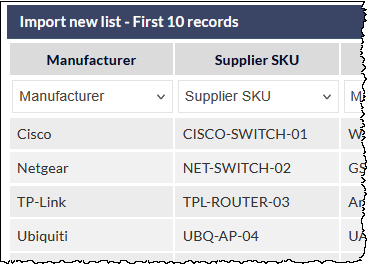
In the previous image, the (topmost) column heading Manufacturer is the correct heading for the sample data, so the dropdown list does not need to be changed from its current selection.
Specify Default Values for this Catalogue
Once all columns have been matched, optionally specify default values for items in this product catalogue.

Business Division (optional)
During quoting. the selected Business Division will be applied automatically to the line item when a catalogue product is selected.
Business Division must previously have been created in Lead Settings > Leads Business Divisions
Markup (default 0%)
Specify a default markup percentage.
The markup percentage will be applied when a catalogue product is selected in a quote line item as follows:
- If a Buy Price and Sale Price have been specified in the catalogue, the default markup percentage will not be applied.
- If a Buy Price and Sale Price have not been specified in the catalogue, the default markup percentage will be applied automatically when a Buy Price is entered for the quote line item.
- If only a Buy Price has been specified in the catalogue, the default markup percentage will be applied automatically when the product is selected from the catalogue.
- If the Buy Price is manually edited whilst quoting, the default markup percentage will be applied automatically.
In all cases, during quoting, the Buy Price and Sale Price can be entered manually for each line item, or a Markup percentage can be specified for each line item.