
What's New August 2025
General
Services and Software (SaS)
Quotes
Contracts
Reports
General
Custom Field Groups
This update allows for grouping custom fields into collections known as custom field groups.
Previously, custom fields could only be configured as standalone fields, where each field is logically unrelated to other fields.
In the following image, the Tigra Project group contains three related fields: Tigra status, Special commencement date, and Special ID. In contrast, the example fields Internet Link Providers and Internet Link are standalone and not part of any group.
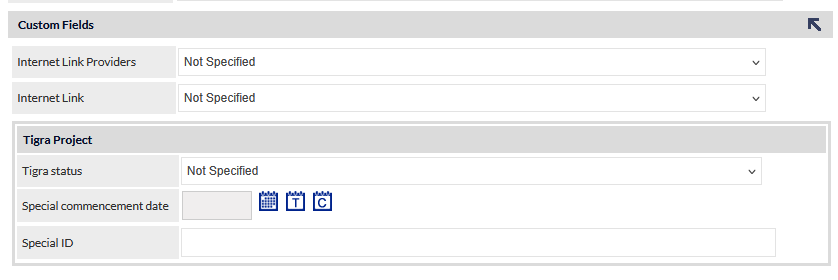
There is no limit to the number of custom fields or field groups that can be created. Standalone fields do not need to be displayed together and can be positioned above, below, or between any field groups.
The display order of all groups and ungrouped fields within the Custom Fields section can be configured to meet your organisation’s requirements.
For more information about this feature, please see the following Support Centre articles:
Affiliation Column
To complement the release of the enhanced customer affiliation visibility in the May 2025 CommTrak updates, the customer Affiliation column is now available for display in the main CommTrak modules:
- Customers
- Jobs
- Lead
- Projects
- Tickets
- Workflow
Display of columns is a per-user customisation- please refer to the Support Centre article Column Sorting & Customisation for more information.
Affiliation Field in Expandable Area
The Affiliation field is displayed in the expandable area by default (click the information icon to display the expandable area):
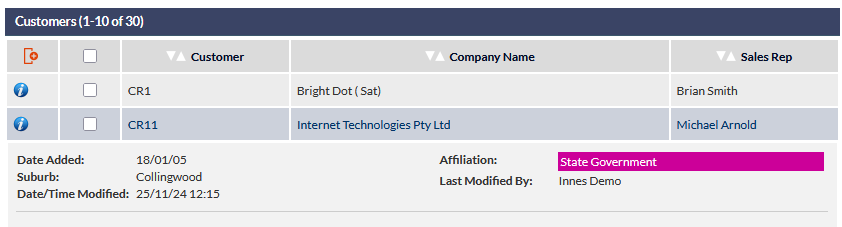
The previous example image shows the expanded fields for customer CR11 - the colours for the State Government affiliation have been set to white text on magenta background.
A field is displayed in the expandable only when there is data in that field - this avoids cluttering the expandable area with field labels when there is no associated data.
Affiliation Field in Columns
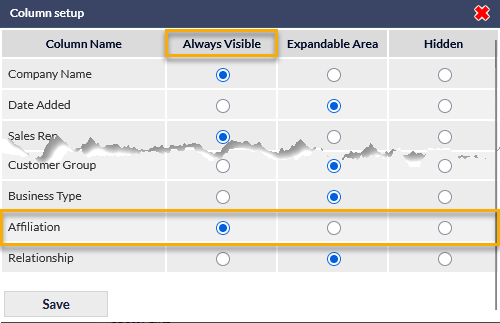
To display the Affiliation field as a column, click the red column customisation icon (top-left in the previous image) to display the Columns setup pop-up window, and set the Affiliation column to Always Visible (and press Save to confirm):
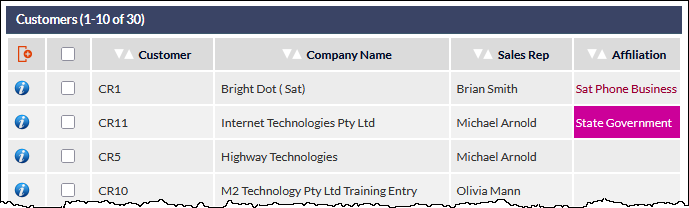
When Always Visible the field is displayed as a column:
For additional information about this feature, please refer to the following Support Centre articles:
Price Check Enhancements
Price Check (located in the CommTrak main menu) has been substantially enhanced, and now provides price check for all products and services recorded within CommTrak:
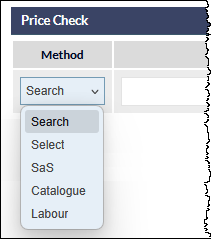
Find a Price Check Item
If you know the name of the product or service, select the Search method, and start typing some characters from the product/service name into the Item field. The search will start when three characters have been entered:
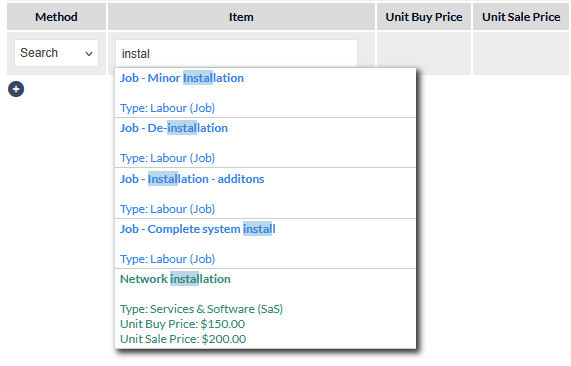
Matching items (if any) will be displayed in the results list, and are colour-coded according to the item type (visible in the previous image). Click the required item to add it to the price check:

The colour legend for items in the search results is displayed below the price check list:

To search for known item types, select the appropriate option in the Method dropdown list:
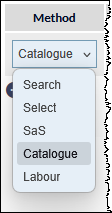
The available types are:
- SaS (Services and Software)
- Catalogue
- Labour
SaS
After selecting SaS, click the Item field to display a list of SaS categories. Clicking a category expands the list, so an item in the category can be selected.
Catalogue
After selecting Catalogue, click the Item field to display a list of Catalogue categories and start typing some characters from the item name into the Item field. The search will start when three characters have been entered.
Matching items (if any) will be displayed in the results list. Click the required item to add it to the price check.
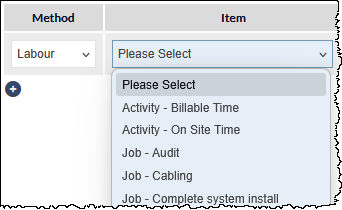
Labour
After selecting Labour, click the Item field to display a list of Labour items. Click an item in the list to select it:
Add a Price Check Item
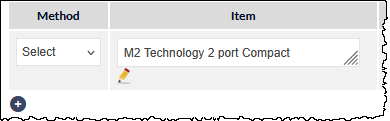
Multiple items can be added to the price check list. To add an item, press the plus (+) icon below the last item in the list:
Price Check List
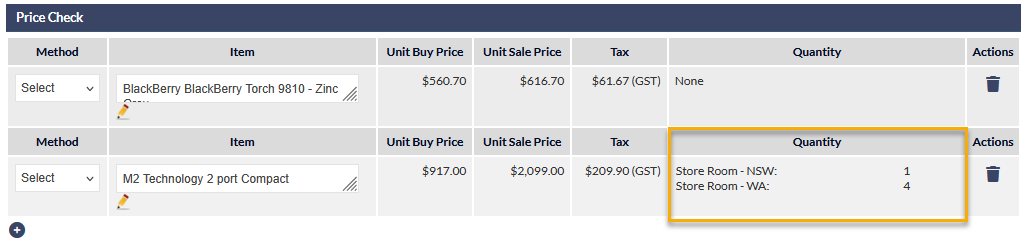
Depending on the type of item and the information available, the following information may be displayed:
- Unit Buy Price
- Unit Sale Price
- Tax
- Quantity
If the item is an inventory item, the stock quantity and inventory location (if any) are displayed:
Please refer to the Price Check article for additional information about this feature.
Services and Software (SaS)
Services and Software (SaS) can now have a Supplier Assigned
A Supplier field has been added to SaS items settings:
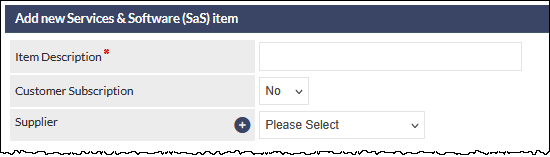
If a new supplier needs to be added at the time of creating or modifying a SaS item, press the + (plus) icon (visible in the previous image), to display the Add new supplier pop-up window.
If a supplier has been specified, when a SaS item is added to a quote, the supplier field will be populated automatically.
For more information about SaS settings, please see Support Centre article:
Quotes
Quote Favourite enhancements
Quote Favourites settings have been enhanced to include all products and services recorded within CommTrak, and additional information not previously available at the time of creating the favourite in settings.
Quote Favourites can now include items from:
- Inventory
- Services and Software (SaS)
- Supplier Catalogues
- Labour (Job Types, Ticket Types)
Create / Modify a Quote Favourite
Settings > Leads Settings > Quote Favourites
Either select an existing Quote Favourite or, if creating a new Favourite, search for the first item to include in the favourite by typing at least 3 characters into the Search Product field:
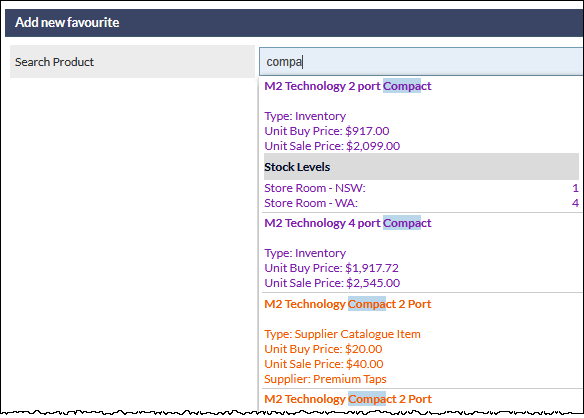
Matching results for all item types are displayed in the dropdown list with the item Type (e.g. Inventory, Supplier Catalogue, etc.) displayed below the item name (visible in the previous image).
Depending on the source of the item, additional information is displayed. For example, for Inventory Items:
- Unit Buy Price
- Unit Sale Price
- Stock levels & location (if any)
Click an item to select it and add it to the Favourite.
When a Favourite is being created, it is initially named after the first item that is added. For example, the following image shows that the first item added is the M2 Technology Compact 2 Port, and therefore the Favourite Name field has automatically been populated with the name of that item:
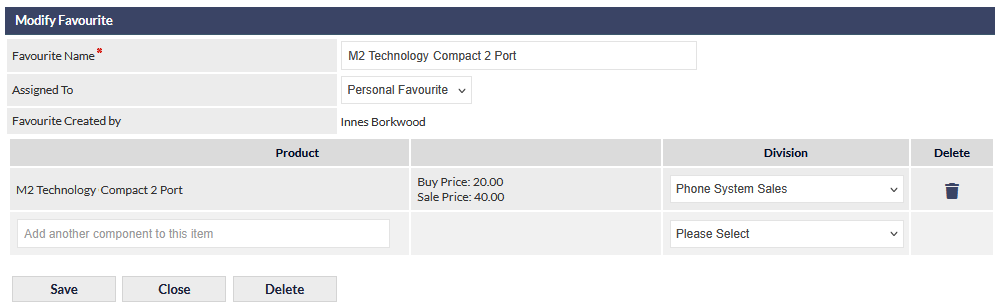
The Favourite Name field can be edited to more accurately reflect the purpose of the Quote Favourite, if required.
Additional items can be added to the favourite by clicking in the Add another component... field (visible in the previous image) and typing at least 3 characters from the item to be added.
For additional information about configuring and using Quote Favourites, please refer to the following Support Centre articles:
Contracts
Enhancements to Contract Trailing Revenue in New and Active Contracts
Substantial enhancements have been implemented to trailing revenue features in contracts.
Trailing revenues, as reported in the Sales Dashboard are calculated based on the trailing revenue formulas that are specified at the time the contract is confirmed.
If your organisation requires that Sales Dashboard data reflects changes that are made to trailing revenue formulas mid-contract, please advise CommTrak Support.
Customising a Trailing Revenue
When creating a contract, Revenue continues to be specified as previously:
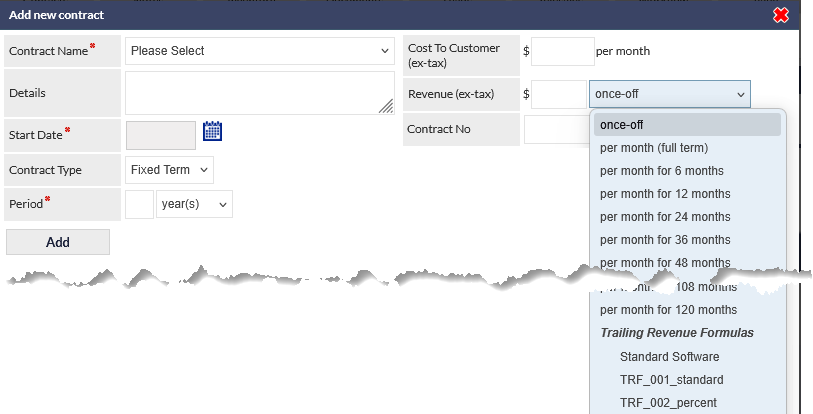
As shown in the previous image, either select a monthly duration, select a Trailing Revenue Formula OR, now a Custom Trailing Revenue can be created.
When a Custom or Trailing Revenue Formula is selected, the rules are displayed in the Revenue field.
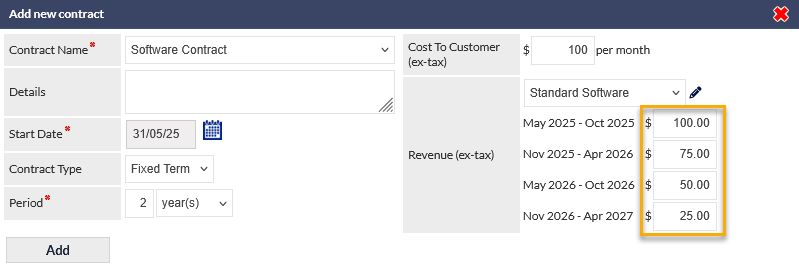
Prior to adding the contract, or when modifying an existing contract, the Revenue value for any period (highlighted in the previous image) can be modified by entering a new Revenue value in the required field.
Modifying the Trailing Revenue Formula
When a trailing revenue formula is selected, it can be customised either at the time of the contract creation, or at any time during the duration of the contract.
To customise the formula, press the pencil icon (highlighted in the following image):
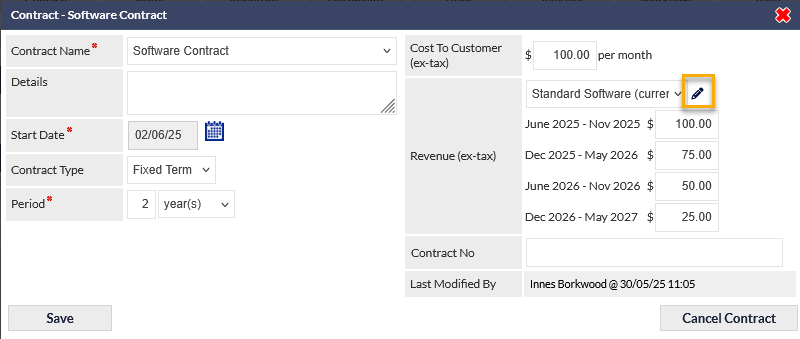
The Modify trailing revenue formula pop-up window is displayed:
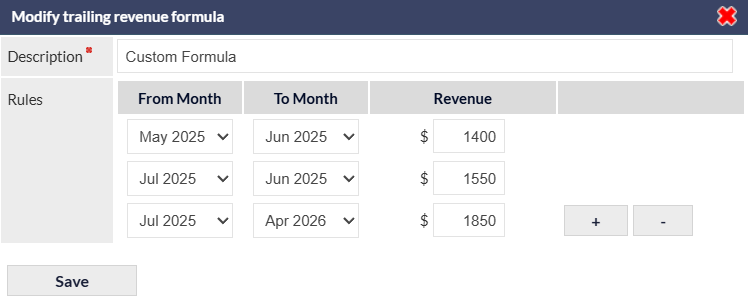
Adding / Removing Trailing Revenue Rules
To add a rule, press the plus (+) icon adjacent to the rule below which the new rule should be added:
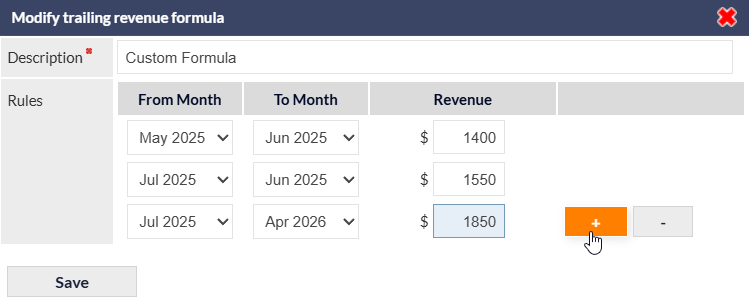
In the previous image, the plus icon adjacent to the second rule has been clicked, which has created a new rule below it.
- Populate the Revenue field for the new rule, and adjust the From Month and To Month columns as required.
- To remove the most recent value, press the minus (-) icon adjacent to the rule that you wish to remove.
- To cancel, press the red X icon, top-right of the pop-up window.
- Press Save to confirm changes.
Once saved, the new rules will be applied immediately for reporting purposes. The Sales Dashboard will not reflect changes that have been applied mid-contract, as the sales data is intended to reflect the calculations made at the time the contract was implemented. If your organisation requires that Sales Dashboard data reflects changes that are made to trailing revenue formulas mid-contract, please advise CommTrak Support.
For more information about Contracts and Trailing Revenue Formulas, please refer to the following Support Centre articles:
Reports
Quotes Report can Include Additional Contract Information
The Quotes Report has a new Contact Information option in the Include additional fields criterion:
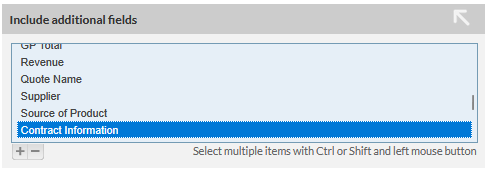
Selecting the Contract Information option will include several additional columns in the report results, such as contract totals and monthly revenue. The following image is an extract from quote report, showing additional Contract Information:
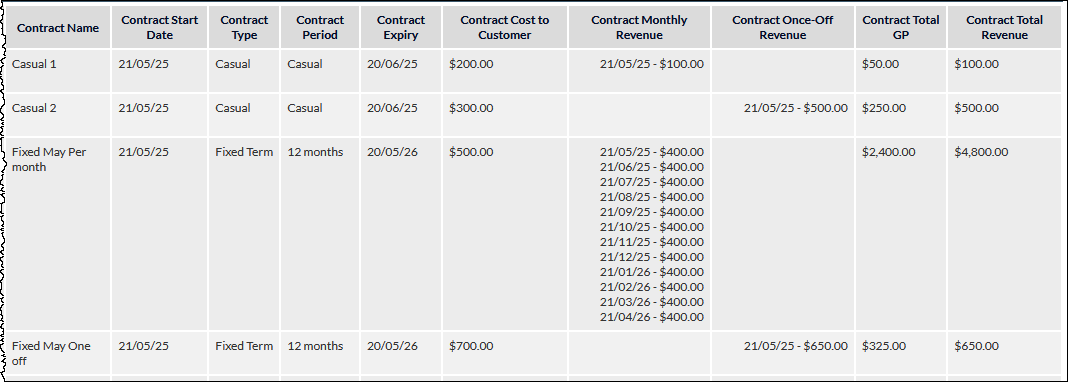
For more information about using reports and selecting additional fields, please refer to the Standard Reports article.