
Leads Quote Favourites (Settings)
The Leads Quote Favourites feature, provides easy access to commonly-quoted items, or bundles of items, when creating a Quote in the Leads module.
Quote Favourites can include items from:
- Inventory
- Services and Software (SaS)
- Supplier Catalogues
- Labour (Job Types, Ticket Types)
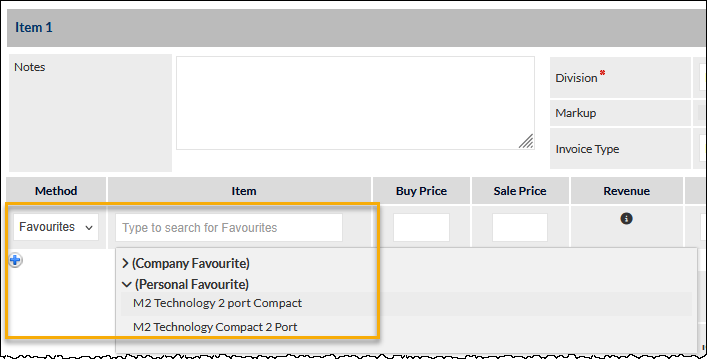
A screenshot demonstrating the selection of a Leads Quote Favourite, in a Quote, is highlighted in the following image:
Benefits of Quote Favourites:
- Quickly quote for individual, commonly quoted items
- Easily create a quote for multiple items that are commonly bundled in a single quote
- The Business Division to which the quoted item (or each item in a bundle) is to be assigned, is pre-allocated
Accessing the Quote Favourite Settings
Settings > Leads Settings > Quote Favourites
Adding a Quote Favourite
At least one item must be added to the Quote Favourite:
- Enter the name of an item into the Search Product field of the Add a new favourite section
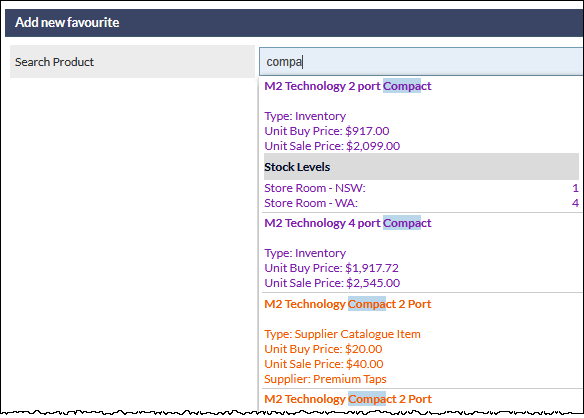
Matching results for all item types are displayed in the dropdown list with the item Type (e.g. Inventory, Supplier Catalogue, etc.) displayed below the item name (visible in the previous image).
Depending on the source of the item, additional information is displayed. For example, for Inventory Items:
- Unit Buy Price
- Unit Sale Price
- Stock levels & location (if any)
Click an item to select it and add it to the Favourite.
When a Favourite is being created, it is initially named after the first item that is added. For example, the following image shows that the first item added is the M2 Technology Compact 2 Port, and therefore the Favourite Name field has automatically been populated with the name of that item:
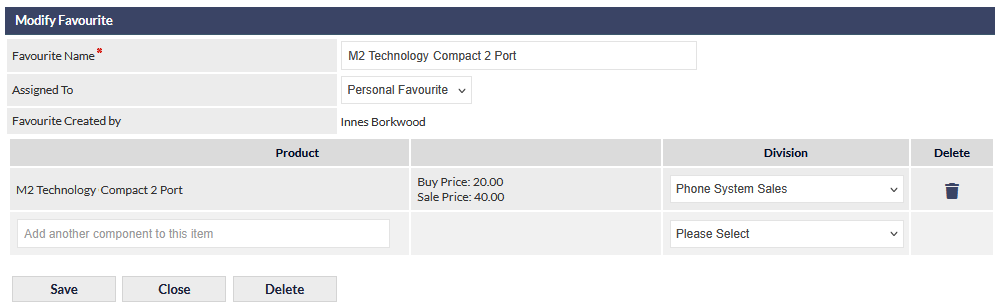
The Favourite Name field can be edited to more accurately reflect the purpose of the Quote Favourite, if required.
Additional items can be added to the favourite by clicking in the Add another component... field (visible in the previous image) and typing at least 3 characters from the item to be added.
Editing a Quote Favourite
If the Quote Favourite has just been created, as described in the Adding a Quote Favourite section above, then the Quote Favourite will be displayed on the screen, ready to be edited.
To edit an existing Quote Favourite, select it from the list displayed at the top of the settings screen.
Available fields
When editing a Quote Favourite, the following fields are displayed:
- Favourite Name: The name of the Quote Favourite, as it will be displayed in Leads Quote screen. A default name is assigned when initially creating the Quote Favourite, and this can be edited to an easily recognisable name (e.g. a name reflecting a bundle of inventory items).
- Assigned To: This field designates which users will have access to the Quote Favourite. The available options are:
- Personal favourite (default): only the user who created the Quote Favourite can access it
- Selected Staff: tick the name of staff who will have access to this Quote Favourite
- Company Wide: all staff will be able to access this Quote Favourite
- Product Table: a list of one or more inventory items that are included in this Quote Favourite
Editing the Product Table
The following columns are displayed in the Product Table:
- Product (read only): The name of the item
- Buy Price (read only): The buy price of the item
- Sell Price (read only): The sell price of the item
- GP (read only): The GP, calculated from the buy and sell price of an Inventory item, as designated in the Inventory module
- Division: The Business Division to which this item will be allocated in the quote; select the required Business Division from the dropdown list
- Delete: Clicking the trash can icon in this column will clear the Product field for this item, enabling entry of a different Inventory item. If an alternative Inventory item is not entered into the blank Product field, the row will be deleted when the Quote Favourite is saved.
Deleting a Quote Favourite
- Select the Quote Favourite to delete, from the list displayed at the top of the settings screen.
- Press the Delete button to delete the Quote Favourite.
- The Quote Favourite is deleted without any prompting.
Deleting a Quote Favourite cannot be reversed.