
Price Check
Price Check, located on the CommTrak main menu, is a utility for quickly checking the price of an item in CommTrak and, depending on the type of item, other information such as location and quantity.
When Supplier Catalogues have been imported into CommTrak, Supplier Catalogue Items can also be added as Inventory Item types, using the Price Check utility. Refer to the heading Supplier Catalogue Item to Inventory Item Type for more information.
Find a Price Check Item
Search
If you know the name (or part of the name) of the product or service, select the Search method, and start typing some characters from the product/service name into the Item field. The search will start when three characters have been entered:
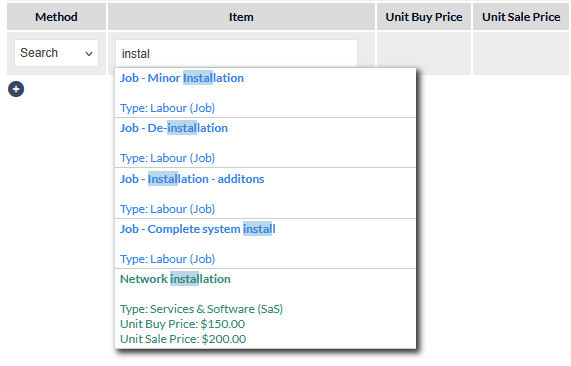
Matching items (if any) will be displayed in the results list, and are colour-coded according to the item type (visible in the previous image). Click the required item to add it to the price check:

The colour legend for items in the search results is displayed below the price check list:

Select
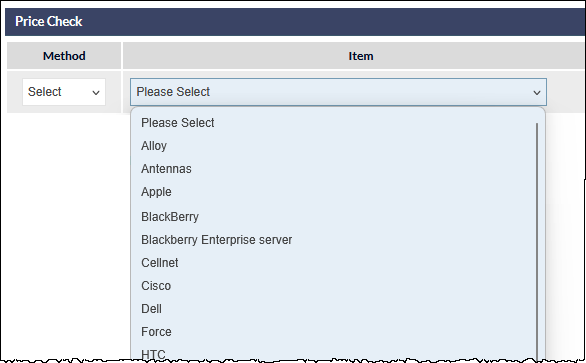
Choosing the Select option from the Method list changes the Item field to a dropdown list of manufacturers:
Selecting a manufacturer displays a further dropdown list of all items for that manufacturer:
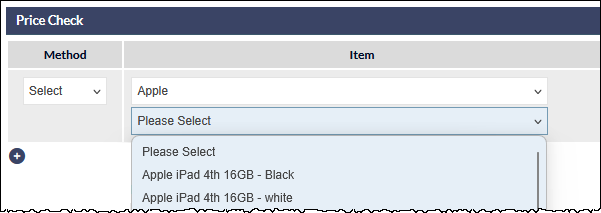
Select the required item to add it to the price check list.
Selection by Item Type
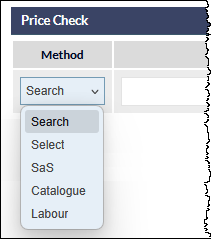
To search for items byt type, select the appropriate option in the Method dropdown list:
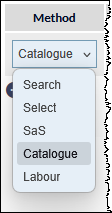
The available types are:
- SaS (Services and Software)
- Catalogue
- Labour
SaS
After selecting SaS, click the Item field to display a list of SaS categories. Clicking a category expands the list, so an item in the category can be selected.
Catalogue
After selecting Catalogue, click the Item field to display a list of Catalogue categories and start typing some characters from the item name into the Item field. The search will start when three characters have been entered.
Matching items (if any) will be displayed in the results list. Click the required item to add it to the price check.
Labour
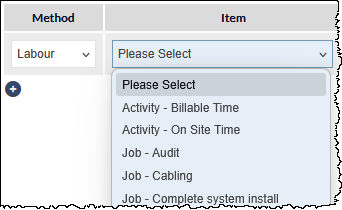
After selecting Labour, click the Item field to display a list of Labour item. Clicking an item in the list to select it:
Add a Price Check Item
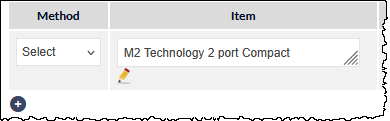
Multiple items can be added to the price check list. To add an item, press the plus (+) icon below the last item in the list:
Price Check List
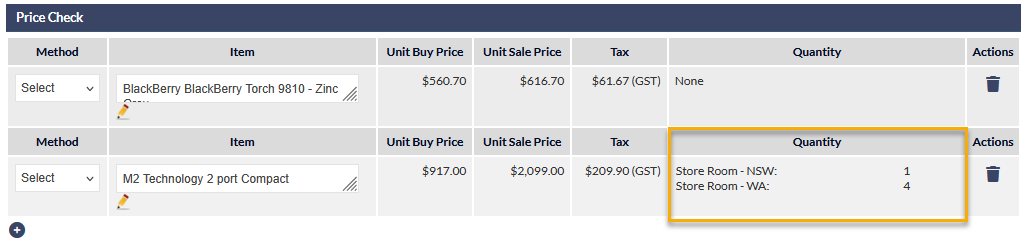
Depending on the type of item and the information available, the following information may be displayed:
- Unit Buy Price
- Unit Sale Price
- Tax
- Quantity
If the item is an inventory item, the stock quantity and inventory location (if any) are displayed:
Supplier Catalogue Item to Inventory Item Type
Locate the supplier catalogue item using the Price Check feature:
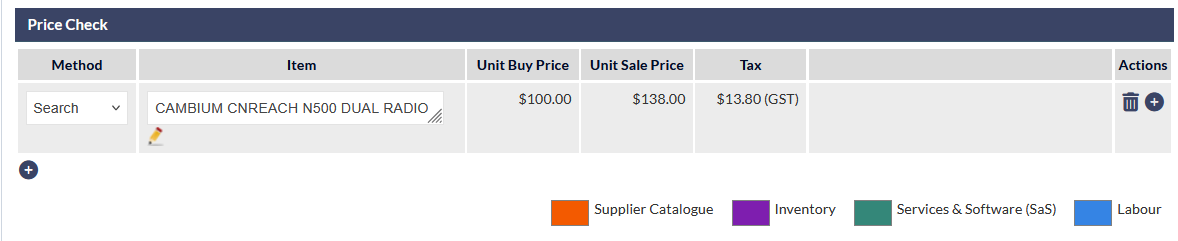
Pressing the plus icon in the Actions column (visible in the previous image) will automatically add a new Inventory Item Type based on the supplier catalogue item details.
For more information about Supplier Catalogues, please refer to the following article: