
What's New May 2022
General
- Mandatory Field Highlighting New
- Improved Search Field 'Sanitising' Update
- Longer SMS Messages Update
- Staff Name Placeholders in Outgoing Email Notifications Update
Security
Leads / Quotes
- Quotes - Mandatory Field Highlighting New
- Quotes - Canned Paragraph Scopes Update
- Quotes - Services & Software (SaS) Categories Update
- Leads - Summary Panel Enhancements Update
User Preferences (Settings)
Tickets
- Merge Tickets New
- Ticket View Preferences New
- Release Ticket After 48 Hours New
- My Notifications (User's Per Ticket Email Notifications) New
- Ticket Settings Update
Inventory
- Low Stock Warning - Enhancements Update
- Stock Movement Email Notifications Update
- Purchase Order - Multiple Sort Options Available New
- Multiple Supplier Contacts New
Documents
Workflows
General
Mandatory Field Highlighting
This feature is being implemented and rolled-out on an ongoing basis, and is currently available in the following areas:
- Customers
- Leads
- Jobs
- Tickets
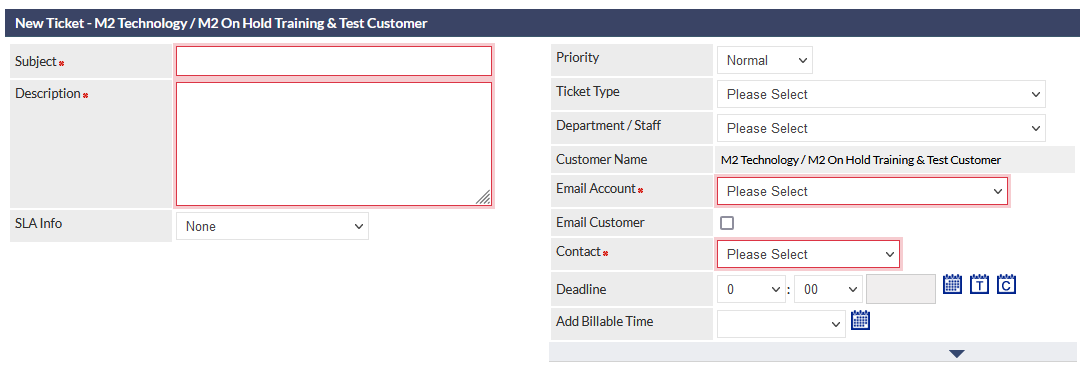
Where implemented, incorrectly populated and mandatory fields are highlighted when attempting to save the record.
The following image shows an example of saving a new Ticket, where mandatory fields have not been populated:
Improved Search Field 'Sanitising'
Search fields are being updated to automatically trim leading and trailing spaces, which previously foiled finding matching items. Extraneous spaces are often entered into search fields when cutting and pasting from other applications (e.g. emails).
In the following image, a partial company name, with leading and trailing spaces, has been copied from an email message, and pasted into the CommTrak By Company Name search field (spaces highlighted for clarity in this documentation):
 The example search in the previous image has been successful, as the prepended and appended spaces (that were included when copying the text) are now ignored.
Longer SMS Messages
SMS messages can now be up to 765 characters long.
The maximum number of characters allowed is determined by the number of credits available per SMS (from 1 to 5), as specified in the Company Details settings of your CommTrak.
When an SMS message is being entered, the number of characters, and the number of credits required, are clearly displayed below the message:
 For further information about the SMS features and configuration, please refer to the following articles:
Staff Name Placeholders in Outgoing Email Notifications
Staff name placeholders have been added for use in the following email notification templates:
- Customer Job email
- Customer Job note email
- New Job email
- Job changed email
- Job closed email
- Customer new Ticket email
- Customer Ticket email
Staff names can be included in the above email notifications by adding the following placeholders to a template:
- ##STAFF FIRST NAME##
- ##STAFF LAST NAME##
For example, the following image shows the placeholders being used with a Created By label in a Job Notification email template:

The use of placeholders in the previous image is an example; if you wish to use the available placeholders, you will need to update your notification templates as required. Please refer to article Email Notifications (Settings) for further information.
Security
Reveal Password at Login
When logging-in to CommTrak, the Password field now has a reveal password icon, which may assist you if you are having difficulty logging-in.
The default view of the login window obfuscates your password:

Clicking the reveal password (eyeball) icon displays your password so you can check and edit it if required:

Tip: If you use a password manager, when updating your password, ensure that you follow prompts to update your CommTrak password in the password manager!
If you can't sign-in to CommTrak, please refer to the following Support Centre article prior to contacting CommTrak Support: Unable to Sign-In to CommTrak
For additional articles relating to your signing-in to CommTrak, see CommTrak Support Centre category: Security / Sign-In
If your organisation's CommTrak Administrator has configured a lockout duration for multiple, incorrect login attempts, resetting your password will not cancel the lockout period. You must either wait for the lockout duration to elapse, or ask your CommTrak Administrator to assign a temporary password to you.
Login Message Moved
Previously, the Login Message was displayed on a yellow background above your organisation's logo, on the login screen. The Login Message is now displayed immediately below the logo (as visible in the screenshots above).
The Login Message can be modified in the Company Details section of your CommTrak's General Settings.
Password and Security Policies
This section contains general advice; guidance should be sought from an information security professional when implementing a security or password policy within your organisation.
Password expiration policies are generally not recommended by information security professionals, as they typically lead to reduced security. Research shows that if users are required to change their passwords periodically, they will typically choose an easy-to-remember password, often simply incrementing digits on the end of the password at each expiration (thus obviating the purpose of the password expiration policy).
The following combination of policies is typically recommended by security professionals for practical, effective password management:
- Complex passwords (e.g. enforced used of mixed-case, digits and symbols)
- Long password (minimum 12 characters)
- 2FA (two factor authentication)
- Where practical, restrict access by physical location
In CommTrak, the above security policies are managed in Settings > Users Settings > Security
General advice to users includes:
- Never use a single password to access multiple applications or services
- Use a secure password management utility
Leads / Quotes
Quotes - Mandatory Field Highlighting
A significant enhancement has been implemented to aid in the creation and modification of Quotes.
Upon saving a Quote, all mandatory and invalid fields are highlighted with a red border:
 If invalid data is entered into a field, the text will be displayed in red as you type, and the border will be highlighted red when the Quote is saved.
The following image shows the Sale Price field with invalid data (lower case letter 'l' has been mistakenly entered in place of digit '1'):
 For additional information about these features, please refer to the Mandatory and Invalid Fields section of the Creating / Modifying a Quote article, in the Support Centre.
Quotes - Canned Paragraph Scopes
To aid in the selection of canned paragraphs in a Quote, each Quote Canned Paragraph can now be scoped to only be accessible within a specific paragraph in the Quote. For example, when selecting canned text to be inserted into Paragraph 5 (visible in the following screenshot):
 ...the pop-up selection window only displays canned paragraphs scoped to Paragraph 5, or scoped to All Paragraphs, as shown in the following image:

For additional information about the use and configuration of this feature, please refer to the following articles:
Quotes - Services & Software (SaS) Categories
Services & Software (SaS) items can now be categorised to allow for more efficient selection within a Quote:

The previous image shows four uncategorised items, and one custom category (labelled Consulting) which contains a single SaS item (multiple items can be added to each category, as needed). The SaS categories can be expanded and collapsed as required by clicking on the category name.
For additional information about the use and configuration of Services & Software (SaS) items, and configuration of Categories, please refer to the following articles:
- Services & Software (SaS) Example
- Leads Services & Software (SaS) (Settings)
- Leads Services & Software (SaS) Categories (Settings)
Leads - Summary Panel Enhancements
The Leads Summary Panel has been enhanced to display both Forecast and Follow-Up date. If either date is exceeded, the row for that Lead will be highlighted by displaying the text in red:

The Leads summary columns (with the exception of the Customer column) can be sorted, by pressing the white arrow icons in the column headers.
Users can choose how many Leads to display in the panel (the default is specified in General Settings > Miscellaneous), and paging through larger lists is facilitated by clicking the previous and next (blue, double-chevron) icons.
The Date column, that displayed the date on which the Lead was created, has been removed from the panel, as the date of Lead creation is not valuable summary information (and, if needed, can be accessed by clicking the Lead). Users who had previously sorted their Lead summary by Date will now see their list sorted by Forecast date.
For further information pertaining to Summary Panels, including features such as hiding, or repositioning panels, see Support Centre article, Summary Panels.
User Preferences (Settings)
Preferences Tab (Ticket / Workflow Notifications and Other Preferences)
User Preferences are per-user settings that each user can configure according to their needs.
A significant feature in this release is the ability for each user to enable / disable automated email notifications within the Tickets and Workflow modules. Please ensure that your team are aware of the ramifications of disabling automated notifications.
Preferences Tab
A Preferences tab has been added to the My Details screen:

The available options are:
- Font Size - User can select their preferred default font size used in CommTrak. Previously, this option was specified in User Settings, and could not be selected by the user
- Receive Workflow Emails - User can choose if they receive automatic Workflow notification emails. Previously, this option was specified in User Settings, and could not be selected by the user
- Ticket Viewing Method - User can choose if Tickets are displayed in a pop-up browser window, or in a browser tab. See section Ticket View Preferences (in this article) for information about this new feature
- Receive Ticket Emails - User can choose if they receive automatic Ticket notification emails.
Disabling receipt of automatic Workflow notification emails will prevent all Workflow notifications (including Task Rejection notices) from being sent. Emails sent using the manual Remind feature will always be sent, regardless of the notification settings.
Reminder: Do not press the Reset Preferences button unless requested to do so by CommTrak Support.
Email Notification Options
Available options for Receive Workflow Emails and Receive Ticket Emails settings are:
- Company-wide default - your receipt of automatic email notifications is determined by the company-wide settings (as specified by your organisation's CommTrak Administrator).
- Yes - you will receive automatic email notifications
- No - you will not receive automatic email notifications
Please refer to Support Centre article, Start Here - My Details, for more information about the My Details screen and new Preferences features.
Tickets
Merge Tickets
This features provides for the merging of two active Tickets; an active Ticket is a Ticket with any status other than Cancelled or Closed.
Ticket merges cannot be reversed!
This feature can be accessed in two ways:
- Utilities > Merge Tickets, or
- When viewing a Ticket, click
In both cases, the following options will be presented:
 When merging from within a Ticket, the merge options are displayed in a pop-up window (as shown in the previous image), and the Description and Ticket ID are populated automatically in the Find first ticket field.
If merging from Utilities > Merge Tickets, the merge options are displayed in a new screen (but are otherwise identical to the pop-up window shown in the previous image), and the Find first ticket field is not populated automatically.
Upon merging, the Ticket details (e.g. Subject, Description, etc) from the cancelled Ticket are not transferred to the retained Ticket. However, those details can be viewed in the cancelled Ticket.
Upon merging, the following actions occur immediately:
- The Status of the cancelled Ticket is changed to Cancelled
- All items (notes, documents, callbacks, etc.) are moved from the cancelled Ticket to the retained Ticket; i.e. those items are no-longer available in the cancelled Ticket.
- A Note is added to the cancelled Ticket, advising the ID of the retained Ticket into which it was merged. This note will be the only note remaining in the cancelled Ticket, and acts as an audit trail, as it contains the date/time and name of the user who actioned the merge. This note is also useful for locating the retained Ticket (e.g. if a contact later refers to the cancelled Ticket ID, the retained Ticket ID can easily be identified).
- A Note is added to the retained Ticket, advising the ID of the Ticket that was merged into it (i.e. the ID of the cancelled Ticket).
When the Ticket notes are merged, all the notes are displayed in the retained Ticket, with the same date and time at which the notes were originally added.
Please read the Merging Tickets article in its entirety before merging Tickets to ensure that you are aware of all the features and ramifications.
Ticket View Preferences
The Tickets module has been enhanced to enable each user to choose if Tickets are displayed in a pop-up browser window (previously the only option), or in a browser tab.
Users can choose their preference in Settings > User Settings > My Details > Preferences (or by using the shortcut of the My Details (gear) icon in the CommTrak Information Bar. The available options are:
- Company-Wide - The default Ticket view is determined by Settings > Ticket Settings > Miscellaneous > Ticket viewing method (Company-wide Default)
- Pop-up window - Ticket will open in a separate, pop-up browser window (Ticket ID is shown in the pop-up window's title bar)
- New Tab - Ticket will open a new tab in the current browser window (Ticket ID will be displayed in the browser tab, for ease of identification when multiple tabs are open, as shown in the following image):
 Other Ticket functionality pertaining to the viewing of Tickets remains the same, regardless of which viewing option is chosen. For example, if the Customer Name link is clicked in a Ticket tab, the tab from which the Ticket was opened, will be refreshed to display the selected Customer record (as is currently the case with Tickets viewed in a pop-up window). Similarly, if a Ticket displayed in a tab has its status set to Closed, the Ticket tab will close, and the Active Tickets screen, from which the Ticket was opened, will be updated (assuming the original Active Tickets tab is still open).
For further information please refer to the following Support Centre articles:
- My Details (Preferences section): Start Here - My Details
- Company-wide default for Ticket view: Ticket Miscellaneous (Settings)
Release Ticket After 48 Hours
Currently, users are advised when a Ticket is currently being viewed by another user:
 In some cases (e.g. Ticket browser window / tab not closed correctly) a Ticket might not be released from being viewed, i.e. the Ticket Being Viewed (eyeball) icon is not cleared.
A Ticket will now be 'released' 48 hours after it was opened for viewing. This eliminates situations whereby a Ticket remains in the 'being viewed' state indefinitely. The releasing of a Ticket from being viewed does not change any of the Ticket data.
My Notifications (User's Per Ticket Email Notifications)
To complement the per-user Ticket notification email settings (see the earlier section, Preferences Tab for more information), per-Ticket notification email settings have been updated and simplified.
For any Ticket, even when the user is not a member of the allocated Ticket Department, nor the Instigator, they can choose to receive Ticket notifications as follows:
- All Notes – Regardless of any other settings, users who select this option will receive an email notification when a note is added to this Ticket
- Final Note – Regardless of any other settings, users who select this option will receive an email notification containing the final note when this Ticket is closed
- Default – Email notifications will be sent according to the user’s preferences (as specified in My Details > Preferences)
The My Notifications feature is accessed per user, per Ticket, in the expandable area:
 When clicked, the expandable area now includes a My Notifications field (which replaces the previously available Email Events field):
 If the current user does not change the My Notifications setting in a Ticket, they will receive Ticket notification emails as specified in their My Details > Preferences.
Ticket Settings
To reflect the implementation of per-user Ticket settings in the Preferences Tab, the following Ticket Settings have been implemented:
Ticket Settings > Miscellaneous > Ticket viewing method (Company-wide default)
- Pop-up window (default)
- New Tab
As previously noted, these options can be overridden by each user ( My Details > Preferences).
Please refer to the section, Ticket View Preferences (in this article), for an explanation of each of these options.
Ticket Settings > Miscellaneous > Enable emailing of ticket notes (Company-wide default)
- Yes (default)
- No
If not overridden by a user in their My Details > Preferences tab, this setting determines whether users will receive Ticket notification emails.
Inventory
Low Stock Warning - Enhancements
Low quantity stock warnings can now be specified for multiple Inventory locations (previously, only one location could be specified).
To specify that a location will trigger low stock warnings, create (or update an existing) stock location in Inventory Locations Settings, and change the Include in Low Stock Count field to Yes:
 For low stock warnings to occur for an Inventory item, the item must be configured with a Minimum Quantity in the Inventory Item Settings.
Low Stock Warning Banner
The low stock warning banner has been updated to display the low stock items in a compact format, as shown in the following image:
 When clicked, the banner expands to show one item per line. Click the banner again, to collapse it.
Stock Movement Email Notifications
A specific user can be designated, per Inventory Location, to receive an email notification when stock movements occur.
To specify the user who receives the notification, create, or update, a stock location in Inventory Locations Settings, and select a user from the Email Stock Movements To field:

A Stock Movement is any movement of inventory from or to an Inventory Location.
Purchase Order - Multiple Sort Options Available
There are now multiple options for the sort order of items in a Purchase Order:
- Default - items are listed in the order they were added
- Sorting by Selected Field - select the Inventory Item field by which the PO items should be sorted
- Manual Sorting - Choose the position of each item in the list
Items can only be sorted after the Purchase Order has been created (i.e. when the PO number has been generated).
By default, Line Items are displayed in the order they are added to the Purchase Order. Once sorted, the default order (the order in which the items were added) cannot be restored automatically.
Sorting by Selected Field
To select an alternative sort order for the items, choose the required sort field from the Sort By dropdown list:
 The items will be sorted immediately.
Manual Sorting
 The selected item will be repositioned immediately.
For further information pertaining to Purchase Order creation and editing, please see Support Centre article, Inventory (Incoming).
Multiple Supplier Contacts
Multiple contacts can now be associated with a single Supplier, and those contacts can be specified as recipients of emails to Suppliers:

For further information, about adding or editing Supplier Contacts, refer to Support Centre article, Inventory Supplier (Settings).
When sending an email to a Supplier (e.g. Purchase Order), the Supplier's main email address is automatically added to the To field. Additional (or alternative) Supplier Contacts can be specified in any of the email recipient fields:

Documents
Create URLs in Related Documents
New URLs can now be created from within a Related Documents pop-up window. Previously, URLs could be added to a Lead, Ticket, Job, etc, in the Related and Upload Document pop-up window only if the URL had already been added in the Documents tab.
When viewing a Lead, Ticket, Job, etc, click the cloud icon in the Related and Upload Documents field (visible in the following image):
 The resulting Related Documents pop-up window has been enhanced to include a URL Link option (visible in the following image); tick this box to display the URL and Description fields:

Enter a URL and Description, then press the Add button to create and relate the URL.
For further information about uploading and relating documents or URLs, please refer to the following Support Centre articles:
Workflows
Rejected Task Details Added to Workflow Case Notes
The details of a Workflow Task rejection (unticking a completed Workflow Task) are now added to the Previously saved/sent notes section of the Workflow Case.

Previously, this information was only available by hovering over the Status column of the rejected task, in the Workflow Case screen.
Workflow Notification Settings
As noted in the Preference Tab section of this article, each user now has the option to enable/disable automatic Workflow Email notifications.
This feature was previously configurable in the User Settings (typically accessible only to users with Supervisor permissions), but has now been removed from that location, as it is now a user preference.
The company-wide default setting for Workflow Email Notifications remains as-is; for further information about this setting, please refer to Support Centre article, Workflow Miscellaneous (Settings)