
What's New March 2021
Documents
Main Menu
- Utilities Added to Main Menu MAJOR CHANGE
Customer Import
Custom Fields
- Custom Fields in Lists Update
- Custom Fields in Search Criteria Update
Projects
Reporting
- Report Record Count NEW
- Custom Field Reporting NEW
- CallBack Reporting NEW
- Workflow Report Filters NEW
Workflow
- Search Section Layout Updated MAJOR CHANGE
- Active Workflow Search Enhanced UPDATE
Quote Templates
Documents
Document Uploader's Name is Recorded
The name of the person who uploaded a Company or Customer document is now recorded in the Added By column:
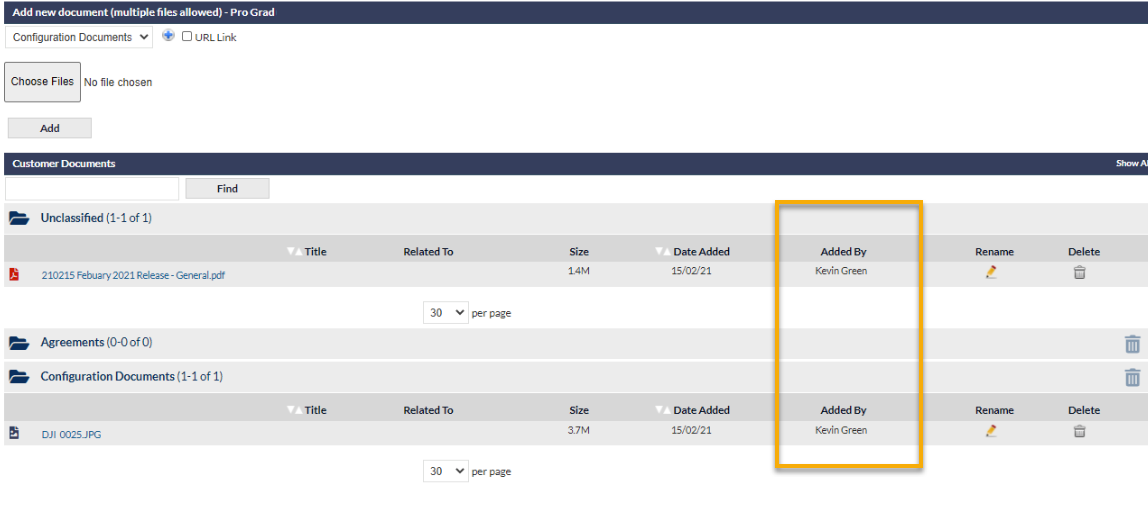
Naturally, this feature is not retrospective; the Added By column will be blank for uploads that occurred prior to this feature release.
Reminder: The ability to delete a Customer Document is permission-based: Settings > User Settings > Staff Roles > Document > Allow users to delete customer documents.
Document Sorting in Email Attachments
When selecting documents to attach to an email, the pop-up document list is now sorted as per the current user's selection in the Documents tab. For example, if the user has sorted documents alphabetically by Title in the Documents tab, the email attachments document list will be sorted in the same order.
The sort order of the documents in the attachment selection list can also be modified by clicking the Name or Date Added buttons (highlighted in the following image):
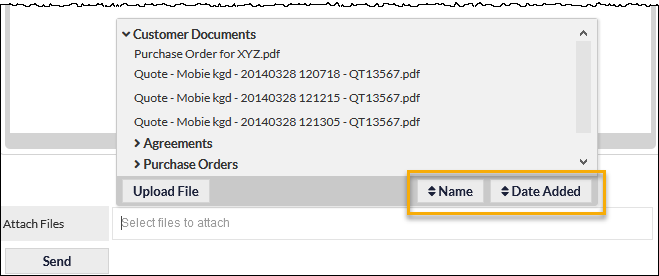
Changing the sort order of the documents in the attachment selection list will update the sort order in the Documents tab.
See the following Support Centre articles for further information relating to this feature:
Entering Email Addresses & Adding Attachments (Selecting Attachments heading)
Documents, for the main Document Libraries article.
Main Menu
Utilities Added to Main Menu
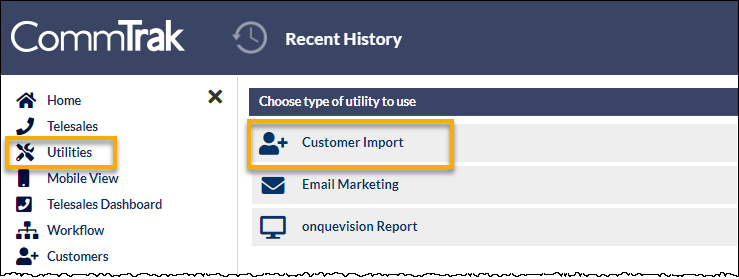
A Utilities module has been added to the main CommTrak menu.
When accessing the Utilities menu item, the available features will vary depending upon your CommTrak implementation.
Examples of CommTrak utilities that appear in the module are:
- Email Marketing - available in all CommTrak implementations
- Customer Import - available upon request; see the Customer / Lead Import section below for further details
- Onquevision Report - available to all users of Onquevision
See Support Centre article, Main Menu, for more information relating to CommTrak menu.
Customer / Lead Import
Bulk Customer / Lead Import Utility
This new module enables the bulk import of new Customers and Leads.
This feature is not available by default, and activation must be requested via CommTrak Support. There is no upfront or ongoing cost for this module.
Key Features
- Importing of Customers and Leads
- Import records with 65 standard fields
- Existing custom fields in the import file are matched
- New custom fields in the import file are created automatically
- Roll-back feature to undo an incorrect import (this feature is available for one hour after the import)
- Exception report (download a CSV file containing a list of failed records, with reason for each failure)
Please remember that there is a distinct difference between Customers, Leads, and Opportunities in CommTrak. Opportunities should be imported into the Telesales module using existing features.
Accessing the Customer Import Module
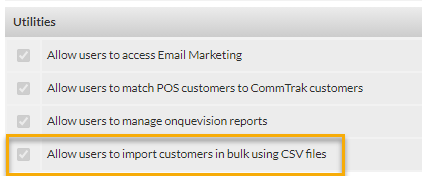
Access to the Customer Import module is permission based, and is available to Supervisors by default.
Custom roles which allow access to this feature can be created if required, by applying the appropriate permissions:
See Support Centre article, Customer / Leads Import, for more information relating to this feature.
Custom Fields
Custom Fields in Lists
In any area where list columns can be customised, custom fields can be displayed.
The screens affected by this update are:
- Customers
- Leads
- Workflow
- Tickets
- Jobs
- Projects
The above list refers to the screens accessed from the main CommTrak menu, not from a customer's screen.
For example, the following image of the Leads screen (Leads on the main menu) shows the custom field Tigra Order Number as Always Visible, and the relevant column is displayed in the list as highlighted:
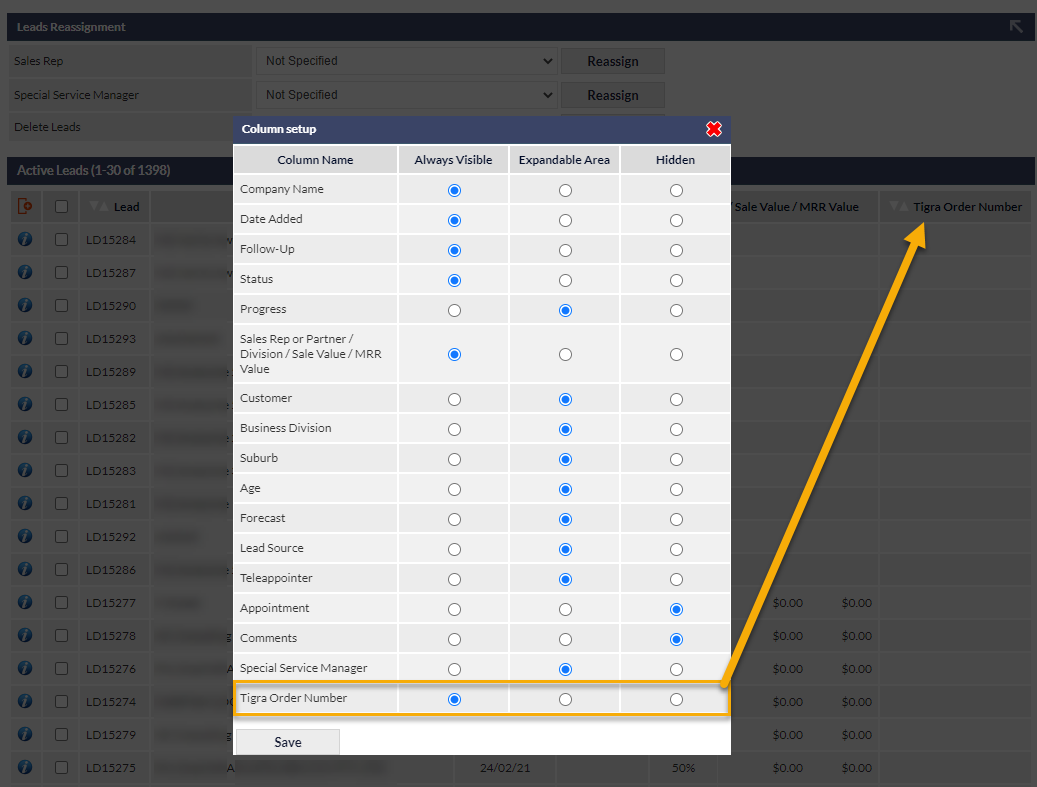
For further information relating to the customisation of columns, please see Support Centre article, Column Sorting & Customisation.
Custom Fields in Search Criteria
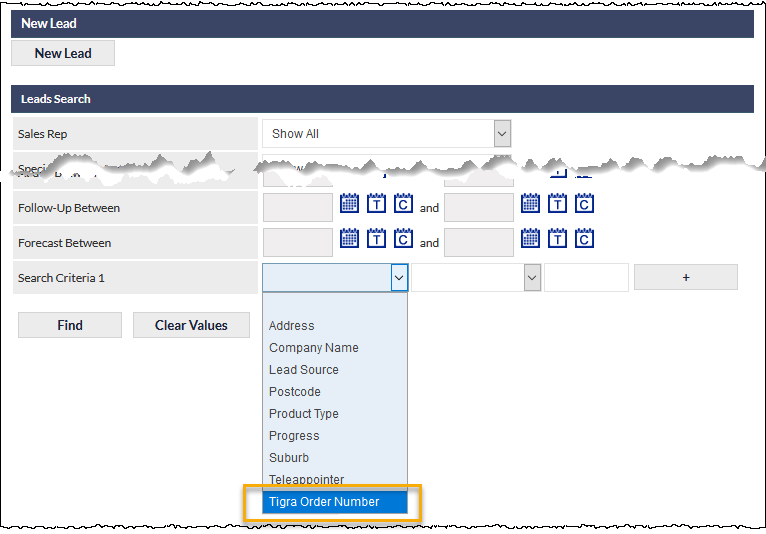
In all areas of CommTrak, where custom search criteria can be specified (e.g. Customers, Leads, Workflow, etc.), any custom field that has been created for the relevant module can now be applied as a search criterion.
For example, in the following image of the Active Leads screen, the custom field named Tigra Order Number, is available for selection in the custom search criteria dropdown list:
For additional information about the use and configuration of Custom Fields, see the following articles in the Support Centre:
Projects
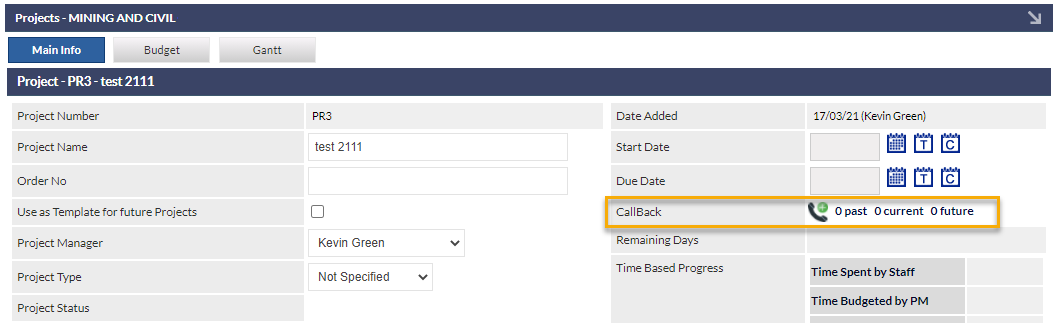
Project CallBacks
CallBacks are now available on the Project screen:
Due Project CallBacks are displayed in the CallBacks Summary Panel on the CommTrak home page:
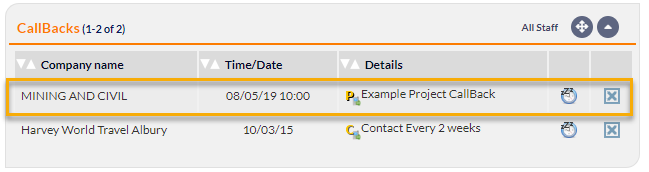
As with all CallBacks in the Summary Panel, clicking a row will display the relevant page for the selected item.
When a Project CallBack is completed, it is added to the Project notes.
See Support Centre article, CallBacks, for further information about the CallBack feature.
Project CallBack Alarms
As a natural extension to CallBacks being available in the Projects module, overdue Project CallBack Alarms can now be configured:
Settings > General Settings > Overdue Alarms
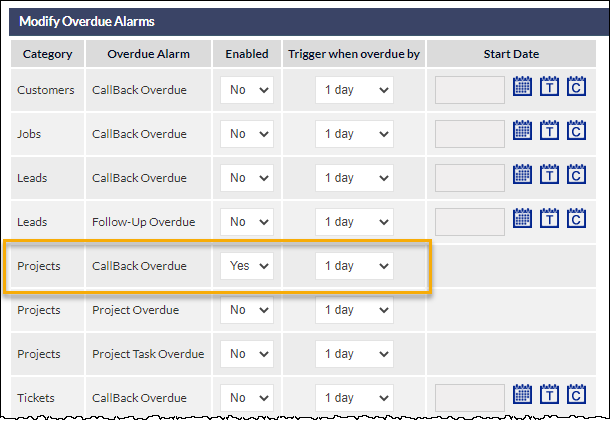
For additional information about the use and configuration of Overdue Alarms, see the following articles in the Support Centre:
CallN Recordings in Projects
Where activated and utilised, CallN recordings are added to Project notes.
Reporting
Report Record Count
The report results header now displays a count of the results that match the report criteria, and a count of the results shown on-screen:
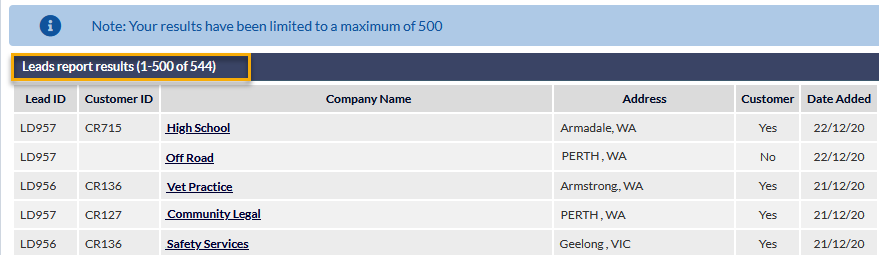
Reminder: Where results are limited by permissions, for example, the above image shows that results are limited to a maximum of 500, a user with Supervisor role can export a CSV file (rather than producing the results on-screen).
Custom Field Reporting
All reports for modules where custom fields can be created, now allow for searching custom field values:
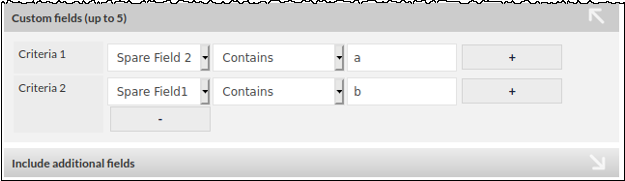
Expanding the Custom fields criterion (shown in the previous image) displays a line for each custom field.
The Custom fields criterion will recognise the type of custom field (e.g. date, dropdown, etc.) and will display selection options as appropriate. For example, the following image shows a custom field, called WDate1, which is a date field:

CallBack Reporting
CallBack criteria have been added to the following reports:
- Leads
- Workflow
- Tickets
- Projects
- Jobs
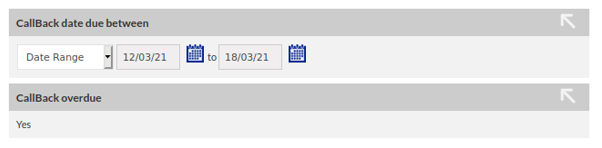
This feature is already available in the Customers report.
Workflow Report Filters
Workflow reporting has been enhanced to enable searching for cases closed between a specified date-range:
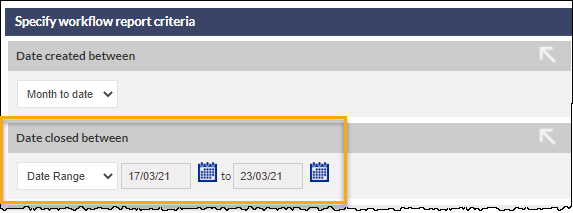
See Support Centre article, Standard Reports, for further information relating to standard reporting features.
Workflow
The Active Workflow Cases screen ( Workflow on the CommTrak main menu) has been updated:
- Search section layout updated
- Active Workflow filters enhanced
Search Section Layout Updated MAJOR CHANGE
The layout of the search section has been updated to be consistent with the design of the search sections on other main active screens (Customers, Leads, etc.):
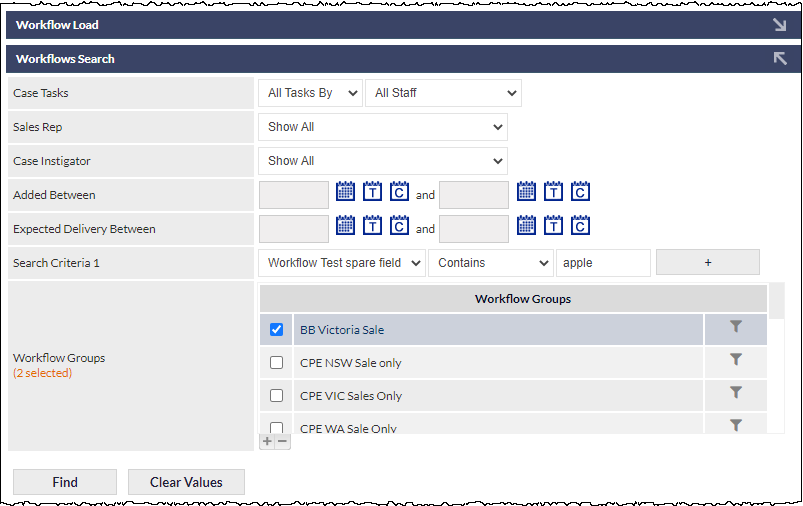
IMPORTANT: When any search criteria are changed, the Find button must be pressed to update the Workflow list.
Previously, the results list updated automatically and immediately upon changing a search field. For example, ticking a box adjacent to a Workflow Group name would update the results list to include the ticked group. To maintain consistency across CommTrak search features, and to improve performance, the Find button must be pressed to update the search results.
As with other search sections within CommTrak, the Clear Values button resets all the criteria to their default state, i.e. all search fields are cleared, and the Case Tasks criterion is reset to All Tasks By All Staff.
Reminder: The Workflow Load feature (shown collapsed in the previous image) enables monitoring and bulk-reassigning of Workflow Tasks. See Support Centre article Workflow Load Management & Bulk Reassigning Due Workflow Tasks, for further information about this feature.
Active Workflow Search Enhanced
More filters have been added:
- Sales Rep (this field may be named differently in your CommTrak)
- Case Instigator
- Added Between
- Expected Delivery Between
- Search Criteria 1-5 (only one is shown in the previous screenshot; click the plus button to add a criterion)
See Support Centre article, Active Workflow Cases Screen, for further information relating to the Active Workflow Cases screen features.
Quote Templates
Enhanced Quote Template Settings
To provide enhanced customisation of quote templates, three new options have been added to the Quotes section of Leads miscellaneous settings:
Settings > Leads Settings > Miscellaneous
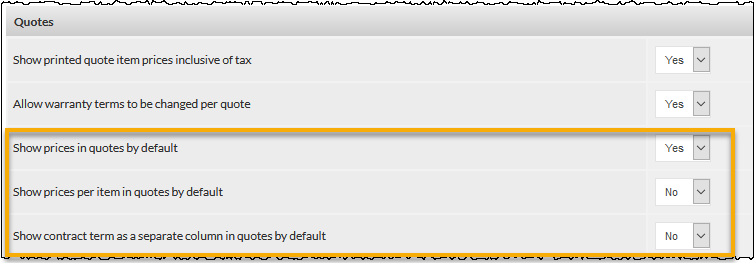
See Support Centre article, Leads Miscellaneous (Settings), for further information relating to the above settings.
The above settings, as shown, will be used as defaults for all new quotes. When a new quote is created, these values are used to set the quote presentation preferences:
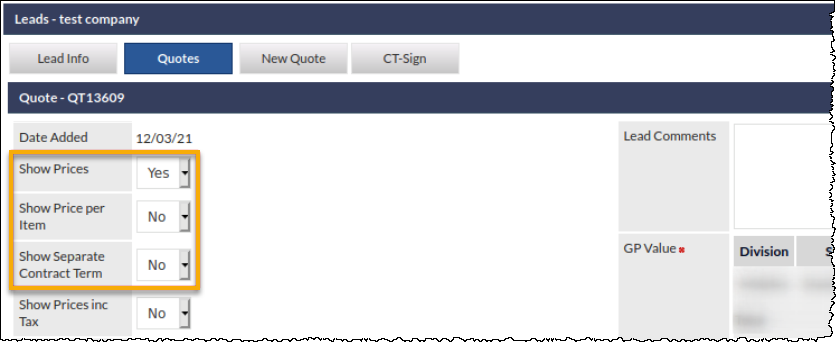
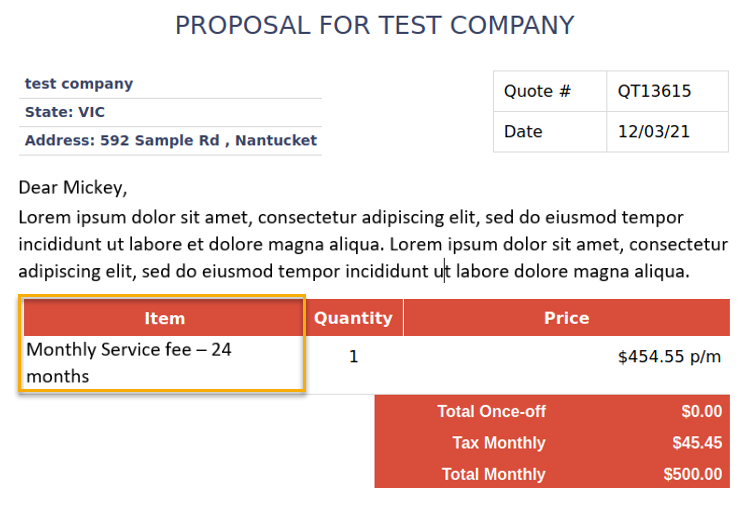
Two of the above options ( Show Prices, and Show Price per Item) were present previously, but we now provide users with the option to change these options. The third option, Show Separate Contract Term, is new, and changing this value to Yes will display a separate column for contract duration...
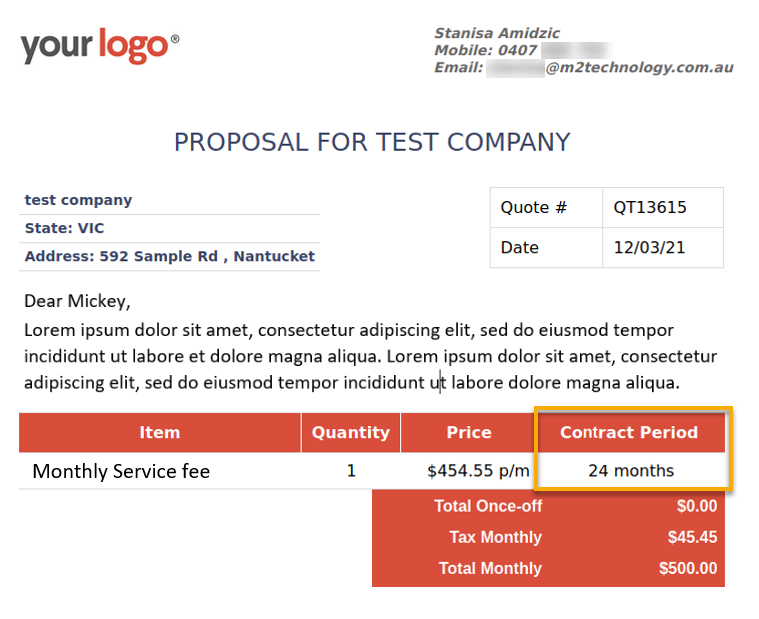
...rather than including the duration in the Item description, when the option is set to No as shown in the following image:
Downloadable Quote Template Examples
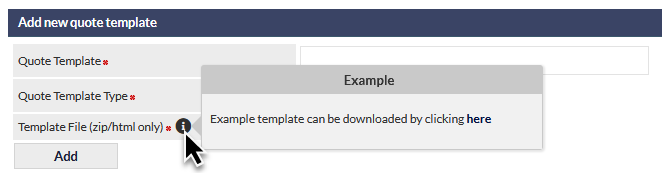
When adding new Quote Template ( Settings > Leads Settings > Quote Templates) and selecting the Template Toolkit option (rather than the Built-in HTML editor option), example templates are available to download, by hovering the mouse cursor over the Template File information icon, and clicking the download link:
The available template(s) will vary depending on your CommTrak configuration.