
Entering / Selecting Email Addresses & Adding Attachments
This article contains:
Manually Entering an Email Address
Selecting Email Addresses
The following explanation refers to the To field, but equally applies to the Cc and Bcc fields.
When sending emails from CommTrak, the drop-down list from which email addresses are selected displays Customer contact and Staff email addresses.
To select an email address, click the text area of the To field to display the drop-down list:

The Customer contact and Staff email addresses are listed under their respective headings.
By default, the Staff email section is initially collapsed; click the Staff heading to display the list of Staff members (as displayed in the previous image).
If the Customer is a member of a Customer Group (and is not designated as the Head Office), in addition to the Customer and Staff headings, the contacts list will display a Head Office heading (not displayed in the above image) enabling the selection of contacts for the Customer record designated as the Head Office for the Customer Group.
Upon selecting a name from any section, the email recipient will be displayed in the To field:

To select multiple email recipients, click in the blank area of the To field (i.e. on the Select contact or provide email address hint); the dropdown list of contacts will be displayed again.
Manually Entering an Email Address
Manually-entered (typed) email addresses must be confirmed, as described below, by using one of the following methods, or the email address will not be added to the recipient list.
To manually enter an email address, click on the Select contact or provide email address hint, and type the email address. The email must be confirmed by either:
- pressing either Tab or ; (semicolon) on the keyboard, after typing in the email address
or
- clicking on the email address in the drop-down list (it is added to the top of the list as you type, as highlighted in the following image):

In both cases, the email address will be confirmed, and shown in a grey block in the recipient field (To, Cc, Bcc):

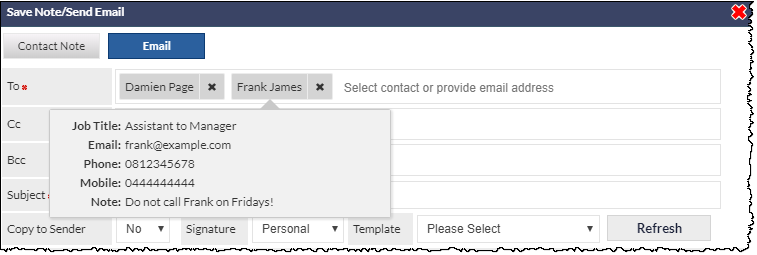
After selecting a recipient from the contact list, clicking on the box containing their name will display a summary of the contact record:
Removing a Recipient
To remove a recipient from the To field, click the x icon adjacent to the recipient.
Selecting Attachments
When sending an email from within CommTrak, documents can be selected from the document libraries by clicking the Select files to attach field, which will pop-up a list of available documents.
Click the required document (repeat to select multiple documents) to attach it to the email.
Document folders are displayed in bold text and preceded by the > symbol. Click a folder name to show the folder contents (if any).

Additional features visible in the pop-up document-selection list are:
- Click to upload a file (or files) from your device
- Click to toggle the sort order by the Title of the document
- Click to toggle the sort order by the date the document was uploaded
The following image shows that two documents have been attached to the email message:

To remove a previously selected document, click the x icon adjacent to the document name.
Filtering the Document List (Live Search)
When a document name (or partial name) is known, it can easily be located by clicking in the blank area of the Attach Files field, and typing the known characters of the file name.
In the following example, the digits 185 have been entered (highlighted 1), and the list of documents has been filtered to only show items containing the matching characters (highlighted 2):

The search filter is live; i.e. the list of documents is refreshed as you type your search criteria.