
Active Workflows Screen
This article pertains to the Active Workflows screen; a list of all active Workflows for all customers (which can be filtered according to various criteria). For information pertaining to the Workflow Case screen, which shows the details of a single active Workflow case for a specific customer, see Support Centre article, Workflow Case Screen.
The Active Workflows screen lists all active Workflow Cases (based on the selected filters), and can be accessed by clicking Workflow in the CommTrak Main Menu.
An active workflow case is a workflow case that is currently in progress. It may have been started manually (e.g. Workflow > , from a Customer screen), or it may have been started automatically (from a successful Lead or as a branch from another workflow case).
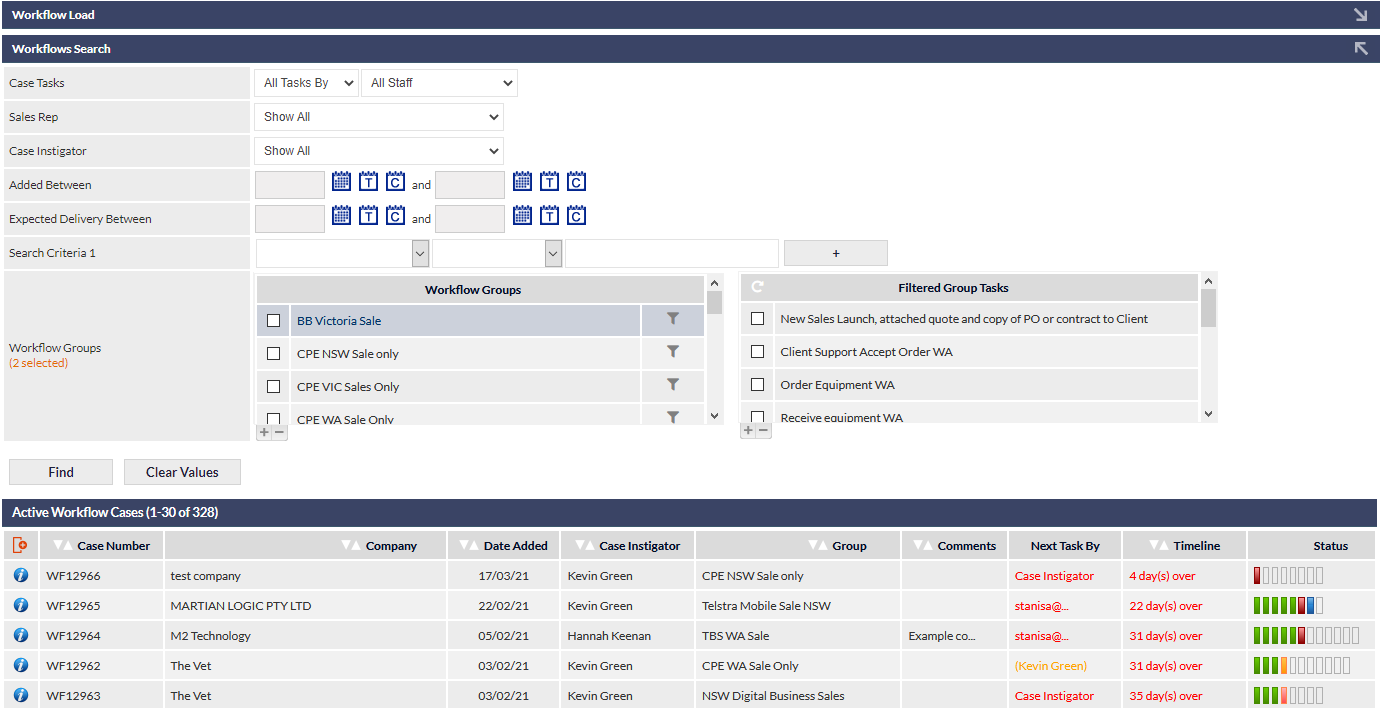
Each user can choose which columns are shown in the Active Workflow Cases list; see article Column Sorting & Customisation for further information.
The Status column contains a colour-coded indicator showing the status of each task within the workflow case.
Hovering the mouse over any of the task status boxes will display a pop-up tooltip containing the name of the task.
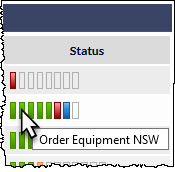
See the article Workflow Task Colour Codes for a description of each status colour-code.
It is strongly recommended to display the minimum number of workflows (i.e. 20) per screen in the Active Workflow Cases screen. This will ensure that the screen is displayed / refreshed as quickly as possible, and that the minimum amount of data transfer is required to refresh the screen. To change the number of workflows displayed, scroll to the bottom of the screen, and select from the per page drop-down.
Viewing a Workflow Case
A Workflow Case can be viewed by clicking on the workflow case row in the Active Workflow list, at which time the Workflow Case screen will be displayed.
Searching the Active Workflow Cases List
After selecting any of the following search criteria, click to update the Active Workflow Cases list with matching results.
Search criteria are remembered! When returning to the Active Workflow Cases screen, your previously-selected search will still be active!
Search by Workflow Groups
Each user can select the types of workflow group that they wish to see listed on the Active Workflow Cases screen, by placing a tick next to the relevant workflow groups in the Workflow Groups panel.
If no Workflow Groups are ticked, all groups will be listed.
Search by Group Tasks
The Filtered Group Tasks panel (the rightmost panel in the following image) is only displayed when activated by clicking a Workflow Groups filter as detailed below:
- Tick a group in the Workflow Groups list; when the Find button is pressed, the Active Workflow list will only include the ticked Workflow Group(s)
- Click the filter icon, next to a ticked Workflow Group
- The Filtered Group Tasks panel is displayed, and will list only tasks contained in the selected Workflow Group for which the filter icon was clicked
- Tick one or more tasks in the Filtered Group Tasks filter list; when the Find button is pressed, the Active Workflow list will be filtered to show only Active Workflows where the next task due is ticked and the Workflow Group is ticked in the filters.
When Group Tasks are ticked, the relevant Workflow Group filter icon will be replaced with a numeric indicator, showing how many of the Workflow Group's tasks have been ticked, as shown in the following image:
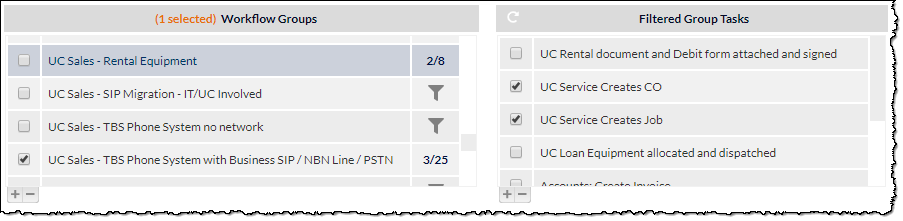
Shown in the previous image, two Workflow Groups have Filtered Group Tasks selected (identified by the numeric indicators), but only one of the Workflow Group filters is active, as identified by the ticked Workflow Groups item. The highlighted (not ticked!) Workflow Group has two Group tasks ticked (as shown in the right-hand column). The ticked Workflow Group has three Group Tasks ticked. Only filters for ticked Workflow Groups affect the Active Workflows list, therefore, for the above example, the Active Workflows list will only display workflows for the ticked Workflow Group, which contain one of the three ticked Group Tasks as the next due task.
The next due task is the first unticked item in a workflow case, regardless of any later Workflow Tasks that may have been ticked in the same workflow case.
Clear Filtered Group Tasks
To clear all Filtered Group Tasks for a specific Workflow Group:
- Click the numeric indicator (number of tasks selected) for the required Workflow Group; the Filtered Group Tasks panel will be updated to show all tasks contained within that group
- Click the white reset (circular arrow) icon at the top-left of the Filtered Group Tasks panel; all Group Tasks will be unticked, the tasks panel will be hidden, and the filter icon will be re-displayed next to the Workflow Group
Filter by Case Tasks
- All Tasks By - shows active workflow cases containing any incomplete tasks that are assigned to the currently-selected user(s).
- Next Task By - shows active workflow cases where the next due task is assigned to the currently-selected user.
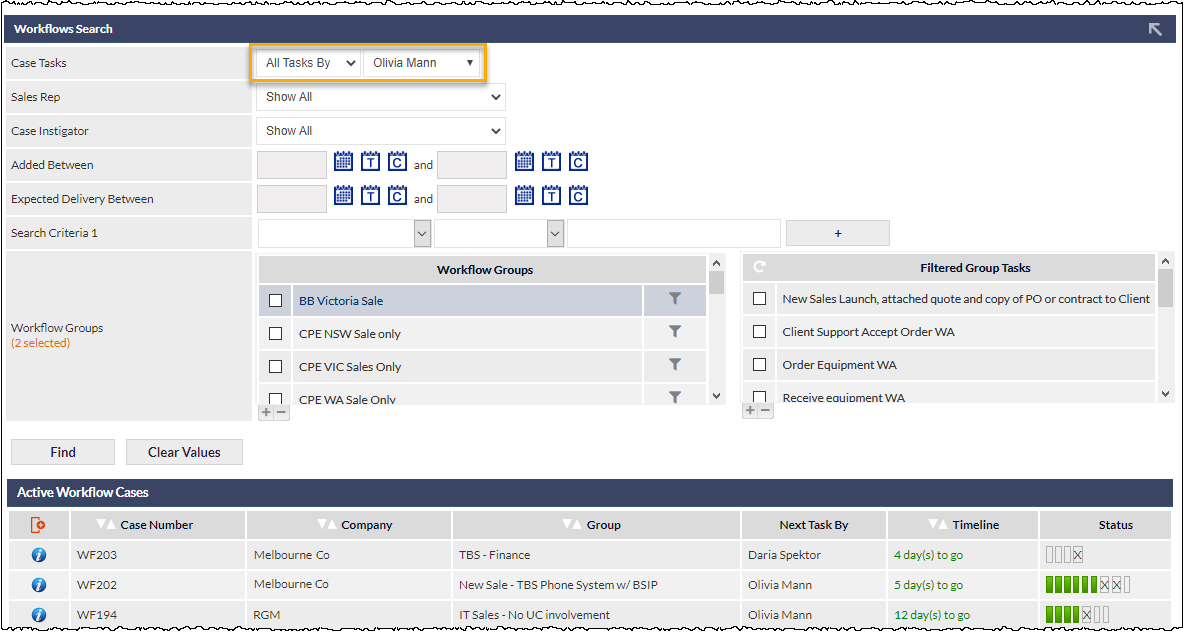
The Case Tasks criteria highlighted in the above screenshot will filter the results to show only workflows containing any incomplete task that has been assigned to Olivia Mann.
The resulting list of Active Workflow Cases (also shown in the above screenshot), shows only workflows where Olivia Mann has any task assigned to her; those tasks can be identified by the X in the status box for the relevant task (rightmost column in the Workflow case list in the above image). In the above example, we can see that Olivia has been assigned tasks in three Active Workflow cases, and in two of those cases, Olivia's task is the next task due.
Hover the mouse over a status box to display the name of the task.
If the Next Task By filter is applied (as shown in the following image), only Active Workflows for which the next due task is allocated to the named user are displayed.
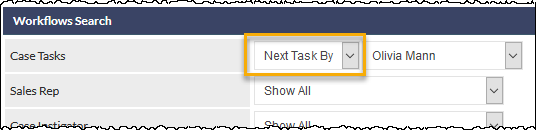
Filters are remembered! When returning to the Active Workflow Cases screen, previously-selected filters will still be active.
Filter by Sales Rep
Note: The Sales Rep field may be named differently in your CommTrak, but will retain the functionality.
Select the name of a Sales Rep from the dropdown list, to filter the results by the Sales Rep assigned to the Workflow Case.
Filter by Case Instigator
Select the name of a staff member from the dropdown, to filter the results by the staff member assigned as the instigator for Workflow Cases.
Filter by Added Between (the date a Workflow Case was instigated)
Specify a date range using the calendar icons, to filter the results by the date upon which Workflow Cases were instigated.
Filter by Expected Delivery Date
Specify a date range using the calendar icons, to filter the results by the Expected Delivery Date of Workflow Cases.
Filter by Search Criteria 1-5
Up to five additional criteria can be selected by choosing the required field from the dropdown list, specifying the match type and entering the text to match.
Available fields are:
- Comments
- Company Name
- Legal Name
- Workflow ID
- Custom fields (if any)
- Contains
- Equals
- Starts with
- Is not empty
- Doesn't contain
- Doesn't equal
- Doesn't start with
- Is empty
Text matching is not case-sensitive.

In the above image, in addition to any other criteria that may have been specified, only Workflow Cases for companies containing the text walters, will be listed. The button adjacent to Search Criteria 1 has been clicked to present the second criteria fields. To remove unrequired search criteria lines, click the button adjacent to item to remove. Search Criteria 1 cannot be removed, but the fields can be cleared manually.
Clear all Active Workflow Filters
To clear all filters ( Tasks By, Staff names, Workflow Groups, Filtered Group Tasks, etc.), click . Upon confirmation, all filters will be removed. To update the results after clearing the criteria, click .