
Workflow Email Templates
This article explains the use of Workflow Email Templates (also known as Workflow Milestone Emails). For information pertaining to the configuration of Workflow Email Templates, see Support Centre article, Workflow Email Templates (Settings).
Predefined emails can be assigned to Workflow Tasks, which enables the sending of emails from a workflow task, with just a few clicks.
The following image highlights the email column, in which one of the two displayed workflow tasks has an email template assigned to it.

Clicking the email icon presents the standard CommTrak Send Email window, with the predefined template content, an example of which is shown below:
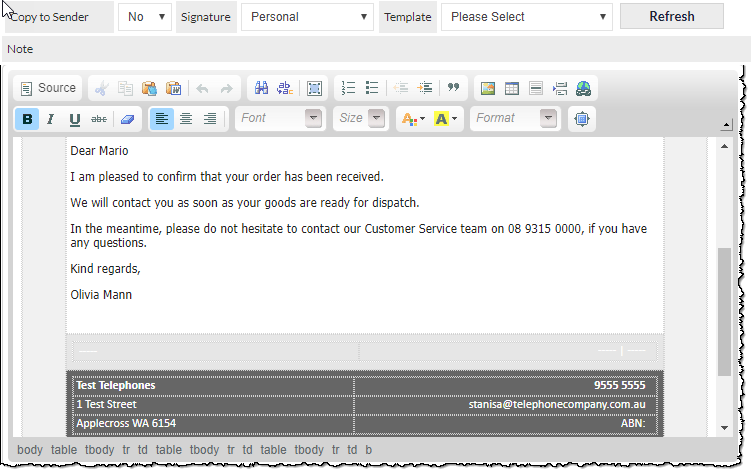
After a template has been selected, the body of the message can be edited manually if required, and documents can be attached.
A different template can be selected by choosing it from the Template drop-down list, and clicking (visible in the image above)
If more than one email template has been associated with a workflow task, a template will not be selected automatically; the user will need to select the required template from the Template drop-down list.
Task Note
When the email has been sent, the contents of the message are stored in the Previously saved / sent notes section at the bottom of the Workflow Case screen.