
What's New June 2024
Jobs
Projects
- Allocate Sales Rep to Project
- Enhanced Filtering on Projects Screen
- Task End-Date Indicator
- Report on Project Templates
Reports
General
Quotes
- Quote Template Toolkit Editing Enhancements - major enhancements!
- Clone Any Quote Template!
Jobs
Technician Scheduling Enhancements
We've introduced several enhancements to streamline technician scheduling:
-
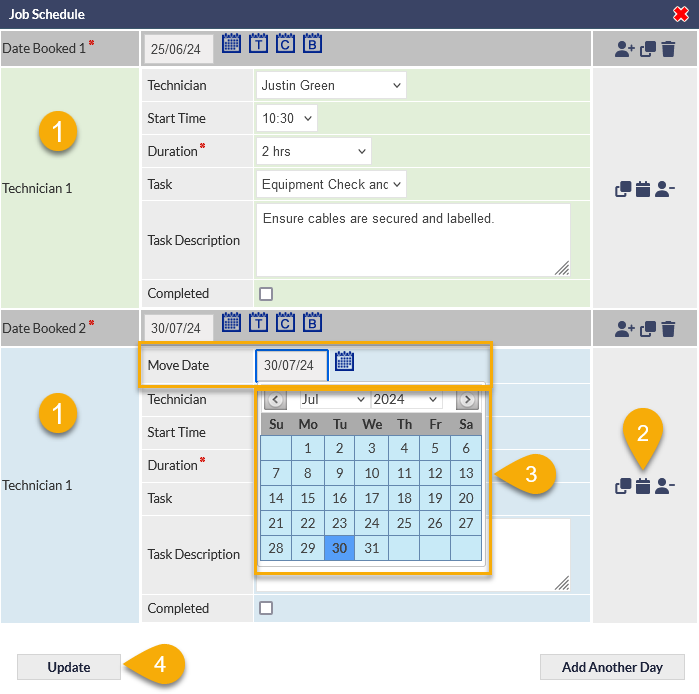
Alternating colours clearly distinguish tasks for each technician (green and blue, visible in the previous image).
- Easily change scheduled dates for a technician using the calendar icon adjacent to each technician's task.
- Selecting a date from the pop-up calendar immediately updates the date for the technician's task, and re-orders all technician's tasks accordingly.
- When the Update button in the Job Schedule pop-up is pressed, any changes to the technicians' schedules are immediately reflected in the Jobs screen without needing to save the Job:

Main Scheduler Features
Note that if the Job Schedule screen is opened using the booking (B) icon in the pop-up window, it is not possible to drag and drop Jobs in the scheduler:

This change in functionality is required, because it is not feasible to update the Job schedule in a separate browser window. Drag-and-drop functionality continues to be available when the Job Schedule screen is accessed from the main menu.
For more information about the Jobs screen and the enhanced Schedule field, please refer to the following Support Centre articles:
Projects
Allocate Sales Rep to Project
You can now allocate a Sales Rep field to a Project. This field may have a different name in your CommTrak (e.g. BDM, Account Manager):

The Sales Rep column can be added to the Projects screen, via the Select columns to display icon:

For more information about Project fields, refer to the following Support Centre article:
Enhanced Filtering on Projects Screen
We have introduced several enhancements to the filtering features in the Projects screen:

- A Sales Rep filter has been added to complement the newly-introduced Sales Rep field
- The Project Type filter has been enhanced so it now displays only the relevant Project Statuses for the selected Project Type...
- When a filter icon is pressed in the Project Type filter (2), the Filtered Project Type Statuses section is displayed
It is important to be aware that, even when the Filtered Project Type Statuses section is hidden, selected Status filters still apply. Note the numeric indicators in the following image, showing how many Status filters are active for each Project Type:

For more detail about the filtering features available on the Active Projects screen, please refer to the Search (Filtering Projects) section in the Active Projects Screen article.
Task End-Date Indicator
When a Project Task is overdue, or due today, a warning indicator icon is displayed and the Timeline text is highlighted:
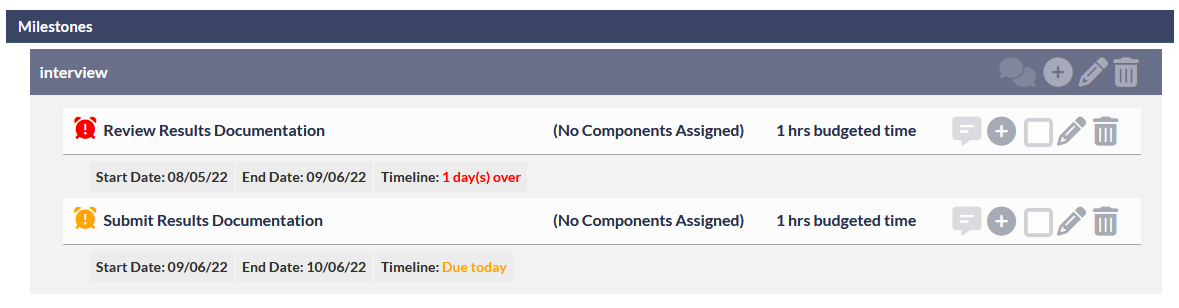
- When the Task is overdue, the indicator and Timeline text are displayed in red.
- When the Task is due today, the indicator and Timeline text are displayed in orange.
For more detail about this and related features, see the following article:
Report on Project Templates
We have added Project Template reporting to the Projects Report.
Please refer to the Report on Project Templates section under the Reports heading in this article.
Reports
Tickets on Hold Reporting
The Tickets report now includes a Currently on hold criterion:

Selecting this criterion will filter the report to show only tickets that are currently on hold.
The report results will include the Hold Until column:

For more information about CommTrak reporting, please see the following article:
For more information about the Tickets Hold Until feature, please see the Support Centre article: Creating / Modifying a Ticket, Hold Until section.
Copy favourite reports to other users
We have added Copy Favourite Reports to the Transfer Responsibilities section in user settings.

When a user has created Favourite Reports, the settings (per favourite report) can be copied to another user.
Select the name of the user to whom the favourite reports are to be copied:

A list of the current user's favourite reports is displayed (visible in the previous image). Tick the favourite reports to copy to the selected user. Pressing Save confirms the changes, and the selected favourite reports will immediately be copied to the selected user's favourite reports settings.
Unlike other settings in the Transfer Responsibilities section, favourite reports are copied to the selected user, not transferred. This means the original user keeps their favourite reports!
For more detail about this feature, please refer to the following Support Centre article:
For more information about Favourite Reports features, please refer to the Standard Reports article:
Report on Project Templates
In addition to other Projects enhancements, we have added Project Template reporting to the Projects Report:

Selecting the Only projects set as templates criterion in the Projects Report, will limit results to only Projects that have been designated as a template.
For more information about the Project Template feature, please refer to the Project Screen article in the Support Centre.
General
Login Failure Message Enhancement
We've made login failure messages clearer and more helpful. Messages now provide:
- Specific Reason for Failure: Clearer details on why the login failed.
- Support Centre Link: A direct link to troubleshooting steps in the CommTrak Support Centre.

Account Lock Information:
Users will now see how many login attempts they have left before their account is locked. This provides them with a clear warning and a chance to correct any errors before their account is locked.

Account locking is optional and can be configured according to your organisation's requirements. Please check your CommTrak security settings:
Settings > User Settings > Security > Lock Accounts
Quotes
Quote Template Toolkit Editing Enhancements
The Quote Template editing features have received a major overhaul! You can now make many customisations (including colour themes) directly within CommTrak, without needing to download templates or knowing HTML. This means faster, more intuitive template creation and editing.
To select a new, editable template:
Settings > Leads Settings > Quote Templates
Select New Quote Template:

Enter a Quote Template name, and select Template::Toolkit Library:

Choose the template layout that most closely meets your requirements (you can edit the colours later):

The above image has been reduced in size and cropped for the purposes of this article; there are 8 layouts to choose from.
Click on the Import link below your chosen template:

Your selected template is displayed, and you can now edit it:

Edit Template Colours
The colours used in the template can be edited:
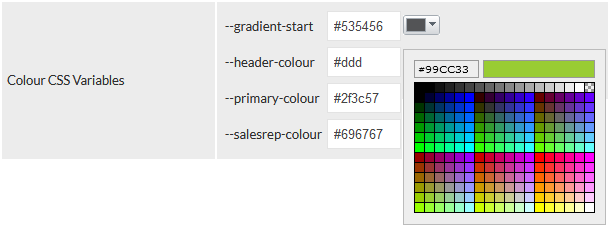
In the provided templates, there are four colour elements that can be modified in the editor.
A Quote template can still be fully-customised by a professional HTML designer, by downloading the template file, instead of importing it into the CommTrak editor. An HTML designer can even add other coloured elements that will automatically appear in the template within the CommTrak template editor after the modified template has been uploaded into CommTrak.
Editable Text Areas
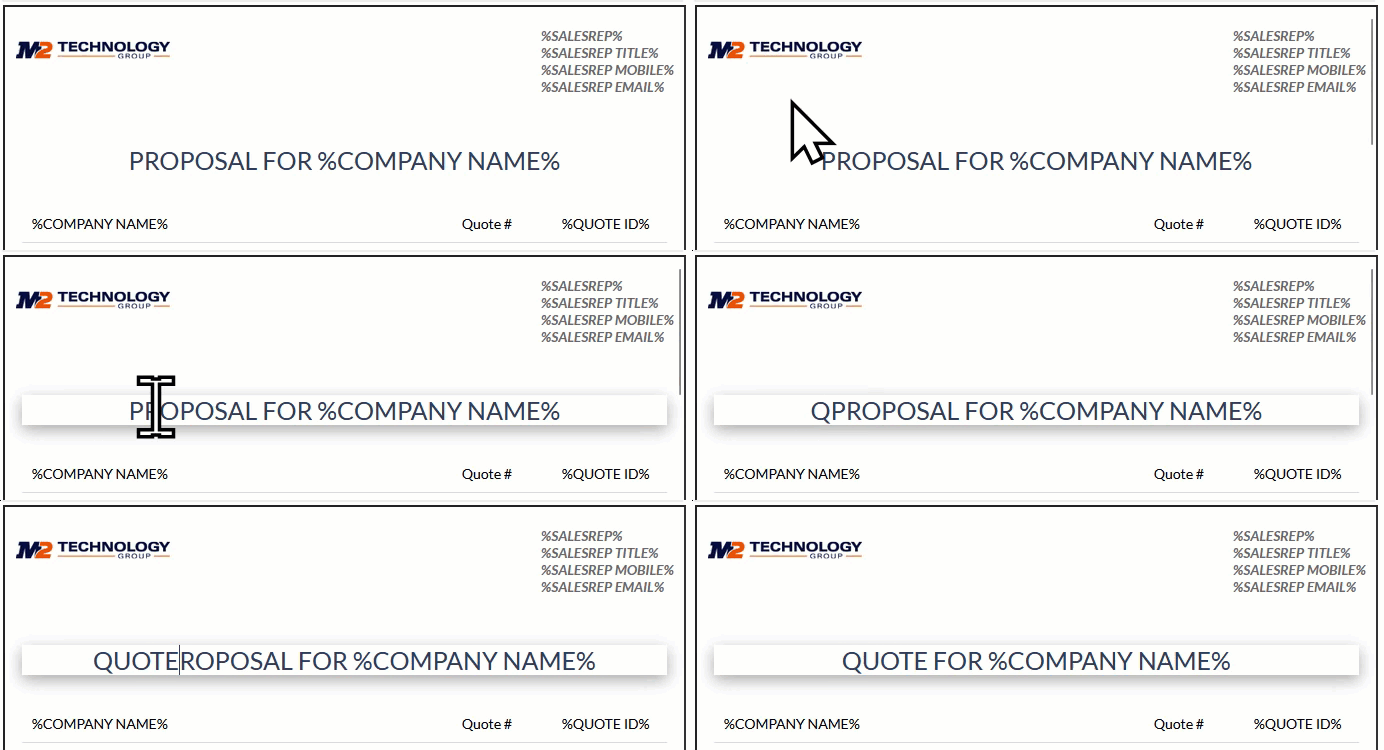
The provided toolkit templates include several editable text areas that can modified within the template editor and also when the Quote is being created by your sales team, within a Lead. Editable areas are identified by a shadow when the mouse moves over the editable area:
Edit the text by clicking anywhere on the editable area:
For more information about the template toolkit enhancements, please refer to the following article:
Advanced Customisation
The Quote Template Toolkit templates continue to offer advanced customisation options, including:
- Adding additional colours to template elements.
- Creating additional editable areas.
- Fully customising the layout or design of the template.
The provided templates are intended as useful examples for various types of quote.
Advanced customisation requires some knowledge of HTML and CSS. If you have these skills available in-house, the Support Centre includes documentation for editing the downloadable toolkit files. If you would like the CommTrak team to implement design changes for you, please contact us for advice.
For more information about the advanced template toolkit features, please refer to the following article:
Clone Any Quote Template
You can now clone any existing Quote Template (including basic HTML editor templates); very useful if you either need to create a new template based on an existing one, or if you want to experiment with a new template design without breaking the existing template!
Settings > Leads Settings > Quote Templates
- Enter a new Template Name for the quote
- From the Based on Template field dropdown, select the template to clone
- Press the Clone button

You can now edit the newly-cloned Quote Template.
For more information about cloning quote templates, and all the quote template editing features, please refer to the following article: