
Active Projects Screen
The Projects module is not enabled by default. If you require access to the Project Module, please contact CommTrak Support.
This article contains the following sections:
The Active Projects screen lists all Projects, that are incomplete, based on the search criteria specified towards the top of the screen:

The sections in the Active Projects screen are as follows:
New Project
Press the New Project button (visible in the previous image).
The fields displayed are:
Company Name (mandatory)
The name of the Company.
This is a standard CommTrak company name search field. A minimum of three consecutive characters is required to display a list of matching CommTrak companies:
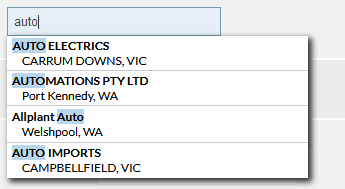
Select the required CommTrak company from the list.
Project Name (mandatory)
The name of this Project. This name does not need to be unique.
Project Template (default Not Specified)
This field is optional. If there are any Project Templates available, one can be selected from this list if required.
Action Buttons
- Add - the Project will be created, and the customer's Projects tab is displayed
- Cancel - the Project creation is cancelled, and the New Project fields are hidden
Search (Filtering Projects)
The Search section provides for the filtering of the Active Projects list, based on the specified criteria.
The available search criteria are:
Text Search

Type a partial or complete Company Name or Project Name, and press the Find button to list all matching Projects.
To clear the Text Search, delete the contents of the text field, and press the Find button.
Due Date Range

Use the calendar icons to specify a start and end date range to list all Projects where the Due Date falls within that range.
The list is updated when either of the date fields is updated.
Project Manager

Tick the Project Manager names to filter the list of Projects according to staff member assigned as the Project Manager.
Multiple Project Managers can be selected, and the Active Projects list will update as each name is ticked.
The topmost option in this filter is always Unallocated which, when selected, will list active Projects that do not have a Project Manager assigned.
Sales Rep

Tick the Sales Rep names to filter the list of Projects according to staff member assigned as the Sales Rep.
Multiple Sales Reps can be selected, and the Active Projects list will update as each name is ticked.
The topmost option in this filter is always Unallocated which, when selected, will list active Projects that do not have a Sales Rep assigned.
Project Type

Tick the Project Types to filter the list of Projects according to their type.
Multiple types can be selected, and the Active Projects list will update as each item is ticked.
Project Types are configured in Project Type Settings.
Project Status
When a filter icon is pressed in the Project Type filter (highlighted in the previous image), the Filtered Project Type Statuses section is displayed (visible in the previous image).
Tick the Project Statuses to filter the list of Projects according to their status.
Multiple statuses can be selected, and the Active Projects list will update as each item is ticked.
Project
It is important to be aware that, even when the Filtered Project Type Statuses section is hidden, selected Status filters still apply. Note the numeric indicators in the following image, showing how many Status filters are active for each Project Type:

The Project Statuses filter can be reset by pressing the reset icon in the filter header (highlighted in the following image):

Project Statuses are configured per Project Type in Project Type Settings.
Active Projects List
The Active Project section lists all Active Projects (if any), based on the criteria specified in the Search section towards the top of the screen.
This is a standard CommTrak list with the following features:
- Column Sorting & Customisation
- Pagination - at the bottom of the screen, use the per page dropdown to specify number of items displayed per page, and page back and forth through the pages if there are more results than can be displayed on one screen
- Information column - this column is designated by the information (i) icon which, when pressed, expands the row to display items assigned to the hidden area
Progress Column
The Progress column displays a visual indication of the progress of the Project, based on the number of completed Project Tasks and the most urgent status of any incomplete tasks.
The following image is an example of the progress column for 5 Projects:

The colour-coding for the progress segments in the chart are:
| Colour | Status | |
|---|---|---|
| Slate blue | Completed | |
| Sky blue | Incomplete | |
| Amber | Incomplete - there is at least one task due today | |
| Brick red | Incomplete - there is at least one overdue task |
If there are multiple incomplete tasks, only the most urgent status colour is displayed. For example, if a task is overdue, it will be shown in brick red, even if another task is due today.
Viewing a Project
To view a Project, press anywhere on the Project row in the Active Projects list.
The Project will displayed in the Projects tab of the customer record.