
Leads Quote Templates - Toolkit Library Standard
This article explains how to create / edit Quote Templates using the standard features of CommTrak's Template Toolkit.
The sections in this article are:
- Choose a Starting Toolkit Template
- Inline Editing a Template
- Edit Template Colours
- Editable Text Areas
- Action Buttons
The standard features of the toolkit do not require any knowledge of HTML, and all editing can be completed within CommTrak, using one of the provided Toolkit Templates from the library, or a template that has previously been created/modified by a professional designer.
The standard features include:
- Select from one of the many professionally-designed templates provided, or select / upload a template that has been created/modified by a professional designer
- Change the colour scheme
- Change editable text areas
Choose a Starting Toolkit Template
There are three options for choosing a Toolkit Template to start with:
- Select a Template Toolkit from the CommTrak Quote Library
- Select a Template Toolkit that has already been uploaded (e.g. provided by a professional designer)
- Upload a Template Toolkit file that has been provided by a professional designer
In each case, access the Quote template settings:
Settings > Leads Settings > Quote Templates
Then...
Select a Template Toolkit from the CommTrak Quote Library
Press New Quote Template:

Enter a Quote Template name, and select Template::Toolkit Library:

Choose the template layout that most closely meets your requirements (you can edit the colours later):

The above image has been reduced in size and cropped for the purposes of this article; there are 8 layouts to choose from.
Click on the Import link below your chosen template:

Your selected template is displayed, and you can now edit it as required
Follow the steps for *** Inline Editing a Template ***.
Select a Template Toolkit that has already been uploaded

Upload a Template Toolkit file
Press New Quote Template:
Enter a Quote Template name, and select Template::Toolkit:

- Press the Browse button and select the template zip file to upload.
- Press the Add button to create the new template
- Your selected template is displayed, and you can now edit it as required
Follow the steps for *** Inline Editing a Template ***.
Inline Editing a Template
When you have selected the Toolkit Template using one of the available options, press the Edit button to make any required changes:

If you can't see the Edit button, it means your selected template does not have any editable features such as editable areas or colours.
Edit Template Colours
When appropriate design elements are included in a template toolkit, the colours can be edited:
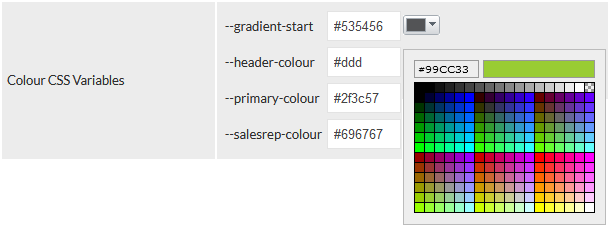
In the previous example image, the template provides four colour elements that can be modified in the editor (e.g. the colour of the text for the Sales Rep's details). Custom templates may have more or fewer colour elements, and the elements may be named differently.
Basic colour selection: To quickly select a colour that matches your desired theme, you can click on the colour dropdown selector adjacent to the element that needs to be changed (visible for the - - gradient-start element in the previous image). A pop-up colour-palette is displayed, and you can simply click on the required colour to select it and populate the text field for the element.
Advanced colour selection: If you need to specify an exact colour to match your organisation's branding, your marketing team will be able to advise you of which colours to use. When specifying colours to be used in an HTML template, the standard way is to use hexadecimal (hex) notation, in which the colours are represented in the form #ffffff or #fff. Hex colour codes can be entered directly into the text fields for each colour element.
Colour Code Web Resources
There are many websites that provide colour selection tools, including the following examples:
External Links Disclaimer: The following links are provided for your convenience and reference only. We do not control or endorse the content on these third-party websites and are not responsible for their accuracy, availability, or any loss or damage that may arise from your use of them.
A Quote template can still be fully-customised by a professional HTML designer, by downloading the template file, instead of importing it into the CommTrak editor. An HTML designer can even add other coloured elements that will automatically appear in the template within the CommTrak template editor after the modified template has been uploaded into CommTrak.
Editable Text Areas
The provided toolkit templates include several editable text areas that can modified within the template editor and also when the Quote is being created by your sales team, within a Lead. Editable areas are identified by a shadow when the mouse moves over the editable area:
Edit the text by clicking anywhere on the editable area:
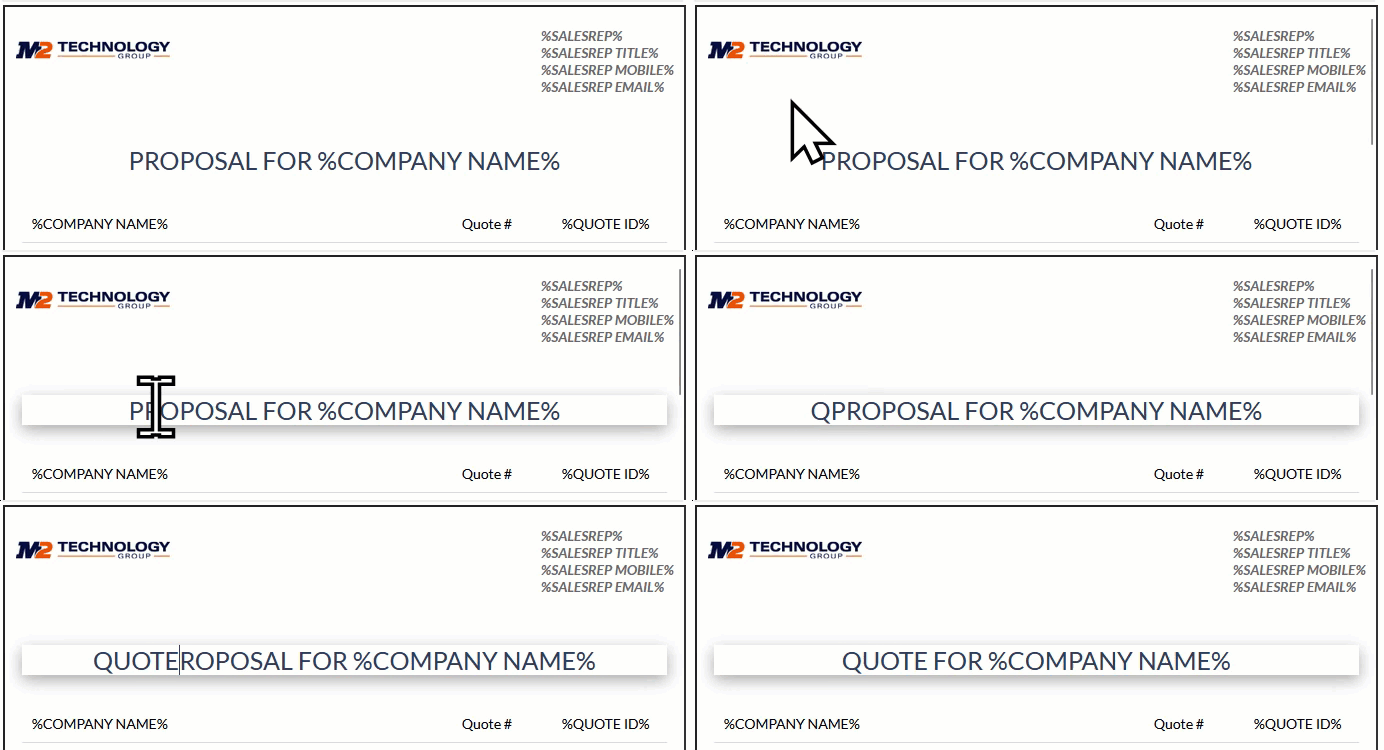
You can add any placeholder into an editable area. The recommended method for adding a placeholder is to click on the placeholder name in the Legend area of the Quote Body field:

The placeholder will be copied into your device's clipboard and can now be pasted into any editable area.
Action Buttons
- Save - to save the template
- Close - close the template without saving any changes
- Delete - deletes the template immediately; no prompt is provided