
Project Screen
The Projects module is not enabled by default. If you require access to the Project Module, please contact CommTrak Support.
This article pertains to the Project screen, accessed by clicking any Project in a Project list (e.g. Active Projects screen, customer's Projects screen).
The Project screen has the following tabs:
Main Info
When viewing the Project screen, the Main Info tab is always displayed in the first instance.

A direct link to the project can be copied to the device's clipboard by clicking the copy icon (visible in the previous image).
Main Info Fields
Project Number (read-only)
The Project Number is a unique ID allocated sequentially as each project is created.
Project Name (mandatory)
The name of the Project (typically designated by the Project Manager).
The project name does not have to be unique, but it is recommended that a naming convention is used within the organisation.
Order No
An order number for this project
Use as Template for future Projects (default: unticked)
If ticked, the current project can be selected as a template for future projects.
When a new project is later created, and a template is specified, the Milestones and Tasks are pre-populated in the new project, based on the project that was selected as the template
Project Manager (default: Not Specified)
The designated Project Manager (selected from dropdown list of CommTrak staff)
Sales Rep (default: Not Specified)
The designated Sales Rep (selected from dropdown list of CommTrak Sales Reps)
Project Type (default: Not Specified)
Select the type of project from the dropdown list.
For configuration of project types, refer to Support Centre article, Project Types (Settings)
Project Status (default: Not Specified)
Select the project status from the dropdown list.
The available Project Statuses may vary depending on the select Project Type, as per the Project Types (Settings).
Project Classification (default: Not Specified)
Select the project classification from the dropdown list.
For configuration of project classifications, refer to Support Centre article, Project Classifications (Settings).
Related Leads
This field lists Leads that are related to the project.
Leads can be related in the following ways:
- Directly - In the Lead, the current project was selected in the Related To field.
- Indirectly - the Leads may be related to another component (such as a Workflow Case), that has been related to the Project
A disabled (unticked) entry in this list, indicates that the Lead is indirectly related.
Unrelated Leads are only listed if they have been modified during the previous 30 days. To manually relate a Lead that has not been modified recently, view the Lead and select the project in the Lead's Related To field.
To remove an unrelated Lead from the list, press the trashcan icon (and confirm when prompted).
Related Unallocated Components
This field lists components (such as Workflow cases, Tickets, etc.) that have been related to the Project, but not been allocated to a Task.
A Project cannot be completed whilst there are any unallocated components, so such items must either be:
- allocated - assign the component to a Project Task
- removed - press the trashcan icon (and confirm when prompted)
Related and Upload Documents
View and add related documents in this field.
Refer to Support Centre article, Related and Upload Documents for more information about this feature.
Comments
This free-form text field is for general comments pertaining to the Project, and is not intended for chronological notes.
Date Added (read-only)
The date the Project was created.
Start Date
The start date of the Project (typically designated by the Project Manager)
Due Date
The planned end date of the Project (typically designated by the Project Manager)
CallBack
Create, view or action a CallBack pertaining to the Project.
Past, current, and future CallBacks can be viewed, modified and deleted by clicking on the respective links next to the CallBack field.
For additional information about this feature, see Support Centre article, CallBacks.
Project Management Time
The Project Management Time fields in the Project Overview section are as follows:
Remaining Days
The number of days remaining, based on the Due Date field.
Last Updated
The date that the Project last received an update of any kind (i.e. when the Project was last saved).
Updated By
The name of the CommTrak user who last updated the Project.
Time Based Progress
Time Spent By Staff
Cumulative hours and minutes of all staff time that has been assigned to the Project (e.g. chargeable and non-chargeable time allocated to Ticket, Jobs, etc).
Time Budgeted by PM
Total hours and minutes budgeted for in Project Tasks.
Percentage used of time Targets
This field displays time used as a percentage (Time Spent By Staff : Time Budgeted by PM).
Lead Based Progress (ex-tax)
The Leads Based Progress fields in the Project Overview section are as follows:
Total Sale Value ($)
The total sale value is the total revenue value of all accepted Quotes within Leads that are related to the Project.
Labour Cost in Leads ($)
The total value of labour items within all accepted Quotes within Leads that are related to the Project.
Labour Units in Leads
The total of labour units (i.e. hours) within all accepted Quotes within Leads that are related to the Project.
Labour units are those items that have been added to a Quote using the the Labour method.
Labour Cost Currently in Project ($)
Cumulative costs of all labour currently assigned to Project components (e.g. chargeable and non-chargeable time allocated to Ticket, Jobs, etc).
Labour Assignments
This table is line-by-line breakdown of labour items in accepted Quotes within Leads that are related to the Project.
The columns are:
Quote
The Quote ID
Item
The name of the line item in the Quote.
Labour Units
The number of labour units assigned to the line item in the Quote.
Summary Chart
The summary chart (displayed only when values are available) includes the following columns:
Labour Budget Remaining ($)
The value of unused labour budget (i.e. budget - used).
Current Labour GP($)
The value of labour utilised in the project to-date.
Current Total GP($)
Total Project GP.
Add New Data Sheet / Data Sheets
Add New Data Sheet
To add a new Data Sheet to the project, select a template from the dropdown list, and click Add.
Refer to the Add a new Data Sheet section in the Data Screen article, for additional information.
Data Sheet
Existing Data Sheets can be viewed, modified, etc, in this section.
Refer to the Data Sheets section in the Data Screen article, for additional information.
Main Info Action Buttons
- Save - Saves any changes made to the Project details.
- Cancel Project (visible only to users with the required permissions) - cancels the project. A confirmation prompt is displayed. Cancelled projects are displayed in the Cancelled Projects section in the customer's Projects tab.
- To Accounts - This is a shortcut to the customer's Accounts screen.
Milestone Details
This section is where the Milestones for the Project are displayed.
Milestones in an active project will typically contain one or more Project Tasks, which in turn would typically contain one or more Project Components (Tickets, Jobs, Workflows cases, etc).
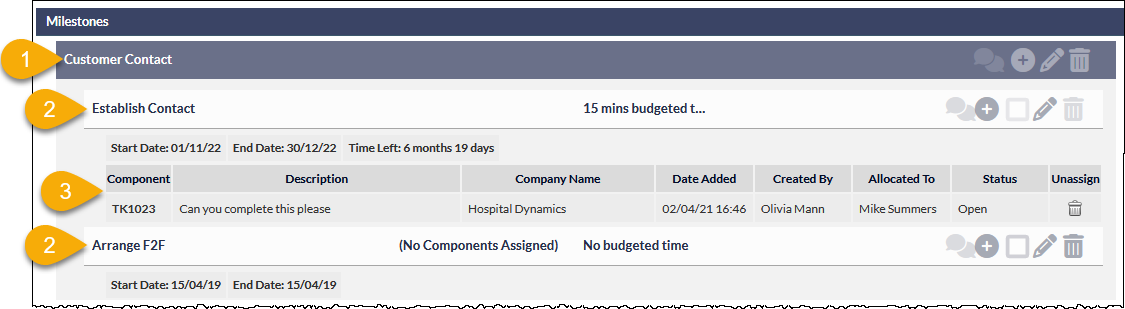
The previous image shows:
- Milestone - In this example, the Milestone is named Customer Contact
- Project Task - in this example, there are two Tasks in the Milestone; Establish Contact and Arrange F2F
- Component - in this example, a single Ticket is the only component.
Previously saved / sent notes
This section contains a chronological list of all notes that have been added to the project, or to its tasks and components.
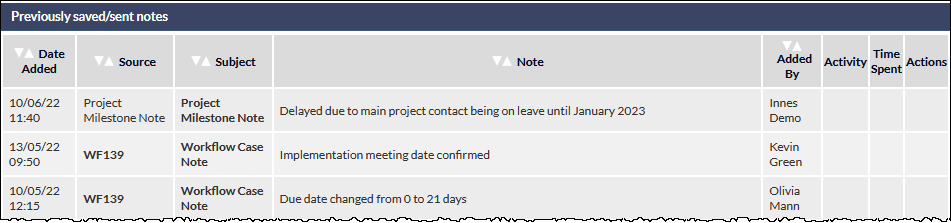
The notes displayed in this section are sourced from various locations including component notes (e.g. a Workflow Task note or a Ticket note), and Milestone and Project Task notes.
Viewing Note Detail
Click anywhere on the note row to display a pop-up window containing the note details.
Where the source of the note is a component (e.g. a Workflow Case), the ID of the component is shown in the Source column (visible in the previous image). Clicking the component ID opens the component in a new browser tab.
Task Board
The Task Board displays project Milestones and Tasks as a task board (also known as a Kanban Board, or Buckets):
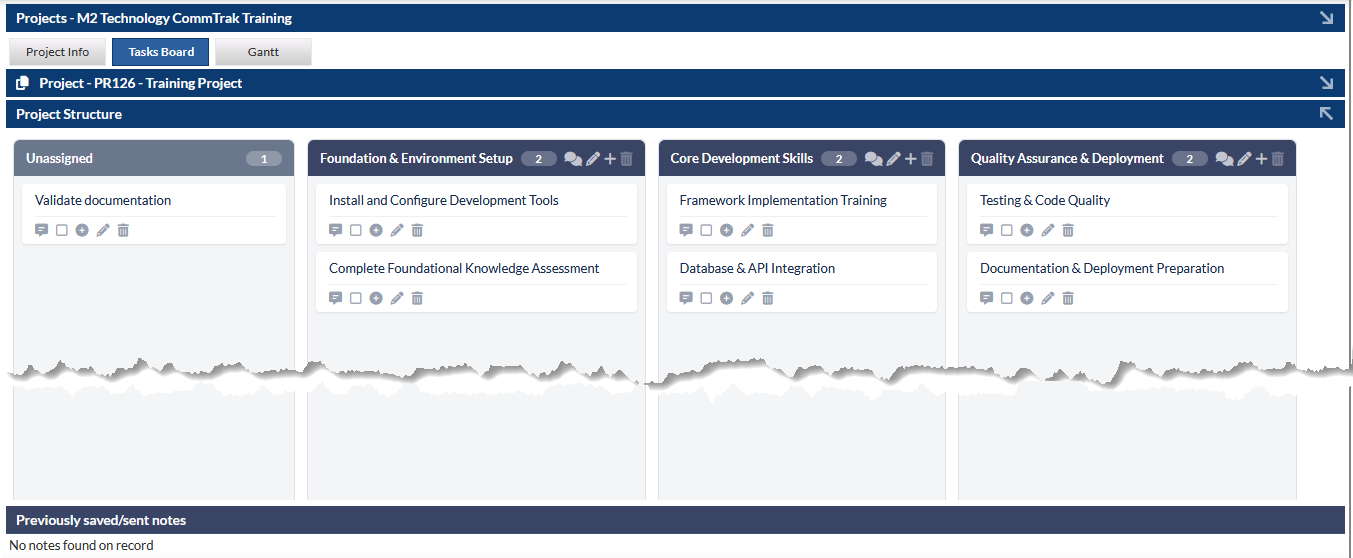
Each Milestone is represented as a card, and each card contains the tasks pertaining to the milestone.
- Milestone cards can be dragged and dropped to change the order of the Milestones
- Tasks can be dragged and dropped to change the order of tasks within a Milestone card
- Tasks can be dragged and dropped into other Milestone cards
Changes made in the Task Board view will automatically be applied to the Main Info view.
Unassigned Tasks
Tasks that have not been assigned to a Milestone are listed in the Unassigned board (leftmost in the previous image). Unassigned tasks can be dragged and dropped into a Milestone card.
Gantt
The Gantt tab displays a Gantt chart of the project.
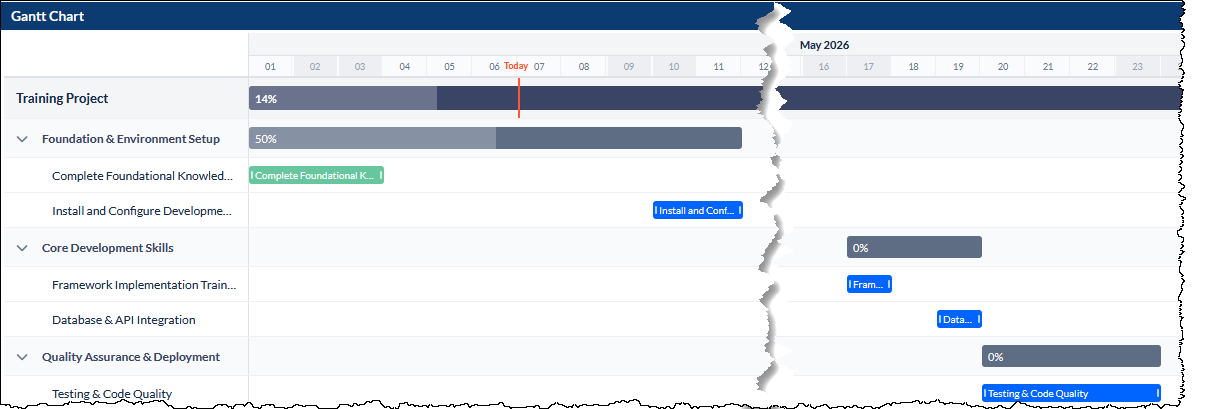
Hovering the mouse cursor over a task in the Gantt chart displays additional information in a pop-up window:
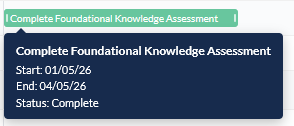
A task's start and end date can be modified by dragging and dropping the handle at the beginning / end of the task name (visible in green taks in the previous image).
Clicking a task displays a pop-up window containing the task details, which can be edited:
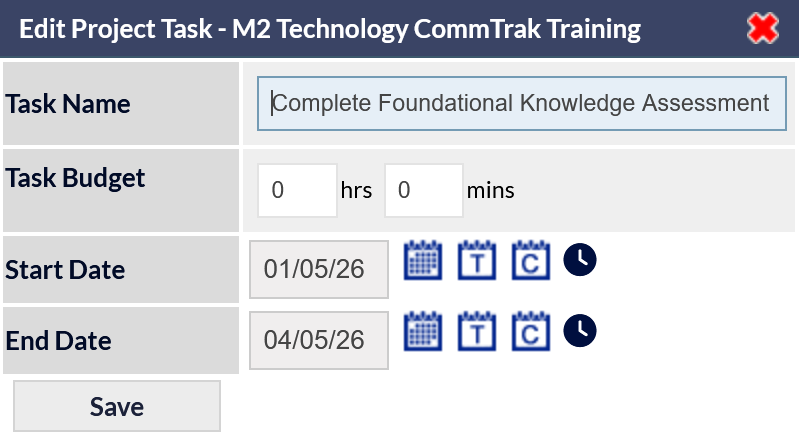
Previously Saved /Sent Notes
This section lists the the most recent notes pertaining to the project
Clicking on a note in this section will display it in a pop-out window or, if the note pertains to a lead or job, the relevant lead/job screen will be displayed in a new browser tab.
Action Buttons
- Add Milestone- add a new milestone.
- Add Task - add a new task
Refer to Project Milestones & Tasks for information about working with Milestones and Tasks.
- Conversations (only visible if enabled on your CommTrak) - view Conversations or start a new conversation.
The above action buttons are pinned to the bottom of the following Project pages:
- Milestone Details
- Task Board
- Gantt