
What's New December 2021
CommTrak BI
- Major CommTrak BI Enhancement MAJOR Update
Custom Fields
- URL Field Type Added Update
Data Sheets
Quotes
- Quote Template Management Update
- Quote Template Library new
- Quote Template Inline Editing (Template Toolkit Quotes) new
Services & Software (SaS)
Sales Dashboard
Contracts
- Contracts Feature Enhancements major update
CommTrak BI
Major CommTrak BI Enhancement
The CommTrak BI (Business Intelligence) integration, which provides direct access to your CommTrak database, is now available with a significant optional enhancement, the Advanced BI Reporting Service.
This major optional enhancement improves the frequency of data refresh in BI reports – increasing from the current refresh rate of 24 hours, to real-time.
Using BI applications such as:
- Tableau
- Microsoft Power BI
- Microsoft Excel
- Microsoft Power Query for Excel
... you can now have real-time access to your CommTrak data with the Advanced BI Reporting Service enhancement.
For further information about the optional CommTrak BI integration and the Advanced BI Reporting Service enhancement, please email CommTrak Support.
Custom Fields
URL Field Type Added
The URL field type has been added to Custom Fields.
When a URL is added and saved it will be displayed as a clickable link:

The previous image shows a custom URL field with the field label Tigra Portal, and the clickable URL that has been entered and saved in the custom field.
The URL field has a limit of 4096 characters. Once saved, URLs with over 50 characters will be displayed with the first 47 characters and an ellipsis (three dots), as shown above.
To edit a URL custom field, click the Modify URL (pencil) icon to the right of the URL link.
If data has not been entered into a URL field (or when a URL field is being edited), it will be displayed as a single-line text field:
 A URL must be prefixed with one of the following protocols:
- http://
- https://
- ftp://
- file://
If a valid protocol is not entered, a warning banner will be displayed when the record is saved, and the error must be corrected (or the URL removed) prior to saving.
For additional information about Custom Fields, please refer to the following resources:
- Support article: Custom Fields
- Settings article: Custom Fields (Settings)
- Training video: Custom Fields (Video)
Data Sheets
Data Sheet File Upload Restrictions
For security purposes, the file upload feature in Data Sheets has been updated to only allow specific file types, such as audio, video, PDF, Office documents, etc.
For a full list of allowed file types, please see Support Centre article, Data Sheet Template Items (heading, File Upload Types).
Quotes
Quote Template Management
Quote templates can now be assigned company-wide, or to specified staff members.
When viewing the list of available Quote Templates (in settings), each template item in the listing is now identified as being assigned company-wide or to the specified number of staff. The following image shows four templates, three of which are available company-wide (all staff), and one of which is available only to two staff members:
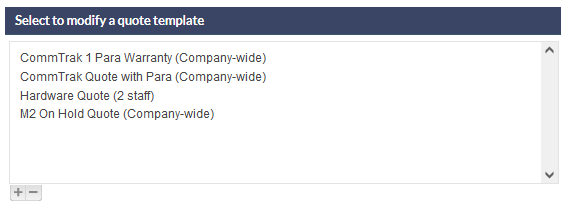
When editing a Quote Template, the Available To field is now displayed (with a default of Company-wide). To assign a template to staff members, choose the Selected Staff option from the dropdown list:

If the Selected Staff option is chosen, the Allowed Users field will be displayed:
 Tick the box adjacent to each staff member to whom the template should be allocated, and save the template to update any changes.
For more information about Quote Template settings, see Support Centre article: Leads Quote Templates (Settings).
Quote Template Library
A Template Toolkit Library option has been added to the Quote Template Types available when creating a new Quote Template (Settings > Leads Settings > Quote Templates):
 The templates in the library can be used as-is, or as the basis for your own, customised templates.
When the Template::Toolkit Library option is selected, the template library is displayed:
 At the bottom of each example template page, three options are available:
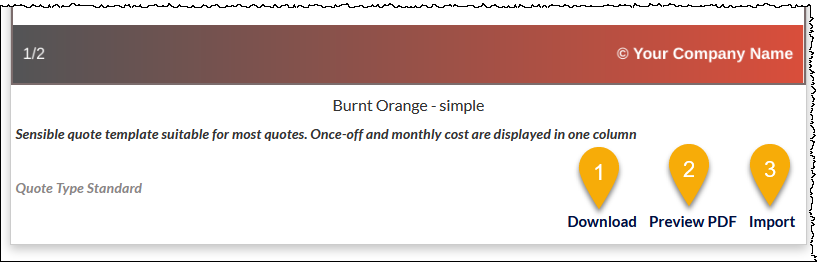 Download: Downloads the template file (a zip file containing the HTML, images, etc) for modification. The modified template files can subsequently be uploaded as a new Template Toolkit file.
- Preview PDF: Displays the template in a new browser tab, to enable it be viewed as presented to a customer.
- Import: Imports the template so it can be selected within the Quotes module.
 Download: Downloads the template file (a zip file containing the HTML, images, etc) for modification. The modified template files can subsequently be uploaded as a new Template Toolkit file.
The HTML of imported templates cannot be edited within CommTrak, other than with the new inline editing feature described below.
The generic Your Logo image and placeholder text will be displayed when selecting and previewing template library templates. When the template is used within a Quote, and the Quote Body, Preview, or Save buttons are clicked, the generic logo will be replaced with your organisation's logo (as displayed at the top-right of every CommTrak screen), and the placeholders will be populated with live data. If an alternative logo is required, use the Download option in the template library, and replace the logo as appropriate.
For more information about Quote Template Library settings, see Support Centre article: Leads Quote Template Library (Settings)
Quote Template Inline Editing (Template Toolkit Quotes)
Quotes based on a template which was created using the Template Toolkit (or Template Library) can now have text areas that are editable inline (i.e. whilst the Quote is being modified in the Leads module).
When creating or modifying a Quote in the Leads module, ensure the Quote has been saved, then click the Quote Body button.
The areas of a Quote that can be edited inline depend upon the design of the Quote Template. Inline editable paragraphs can be identified by hovering the mouse cursor over the text in the Quote Body template preview; if it is editable, the paragraph will be highlighted with a shadow, and can be clicked for editing.
The following image shows an editable paragraph:

For further information pertaining to the use and implementation of Quote inline editing, please refer to Support Centre article: Quote Body, which also includes links to additional resources.
Reminder: In addition to the new inline editing, the ability to add and edit up to 9 inline Quote Canned Paragraphs is still available in Template Toolkit templates. For further information pertaining to the configuration of Quote Canned Paragraphs, please refer to the settings article: Leads Quote Canned Paragraphs (Settings)
Services & Software (SaS)
New Services & Software (SaS) Module
The new Services & Software (SaS) module is a major addition to CommTrak, and relates to the following areas:
- Quotable non-hardware items
- Automatic creation of contract
- Company trailing revenue
For clarification, below is some important terminology relating to the SaS features:
- Contract Types vs Contract Names: Contract Types are now referred to as Contract Names. This is a terminology change only and does not affect functionality. Also note that, on the Customer screen, the Contract Types field has been renamed to Contracts.
- Revenue (or Remuneration): The dollars received from the customer or vendor as a consequence of the provision of a service or software (previously referred to as Quotable Non-Hardware Items).
- Contribution to GP: Services & Software may not necessarily have a buy price (which would be used to calculate Gross Profit). To facilitate this, we have introduced the concept of Contribution to GP. This is the percentage of received revenue that is deemed as being contributed to the GP of the sale. Contribution to GP can be defined as being between 1% and 100%.
- Trailing Revenue Formulas: Revenue or remuneration received may vary at the time of the agreement. The Trailing Revenue Formulas provide the calculations for the value of the agreement.
- Unconfirmed Contracts: Contracts are automatically created if the SaS feature has been used within a successful Quote. Initially, such contracts are Unconfirmed, because there may be a period between the acceptance of the Quote (i.e. the Lead made Successful), and the initiation of the contract. Contracts are confirmed in the new Contracts tab on the Customer page, or via the new Unconfirmed Contracts summary panel on the CommTrak home screen (see the heading Contracts Enhancements, below).
Applications of the Services & Software (SaS) Module
- Services you provide, and which are charged monthly
- Software you own and supply
- Software you supply that is managed by a supplier or vendor
- Vendor-provided software you provide as part of your offering, which is paid to the vendor directly
- Vendor-provided software you provide as part of your offering, which is charged directly
- Vendor-provided hardware you provide as part of your offering, which is paid to the vendor directly
- Vendor-provided hardware you provide as part of your offering, which is charged directly
- Hardware that you provide, and which is charged monthly
- Contracts can be fixed-term, roll-over, casual, etc.
SaS Related Settings and Configuration
Two new settings sections have been created/enhanced to accommodate the new Services & Software (SaS) features.
The new settings are located in Settings > Lead Settings:
 Services & Software items can be added to a Quote by selecting the SaS method, then choosing the required contract item:

For further information pertaining to the Services & Software (SaS) features, please refer to the following resources:
- Support Centre article: Creating / Modifying a Quote
- SaS settings: Leads Services & Software (SaS) (Settings)
- Trailing Revenue Formulas settings: Leads Trailing Revenue Formulas (Settings)
Sales Dashboard
Trailing Revenue Dashboard
The new Trailing Revenue Dashboard is part of the Sales Dashboard:

Once a contract is confirmed or manually created with a residual revenue, it will be displayed in the Trailing Revenue Dashboard:

The Trailing Revenue Dashboard is the only area that shows sales revenue rather than GP!
The name associated with the contract and Trailing Revenue (not GP) is the Sales Rep assigned to the sales role on the main Customer screen:

Contracts
Contracts Feature Enhancements
There are numerous enhancements relating to Contracts within CommTrak.
Unconfirmed Contracts Summary Panel Added
There is a new Unconfirmed Contracts summary panel on the CommTrak home screen, as shown in the following image:

Reminder: The position and visibility of the Summary Panels on the CommTrak home screen can be customised by each user to display only required panels, in the desired order. (See Support Centre article, Summary Panels for more information about the customisation features.)
Contracts Tab Added to Customer Screen
A Contracts tab has been added to the Customer Screen (not to be confused with Contacts):

Reminder: The position and visibility of the tabs at the top of the Customer screen can be customised by each user to display only required tabs, in the desired order. (See Support Centre article, Customer Tabs (Customer Screen) for more information about the customisation features.)
Currently, the Contracts tab replicates the functionality of the Contracts (formerly Contract Types) field on the Customer screen. However, the intention is to remove the Contracts field in the future, and for the contract information to be available only via the Contracts tab.
Adding Contracts
Contracts can be added manually, as before, but with more detail being offered.
To add a Contract, click on the Customer's Contracts tab, and then click the New Contract button:
- The Contract Type can be specified
- It is possible to distinguish between the cost to the customer, and the revenue you receive
 The GP Shown in Dashboards and Contribution to GP fields (visible in the previous image) are configured in the Services & Software (SaS) settings for the selected Contract Type.
The verifications that occur when you manually create a contract are not as extensive as when a contract is created via the SaS module in a Lead.
The outcomes of contracts will be displayed in the Trailing Revenue Dashboard (see Trailing Revenue Dashboard heading above), however, this information is not displayed in the New Leads and Closed Leads sections of the dashboards.
Contracts Permissions
A user must have the following Customers permission to confirm, modify, and cancel a Contract: 