
Leads Quote Template Library (Settings)
If you are not familiar with the process of creating Quote Templates, please first refer to the article Leads Quote Templates (Settings).
This article provides additional information about importing Quote Templates from the Template Toolkit Library.
When creating a new Quote Template in Settings > Leads Settings > Quote Templates, you can select a template from the Template Toolkit Library by choosing the Template::Toolkit Library option:

When the Template::Toolkit Library option is selected, the template library is displayed:

At the bottom of each example template page, three options are available:
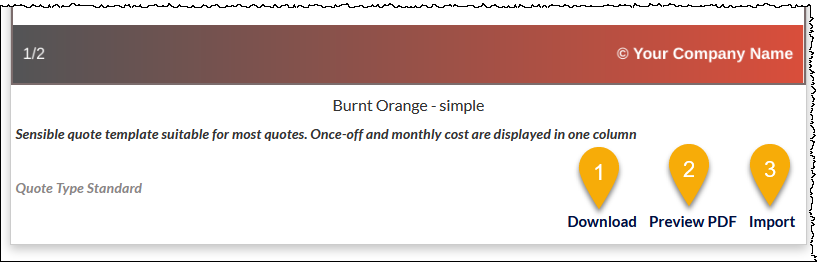
- Download: Downloads the template file (a zip file containing the HTML, images, etc.) for modification. The modified template files can subsequently be uploaded as a new Template Toolkit file.
- Preview PDF: Displays the template in a new browser tab, to enable it be viewed as presented to a customer.
- Import: Imports the template so it can be selected within the Quotes module.
Once imported, the content of library templates cannot be edited within CommTrak, other than with the inline editing feature described in the Quote Body article.
The generic Your Logo image, sample placeholder text, and sample names, phone numbers and addresses, will be displayed when selecting and previewing template library templates in the Quote Template settings. When the template is used within a Quote, and the Quote Body, Preview, or Save buttons are clicked, the generic logo will be replaced with your organisation's logo (as displayed at the top-right of every CommTrak screen), and the placeholders for values and names and addresses, etc, will be populated with live data. If an alternative logo is required, use the Download option in the template library, and replace the logo as appropriate (as described in this article).
Replacing Substitute Text
The substitute text (for example, the "The text here is also editable..." text visible in the previous template selection image) can be edited inline, i.e. when the Quote is being created, the user can click the Quote Body button to edit the template.
When an editable area is clicked, the user must delete all unwanted text in the current editable area and replace it with the required text for the current Quote.
The substitute text in the template can be permanently replaced with text that is more appropriate or more convenient for use within your organisation (thus saving time each time a Quote is created), but this does require once-off manual editing of the template HTML by downloading it and editing externally to CommTrak, as described in the following section.
Editing Template Library Templates
The Template Library templates can be used as-is (using the Import option described previously), but they can also be downloaded, edited externally to CommTrak, and then uploaded as a new Template Toolkit Quote.
Whilst a professional HTML/web designer might typically be engaged to complete extensive or complex modifications to a Quote Template, minor changes can be completed by anyone familiar with zipping/unzipping files, editing text files and renaming files. For example, changing the logo or text within a downloaded template should be achievable by someone with basic IT skills.
A summary of the steps required to edit a template is as follows:
- Download the Template Library template file (a zip file will be downloaded)
- Extract the contents of the zip file
- Edit or replace the extracted files (editing can be done with a plain-text editor)
- Zip the edited files
- Upload the new zip file into CommTrak.
The above steps are described in detail as follows:
1) Download the Template Library template
When viewing the Template Library thumbnails, click the Download link at the bottom of the library template that you wish to download:

The template will be downloaded by your web browser, as a template.zip file. If a file with that name already exists, the file may be downloaded as template(1).zip, template(2).zip, etc.
2) Extract the contents of the zip file
Before editing the template, the zip file must be extracted to its constituent files and folders.
The method of extracting a zip file varies across devices. In Microsoft Windows, right-click the zip file, select Extract All... and follow the prompts.
The zip file will be extracted to a template folder which, in turn, contains other files and folders. The following image is an example of the contents of the template folder:

It is vital that files are not moved, edited, or renamed unless as described in this article.
For basic editing, the only files that should be modified are the Quote.html file, and the logo.png file (which is located in the images folder).
The following section is an example of how to make some changes to the template; you will need to update the files and HTML as per your requirements
3) Edit or replace the extracted files
In this example we will replace the logo with a different image, and edit some of the substitute text.
Replacing the Logo
The new logo file that you provide should be called logo.png and should be resized as you wish it to appear in a Quote.
- Delete the existing (old) logo.png file from the images folder
- Copy and paste your (new) logo.png file into the images folder
Editing the Substitute Text
This section requires editing the Quote.html file with a text editor application; this type of editor must be a plain text editor, such Notepad for Windows (which is included with all Windows installations), or a more advanced 'coding' editor such as Visual Studio Code. No advanced features or skills are required for this section.
It is vital that the Quote.html file is not loaded or copied into a word processor such as Microsoft Word, or similar, as this will change the formatting of the file such that it cannot be used as a Quote Template file.
- Using your preferred text editor application, open the Quote.html file.
The following image shows the file, as opened in Notepad for Windows:

Do not change anything in the file unless as described in this article! If you make an error that you can't undo and then save the file, you can simply extract the downloaded zip file and start again.
- Search for the text that you want to replace.
In this example, we will search for "The text here is also editable...".

- If we hide the Find window, and resize the Notepad window, we can see the text more clearly (the following image shows the same section of text as the previous image, but with the Find window hidden, and no text highlighted):

Also note, in the previous image, there is some text that appears as [% paragraph_1_text %]. This is a placeholder for Quote Paragraph text that is entered by the user when they are editing a Quote. If we remove this placeholder, the Quote Paragraph text will not appear in the Quote document.
- In the following image, the text to be deleted has been highlighted:
-
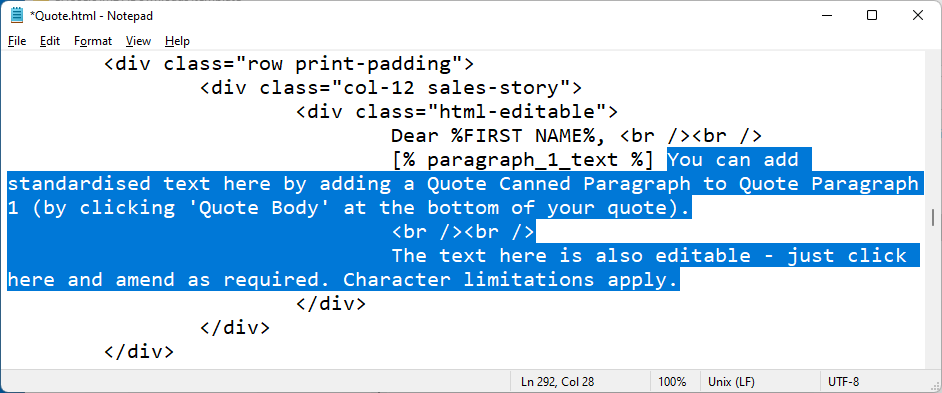
We can now delete the highlighted text, leaving us with just the Quote Paragraph placeholder:

- Ensure that the edited file is saved before closing the text editor.
4) Zip the updated files
We have now replaced the old logo file with a new one, and edited some of the substitute text.
- The next step is to create a new zip file that contains the updated template folder:
In Windows, this is achieved by right-clicking the template folder, and selecting Compress to Zip file:

- You are prompted to specify a different file name for your new zip file. Because a template.zip file already exists (it's the original Template Library zip file that we downloaded earlier), Windows offers to append (2) to the file name:
-
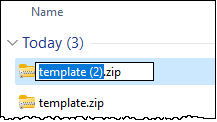
We recommend that you provide an appropriate file name that is suitable for your modified Quote Template. For example:

The preview (png) file is not generated automatically; it must be created manually prior to zipping and uploading the template package.
5) Upload the new zip file into CommTrak
The new zip file containing the modified Quote Template files must now be uploaded into CommTrak:
- Settings > Leads Settings > Quote Templates
Then either:
- Create a new quote template
or
- Update an existing quote template
Create a new quote template
Provide a Quote Template name (this does not have to be the name we gave the zip file, but it is a good idea to maintain consistency).
- Set the Quote Template Type field to Template::Toolkit
- Click the Browse... button and select the new zip file (or drag and drop the zip file onto the button):

The new Quote Template can now be selected when creating or modifying a Quote in the Leads module.
Update an existing quote template
Select the quote template to update
In the Upload/Replace Template field, press the Browse button and select the zip file to upload
Press the Upload button
Press the Save button