
Data Sheet Template Items
This article explains the functions of Data Sheet Template Items, which are used in Data Sheet Templates. Please see the Support Centre article, Data Template (Settings), prior to reading this article.
Introduction
A Data Sheet Template must contain at least one Template Item, which is typically one of the available data-entry field types, but may also be a Header or a Statement.
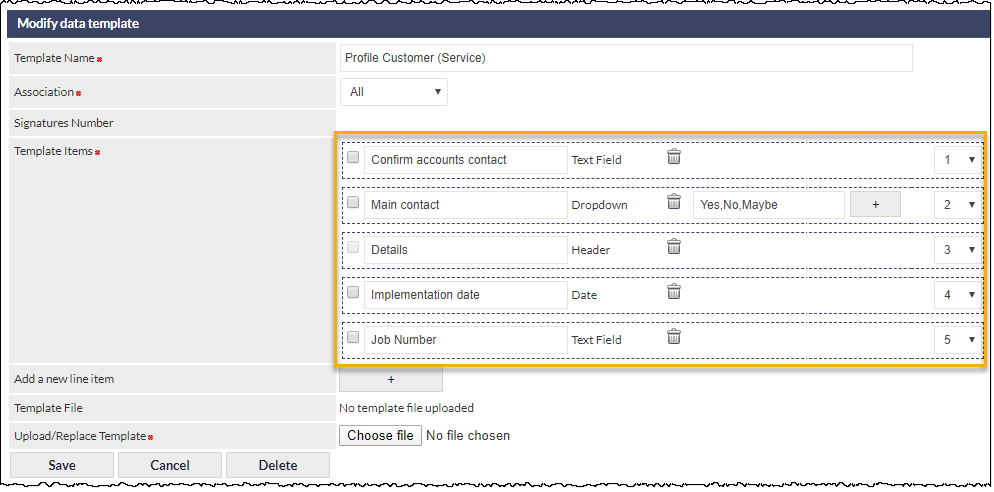
The following image shows an example of a Data Sheet Template that is currently being modified, and which currently contains five Template Items (highlighted orange):
When a user adds or edits a Data Sheet, the first field is always a mandatory text field, labelled Description. The Description field can be edited, but is initially prepopulated with the name of the Data Sheet, and the date and time at which the Data Sheet was created:

The above image shows a newly-selected Data Sheet with the name Profile Customer (Service). The mandatory Description field (highlighted orange), is shown in its prepopulated state.
The contents of the Description field can be searched using the Find feature in the Data tab of the Customer record.
Template Item Types
There are 10 Template Item types:
- Header - centred, fixed text that can be used as a separator between other Template Items
- Text Field - single line of text
- Text Area - text field that can contain a large amount of text
- Dropdown - dropdown list from which a single item can be selected
- Date - CommTrak date selection field
- Checkbox - tick-boxes, of which only one can be ticked (sometimes known as radio buttons)
- Checkbox (Multi) - tick-boxes, of which several can be ticked
- File Upload - presents a Choose Files button to enable the user to upload a single file. See heading File Upload Types, below, for additional information relating to file uploads.
- Statement - left-justified, fixed text intended for presenting a large block of text.
Please see the comprehensive Data Sheet Template Item Reference for detailed information about the above Template Item types.
File Upload Types
When Data Sheets are updated by Staff (i.e. within CommTrak), there are no restrictions pertaining to the type of file that can be uploaded.
For security reasons, when a Data Sheet is updated via a shared link (i.e. outside CommTrak), only the following file types can be uploaded using a Data Sheet file upload field:
- Audio (.mp3, .wav)
- Portable Document Format (.pdf)
- Image (.gif, .png)
- Microsoft Office Document (.xls, .xlsx, .doc, .docx)
- Video (.mp4)
- Comma Separated Value (.csv)
If any other type of document upload is attempted, a warning will be displayed.
Mandatory Fields
Template Items in a Data Sheet can be designated as being mandatory, by ticking the left-most box in the Template Item.
The following field types cannot be designated as mandatory, because they do not require user input (hence the tick-box is disabled for those fields):
- Header
- Statement
In the following image, the second Template Item (a Dropdown field, labelled Main contact) has been designated as mandatory:

Adding a Template Item
When creating a new Data Sheet Template, a single Template Item, of the type Header, is displayed. The Template Item Type can be changed to any of the Item Types available in the dropdown list:

To add another Template Item, click adjacent to the Add a new line item field label.
Prior to saving the Data Sheet Template, the Item Type can be changed to any of the available types.
Once saved, the Item Type of a Template Item cannot be changed. Prior to adding nested Template Items, ensure that you have selected the correct Item Type for the parent Template Item.
Modifying a Template Item
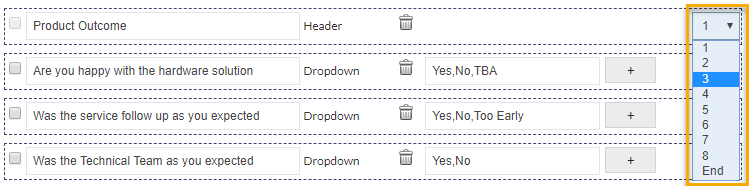
To change the order of a Template Item, use the right-most dropdown list to select the line number of the line below the item under which the moved item is to be displayed. For example, in the following image, to move line 1 (Product Outcome) underneath current line 2 (Are you happy with the hardware solution), change the line number of Product Outcome from 1 to 3:
Once saved, the Item Type of a Template Item cannot be changed. Prior to adding nested Template Items, ensure that you have selected the correct Item Type for the parent Template Item.
Deleting a Template Item
Prior to saving a Data Sheet Template, a newly-added Template Item can be removed by clicking (highlighted orange in the following image) adjacent to the Item Type dropdown list:
 When modifying a Data Sheet Template that has previously been saved, a Template Item can be removed by clicking the trashcan icon (highlighted orange in the following image):

Deleting a Template Item is irreversible!
Saving Changes
Click to save any changes.
Once saved, the Item Type of a Template Item cannot be modified.