What's New June 2023
Jobs
- Jobs Module Enhancements - Major update
Custom Fields
Reports
Telesales
- Last Call Outcome Filter
- Appointment Displayed in Telesales Report
- Telesales Dashboard Enhancement (resulting Lead status)
CommTrak Support Centre
Jobs
Jobs Module Enhancements
The many, significant enhancements implemented in the Jobs module are detailed below, but we also have a 12 minute video summarising the key updates:
Scheduling staff:
For full details of this feature, please refer to Support Centre article: Job Schedule Field
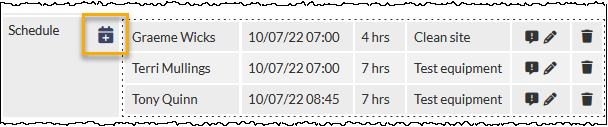
Rather than the previous method of specifying the number of days and the number of staff required on each day, you now simply add an entry by clicking on the ‘Add’ icon, as shown in the following image:
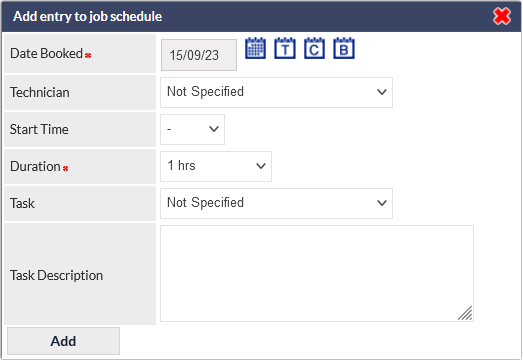
The details are entered into the pop-up window:
Job Tasks
Optionally (as seen in the previous image), predefined Tasks can be assigned to staff. When assigned, Tasks are shown in the Job Schedule field on the Job Screen:

Tasks are created and modified in Job Settings > Job Tasks.
Job Views
For full details of this feature, please refer to Support Centre articles:
- Job Views: https://support.commtrak.com.au/article/510-job-views
- Job View (Settings): https://support.commtrak.com.au/article/512-job-views-settings
- Job View Staff Role Defaults (Settings): https://support.commtrak.com.au/article/513-job-view-staff-role-defaults-settings
Custom Views are now available for the Job screen. The fields displayed to a user, when viewing a Job, can be customised by role. We provide three views to get you started:
- Default - this view displays all fields and is not customisable.
- Field - this customisable view is intended for staff who operate in the field (e.g. Technicians), and displays a limited number of fields that are typically utilised by field staff.
- Service Manager - this customisable view displays key fields for creating and modifying a Job, including assigning schedules and tasks to staff.
There is no limit to the number of custom views can be created. Views can be pre-assigned to specified roles (e.g. all staff with Technician role might have the Field view assigned to them) in Settings > Jobs Settings > Job View Staff Role Defaults.
Staff can designate their own preferred Job View in My Details > Preferences.
My Scope
The My Scope field lists all Jobs / Tasks allocated to the currently signed-in user:
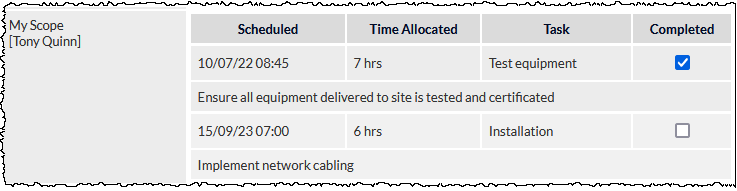
The previous image shows the My Scope field for the currently signed-in Technician (Tony Quinn). Tony can see that he currently has two tasks designated to him in the Job that he is viewing, and he has ticked the Completed box for one of the Tasks.
The My Scope field is included in the Default, Service Manager and Field views, and can be added to any other custom Job View as required.
When a Completed box has been ticked, the Task is shown as completed in the Customer's Active Jobs list:
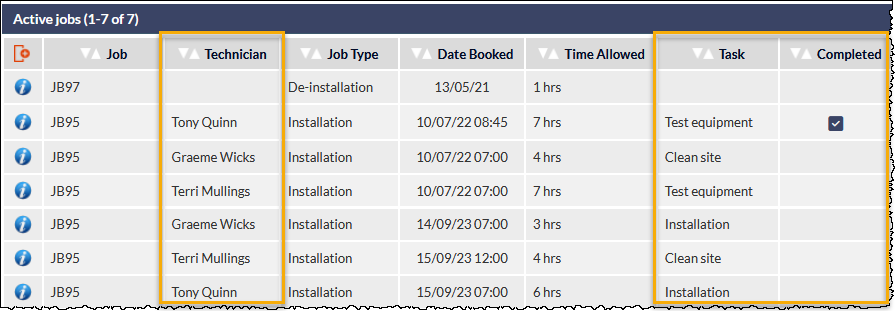
Note the Technician, Task and Completed columns in the previous image; it is clear which Technicians have completed their tasks. Users should ensure that they have customised the columns to display the appropriate information for their role (see Support Centre article Column Sorting & Customisation for further information about customising columns).
Custom Fields
Customer Custom Fields Available in Customer Portal
In addition to the fixed Customer fields available in the Customer Portal, custom fields can now be assigned to the Portal, so your customers can view and, if appropriate, modify the fields.
When creating or editing a Customer Custom Field, an additional option is now available, Visible in Portal:
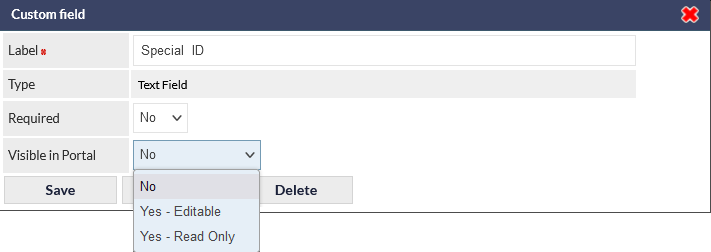
The available options are:
- No (this is the default option)
- Yes - Editable
- Yes - Read Only
Select the required option and press the Save button to confirm.
The Visible in Portal option is only available for Customer custom fields.
For further information about this and other Customer Portal features, please refer to the following Support Centre categories:
- Customer Portal: https://support.commtrak.com.au/category/138-customer-portal
- Customer Portal Settings: https://support.commtrak.com.au/category/420-customer-portal
Reports
Instigator Criterion Available in Productivity Report
The component Instigator (or 'Created By', depending on the context) can now be specified as a criterion in the Productivity Report:
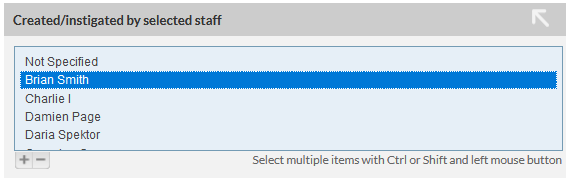
When one or more instigator is selected in the report, an additional column, Created By is added to the report results.
For more information about using the Productivity Report, please refer to the following Support Centre article:
Tickets Report SLA Information
Two additional columns are now available in the Tickets Report:
- SLA Expected Closure Date
- Deviation from Expected Closure
These columns will only be populated when SLA criteria have not been met.
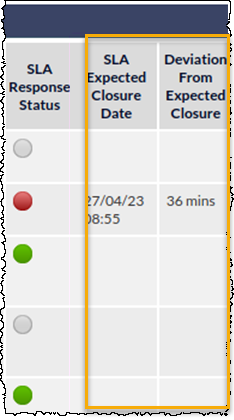
For additional information about Ticket SLAs, please refer to Support Centre article:
- Ticket Service Level Agreements (SLA) (Settings): https://support.commtrak.com.au/article/175-ticket-service-level-agreements-sla-settings
Telesales
Last Call Outcome Filter
A Last Call Outcome filter has been added to the Telesales Opportunity Search section in the Telesales module. This will enable staff to quickly filter all opportunities that have, for example, not been contacted yet, or where the outcome was Call back later.
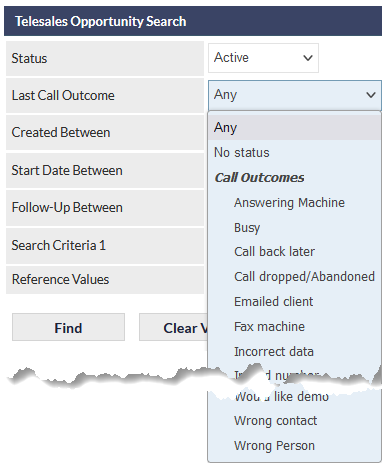
Call Outcome is also available as a column in the Telesales Opportunities List:
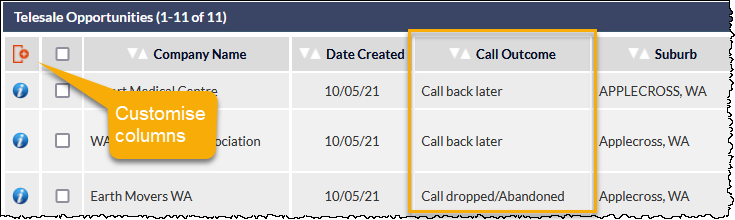
The Call Outcome column is not displayed by default and, if required, must be selected as a visible column, using the Customise Columns option (highlighted in the previous image).
For further information, please refer to the following articles in the CommTrak Support Centre:
- Telesales (List): https://support.commtrak.com.au/article/211-telesales-list
- Column Sorting & Customisation: https://support.commtrak.com.au/article/115-column-sorting-and-customisation
Appointment Displayed in Telesales Report
In the Telesales Report, the most relevant appointment is displayed for active appointments. In this context, most relevant means either the next appointment, or the most recent, past appointment if there is no appointment in the future.
Telesales Dashboard Enhancement (resulting Lead status)
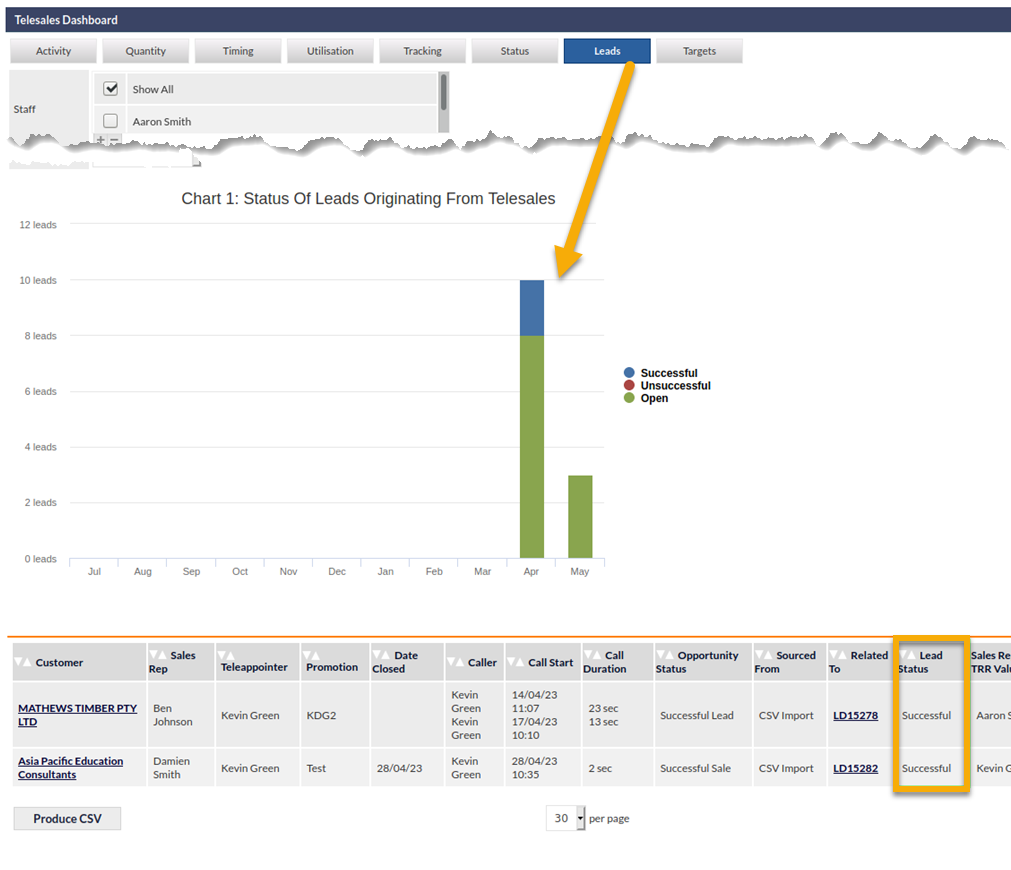
Where a Lead has been created as a result of a Telesales Opportunity, the Telesales Dashboard displays the status of the Lead.
CommTrak Support Centre
Help With This Page
You'll notice a new Help With This Page link below the Support Centre link in the CommTrak main menu:
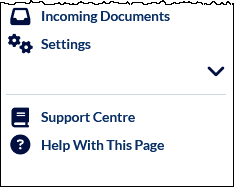
Pressing Help With This Page will pop open a help window into which you can enter your keywords for CommTrak help.
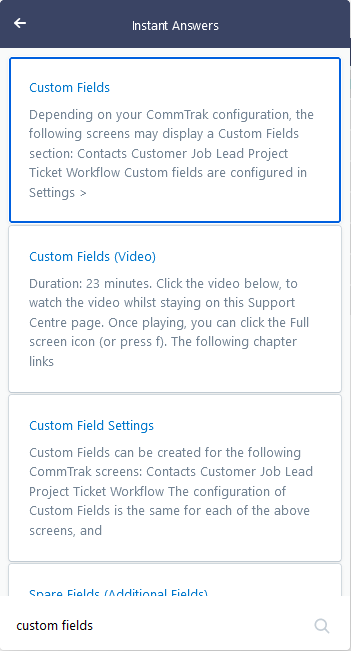
Initially, the help you are offered may be generic (i.e. not specific to the current CommTrak screen), but over the coming weeks, as we update the help system, you should notice that the recommended articles in the pop-up window pertain to the CommTrak screen that you are currently working in. In the meantime, you can enter a search word or phrase as shown in the previous image.
Contextual Help
In additional to the Help With This Page feature, we have started to implement contextual help...
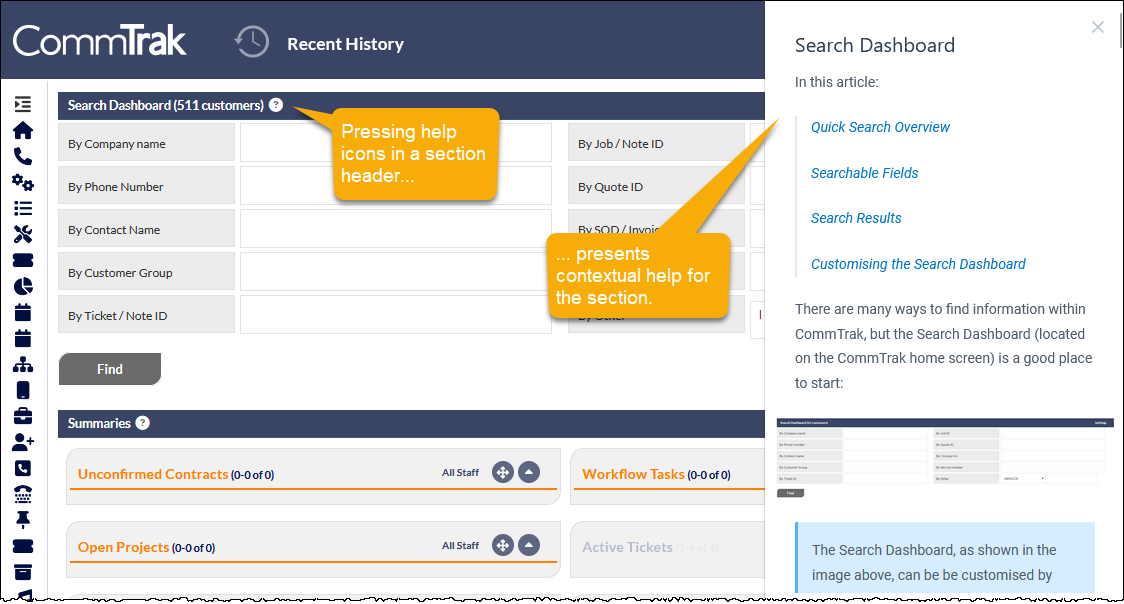
You will soon start to see contextual help (?) icons in various section headers throughout CommTrak:
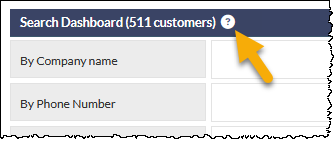
Pressing the contextual help icon will present a pop-up sidebar containing information about the features in this section of CommTrak: