
Productivity Report
Introduction
The Productivity Report provides tools to enable your Accounts Department to specify (and subsequently identify) which chargeable and non-chargeable time has been accounted for, where such time has been added to any of the following CommTrak components:
- Tickets
- Jobs
- Workflows
- Projects
For example, where there is chargeable time assigned to a Customer (e.g. via a Ticket or a Job), the Accounts Department can specify or identify whether or not the Customer has been previously invoiced (via a third-party accounting system).
A typical Productivity Report process may be as follows:
- Run the Productivity Report with required criteria (e.g. Tickets, with Chargeable time, within a specified date range)
- Check the details of the items (e,g, Tickets), to ensure that time is being charged appropriately
- Within a third-party accounting system, create an invoice
- Optionally add a note to the Ticket (for example, you may wish record the invoice number)
- In CommTrak, verify that the chargeable item has been added to an invoice
Accessing the Productivity Report
Reports > Productivity Report
Access to the Productivity Report requires a CommTrak role with the following permission:
Reports > Allow users access to Productivity Report
Productivity Report Criteria
The available criteria are shown in the following image:
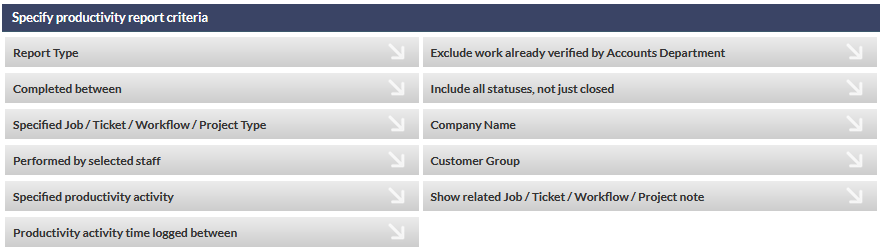
Productivity Report criteria are selected as with Standard Reports. If you are unfamiliar with the functionality of criteria selection within a report, please refer to the Standard Reports article, or view the Standard Reports video.
Producing the Productivity Report
The report can be produced to screen by pressing , or the results can be exported to a CSV file by pressing , for analysis with a third-party application such as Excel.
When produced to screen, the Productivity Report displays the details of all matching items, and includes interactive elements.
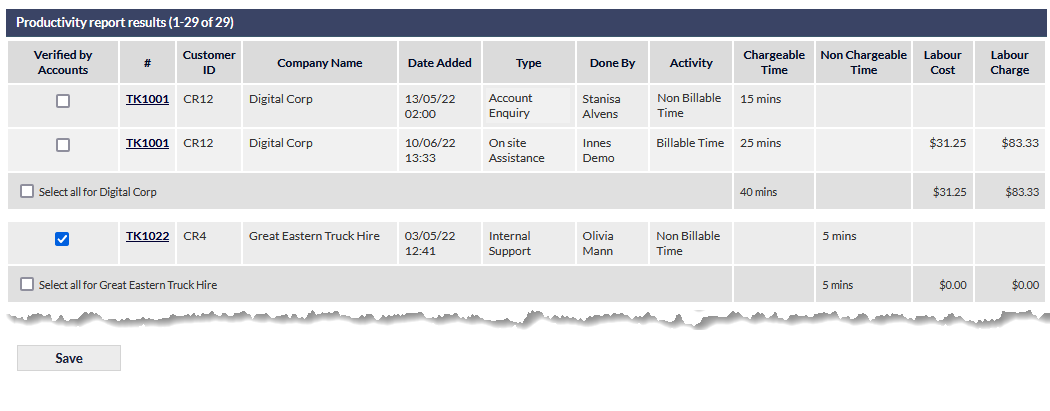
The following example image is an extract of the results of a Productivity Report for Tickets within a specified date-range. Each row in the report represents a single chargeable/non-chargeable item (e.g. a note in a Ticket, to which Chargeable Time or Non Chargeable Time has been added).
Main Report Columns
The main report columns displayed are:
Verified by Accounts
Ticked when the Accounts Department has verified this line.
Typically, verification entails invoicing for the time (via a third-party accounting system), optionally adding a note to the item in CommTrak (e.g. adding a note to the Ticket, specifying the invoice number), and then ticking the item.
#
The Ticket, Job, Workflow, Timesheet or Project ID.
This ID link can be pressed to open the item (in a separate browser tab/window).
Customer ID
The CR number for the customer.
Company Name
The name of the Customer.
Date Added
The date and time at which the Chargeable Time or Non Chargeable Time was added to the component.
Type
The type of Ticket, Job, etc.
Done By
The name of the staff member to whom the time has been assigned.
Chargeable Time
The chargeable time for this item.
Non Chargeable Time
The non-chargeable time for this item.
Labour Cost
The calculated labour cost for this item, as derived from the Labour Rates Matrix.
Labour Rate
The calculated labour rate for this item, as derived from the Labour Rates Matrix.
Summary Report Columns
The summary report columns displayed are:
Select all for [company name]
Ticking this box automatically ticks all displayed items for this Customer.
Chargeable Time
The total Chargeable Time displayed for this Customer.
Non Chargeable Time
The total Non Chargeable Time displayed for this Customer.
Labour Cost
The total labour cost for displayed items for this Customer.
Labour Rate
The total labour rate for displayed items for this Customer.
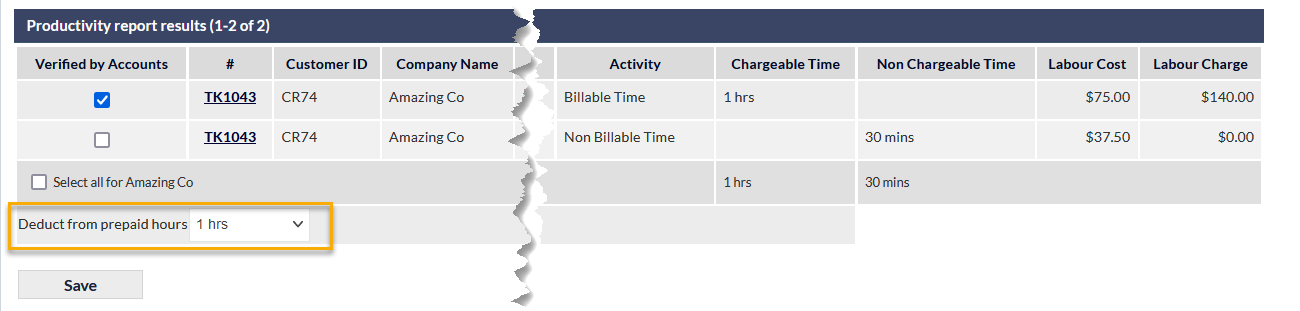
Deduct from Prepaid Hours
Where a customer has prepaid hours, the number of hours to deduct can be selected, as shown in the following image:
For information about adding prepaid hours to a Customer, please refer to the following article:
https://support.commtrak.com.au/article/134-customer-tickets-screen
Save Button
Pressing updates changes made to this report (i.e. saves any ticked / unticked items).