
What's New November 2026
General
Tickets
Telesales
- Telesales Do Not Call (DNC) Register
- Opportunity IDs and Related To Panel
- Prevent Duplicate Telesales Opportunities
Reports
API Endpoints
General
Customer Surveys
Customer Surveys collect feedback from customers on the service they receive, using the Net Promoter Score (NPS) method. Customers rate their experience and can add comments. Results are summarised in the Dashboards Hub, so you can track satisfaction over time and follow up on low scores.
Administrators create surveys in Settings > General Settings > Surveys, and set how often customers can be sent surveys and who is alerted to low scores. Users with the Allow users to manage surveys in Settings permission can manage surveys. By default, this is the Supervisor role.
To send a survey, set a ticket's status to Closed and select a survey in the Send Survey field when adding the note. The customer receives an email with a link to a short survey.
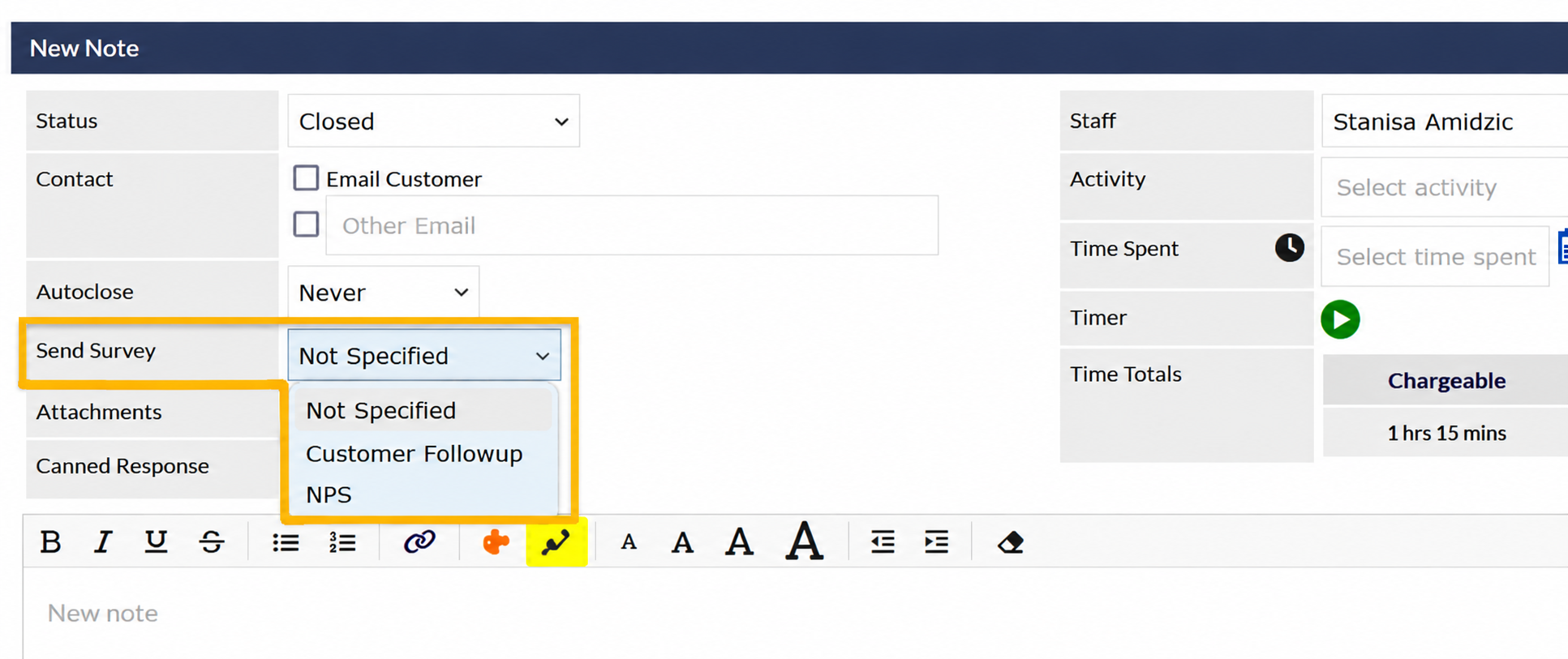
Sending surveys from tickets is the first phase of Surveys. In a later phase, Surveys will become part of the upcoming Automations module, where surveys are sent automatically based on specified triggers, for example a different survey for each type of ticket. The Send Survey option will then no longer be displayed on the Ticket screen.
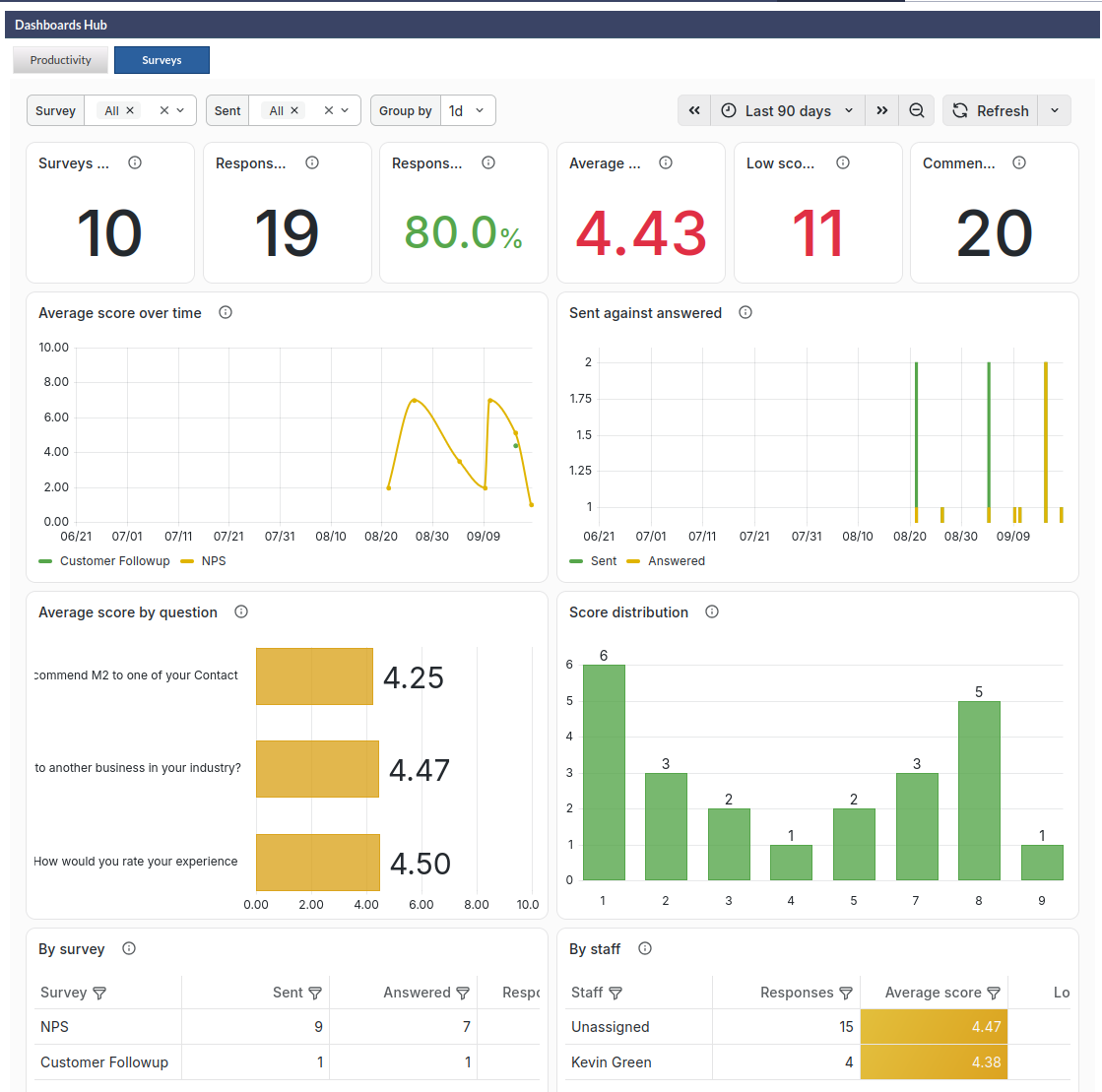
For more information, please refer to the following Support Centre articles:
Tickets
Email Replies Stay on the Original Ticket
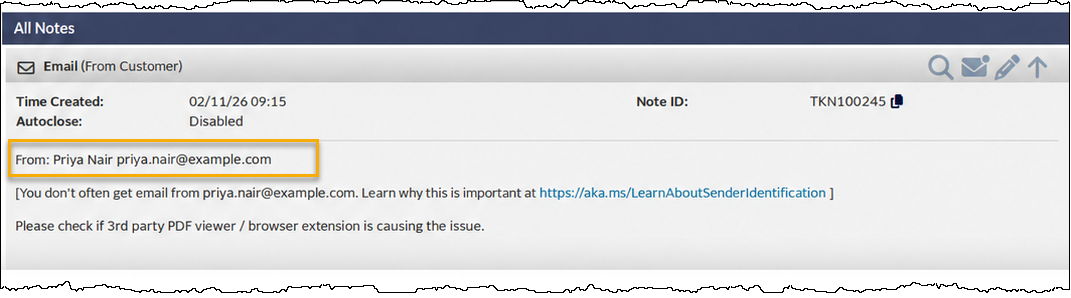
CommTrak now recognises replies from other recipients of a ticket email, such as someone who was copied (Cc) on the original email. When a copied recipient replies, their reply is added to the original ticket as a note, so the whole conversation stays in one ticket.
For example, a customer emails a ticket email address and copies in a colleague. The colleague then replies to the original email. In the following image, the highlighted email address belongs to the person who was copied on the original email. Because they replied, their reply is added as a note on the original ticket.
This applies automatically to all tickets, and no setting is required.
For more information, please refer to the following Support Centre article:
Telesales
Telesales Do Not Call (DNC) Register
CommTrak now helps you manage calling in line with the Do Not Call (DNC) Register. The features are displayed on Australian sites only.
- Wash numbers: export the phone numbers of active opportunities to be washed against the DNC Register, then upload the washed file. Only the numbers that need washing are exported. A preview shows which opportunities will be deleted or disabled before you confirm.
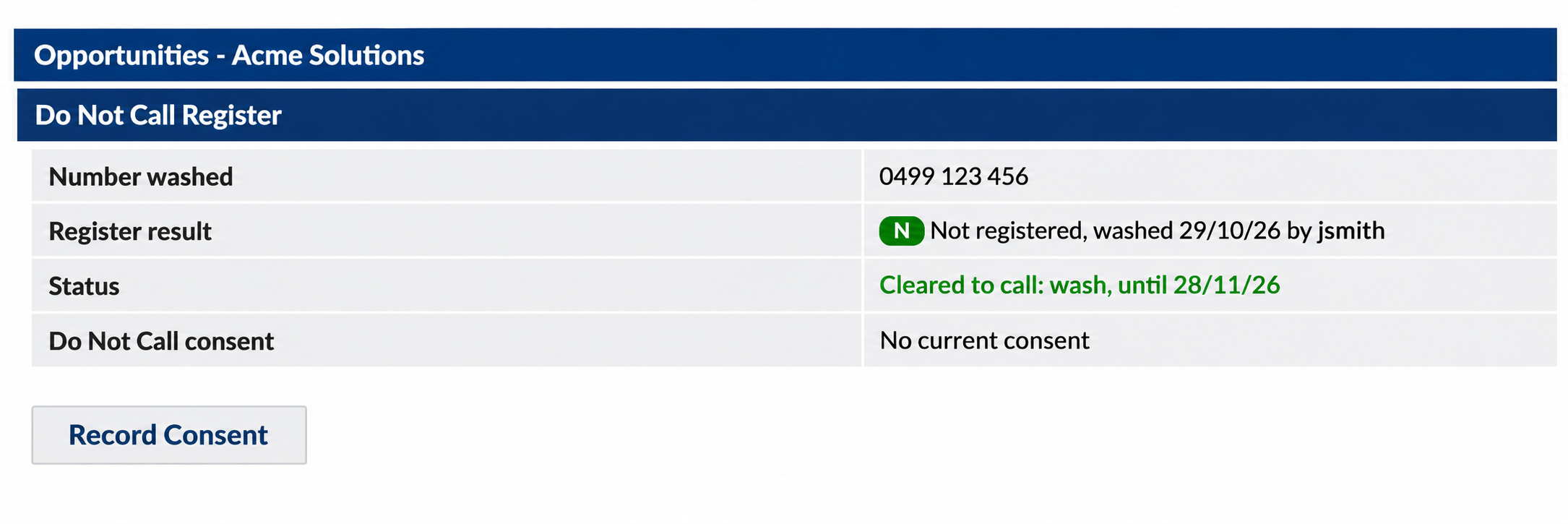
- See the call status: a Do Not Call Register section on the opportunity shows the wash result and whether the record can be called.
- Record consent: record express or inferred consent to call a number that is on the register, withdraw it, and view the consent history.
- Opt-outs: customers who ask not to be called are opted out, and their active opportunities are removed.
- Telesales report: the export also leaves out linked customers who are Unsubscribed, as well as records flagged Do Not Contact.
For more information, please refer to the following Support Centre articles:
Opportunity IDs and Related To Panel
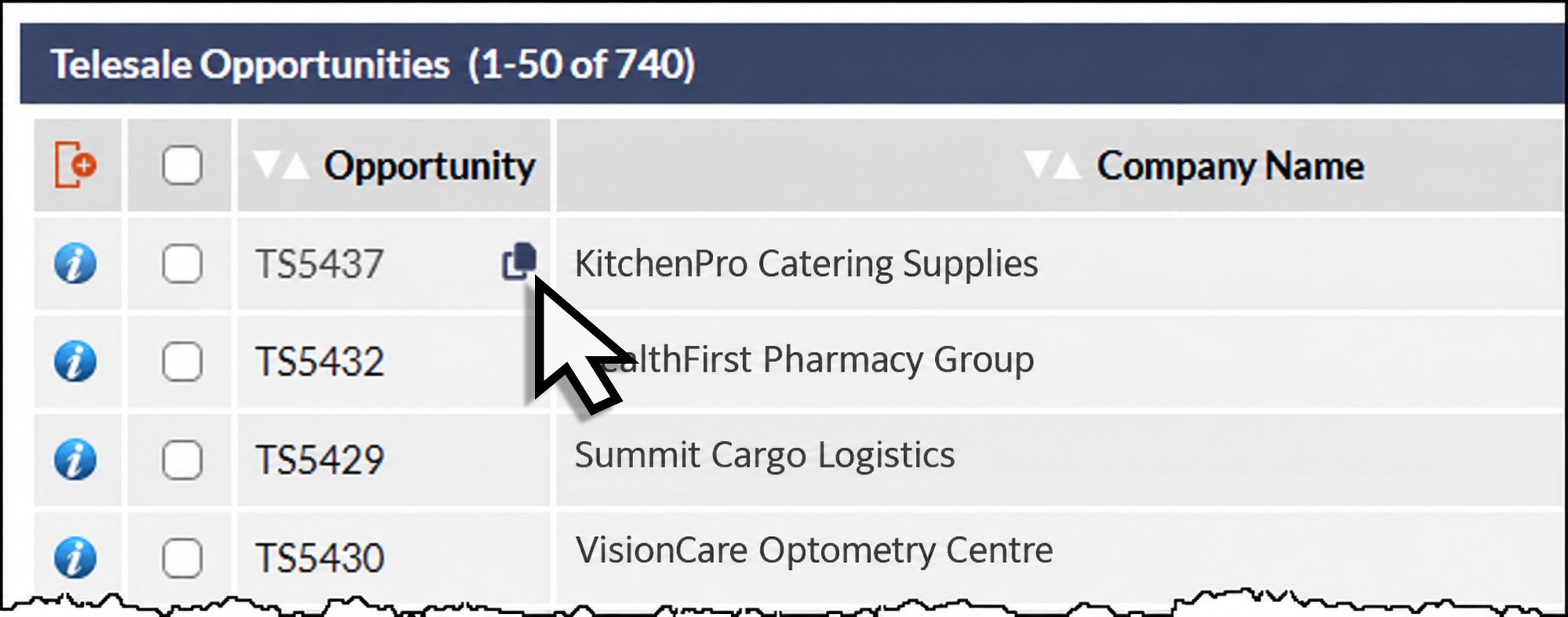
Telesales opportunities now have their own Opportunity ID, for example TS123456.
The Opportunity ID is displayed in:
- the Telesales opportunity lists, where you can also sort by it and copy a link to the opportunity
- the title of the opportunity screen
- the Telesales and Sales Dashboards
- reports and CSV exports
- data sheets, customer notes summaries and calendar event descriptions
You can search for an opportunity by its Opportunity ID, with or without the TS prefix, in the Search Dashboard. Promotion briefs also have a new %OPPORTUNITY ID% placeholder.
Successful opportunities now have a Related To field, where you can relate them to leads, tickets, jobs and workflow cases, or create a new ticket, job or workflow case. It works in both directions, so you can also select a Telesales opportunity in the Related To field of a ticket, job, lead or workflow case. Only successful opportunities are listed.
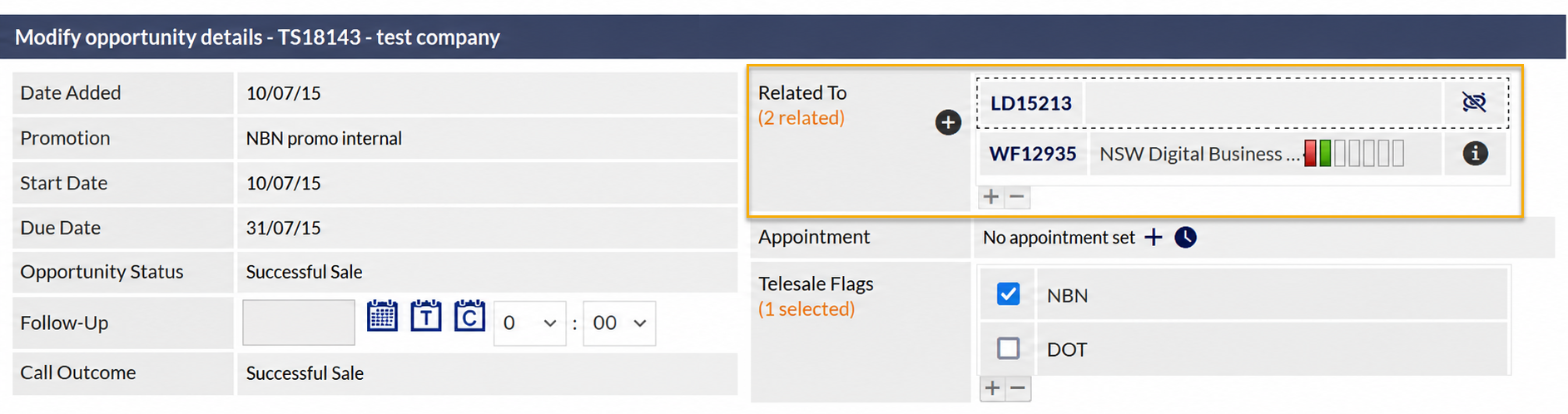
The previous Related to Lead link on an opportunity has moved into the Related To field, so each opportunity can be related to only one lead, and the existing link from the lead to the opportunity has been removed. A related lead or opportunity cannot be deleted until it is unrelated.
For more information, please refer to the following Support Centre articles:
Prevent Duplicate Telesales Opportunities
When you export report results to Telesales opportunities from the Customer Report or the Telesales Report, you can now prevent multiple active opportunities being created for the same record.
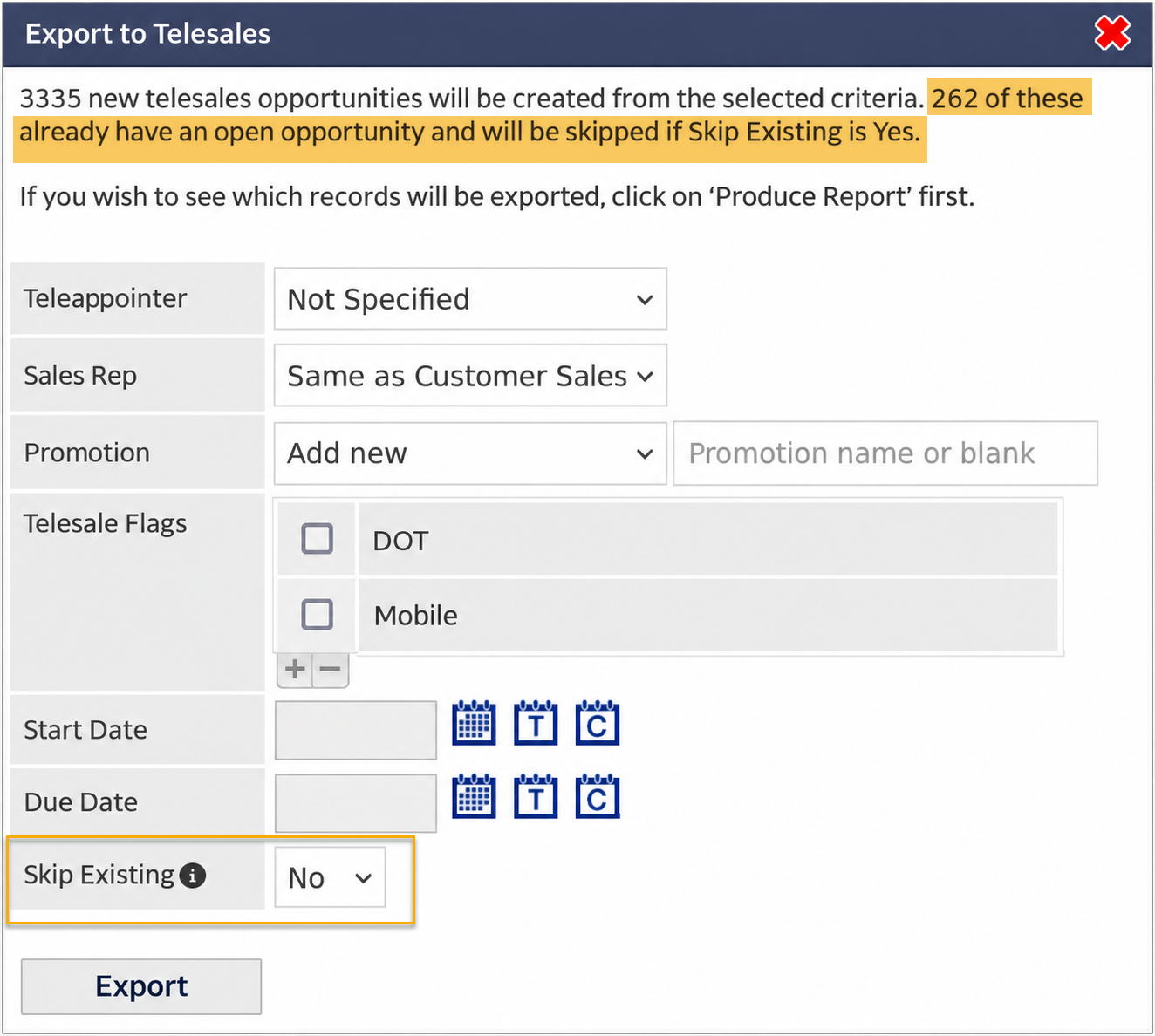
The Export to Telesales window shows how many new opportunities will be created, and how many of those records already have an open opportunity. Set Skip Existing to Yes to skip the records that already have an open opportunity.
For more information about standard reports, please refer to the following Support Centre article:
Reports
Multiple Postcode Selection
Additional options are now available when selecting postcodes in the Customer Report. You can select up to 20 postcodes, using either partial or exact postcodes, to find customers in specific areas. The same postcode selection is available in the Telesales and Datasheets reports.
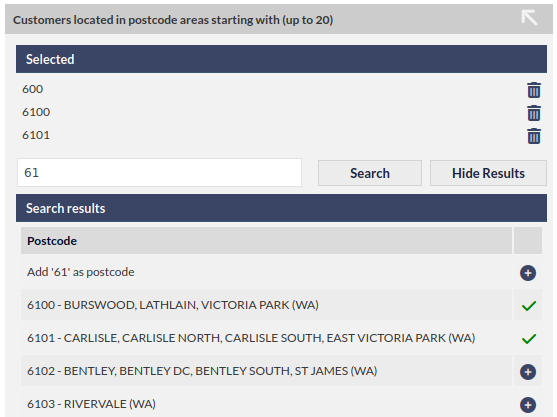
To use it, type all or part of a postcode in the Customers located in postcode areas starting with (up to 20) criterion and select Search. Select the + icon next to a suburb and postcode (sourced from Australia Post) to add that exact postcode, or select the first entry (for example, Add '600' as postcode) to find all postcodes that start with the value you typed.
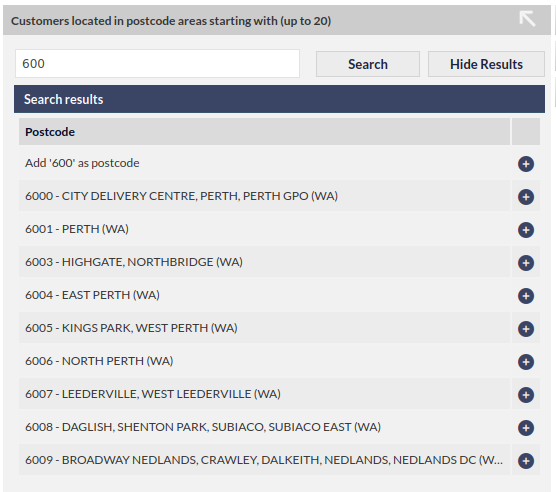
For example, selecting 600, 6100 and 6101 finds customers with postcodes that start with 600, as well as customers with the exact postcodes 6100 and 6101. Postcode selections can be saved as part of a favourite report.
For more information about standard reports, please refer to the following Support Centre article:
Customer Report: DNC Consents Expiring
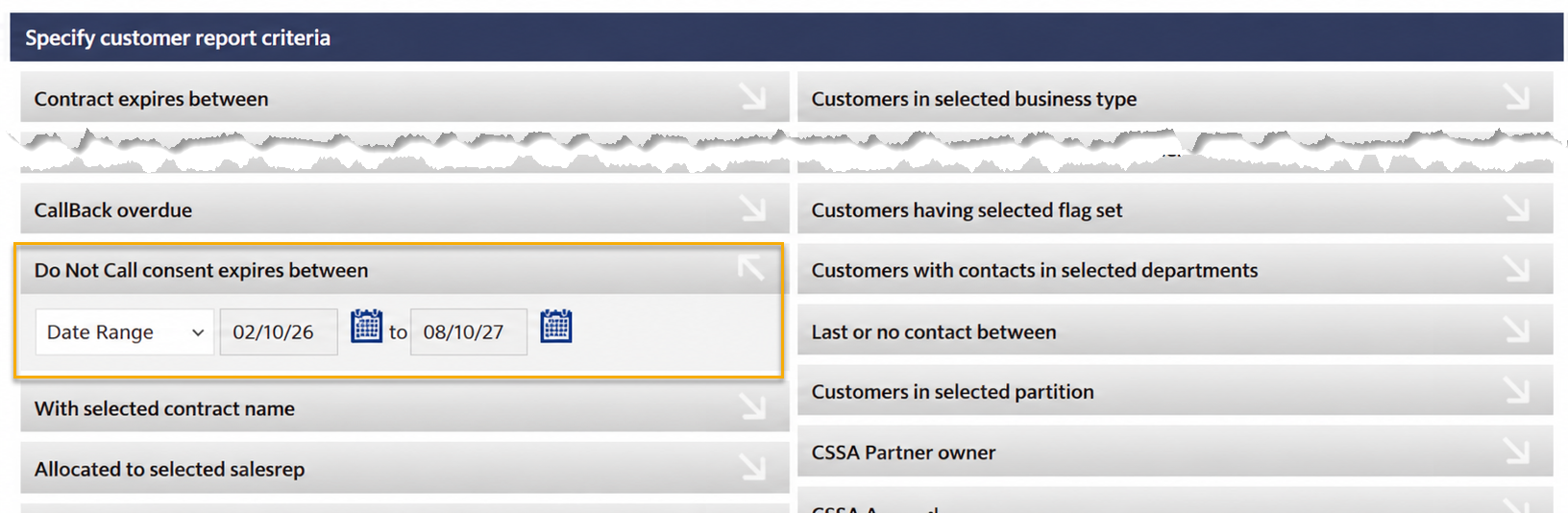
To help you manage customers' expiring consent to override Do Not Call (DNC) registration, the Customer Report has been updated to find customers whose consent expires, or is due for review, within a date range.
Select the Do Not Call consent expires between criterion, enter the date range and produce the report. The results include the Consent Basis, Consent Given On and Consent Expires or Review Due columns.

For more information about standard reports, please refer to the following Support Centre article:
For more information about recording and managing consent, please refer to the following Support Centre article:
API Endpoints
More API Endpoints
More endpoints have been added to the CommTrak API, and some existing endpoints have been expanded.
Prop
GET /prop/job_taskGET /prop/workflow_reject_reasonGET /prop/workflow_department
Jobs
POST /job/new/{customer_id}PUT /job/existing/{job_id}GET /job/search(expanded to include job datasheets and job custom fields)
Workflow
GET /workflow/tasks/{case_id}POST /workflow/complete_task/{wct_id}POST /workflow/reject_task/{wct_id}DELETE /workflow/task/{wct_id}
For more information about the CommTrak API, please refer to the following Support Centre article:
The complete v1 API reference is available here: