
Telesales Opportunity Screen
The Telesales Opportunity Calling screen enables a teleappointer or salesperson to initiate a call to an opportunity that has been assigned to them. Once initiated, the caller can complete related actions such as:
- Taking notes
- Referring to a promotion brief (script)
- Completing Data Sheets
Once a call has been initiated, the caller must
- End the call
- Select an Outcome
- Save and Submit the call
Accessing the Telesales Calling Screen
This screen can be accessed either by:
- Clicking an opportunity in the Telesales List screen,
or
- clicking an opportunity located in the Telesales tab of a Customer record
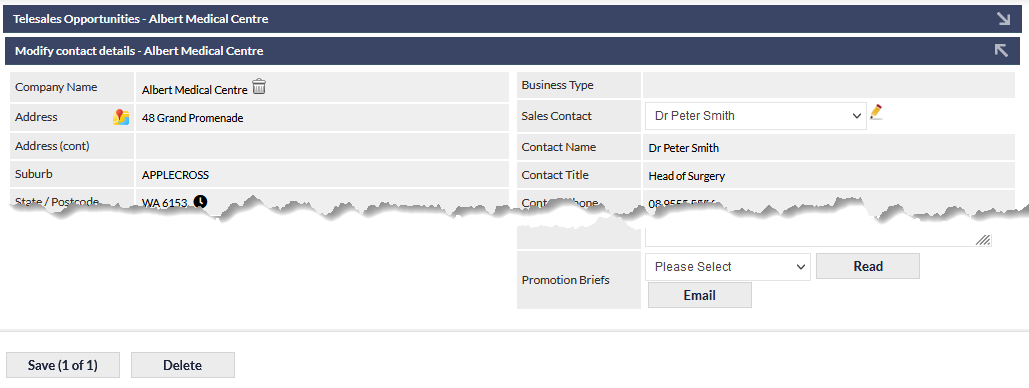
Once clicked, the opportunity record is displayed:
 Editing Contact Information
 Editing Contact Information
If the Contact Details section is read-only (as shown in the previous image), it can be updated by clicking the Main Info tab at the top of the screen (not shown in the previous image). Once updated, and saved, return to the opportunity by clicking the Telesales tab, and selecting the required opportunity.
Customer Association
The trash can icon located adjacent to the Company Name indicates that this opportunity is associated with an existing Customer record. Clicking the trash can icon immediately disassociates the opportunity from the Customer.
If an opportunity is not associated with a Customer, the company fields will be editable:
 Optionally, the opportunity can be associated with an existing customer. The Existing Customer field is a standard CommTrak search field; entering a minimum of three matching consecutive characters into the field will display a list of matching Customer records (if any), and selecting one of those records will associate the opportunity with the Customer.
Calling an Opportunity
Starting a call within the CommTrak Telesales module, ensures that the duration of the call is recorded within CommTrak, and that information collected during the call, is saved for future reference.
During, or after the call, the outcome can be specified and saved.
Starting a Call
To start a call, click the green Start Call button:
 When a call is started within CommTrak, a handset icon will appear in the title bar at the top of the screen. The handset icon will remain on display in the title bar until the call has been ended, saved and submitted, or if the call is cancelled or deleted:
 Once clicked, the Calls field updates as shown:
 The duration of the call is updated in real-time.
Cancelling a Call
If the call was started accidentally, click the Cancel Call button.
Updating Opportunity Fields
During, or after a call (but prior to the call being submitted), the opportunity fields can be updated as required.
Making an Appointment
Click the + icon in the appointment field:
 A new browser tab will open displaying your CommTrak calendar.
If you are making an appointment on behalf of another team-member, select their name by clicking My Calendar, then choose their name from the drop-down list to display their calendar.
When you have ensured that you are viewing the correct calendar, click a day (or date, depending on your calendar view) to display the Add new event pop-up window:
 Update the event fields as required, and click button Add to confirm the appointment.
The new event will be displayed in the CommTrak calendar.
Close the Calendar tab in the browser, to return to the opportunity calling screen.
The Appointment field is updated to display the next appointment details:
 The two icons are:
- Pencil - edit the appointment
- Clock - history; display a pop-up window listing all appointments for this opportunity
Setting a Follow-Up
If the contact is unable to take the call, you can specify a date for a follow-up call:
 Select a date and time, and Save the opportunity. The opportunity will be displayed in the Telesales Opportunities with Follow-Up reached section of the Telesales Opportunities (List) screen, when the call becomes due.
Adding a Data Sheet
In the Add new data sheet section, select the required Data Sheet from the drop-down list, and complete the fields as required (noting any mandatory fields, as designated with a red asterisk).
 Click button Add to save the Data Sheet.
Promotion Briefs
Promotion briefs are created by the Telesales Manager, and consist of two separate elements:
- A promotional script
- An email template
To access a promotion brief, select the required item from the drop-down list adjacent to the Promotion Briefs field:
 Clicking button Read will open a new browser window containing the script. The script window can be resized, moved and closed as required.
Clicking button Email will open the email pop-out window, pre-populated with the promotion subject and body, as created by the Telesales Manager. Modify the message and add up to three attachments as required, and send the email. Please refer to Support Centre article, Notes & Emails, for detailed information pertaining to the sending of emails from CommTrak.
Ending a Call
When the call has been completed, click the red End Call button.
Correcting Call Duration
The call duration can be corrected by a CommTrak user with Telesales Manager or Supervisor permissions, however, a correction can only be made after the call has ended and prior to the call being submitted. Do not submit a call, if the call duration is incorrect, as this may negatively affect your Telesales call statistics.
Submitting a Call
Prior to submitting the call, ensure that all relevant fields have been completed accurately; in particular, the call outcome and call duration cannot be modified after the call has been submitted. Select the appropriate call outcome from the Call Outcome drop-down list:
 Some of the options in your call outcome list will be different to the ones shown in the example image, as the list will have been customised for your organisation's purposes.
When the Call Outcome has been selected, and all other fields have been populated appropriately, click button Save at the bottom-left of the screen. The following pop-up dialogue box will be displayed:
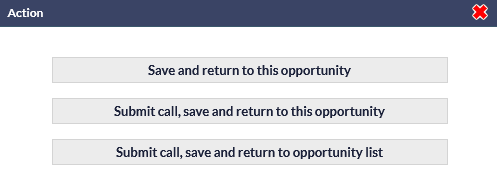 Save and return to this opportunity: save the current record and return to the current opportunity screen, without committing the call
- Submit call, save and return to this opportunity: save the record, submit the call and stay on this opportunity screen
- Submit call, save and return to opportunity list: save the record, submit the call and return to the Telesales (List) screen
 Save and return to this opportunity: save the current record and return to the current opportunity screen, without committing the call
Once a call has been submitted, the action cannot be reversed; the call is committed and and the call details are recorded for statistical analysis. If there is any incorrect information in the opportunity, you should correct it prior to submission, as some fields, such as Call Outcome and some data, such as call duration, cannot be adjusted once submitted.
Returning to an Open Telesales Call
Only one call per user can be open at any time, so it is vital that all calls are closed correctly. to be closed, a call that was started, must have been ended, saved and submitted.
If the handset icon is on display in the CommTrak Information Bar, this indicates that a call is currently in progress (i.e. it has been started but not been submitted):
 To return to the call, so that it can be submitted:
- Click the handset icon in the Information Bar
- Select the open opportunity from the list of displayed Active Opportunities for the contact / Customer (this will display that Opportunity calling screen)
- Ensure the call is ended, saved and submitted
If you are Unable to Start a Call
If you are unable to start a call, firstly, ensure that you have correctly closed any call that may have been left open.
If you are unable to close a previously open call, please refer the issue to your Telesales Manager / Supervisor, who will be able to 'force-delete' the call.