
Customer Surveys
Overview
Customer Surveys let you ask customers for feedback on the service they have received. When a survey is sent, the customer receives an email containing a link to a short questionnaire. Their scores and comments are recorded in CommTrak, staff can be alerted when a low score is given, and all responses are summarised in the Dashboards Hub.
Surveys use the Net Promoter Score (NPS) method, a widely used way of measuring customer satisfaction and loyalty. Customers score their experience on a scale (for example, how likely they are to recommend your business to others) and can add comments. Tracking these scores over time shows how satisfied your customers are and highlights where follow-up is needed.
Sending surveys from tickets is the first phase of Surveys. In this phase, Surveys are integrated into the Ticket screen and the user selects the survey to send. In a later phase, Surveys will become part of the Automations module, where surveys are sent automatically based on specified triggers. For example, an automation can send the survey that suits the type of ticket, without a user selecting it. When surveys are sent by automation, the Send Survey option is not displayed on the Ticket screen.
Surveys are created and maintained by administrators. For details, see Customer Surveys (Settings). Only surveys that are active are available to select when sending.
Sending a Survey
A survey is sent manually from the ticket. It is sent to the customer's contact when a ticket is closed.
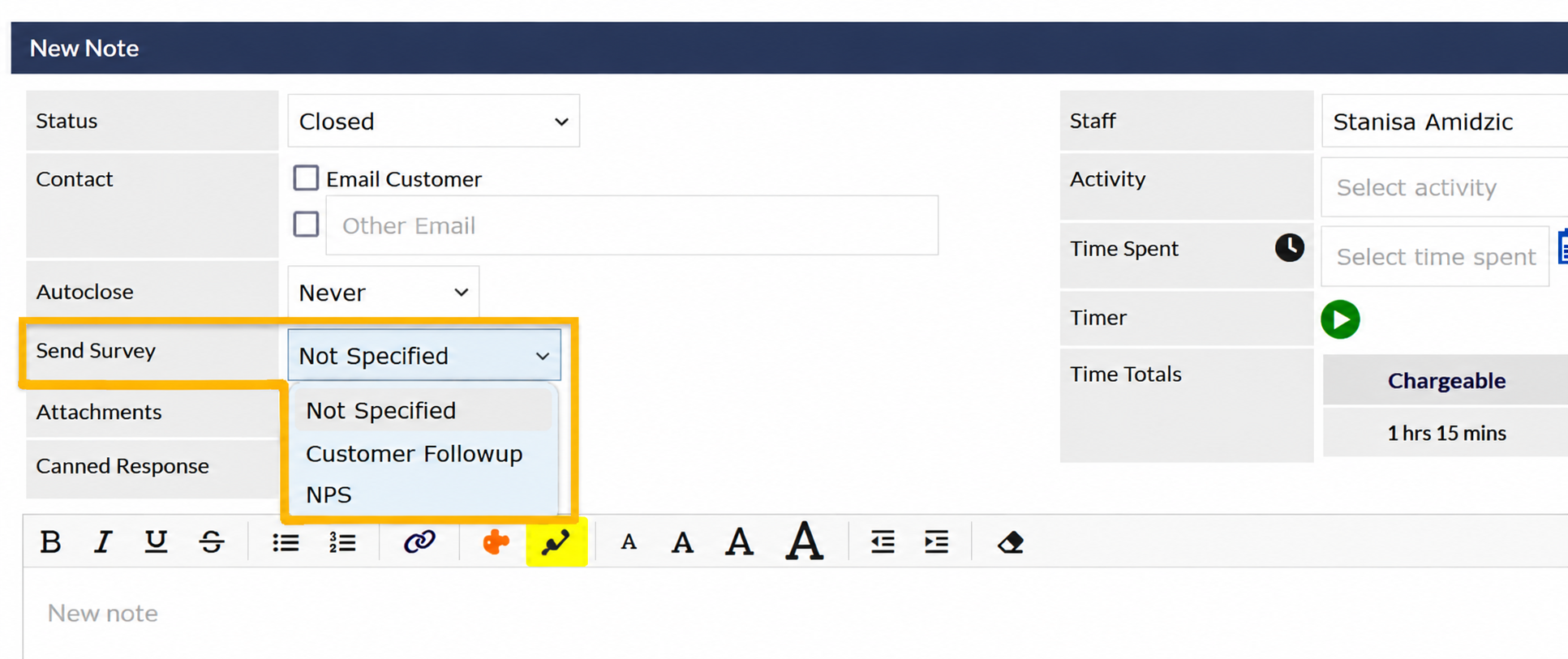
- Open the ticket and go to the New Note section.
- Set the Status to Closed. The Send Survey field is displayed.
- In Send Survey, select the survey to send. The list shows the surveys available in your organisation. Leave the field as Not Specified if you do not want to send a survey.
- Select Save. The note is added and the selected survey is sent to the ticket contact.
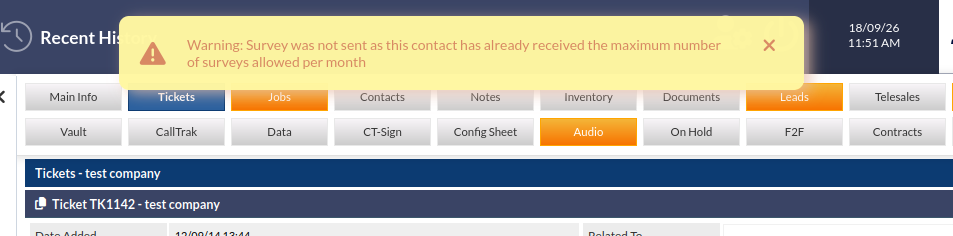
Each contact can only receive a limited number of survey emails. Administrators set the maximum number of survey emails per contact per month and the minimum number of days between survey emails. If the contact has already received the maximum number allowed, the survey is not sent and a warning is displayed.
What the Customer Sees
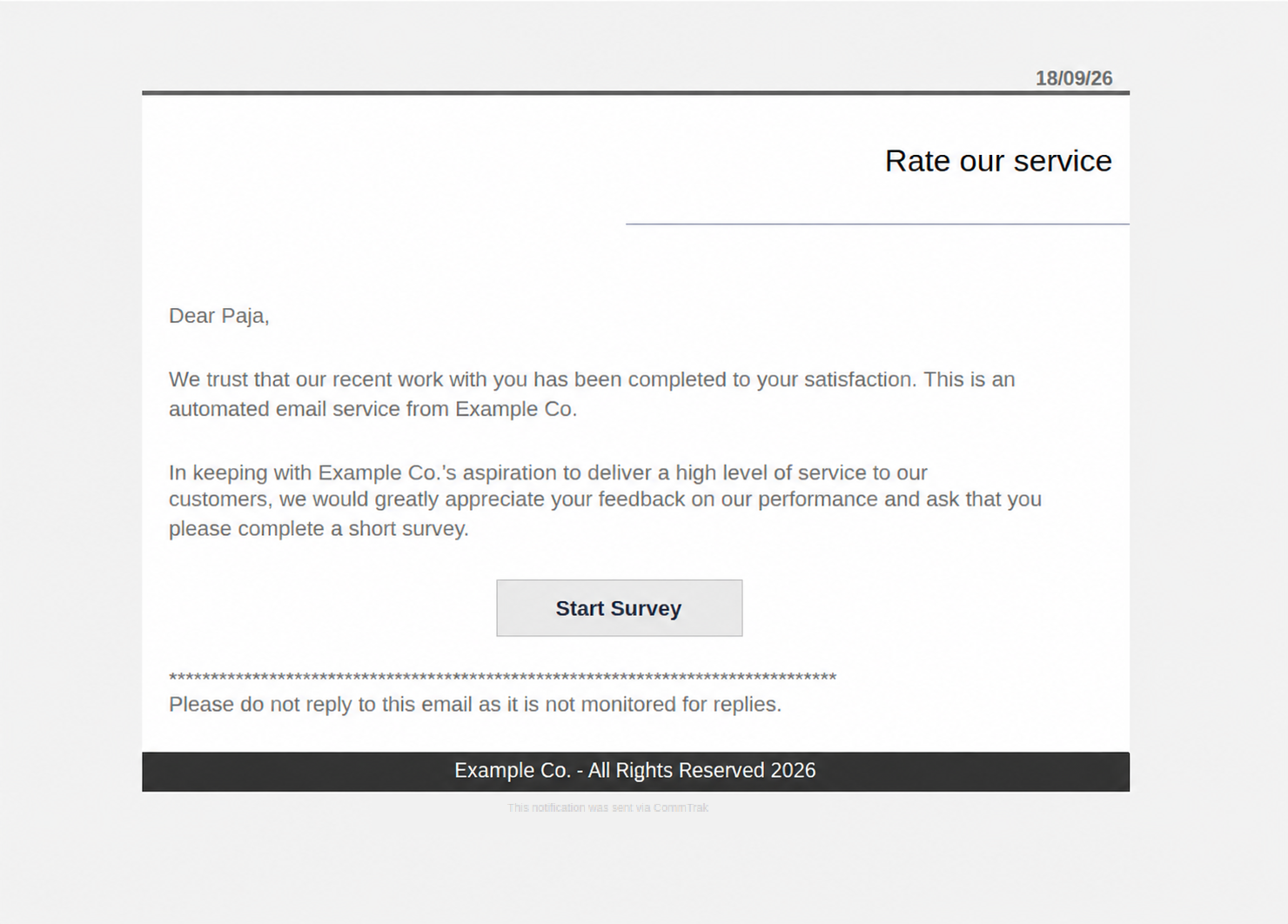
The customer receives an email inviting them to complete a short survey. The email contains a Start Survey button.
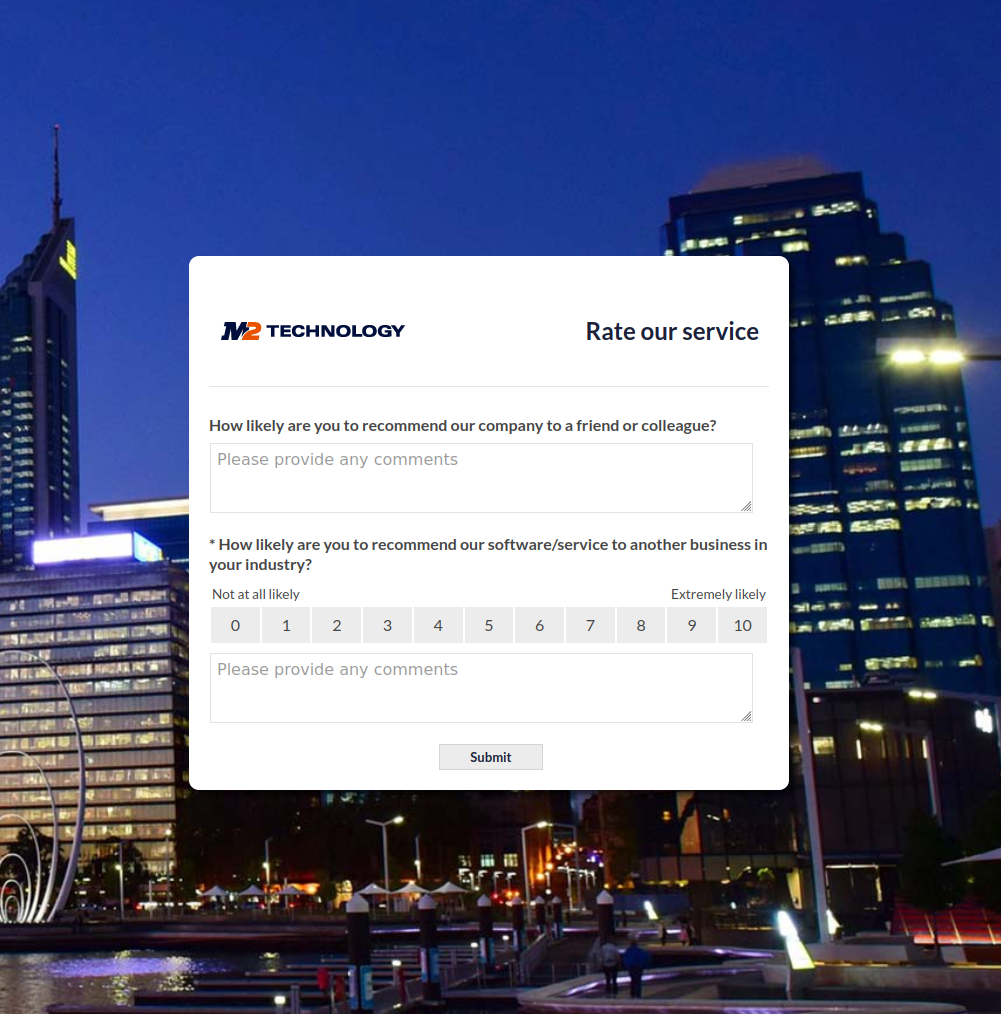
Selecting Start Survey opens the survey page in the customer's browser. The page shows each survey question, a scoring scale where the question is scored, and a comments box. A question marked with an asterisk () must be answered. The customer selects Submit* to send their response.
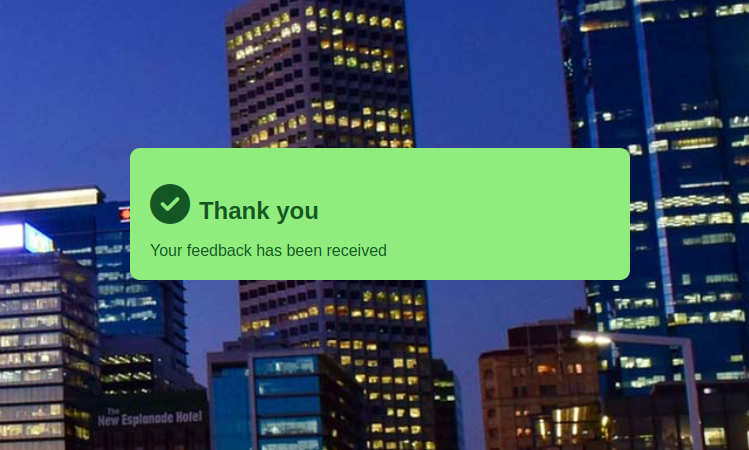
After the response is submitted, the customer sees a confirmation message.
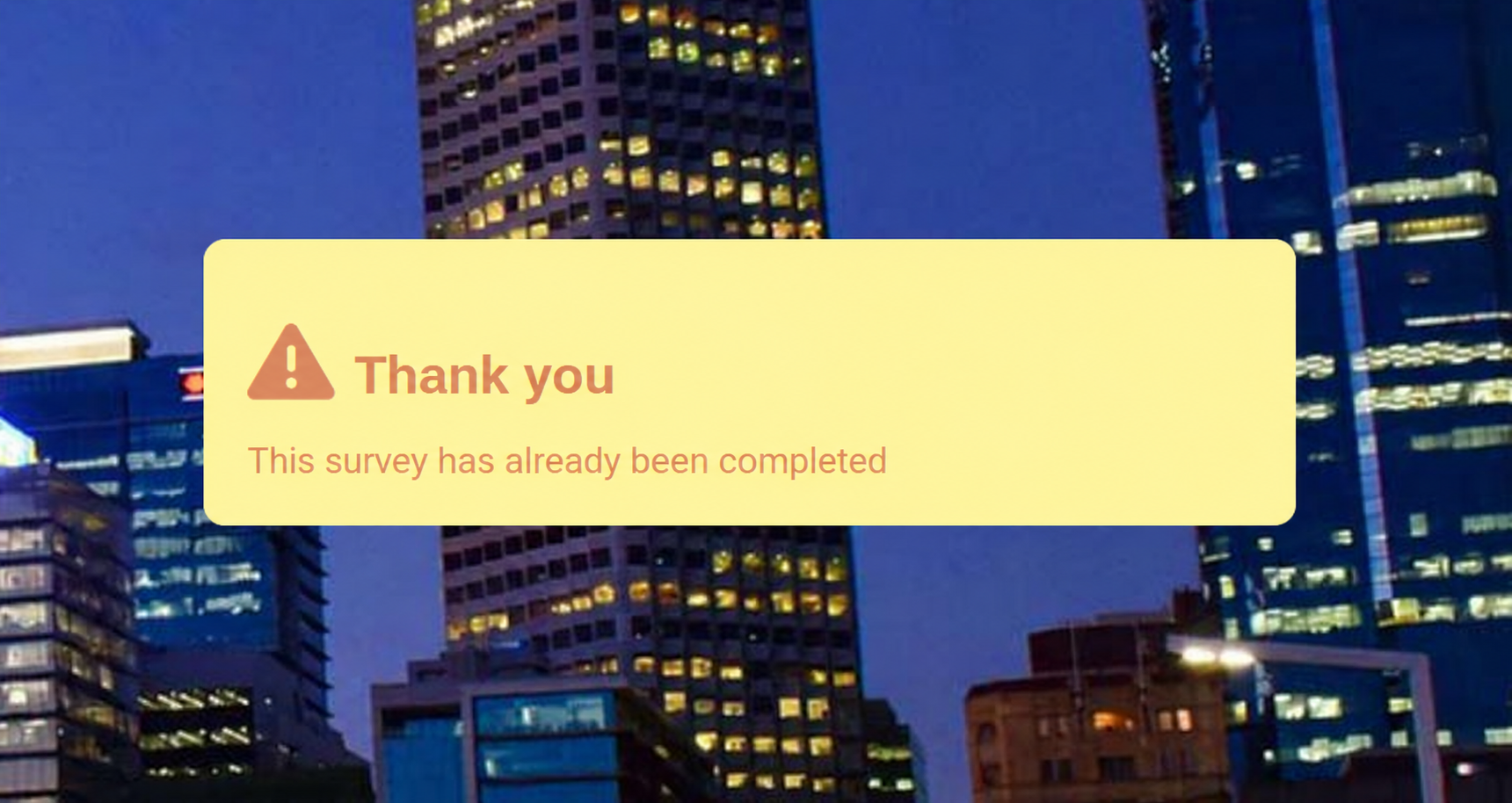
Each survey link can only be completed once. If the customer opens the link again after submitting, a message advises that the survey has already been filled in.
Low Score Alerts
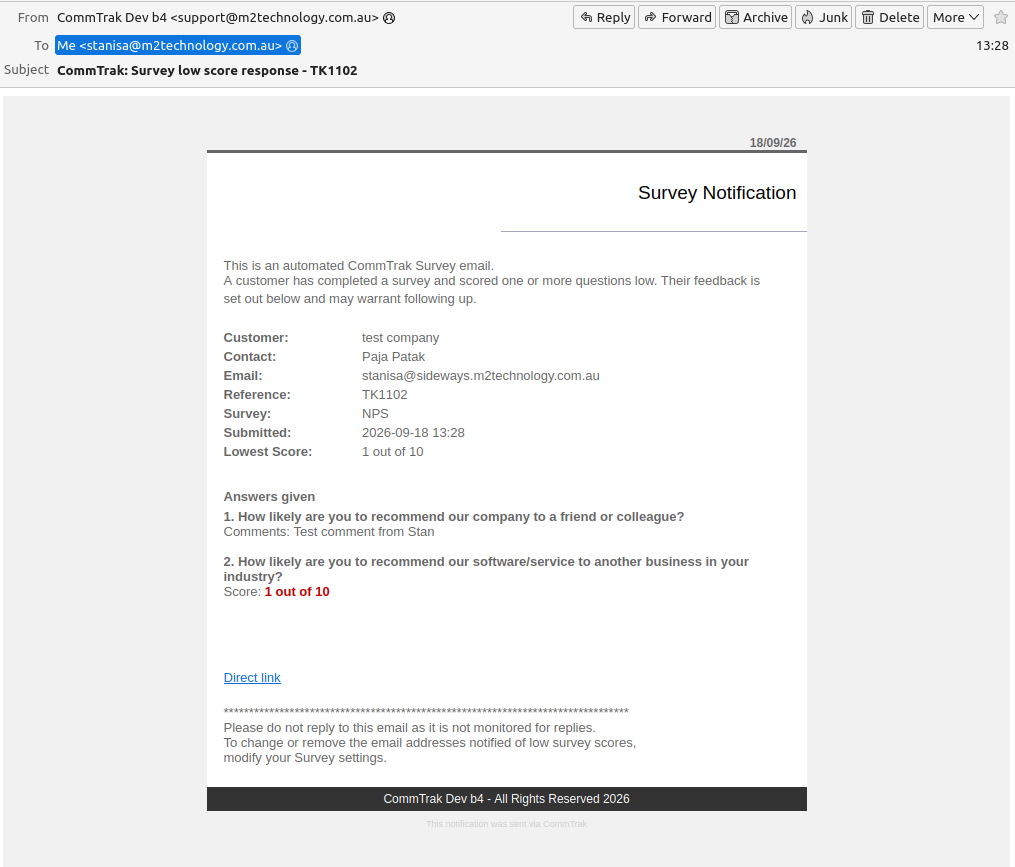
When a customer gives a score at or below the alert score set by your administrator, CommTrak sends a low score alert email to the addresses configured in the survey settings. The email includes:
- The customer, contact and contact email address
- The ticket reference and the survey name
- The date and time the survey was submitted
- The lowest score given
- The questions, scores and comments submitted
- A direct link to the ticket
Viewing Survey Results
Survey responses are summarised in the Surveys tab of the Dashboards Hub. For information about using the Dashboards Hub, see Dashboards Hub. Access to the Dashboards Hub is controlled by permissions, described in Dashboards Hub Access (Settings).
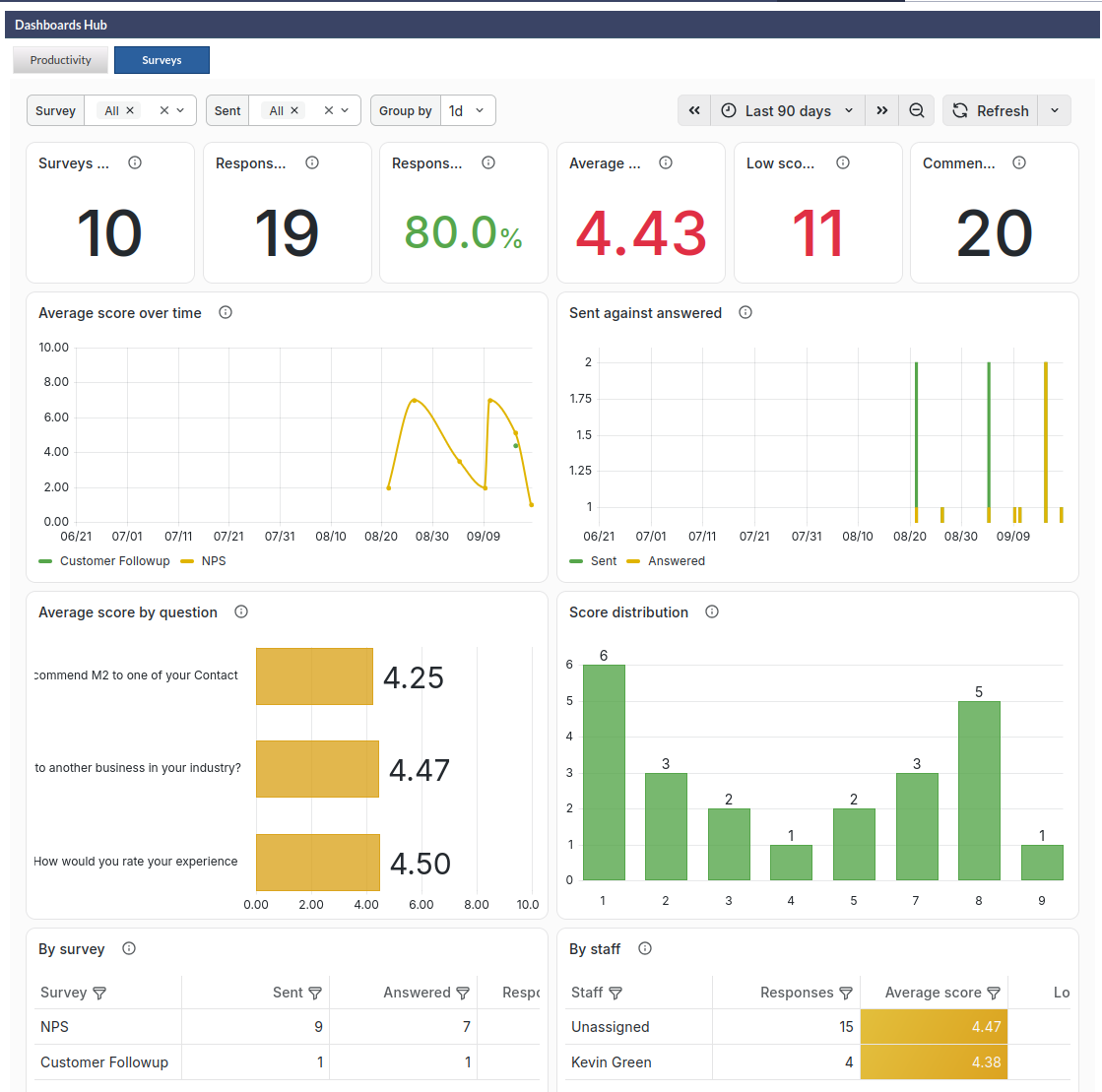
The Surveys tab includes:
- Summary tiles showing the number of surveys sent, responses received, response rate, average score, low scores and comments
- Average score over time: the average score for each survey over the selected period
- Sent against answered: the number of surveys sent compared with the number answered
- Average score by question: the average score for each scored question
- Score distribution: the number of responses at each score
- By survey and By staff: tables summarising results for each survey and for each staff member
Use the Survey filter, the date range and Group by to refine the results shown.
Related Information
- Surveys are sent from the ticket note, as described in Creating / Modifying a Ticket.
- Administrators create surveys, set the sending limits and choose who receives low score alerts. See Customer Surveys (Settings).